




 Home


How to show Strikethrough prices on sales orders in inFlow
The Strikethrough prices plugin shows what a customer would have paid next to what they’re actually paying. When a line is sold below its pricing scheme’s price, inFlow strikes through the original figure on the order, and you can print those original prices on your sales documents too.
What is a plugin?
A plugin adds one focused feature to inFlow: a new card on a page, a new option in a menu, or a new rule that runs when you save an order. Nothing changes until an administrator installs it, and everything it added disappears if you uninstall it. Plugins are different from integrations, which connect inFlow to another service like Shopify or QuickBooks Online.
Before you start
- The plugin has to be installed before any price is struck through. See the next section for the steps. Once it’s installed, the struck-through prices appear for everyone.
- The struck-through unit price is in inFlow for Web. inFlow for Mobile shows the struck-through subtotal only, and neither appears in inFlow for Windows.
- Original prices are worked out from the line’s pricing scheme. See how to add special pricing (multiple pricing schemes) for how schemes work, and how to set up volume pricing in inFlow if you use volume tiers.
- This plugin has no settings page.
How to install the Strikethrough prices plugin
Only administrators can install a plugin. If you’re not an admin, you won’t see the Plugins page at all, so ask an admin on your team to turn it on for you.
- Open your Plugin Settings in inFlow, or click the Settings icon in the Main Menu, then Plugins.
- Select the Strikethrough prices card to open its details.
- Select Install Plugin. The plugin moves up to the Installed section at the top of the page.
- Refresh or move to another screen, then open a sales order with a discounted line to see the original price struck through.
For the full tour of plugins, including what else is available, see Plugins: add new features to inFlow.
What gets struck through on an order
A line’s full price is its quantity at the pricing scheme’s price for that product, or at the line’s own price when that’s higher. inFlow compares that with what the line actually comes to.
- When the unit price is below the scheme’s price, because a volume tier applied or because someone typed a lower price, the scheme price shows struck through above the unit price.
- When only a discount has been applied, the unit price isn’t struck through. The saving already shows in the struck-through subtotal.
- Return lines and lines with a quantity of zero never show original prices.
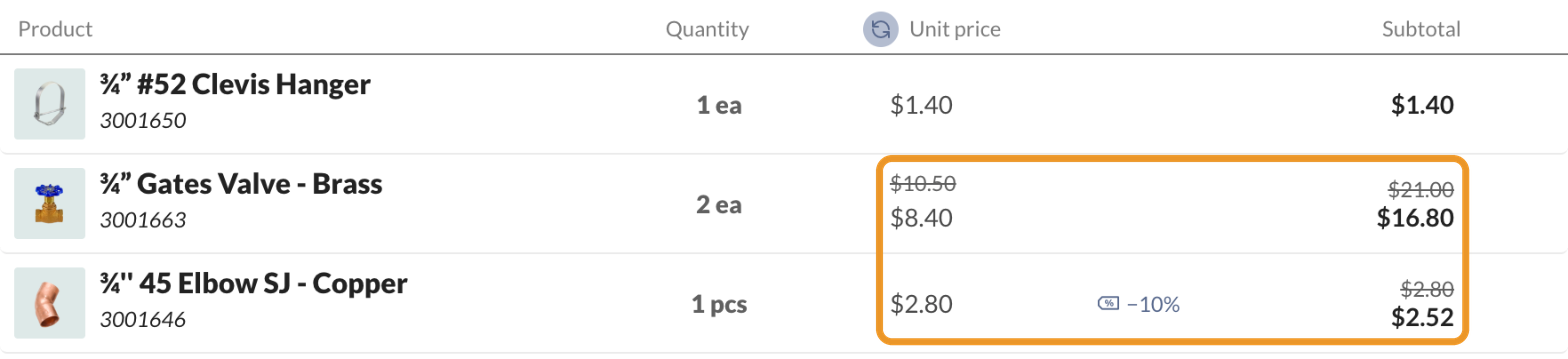
Note: Every figure on the order stays exactly as it would be without the plugin. The plugin only adds the struck-through values above them.
How to print original prices on your documents
Original prices can go on any sales document that lists order lines, which covers sales orders, invoices, sales quotes, receipts, credit notes and custom documents built on order or return lines.
- Open the Document Designer and choose the document you want to change.
- Select the product table on the document.
- In the Product details panel, use Search columns to find Reg. price and Reg. subtotal, then select each one to add it.
- Select Save & close.
On a discounted line, Reg. price prints the unit price before the discount, and Reg. subtotal prints what the line came to before the discount. Both print struck through by default, and you can turn off the Strikethrough toggle under each column’s Options. You can rename them like any other column.
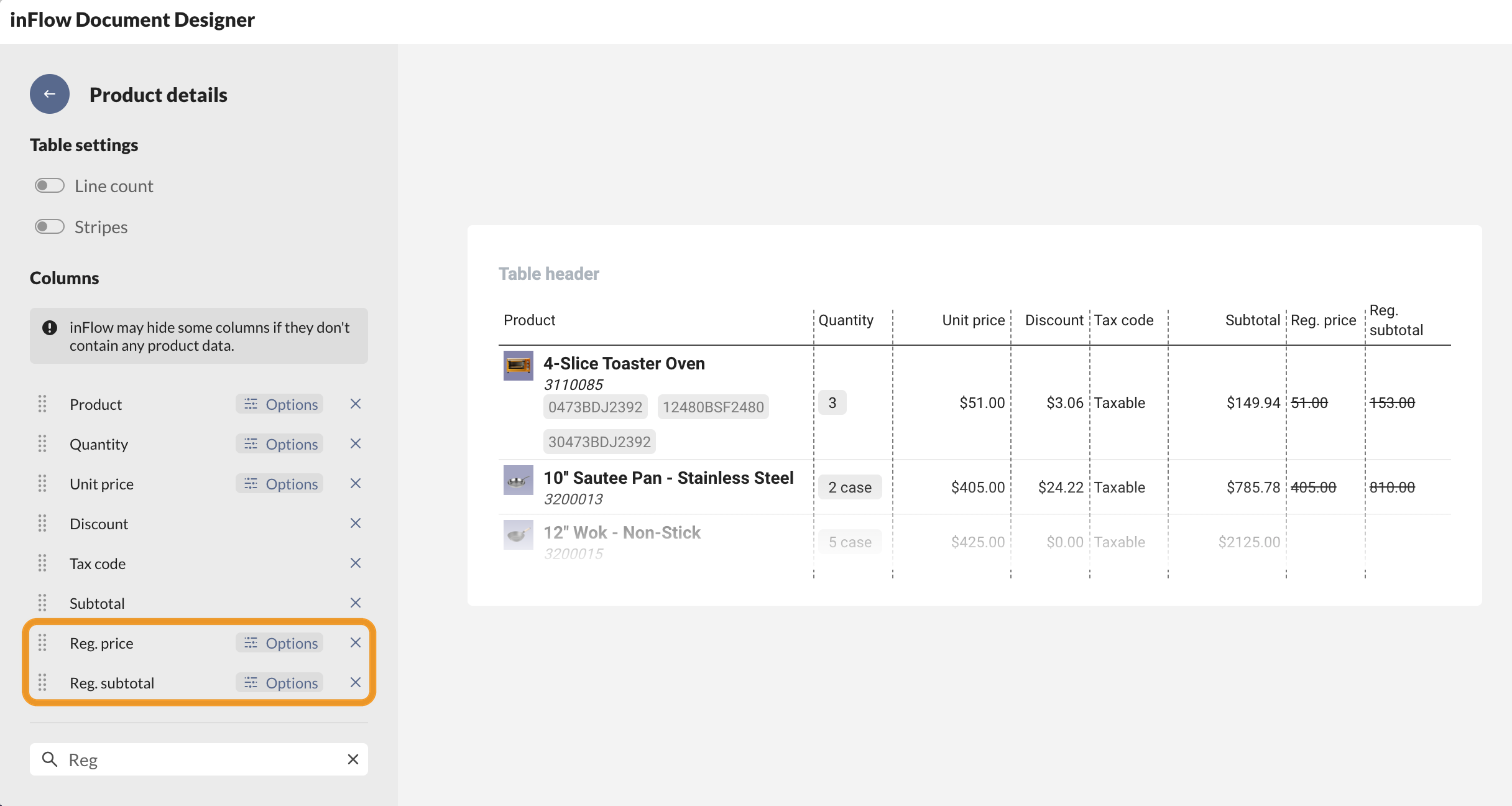
Lines with nothing taken off print blank in these columns, and a column is left off the document altogether when no line on it was brought down. A line with a price typed below its pricing scheme’s price also prints blank, even though inFlow strikes through the scheme price on the order.
Original prices are recorded each time an order is saved. inFlow saves any unsaved changes when you select Print, so the printed columns match what’s on screen. Orders saved before the plugin was installed print nothing in these columns until they’re saved again.
Documents that don’t offer these columns
Reg. price and Reg. subtotal aren’t offered on pick lists, packing slips, box labels, or box content lists. Those documents cover what’s being moved rather than what it costs.
Uninstalling the plugin
Uninstalling Strikethrough prices doesn’t change the prices on orders you’ve already saved. Each line keeps the original price it was saved with, so those figures print again if you install the plugin later.
Only administrators can uninstall a plugin.
- Click on the Settings icon, then Plugins.
- Under Installed, select the Strikethrough prices card.
- Select Uninstall, then confirm.
The struck-through prices come off your orders, and the columns are no longer offered in the Document Designer or printed on your documents.
Helpful related articles
 Yes, thanks!
 Not really


0 Comments