 Fellow Canadians: All inFlow plans are available in Canadian dollars



 Home
Home


How to protect completed orders from being modified
Securing older orders is vital to maintaining inventory accuracy. See below for how inFlow can help you protect historical orders.
Please note that this feature is only available on select plans or add-ons.
Web
In inFlow, administrators can restrict editing access to completed orders. Admins can set the order closing date, and only they can edit it afterward if they choose.
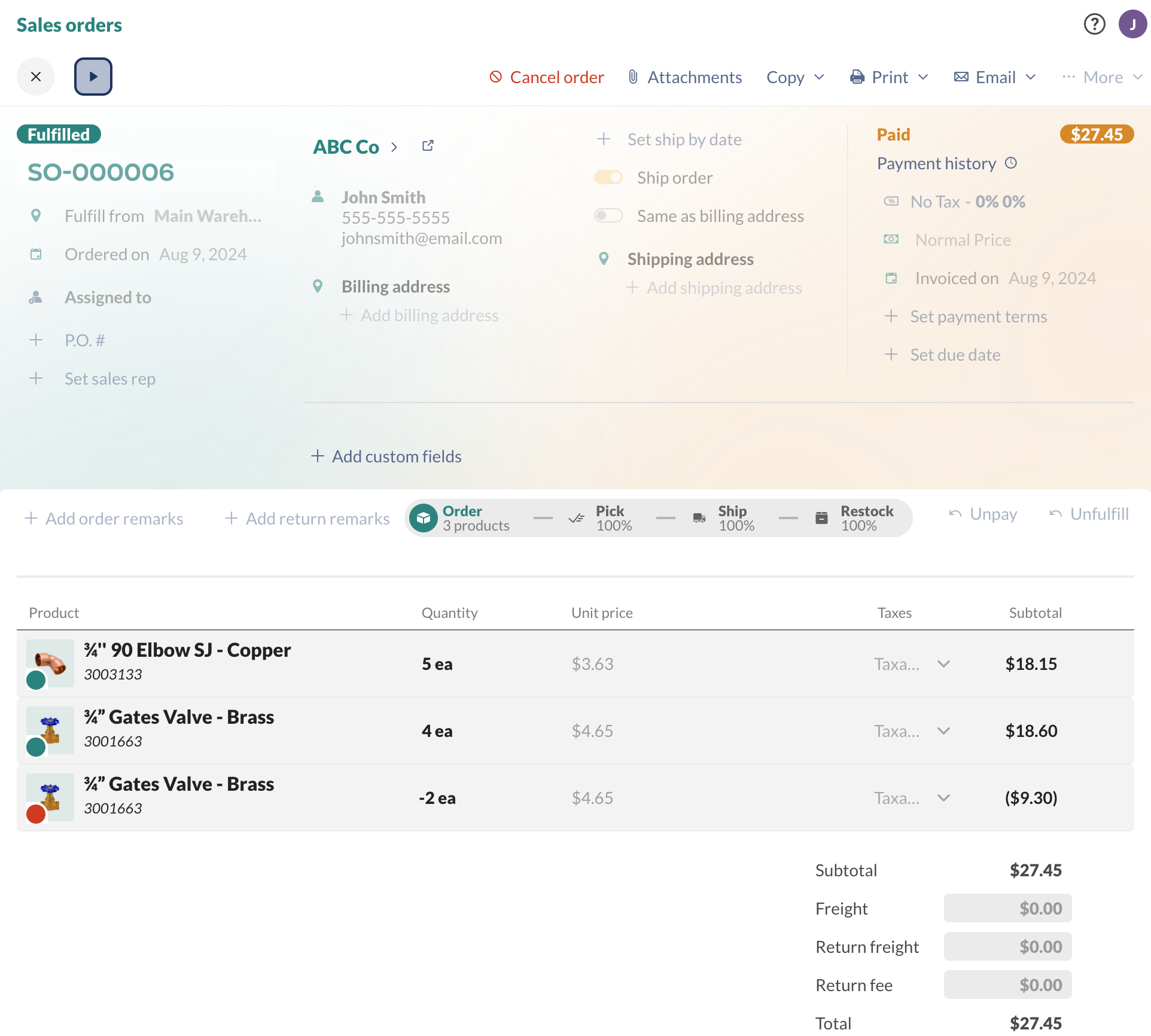
You can close an order when it’s marked Fulfilled. Unfulfilled orders will never get closed.
- Go to Global settings (Main Menu > Settings> Global)
- Click on Close transactions.
- You can set the number of days after fulfillment for orders to close, or you can set all transactions before a certain date to be marked as closed.
- Click Save when done.
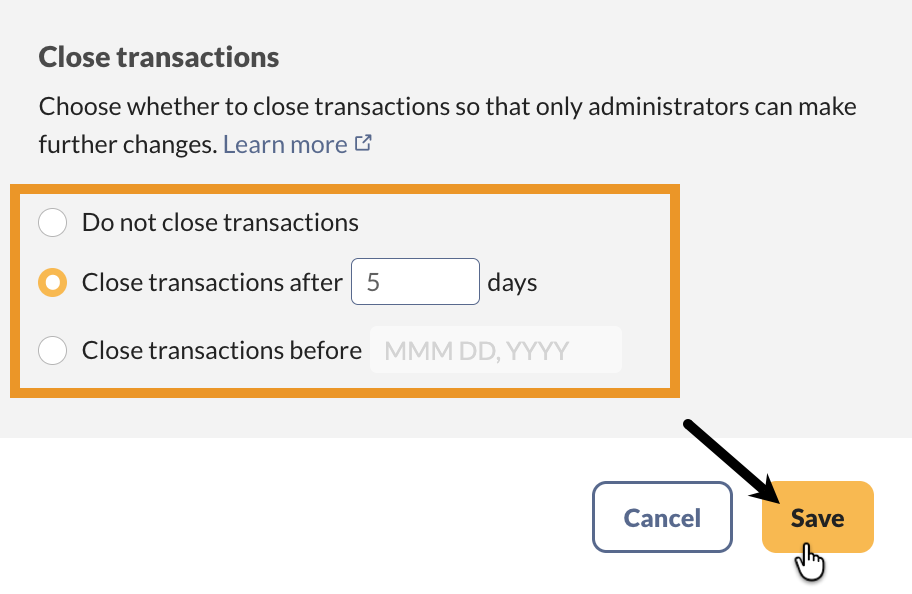
Close transactions settings
Do not close transactions
This is the default setting in inFlow, where orders won’t close until an inFlow admin changes the settings. This setting allows any user to modify any order at any time.
No matter which setting is selected, inFlow administrators won’t see any change to sales orders, and they can still edit them at any time.
Close transactions after ___ days
This setting is helpful if you have a cancellation/refund policy that is for a certain number of days after fulfillment. Once the set number of days has passed, the sales order will be closed for editing.
Close transactions before [date]
To protect historical orders, select Close transactions before ____ setting. This prevents older orders from being edited.
Which record types are affected by these settings and will be closed?
Although these settings only mention orders, all of the following record types are affected by the Close Old Orders settings:
- Sales orders: would get closed only if Inventory Status = Fulfilled
- Purchase orders: would get closed only if Inventory Status = Fulfilled
- Stock adjustments: would get closed only if Status = Completed
- Stock transfers: would get closed only if Status = Completed
- Stock counts: would get closed only if Status = Completed
- Manufacture orders: would get closed only if Status = Completed
What date does inFlow use to mark an order as closed?
This depends on the type of record. As an example, let’s say “Only admins can modify orders older than 30 days” is selected.
For a sales order, inFlow checks the Invoice Date; if it’s more than 30 days since the order was marked Fulfilled, the sales order will be closed. If the Invoice Date is unavailable (if the order has not been invoiced), then inFlow will check the Order Date.
- Sales orders: checks Invoice Date if available, otherwise Order Date
- Purchase orders: checks Order Date
- Stock adjustments: checks Date
- Stock transfers: checks Date
- Stock counts: checks Finish Date
- Manufacture orders: checks Finish Date
Not sure where your Invoice date/order date is in the sales order? Check out this article.
Windows
In inFlow, administrators can restrict editing access to completed orders. Admins can set the date for when to close an order, and only they can edit it afterward if they choose.
You can close an order when it’s marked Fulfilled. Unfulfilled orders will never get closed.
- In the Windows app, go to the Main Menu > Options > Settings.
- While in the Company tab, scroll to the Close transactions section.
- Click on Manage close transactions.
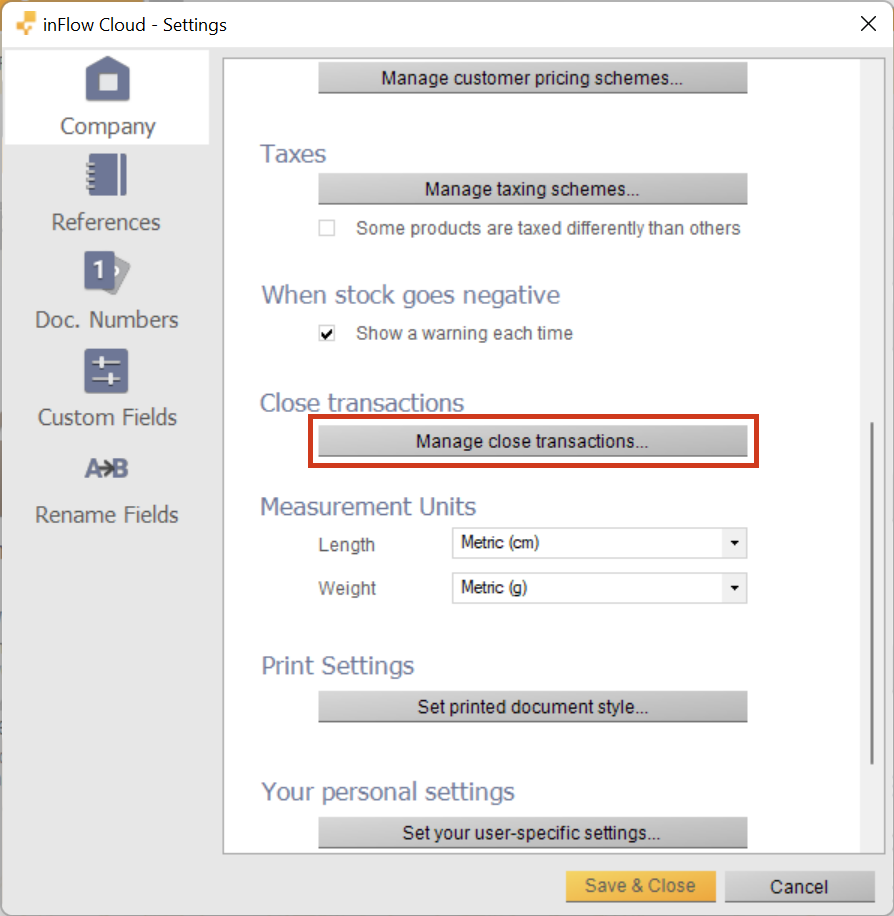
- You’ll be redirected to the Close transactions on the inFlow Inventory web app.
- You can set the number of days after fulfillment for orders to close or you can set all transactions before a certain date to be marked as closed.
- Click Save when done.
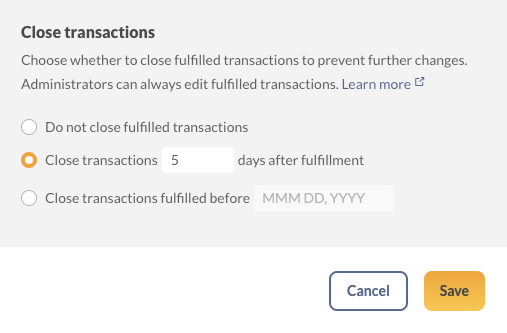
The settings are:
- Do not close old orders
- Only admins can modify orders older than __ days
- Only admins can modify orders before _____ (date)
For example, if you have a 30-day cancellation/refund policy, you can set it so that only administrators can modify orders completed more than 30 days ago. Or, if you would prefer to lock all orders before a specific date, you can set that date instead of using the “older than __ days” setting.
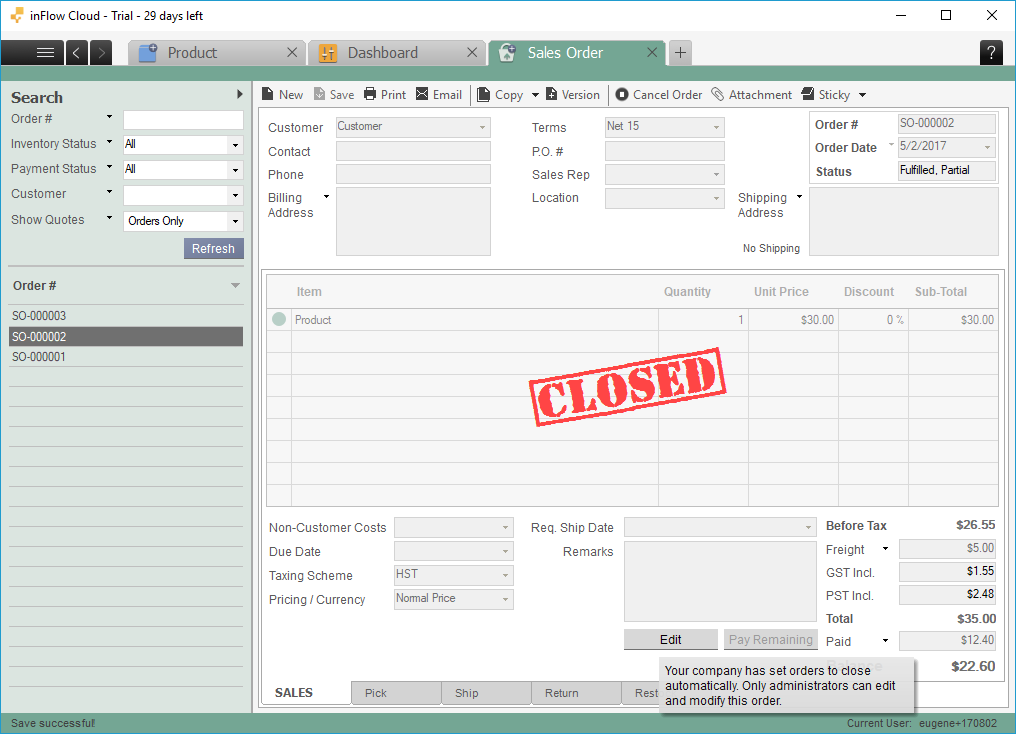
You can also set it to “Do not close old orders” (default), which means any order, at any time, can be modified by any user.
When an order is closed, its data is locked (read-only) for all users. However, only administrators can access the Edit button at the bottom of the order, which opens the order for editing.
Which record types are affected by these settings and will get “closed”?
Although these settings only mention orders, all of the following record types are affected by the Close Old Orders settings:
- Sales orders: would get closed only if Inventory Status = Fulfilled
- Purchase orders: would get closed only if Inventory Status = Fulfilled
- Stock adjustments: would get closed only if Status = Completed
- Stock transfers: would get closed only if Status = Completed
- Stock counts: would get closed only if Status = Completed
- Manufacture orders: would get closed only if Status = Completed
Which date does inFlow use when an order should be marked as “closed”?
This depends on the type of record. As an example, let’s say “Only admins can modify orders older than 30 days” is selected.
For a sales order, inFlow checks the Invoice Date; if it’s more than 30 days since the order was marked Fulfilled, the sales order will be closed. If the Invoice Date is unavailable (if the order has not been invoiced), then inFlow will check the Order Date.
- Sales orders: checks Invoice Date if available, otherwise Order Date
- Purchase orders: checks Order Date
- Stock adjustments: checks Date
- Stock transfers: checks Date
- Stock counts: checks Finish Date
- Manufacture orders: checks Finish Date
Not sure where your Invoice Date / Order Date is in the sales order? Check out this article.
 Yes, thanks!
  Not really

there is a window of 24 hours to modified order and thief products. Very bad.
I think I’ll start looking for other software.