 Fellow Canadians: All inFlow plans are available in Canadian dollars



 Home
Home


Connecting inFlow to ShipStation (beta)
Ready to ship your inFlow orders with ShipStation? Connecting both platforms keeps your shipping organized. Read below to learn more.
How the inFlow and ShipStation integration works
With this integration, inFlow sends your fully picked sales orders to ShipStation as pending shipments. Once you ship them from ShipStation, inFlow pulls the shipment and tracking details back to keep your sales orders up to date.
You’ll create and pick your orders in inFlow as usual. Once an order is ready to ship, it appears in ShipStation’s awaiting-shipment queue. From there, your team can select a carrier, print a label (or manually mark the order as shipped), and get it out the door.
Take a look at the sections below for a visual of how inFlow and ShipStation are connected.
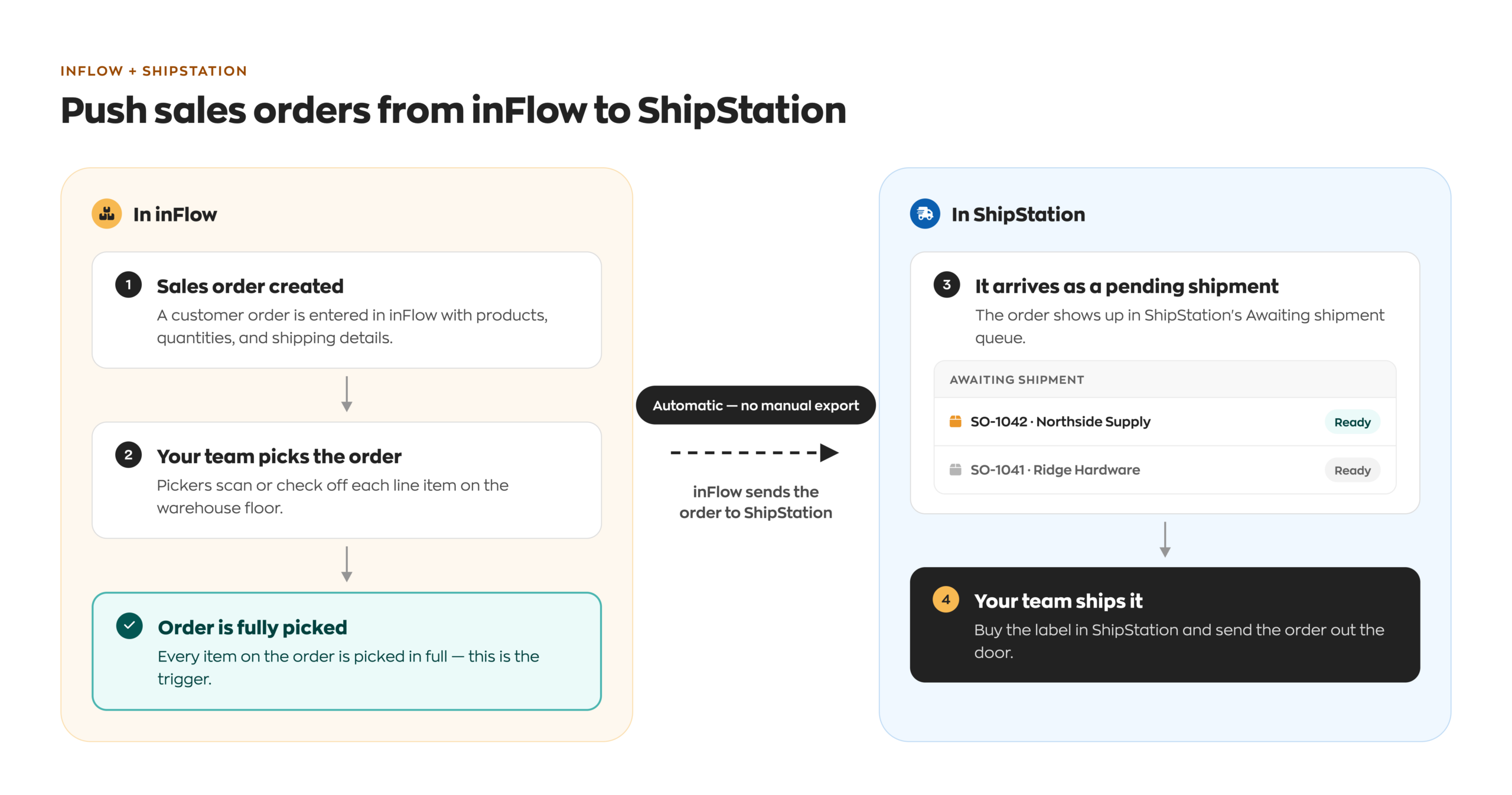
Push sales orders from inFlow to ShipStation
You create and pick sales orders in inFlow. Once an order is fully picked, inFlow automatically sends it to ShipStation as a pending shipment, ready for your team to ship.
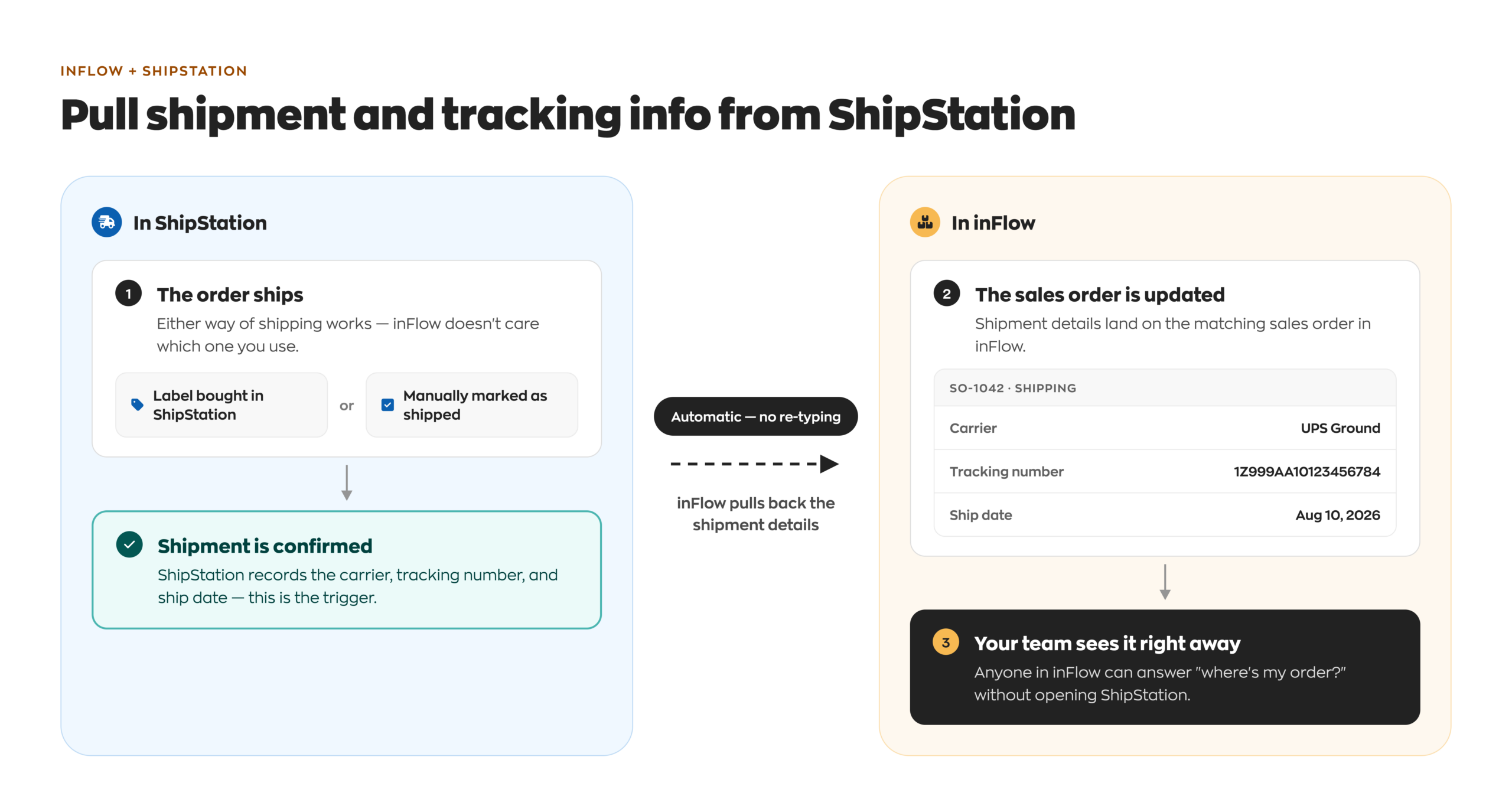
Pull shipment and tracking info from ShipStation
Once an order ships in ShipStation — whether you bought the label there or marked the order as shipped yourself — inFlow pulls the shipment details (carrier, tracking number, and ship date) and automatically updates the sales order.
Unlike some other shipping integrations, ShipStation doesn’t sync your full product catalog. Each order line carries its SKU and product name, so ShipStation always has what it needs to record the shipment correctly.
Before connecting to ShipStation
Product matching
Each sales order line sends its own SKU and product name to ShipStation. When inFlow pulls shipment details back, it matches products by SKU first, then by product name if a product has no SKU.
Because of this, we recommend assigning an SKU to all of your products. The integration can’t distinguish between two different products that share the same name but have different SKUs, so it may mismatch them.
ShipStation requires an SKU for order items, so products without one may not sync as expected.
Ship From Locations
Before connecting, set up your Ship From Locations directly in ShipStation, and name them to match your inFlow location names. inFlow automatically matches a pushed order to the ShipStation Ship From Location with the same name. If there’s no match (or the order has no location), inFlow uses your ShipStation account’s default Ship From Location instead.
ShipStation V2 API key
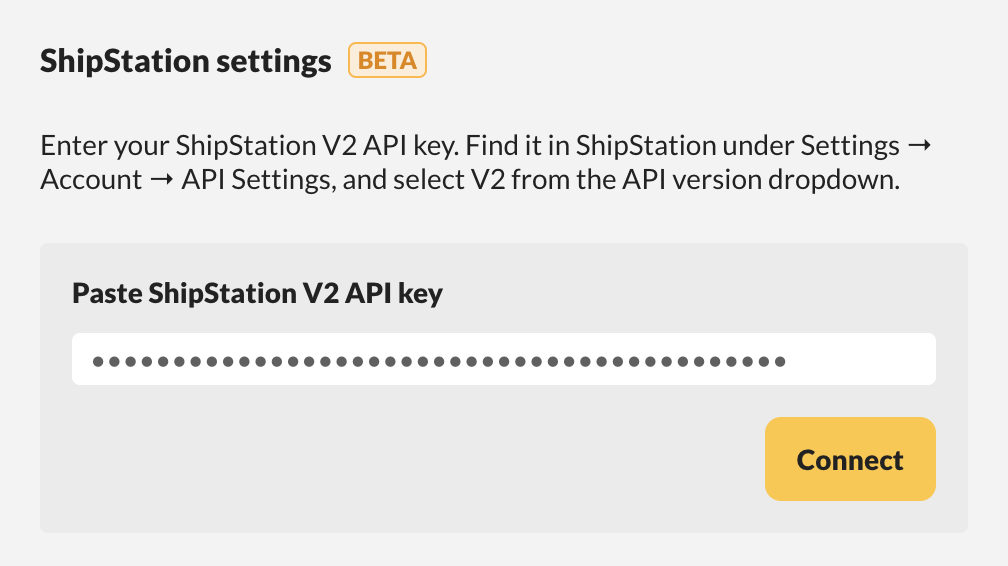
Unlike some other integrations, connecting to ShipStation doesn’t use a login window. You’ll need a ShipStation V2 API key instead. To create one, see ShipStation’s guide to generating API keys.
How to connect ShipStation to inFlow
- Go to inFlow’s integration settings (from the Main Menu, click the Integrations
 icon).
 - Select the ShipStation tile.
- Enter your ShipStation V2 API key.
- Click Connect.
Recording shipping costs
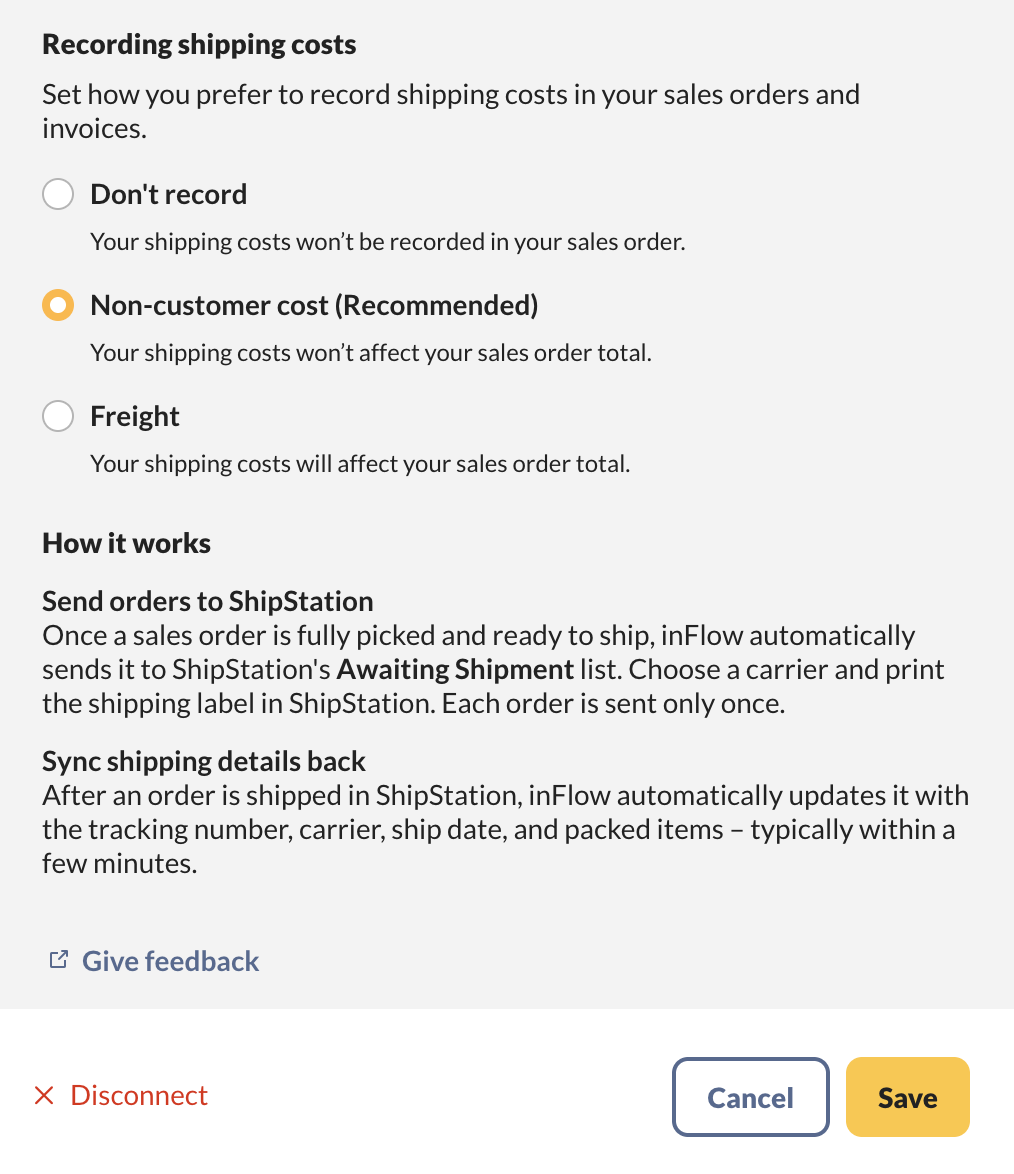
- Once connected, choose how you’d like inFlow to record your shipping costs under Recording shipping costs. Each option is explained below.
- When done, click Save.
| Shipping cost option | What it does |
|---|---|
| Don’t record | inFlow won’t record your shipping costs on your sales order. |
| Non-customer cost (Recommended) | Your shipping costs won’t affect your sales order total but the costs will be recorded in the Non-customer cost field on the sales order. |
| Freight | Your shipping costs will affect your sales order total. |
inFlow stores your API key securely and uses it to authenticate all requests to ShipStation.
Only administrators can connect or change credentials for the ShipStation integration.
Order push settings
inFlow pushes orders to ShipStation automatically when all of the following conditions are met:
- Shipping is turned on for the sales order.
- A picking session has started on the order.
- The order is fully picked.
Once these conditions are met, inFlow sends the order to ShipStation as a single pending shipment with no label. inFlow doesn’t choose a carrier or shipping method for you, so your team can select the shipping method inside ShipStation.
inFlow only pushes an order to ShipStation once. If you change an order after inFlow pushes it, those changes won’t appear in ShipStation.
Location settings
There’s no manual location mapping step for this integration. Instead, inFlow automatically selects the shipment’s origin by matching the order’s inFlow location name to a Ship From Location with the same name in ShipStation. The match isn’t case-sensitive. If there’s no match — or the order has no location — inFlow uses your ShipStation account’s default Ship From Location.
If there’s no matching location and no account default, the push will fail with an error asking you to set up a default Ship From Location in ShipStation.
How tracking information is imported into inFlow
Once an order ships in ShipStation, inFlow updates the sales order’s pack and ship lines to reflect what happened in ShipStation — the carrier, tracking number, ship date, and what your team packed into each box.
inFlow automatically checks for newly shipped orders, so tracking details are reflected in your sales order without any action needed on your part.
Once ShipStation provides shipment info for an order, it becomes the source of truth for that order’s pack and ship lines. ShipStation’s info replaces any pack or ship details you entered manually in inFlow beforehand.
Orders shipped in multiple boxes (split shipments)
If one inFlow order ships as multiple ShipStation shipments (for example, packed as two separate boxes), inFlow pulls tracking info for each shipment. inFlow lists each box separately on the order with its own tracking number.
Multiple orders shipped together (combined shipments)
If several inFlow orders ship together in a single ShipStation shipment, inFlow still updates each sales order individually. Each order only receives its own products and its share of the tracking information.
If an order already has an EasyPost label
If a sales order already has shipping info from an EasyPost label purchased in inFlow, inFlow won’t overwrite it with ShipStation data. Instead, an error appears in inFlow’s integration settings so you can decide how to proceed.
ShipStation features to consider
inFlow doesn’t convert order totals between currencies. inFlow sends the order total as is — it doesn’t convert the value to a different currency for ShipStation.
Here’s how currency works in ShipStation:
- Home country setting: ShipStation assigns this automatically based on the country of the business location you choose during initial account setup.
- No auto-conversion: ShipStation displays the exact numbers your selling platform sends (in this case, inFlow) and doesn’t convert foreign currency values.
- Matching currencies: Make sure your inFlow currency and your ShipStation account’s currency match to avoid calculation errors on the order total.
Order totals may not display correctly in ShipStation’s order list. This is a display issue on ShipStation’s side, not an inFlow bug.
ShipStation requires SKUs. While adding a SKU in inFlow is optional, ShipStation requires one on order items. Products without a SKU may not sync as expected.
inFlow doesn’t always catch voided shipments. ShipStation doesn’t send a void or cancel notification that inFlow can detect, so a voided shipment may not always appear on the sales order. If you void a shipment in ShipStation, double-check the related sales order in inFlow and correct it manually if needed.
inFlow won’t push orders you fulfill another way after picking. If you fulfill an order manually, or ship it with EasyPost, after picking it, inFlow won’t push it to ShipStation — it’s already shipped another way.
Troubleshooting
Couldn’t send this order to ShipStation: no Ship From Location configured. The order’s location doesn’t match any Ship From Location in ShipStation, and your ShipStation account doesn’t have a default Ship From Location set. Set up a default Ship From Location in ShipStation, then retry the push from the error in inFlow’s integration settings.
Couldn’t send this order to ShipStation: [field or message from ShipStation]. ShipStation rejected the order for a specific reason (for example, an invalid address field). Check the message for the affected field, correct it on the sales order, then retry the push.
Couldn’t send this order to ShipStation: unrecognized country. inFlow couldn’t match the order’s shipping country (or, if the order has none, your company’s home address country) to a country ShipStation recognizes. Correct the country on the order or in your company address, then retry.
This order already has EasyPost shipping info. inFlow won’t overwrite shipping or tracking info that came from an EasyPost label purchased in inFlow. Decide which shipping method should apply to this order, then retry if needed.
inFlow automatically retries brief, temporary connection issues with ShipStation (including rate limits). They generally won’t appear as errors unless the problem persists.
 Yes, thanks!
  Not really

0 Comments