 Fellow Canadians: All inFlow plans are available in Canadian dollars




 Home
Home


Extensiv (CartRover) Integration Manager troubleshooting
Extensiv Integration Manager alerts vs. errors
Extensiv Integration Manager alerts
Extensiv Integration Manager alerts are shown in inFlow whenever there is an issue between Extensiv Integration Manager and your connected carts. We provide a view-only list to give you a heads-up that there has been an issue, but you will need to go to Extensiv Integration Manager to fix it.
If you don’t want the alert to show up on your list anymore, you can go to your Extensiv Integration Manager Alerts list and dismiss each one. Clicking on any of these alerts in inFlow will open up a new tab to bring you to your Extensiv Integration Manager alerts dashboard.

Extensiv Integration Manager errors
Extensiv Integration Manager errors are displayed separately from Alerts. These are shown when there is an issue between inFlow and Extensiv Integration Manager. Generally, these will have the option to either be dismissed or retried once the issue has been resolved.

Common Extensiv Integration Manager errors and how to resolve them
How come my orders from my cart didn’t get pulled into inFlow?
The first thing to check would be to see if your order made it from your Cart to Extensiv Integration Manager.
- Login to your Extensiv Integration Manager account.
- Click on Orders
- Do you see your order listed here? If not, then the issue is between Extensiv Integration Manager and your cart
- Check your cart settings by going to your Carts on the navigation menu on the left, then click on your cart (in this example, we’re going to check our BigCommerce cart settings)
- Check when the last time the Last Order Run happened. Is this the date/time after your order was created? By default, the times displayed in Extensiv Integration Manager are in Pacific Standard Time (PST). Was it successful? If it failed, you will need to check your Extensiv Integration Manager Alerts to see what the reason was.
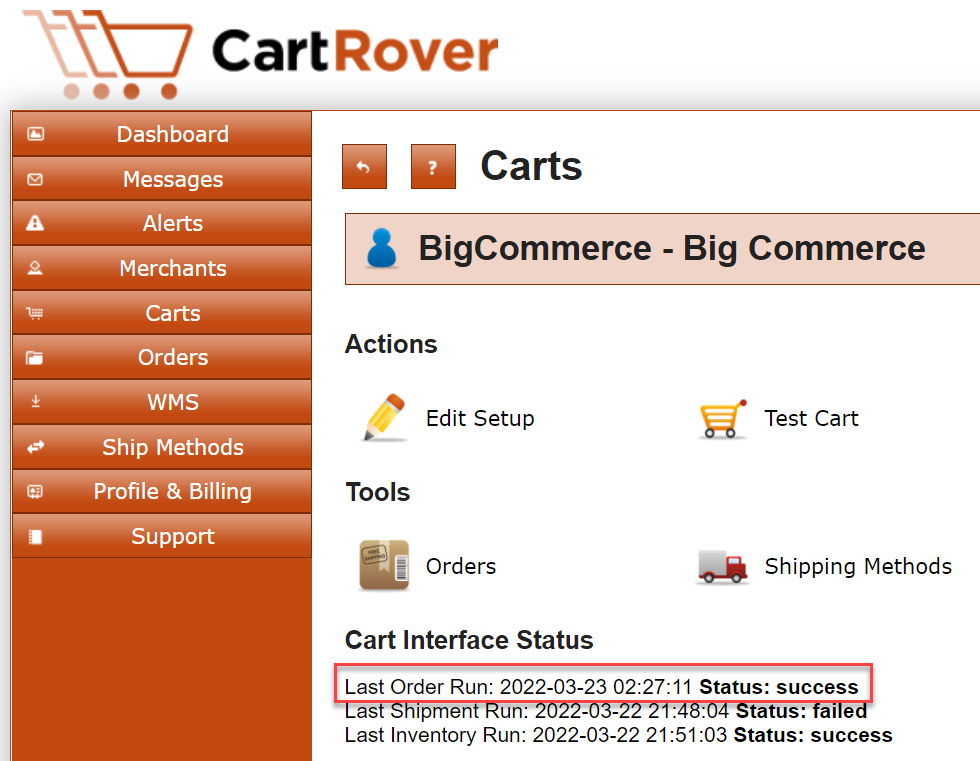
If it was successful and the last order run happened after your order was created, then you should click on “Edit Setup” to double-check your cart settings.
Each cart has their own unique set of settings, but one common mismatch is that the order being created is not in the right status to be pulled. For example, the settings here show that it is set to only pull in orders with order status Awaiting Fulfillment.
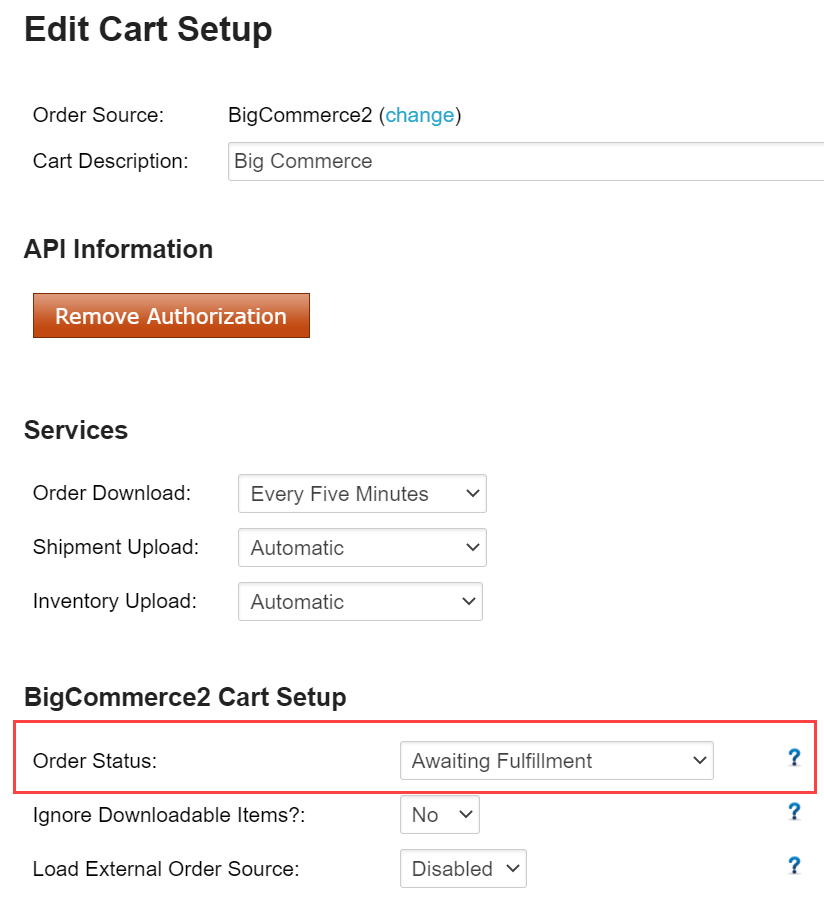
If that is not correct, then you can update the status of the settings here or update the order status from your cart and try again.
How come my inventory level between inFlow and my cart is different?
- Double-check that the products both have the same SKU in inFlow and your cart. If not, you will need to update them to match and trigger another change in your inventory levels from inFlow to see the update go through.
- If the SKUs match, then the next step is to check if the inventory from inFlow matches Extensiv Integration Manager.
- In Extensiv Integration Manager, go to Merchants > Locations & Products > Select the location you want > Look for the product SKU and check the quantity available
- If the quantity available in Extensiv Integration Manager matches inFlow, the problem is between Extensiv Integration Manager and your cart.
- The next best place to check is your cart settings in Extensiv Integration Manager. Check your cart settings by going to your Carts on the navigation menu on the left, then click on your cart.
- Double-check the date and time of the Last Inventory Run and whether or not it was a success. If it failed, check your Extensiv Integration Manager Alerts to see why that happened.
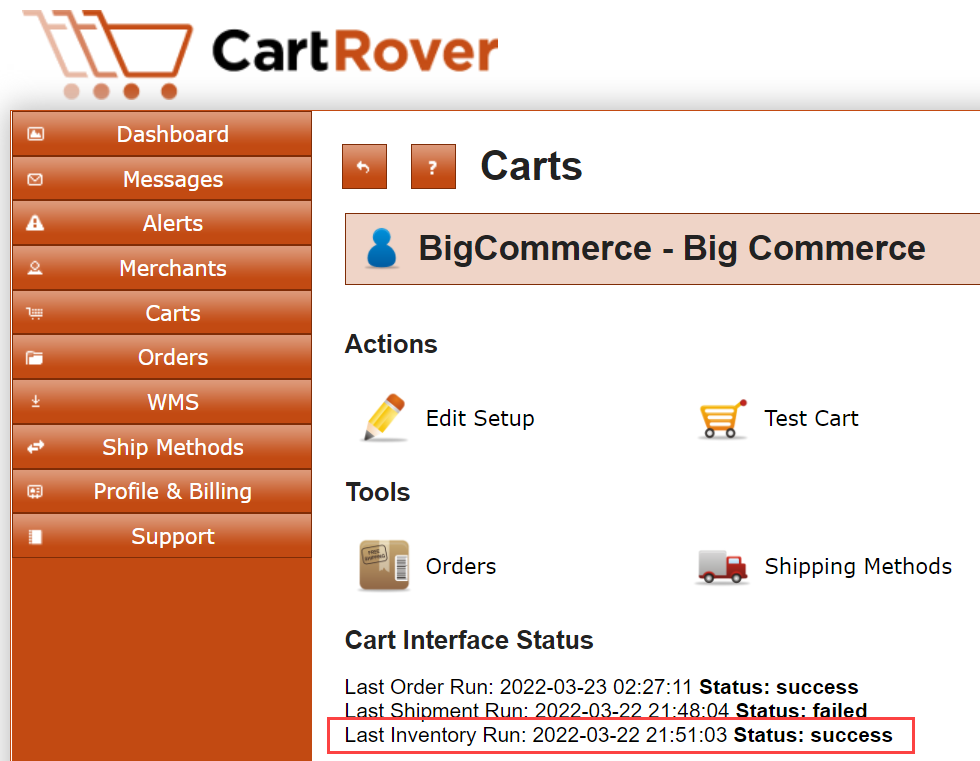
If it was a success, then the last thing to check is your cart settings. Click on Edit Setup from here and check your Sync Inventory with the Location setting.
Make sure that it is set correctly to what you expect it to – either a single location or COMBINE ALL LOCATIONS, which would push the total quantity available to your cart.
How come my shipping information wasn’t updated in my cart?
- Make sure that your order in inFlow is entirely fulfilled. Extensiv Integration Manager only allows us to push shipping information once, so the shipping information is only pushed when the entire order has been shipped out and fulfilled within inFlow.
- If the order is completely fulfilled, the next place to check is to see if Extensiv Integration Manager received the shipping information. Check your order by logging into Extensiv Integration Manager and then going to your Orders
- The order status should be shipped. Click on the affected order, and you should see shipment(s) on the right-hand side.
- If all of this information is correct, then the issue is between Extensiv Integration Manager and your cart.
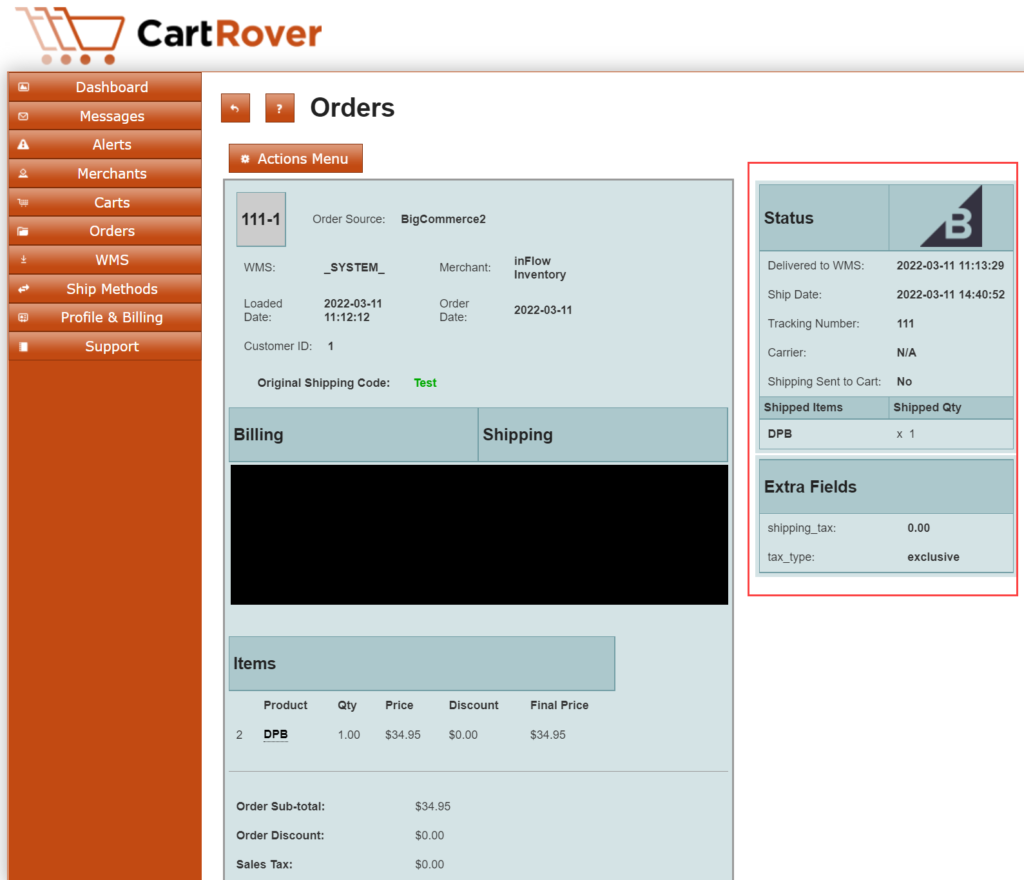
Check your cart settings by going to your Carts on the navigation menu on the left, then click on your cart. Double-check the date and time of the Last Shipment Run and whether or not it was a success. If it failed, check your Extensiv Integration Manager alerts to see why that happened.
 Yes, thanks!
  Not really

0 Comments