 Fellow Canadians: All inFlow plans are available in Canadian dollars



 Home
Home


What is quantity reserved, on hand, available, etc?
Get a detailed breakdown of how quantities are tracked in inFlow’s product records. Learn more about what “quantity reserved” or “available” means below.
Web

Product record quantity breakdown
When looking at a product record, the quantity on hand is displayed on the quantity bar by default. You can click on hand to switch to viewing the available quantity.
Under each location, there will be a quantity bar or quantity badge that shows the quantity in stock.
To view the quantities for all locations, select View quantity breakdown.
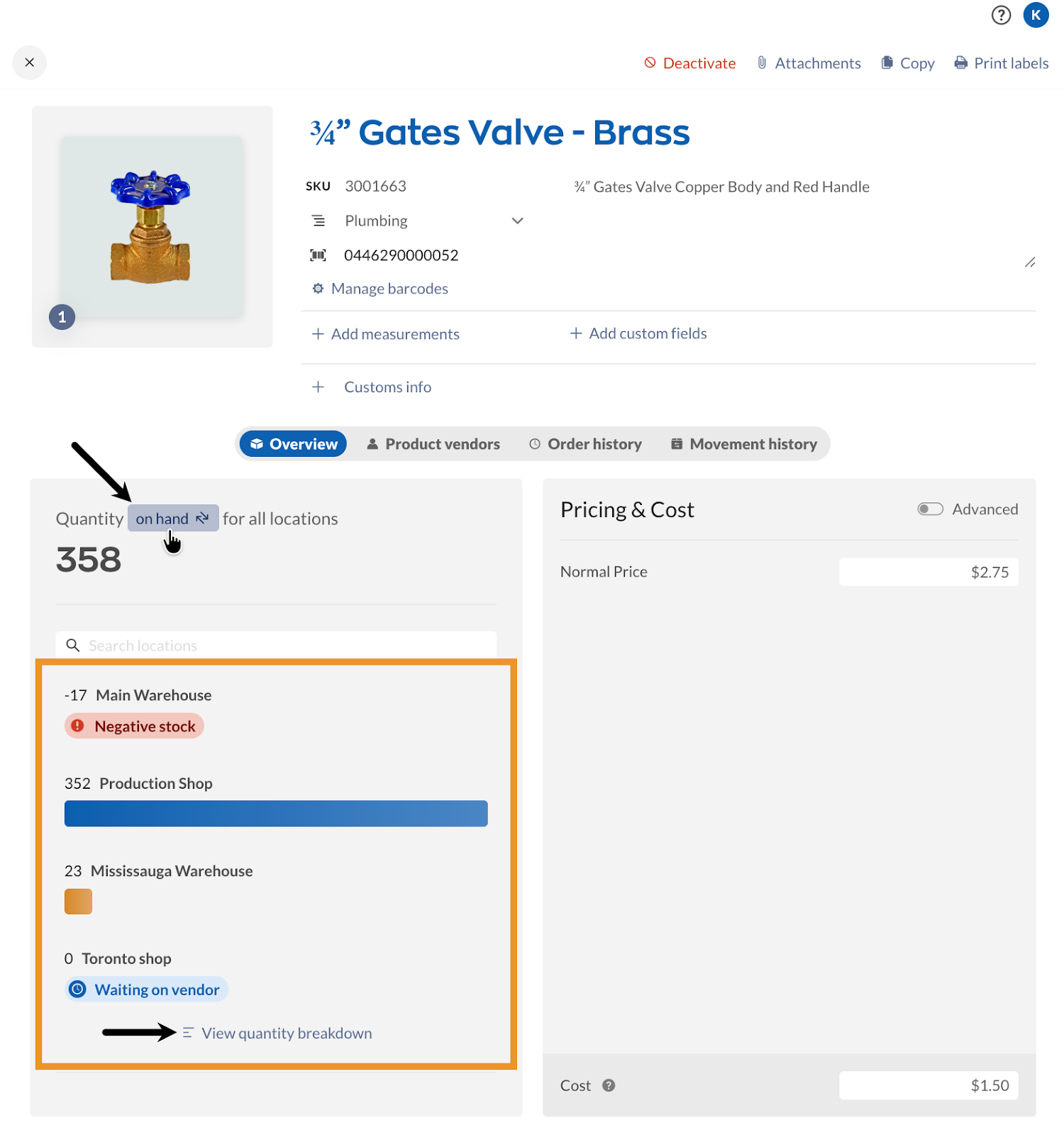
On hand
This number is the total number of products you have physically at your location(s), including reserved quantities, minus any products that have already been picked in a sales order (i.e., what’s still on your warehouse shelves).
Available
This number is how many products you’ll have left if you fulfill all open sales and manufacture orders.
Reserved
This number represents the total count of products reserved for a transaction. For more information, refer to the statuses below.
Expiring
This number represents the amount of stock past the Expiry date or Sell-by date of your product with lot tracking enabled. On the product record, expiring quantities are listed within the quantity reserved.
For sales orders
This number represents the number of products on open, unpicked sales orders.
For stock transfers
This is how many products are on outgoing stock transfers that haven’t been sent to the destination location.
For manufacture orders
This is how many products are being used as components on open/in-progress and unpicked manufacture orders.
For anticipated builds
This is the number of products reserved for building bundles or manufactured products on an open, unpicked sales order.
Example:
When you add a manufactured product to a sales order, inFlow knows you’ll need to use raw materials to create it and fulfill the order.
inFlow will reserve the raw materials right away before you even create the manufacture order and list those products in the For anticipated builds quantity.
Unreserved
When viewing the available quantity, some of your inventory might be labelled as unreserved, which equals Qty on hand – Qty reserved.
- If the available quantity is a positive number, you can see how many you have left to sell to future customers and for new sales orders.
- If the available quantity is negative, you’ll know you don’t have enough stock to fulfill all open sales orders, so you’ll need to reorder more.
Picked
This number is the total number of products that have been picked for sales/manufacture orders and are awaiting shipment (think of them as sitting in a box waiting to be shipped out).
Buildable
Quantity buildable shows how many bundles or manufactured products inFlow can build based on the individual products you have in stock that the bundle contains. This quantity type is for products that have a bill of materials.
You can also include the quantity buildable within the available quantity for products with a bill of materials (BOM). This feature is helpful if you use inFlow’s Online Showroom and/or an ecommerce integration.
When the buildable quantity is included in the available quantity, your customer can see how much stock is available for both the bundled product and its individual components. This means you won’t have to prebuild products that use component inventory to show stock for your bundled/manufactured products.
To enable this, select Combine quantities from the Manufacture settings in the product record. To learn more about making bundles in inFlow, take a look at this article.
How will the quantity reserved be affected when selling bundles & products with a bill of materials?
When non-bundle/BOM products are on open/unfulfilled sales orders, those products are considered quantity reserved.
When a bundled product is added to a sales order, the reserved quantity works a little differently. When a bundle product is on an open sales order, the bundle product and the components are reserved (if the bundle requires assembly).
Example: Quantity reserved for a non-bundled product
- Product A has a quantity available of 10
- 4 units of Product A have been added to sales order #55
- When sales order #55 is saved, Product A now has a reserved quantity of 4 for it.
Example: Quantity reserved for a bundled/BOM product
- Bundle ABC (components include Product A, quantity available: 5, Product B, quantity available: 8, and Product C, quantity available: 10).
- Bundle ABC hasn’t been pre-assembled (Quantity on hand 0). The quantity buildable: 5
- 3 units of Bundle ABC have been added to sales order #77
- When sales order #77 is saved, inFlow will reserve 1 unit of Bundle ABC for sales orders and reserve 1 unit each of Product A, B, and C for anticipated builds.
In this example, inFlow will reserve the bundle product, and the components ensure that the components needed to create the bundle won’t be used or sold. Allowing the bundle to be assembled.
On the product record, click the ellipsis (…) next to ‘Reserved’ to see which transactions have reserved quantities.
The above example applies to bundles and products with a bill of materials.
On order
For products awaiting more stock from a purchase order, stock transfer, or manufacture order, the product record will show one of the following statuses.
Waiting on vendor
This number reflects the quantity of products ordered through a purchase order from your supplier/vendor that have not yet been received.
Waiting on manufacturing
This is the number of products waiting to be assembled on an open/in-progress manufacture order.
Waiting on transfer
This is how many products are on outgoing stock transfers that haven’t been received at the destination location.
Waiting on stock
If your product is waiting for more stock from different types of orders, such as purchase orders, stock transfers, or manufacturing orders, you will see the message Waiting on stock. This means that several orders are still pending fulfillment.
In transit
These are specific items that have been sent via Transfer Stock and are still in “Transit” status (i.e., you’ve sent the transfer, but it hasn’t been received at the other location yet).
To view in-transit inventory levels, clear the location in the Quantity breakdown.
Quantity owned
This number is your overall total. It can be found only in the Inventory Summary Report/Historical Inventory Summary Report, and it equals the total of Qty on hand + Qty picked.
Quantity Used
This quantity is only shown on the Estimated Inventory Duration report. This Quantity is the number of products sold or used in a Work Order during the time period designated on the report.
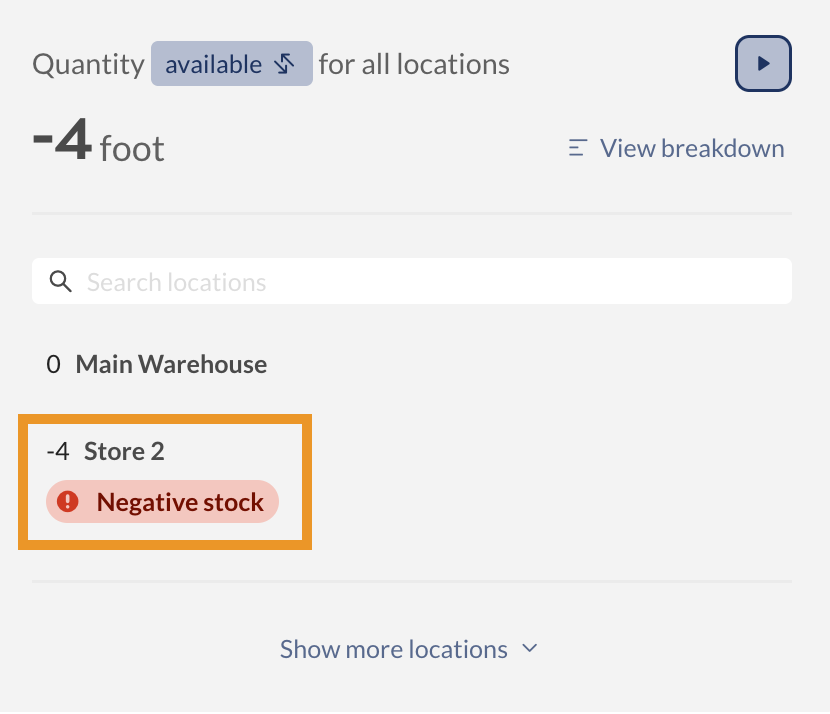
Negative stock
This number shows whether the location has negative inventory for this product. Negative inventory can happen if items are oversold or transferred to another location before they’re restocked.
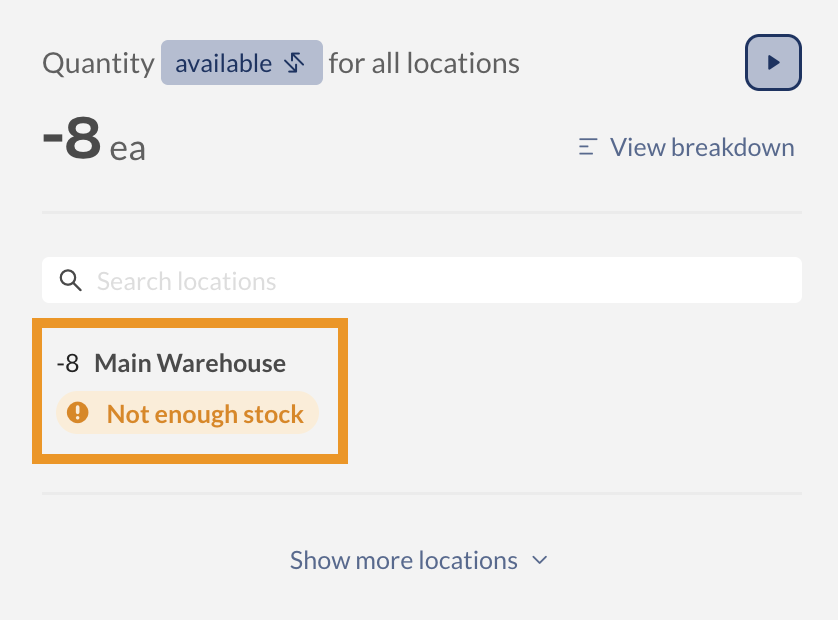
Not enough stock
This status badge appears when this product is on multiple orders, and there isn’t enough inventory to fulfill all of them.
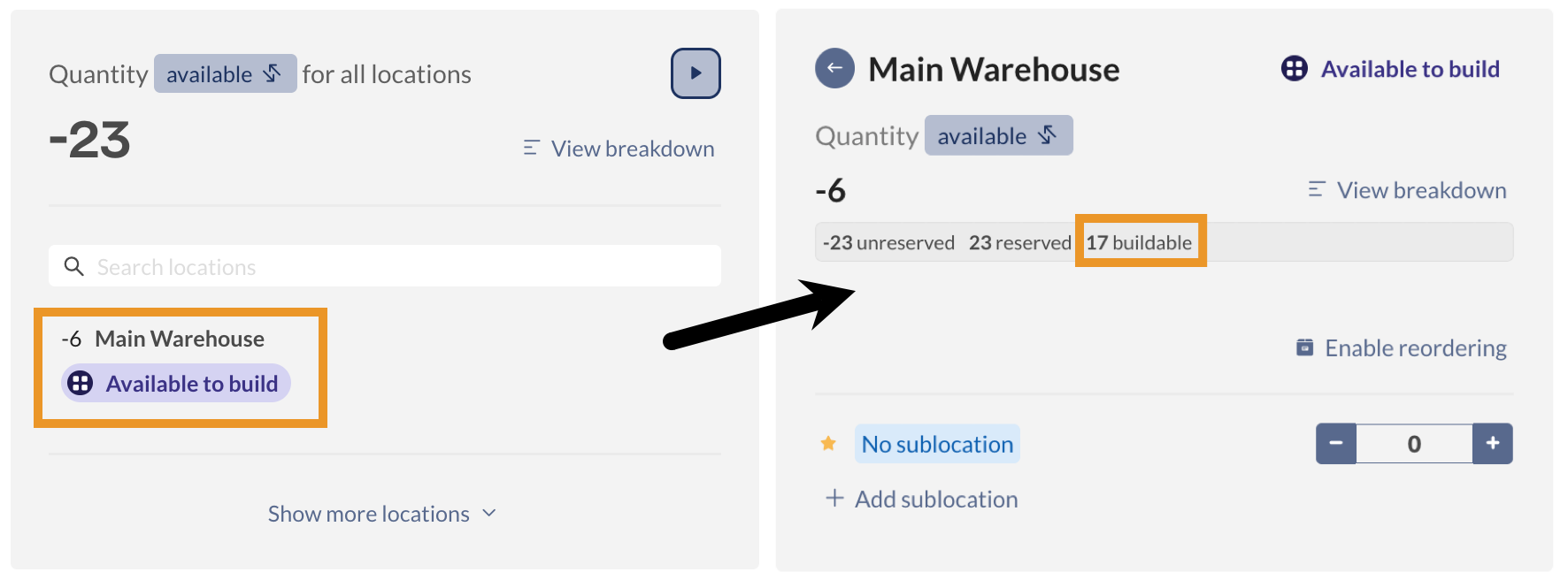
Available to build
This status badge appears on the quantity tile for a manufactured product with fewer units in stock than the reserved quantity.
This badge indicates that you can build some of the reserved units. Click the location to see how much stock is unreserved, reserved, and buildable.
Current anticipated quantity
This number is shown in the Reorder Stock window. It’s how inFlow determines whether or not you need to reorder more stock: the formula quantity on hand—quantity reserved + quantity on order. This method considers all physical items, subtracts the number needed to fulfill customer orders, and adds the number already on open purchase orders.
Windows
Take a look at this video for an explanation of some of the quantities. This video uses visuals from inFlow for the Web, but the quantity information also applies to inFlow for Windows.
Order History (Windows only)
To follow along, these numbers can be found in your product record under the Order History tab. You can view information for a specific location or select All locations to see your global quantity (total across all locations).
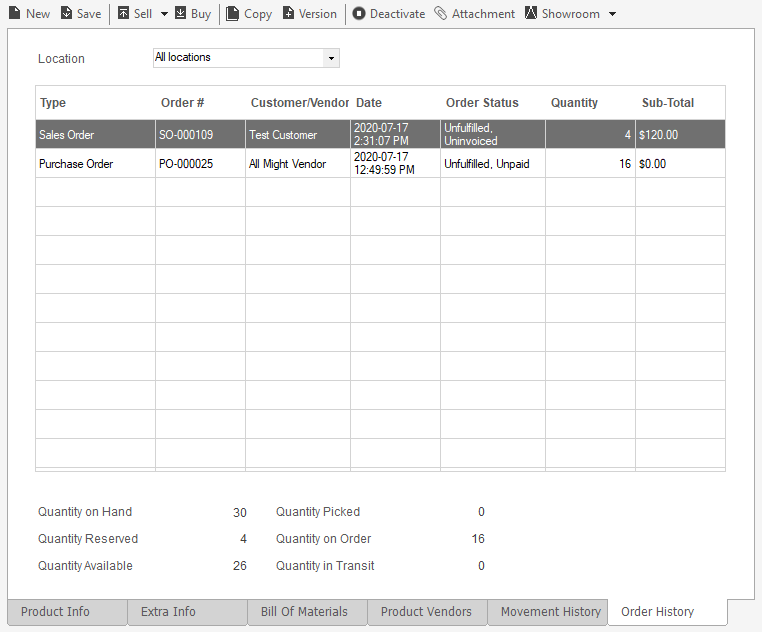
Quantity on Hand
This number is the total you have physically available (including Qty Reserved) minus any items that have already been picked in a sales order (i.e., what’s still on your warehouse shelves).
Quantity Reserved
This number is the total ordered by your customers (across all open sales orders/work orders). You’ll need to fulfill your quantity reserved to complete sales/production.
Quantity Available
This number is how many of the products you’ll have left if you fulfill all open sales and work orders. Therefore, equal to Qty on hand – Qty reserved. (i.e., what’s left after you’ve completed all your current orders).
- If it’s a positive number, then you can see how many you have left to sell to future customers and new sales orders.
- If it’s a negative number, you’ll know that you don’t have enough to fulfill all open sales orders, so you’ll need to reorder more stock.
Quantity Picked
This number is the total that has already been picked in sales orders/work orders and is awaiting shipment (think of them as sitting in a box waiting to be shipped out).
Quantity Buildable
Quantity buildable shows how many bundles or manufactured products inFlow can build based on the individual products you have in stock that the bundle contains. This quantity type is for products that have a bill of materials.
You can also include the quantity buildable within the available quantity for products with a bill of materials (BOM). This feature is helpful if you use inFlow’s Online Showroom and/or an ecommerce integration.
When the buildable quantity is included in the available quantity, your customer can see how much stock is available for both the bundled product and its individual components. This means you won’t have to pre-build products that use inventory from components to show stock for your bundled/manufactured products.
To enable this, select Combine quantities from the Manufacture settings in the product record. To learn more about making bundles in inFlow, take a look at this article.
How will the quantity reserved be affected when selling bundles & products with a bill of materials?
When non-bundle/BOM products are on open/unfulfilled sales orders, those products are considered quantity reserved.
When a bundled product is added to a sales order, the reserved quantity works a little differently. When a bundle is picked on a sales order, the bundle product and the components are reserved (if the bundle requires assembly).
Example: Quantity reserved for a non-bundled product
- Product A has a quantity available of 10
- Four Product A’s have been added to sales order #55
- When sales order# 555 has been picked, Product A now has a quantity reserved of 4 for sales order# 55.
Example: Quantity reserved for a bundled/BOM product
- Bundle ABC (components include Product A quantity available 5, Product B quantity available 8, and Product C quantity available 10).
- Bundle ABC hasn’t been pre-assembled (Quantity on hand 0.) The quantity buildable is 5
- Three Bundle ABCs have been added to sales order# 77
- When sales order #77 is picked, inFlow will reserve the respective quantities for Bundle ABC, Product A, Product B, and Product C.
In this example, inFlow will reserve the bundle product, and the components ensure that the components needed to create the bundle won’t be used or sold. Allowing the bundle to be assembled.
On the product record, click on the ellipsis (…) next to Reserved to see which orders have reserved quantities.
The above example applies to bundles and products with a bill of materials.
Quantity on Order
This number is how many you’ve ordered from your supplier/vendor but haven’t received. This also includes quantities of items being made in a work order.
Quantity in Transit
These are specific items that have been sent via Transfer Stock and are still in the “Transit” status (i.e., you’ve sent the transfer, but it has not been received at the other location yet).
Quantity Owned
This number is your overall total. It can be found only in the Inventory Summary Report/Historical Inventory Summary Report, and it is equal to the total of Qty On Hand + Qty Picked.
Quantity Used
This quantity is only shown on the Estimated Inventory Duration report. This Quantity is the number of products sold or used in a Work Order during the time period designated on the report.
Current Anticipated Quantity
This number is shown in the Reorder Stock window. It’s how inFlow determines whether or not you need to reorder more stock. The formula quantity on hand – quantity reserved + quantity on order. This way, it takes into account all physical items, subtracts the number you need to fulfill customer orders, and adds the number you already have on open purchase orders.
 Yes, thanks!
  Not really


under quantity breakdown/reserved where does the anticipated build quantity come from?
Why I cant see the quantity ON HAND when I have physical inventory?
Can there be a “Hold Please” button or a shut off option — For anticipated builds quantity and Current anticipated quantity
Topics Not Explained Fully – Lack of detail