


 Home


How to import purchase orders with units of measure in inFlow
You can import purchase orders with units of measure in inFlow, ensuring your quantities and costs match your purchase unit, like cases. Take a look below to learn more.
How imports work with units of measure
If a product has a set purchasing unit of measure (UoM) in inFlow, your purchase order import will read the quantity from your file using that unit. It will not read the quantity in your standard unit.

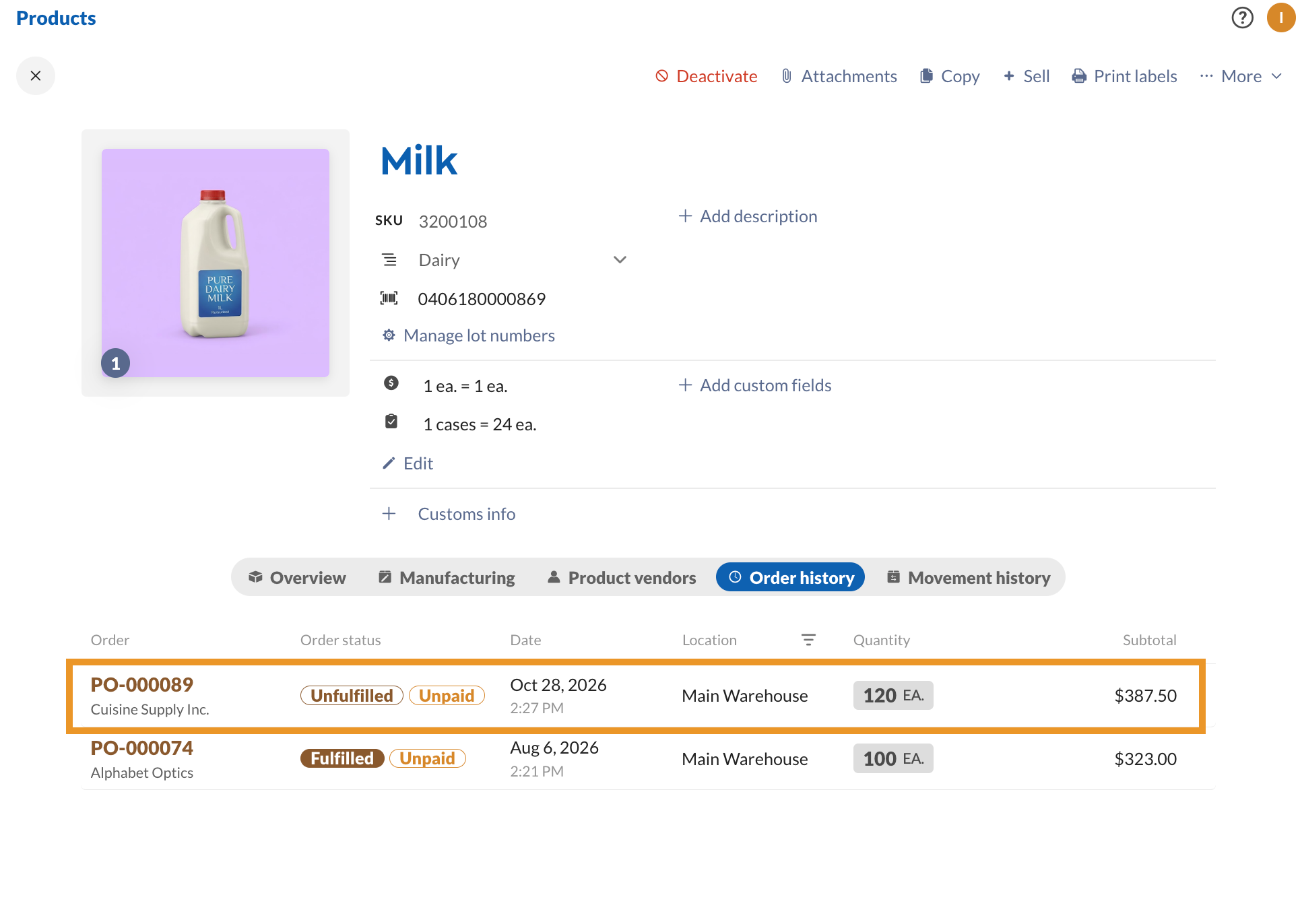
For example, say you stock a product in each (ea.) and set its Purchasing UoM to case, where 1 case = 24 ea.
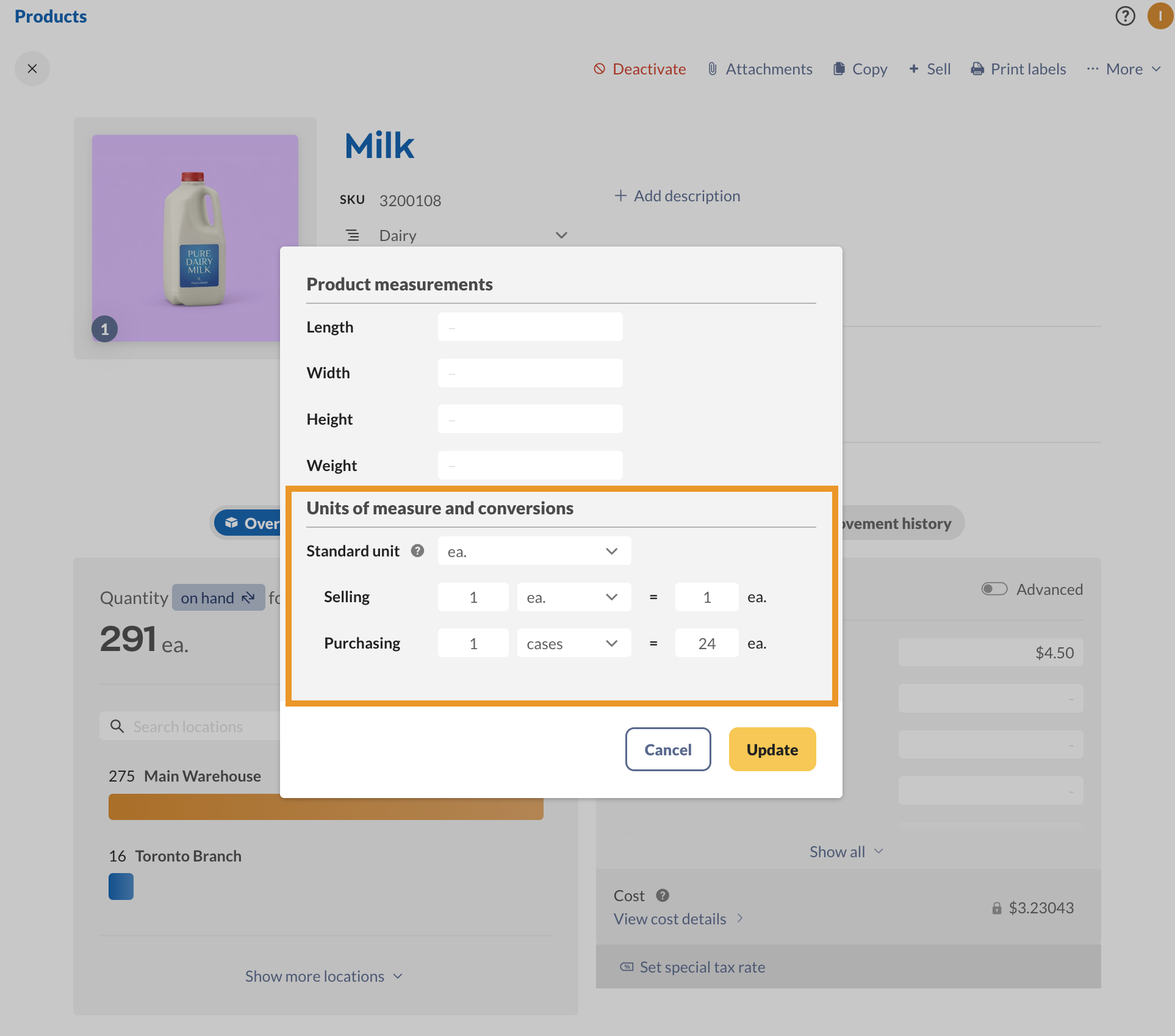
If your purchase order CSV file lists a quantity of 5, inFlow imports 5 cases, which is 120 ea. in your stock. inFlow also applies your vendor price for that product to each case, not each purchased unit.

How to create a purchase order import file
You only need a few columns to import a purchase order. Start with the basics below, then add more columns, such as dates or payment terms, when you need them.
To get a template, you can export a purchase order from inFlow and use that file as your starting point. The export includes many columns. You can remove any columns you don’t need to simplify the view, as long as you keep the required ones below.
| Column | Required? | What to enter |
|---|---|---|
| OrderNumber | Recommended | The purchase order number. Use the same number on every line of the same order. |
| Vendor | Yes | The vendor’s name. If the vendor is new, inFlow creates it during the import. |
| ProductName or ProductSKU | Yes | The product on the line. Use either column, or both. If the product is new, inFlow creates it. |
| ProductQuantity | Yes | How many you ordered. |
| ProductQuantityUoM | Optional | The unit your quantity uses, such as cases or ea. |
| ProductUnitPrice | Recommended | The price for one unit listed in ProductQuantityUoM. |
| OrderDate | Optional | The date you created the order. |
To create your file:
- Open a blank spreadsheet and add your column names in the first row, such as OrderNumber, Vendor, ProductName, ProductSKU, ProductQuantity, ProductQuantityUoM, and ProductUnitPrice.
- Enter the purchase order number in the OrderNumber column and the vendor’s name in the Vendor column.
- Enter the product’s name or SKU, then the quantity you ordered.
- Enter the unit and the price for that unit in the ProductQuantityUoM and ProductUnitPrice columns.
- If your order has more than one product, add a new row for each product. Repeat the OrderNumber and Vendor on every row.
- Save your file as a CSV UTF-8 (comma-delimited) file.
If you leave the ProductQuantityUoM column out of your file, inFlow assumes the quantity is in the purchasing UoM.
How to choose the unit your file uses
You can import a quantity in any unit set on the product: the standard unit, the purchasing UoM, or the selling UoM. For example, you can enter your standard unit (such as ea.) to import individual units instead of cases, boxes, or packs. To do this, tell inFlow which unit your file uses.
- Add a ProductQuantityUoM column to your import file.
- Enter the unit name in the ProductQuantityUoM column on every line of the order. Use the standard unit, purchasing UoM, or selling UoM name exactly as it appears on the product, such as ea. or cases. If the unit name in your file doesn’t match a unit on the product record, inFlow doesn’t convert the quantity. It imports the number as listed and uses the name from your file, so check your spelling before you import.
- Enter the unit price per that unit in the ProductUnitPrice column. For example, if your file lists ea., enter the price for one ea., not the price for one case.
- When you import your file, check that the Unit of measure field on the import mapping screen is matched to the ProductQuantityUoM column from the drop-down menu.

Add the ProductUnitPrice to every line of your file. This way, the price on each order line always matches the unit you listed.
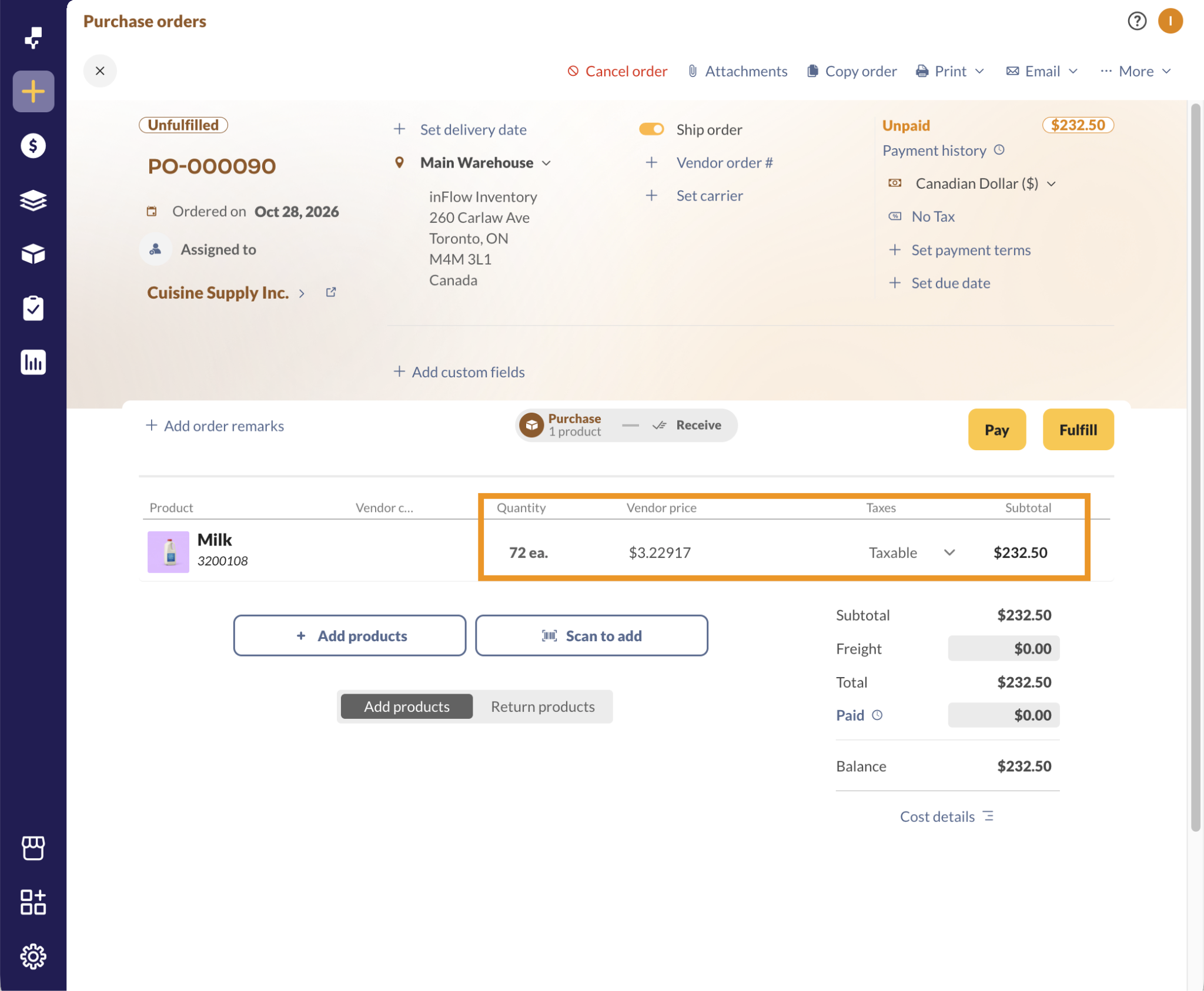
The example in the image below displays how a purchase order will appear in inFlow when a different unit of measure is included in the purchase order import CSV.
Check your products before you import
Take a minute to check your products before you import orders:
- Open the product records in inFlow and review the Units of measure and conversions.
- Confirm which unit your file uses for each product: the purchasing UoM, the selling UoM, or the standard unit.
- Confirm your prices match that same unit.
To learn how to set up units of measure, see how to use units of measure in inFlow.
What to do if you imported in the wrong unit
If your quantities or costs look wrong after an import, you can fix them:
- Cancel the order that imported incorrectly.
- Update your file with the ProductQuantityUoM column and the correct ProductUnitPrice for each unit.
- Import the file again.
You can also edit the quantities on the order in inFlow. If the order is already fulfilled, unfulfill it first, edit the quantities, then fulfill it again.
 Yes, thanks!
 Not really

0 Comments