 Fellow Canadians: All inFlow plans are available in Canadian dollars



 Home
Home


How to reset your inFlow data
If you need to reset your inFlow data after completing your trial, or if you’ve uploaded the incorrect inFlow On-Premise database, inFlow administrators can reset the database to start fresh.
Resetting your inFlow data
We suggest resetting your data only if you want to start over with a clean, blank slate.
- With an Admin account, go to inFlow’s account settings. (From the Main Menu, hover over the Settings icon
 , then select Account).
 - Scroll down to Manage my data.
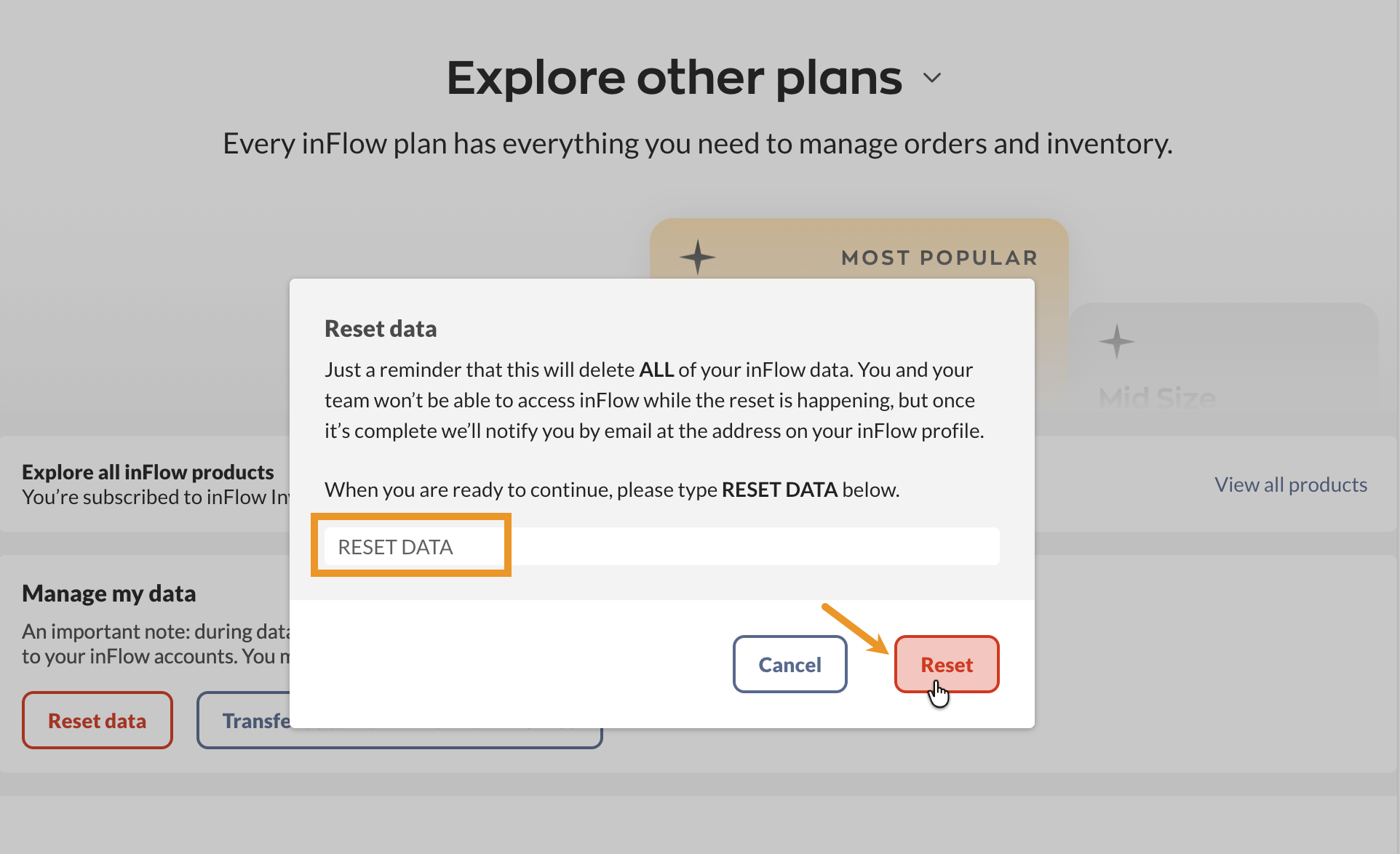
- Click on Reset data.

If you’re looking to reset to upload a new inFlow On-Premise backup file, please use the Transfer data from inFlow On-Premise option instead.
- Review the warning and type RESET DATA in the field below.
- Click Reset.
inFlow will begin resetting the data. Once the process is complete, you will receive an email. Feel free to step away from your computer during this time.
What data gets reset?
If you decide to reset your inFlow data, please keep in mind that most of the information in your system will be cleared. Here is a list of items that will be cleared.
- Products (active and inactive)
- Customers
- Vendors
- Locations
- Custom fields and setting customizations
- All orders/transactions
- Pricing schemes
- Taxing schemes
- Costing option settings
What is left after the reset?
There are a few areas in inFlow where data is kept. To learn more, take a look at the list below.
 Yes, thanks!
  Not really

it doesn’t tell you what the reset actually deleted