 Fellow Canadians: All inFlow plans are available in Canadian dollars



 Home
Home


inFlow & Stockroom: Quickly scan products in and out with ease
With inFlow and Stockroom, you can manage your inventory while making it simple for your team to scan products in and out. This guide walks you through setting up Stockroom, scanning with it, and finding everything your team scanned back in inFlow.

What is the Stockroom?
Stockroom lets your team track inventory by scanning products in and out with the inFlow Stockroom mobile app, available for Apple and Android devices.
It suits team members who don’t need the rest of inFlow for their job. Stockroom gives them a quick, straightforward way to record product movements.
As a Stockroom administrator, you set up products in inFlow, then set up your users, devices, and workflows in the Stockroom settings.
You can add multiple Stockroom locations from the Plan section of the inFlow Account settings, or chat with the inFlow team.
Before you start
Add your products, barcodes, locations, and labels to inFlow to use this feature. To learn more, read the Getting Started and Label Printing guides.
Looking to print labels on the go? Check out the inFlow Portable Printer!
Installing the Stockroom app
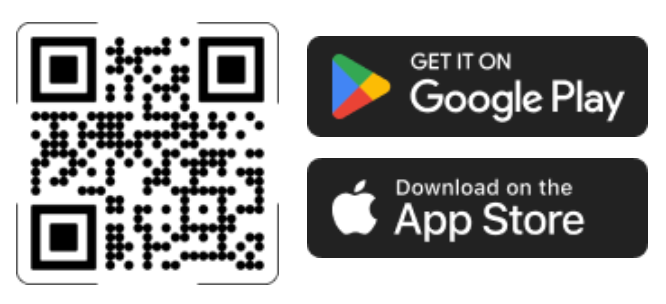
Scan the QR code below to download the Stockroom app, or follow the steps below to find the QR code in inFlow for Web.
- With an inFlow administrator account, go to the Stockroom settings (hover over the Settings icon
 , then Stockroom).
 - Under Download Stockroom, scan the QR code to install the Stockroom app onto the device.
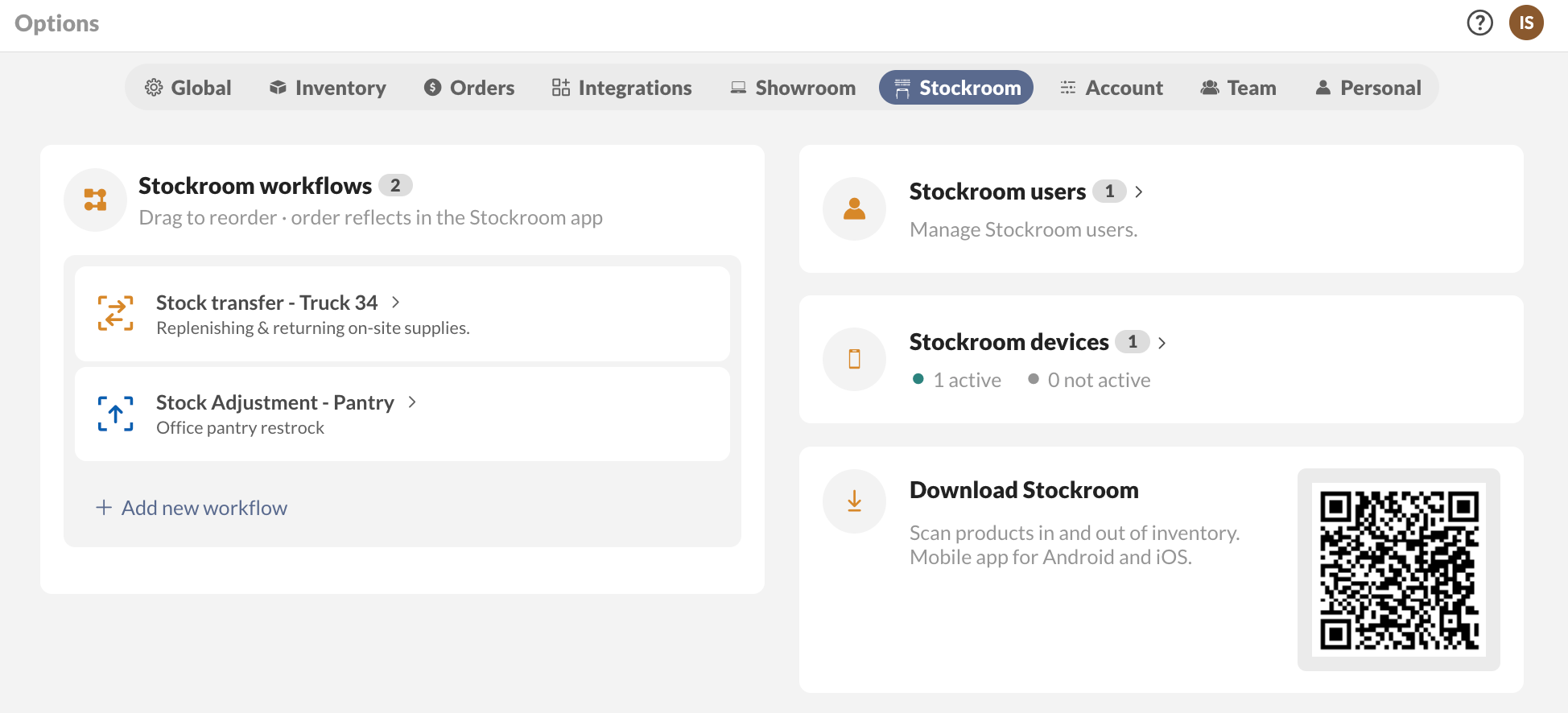
The Stockroom app is separate from the inFlow Inventory app. It only scans products in and out of the locations you give it.
Setting up Stockroom users
As an inFlow Stockroom administrator, you set up users and devices in the Stockroom settings, then add each phone or scanner as a device. You can also set the location a device scans into, or leave it open so the person scanning picks one.
You can add as many users as needed without adding team members to your inFlow plan, so everyone on the floor can have their own name displayed on the Stockroom Sign-In screen in the Stockroom app.
Add your Stockroom users first, then your devices. That way you can assign a device to a person while you’re setting it up, and anyone sharing a device can pick their name straight away.
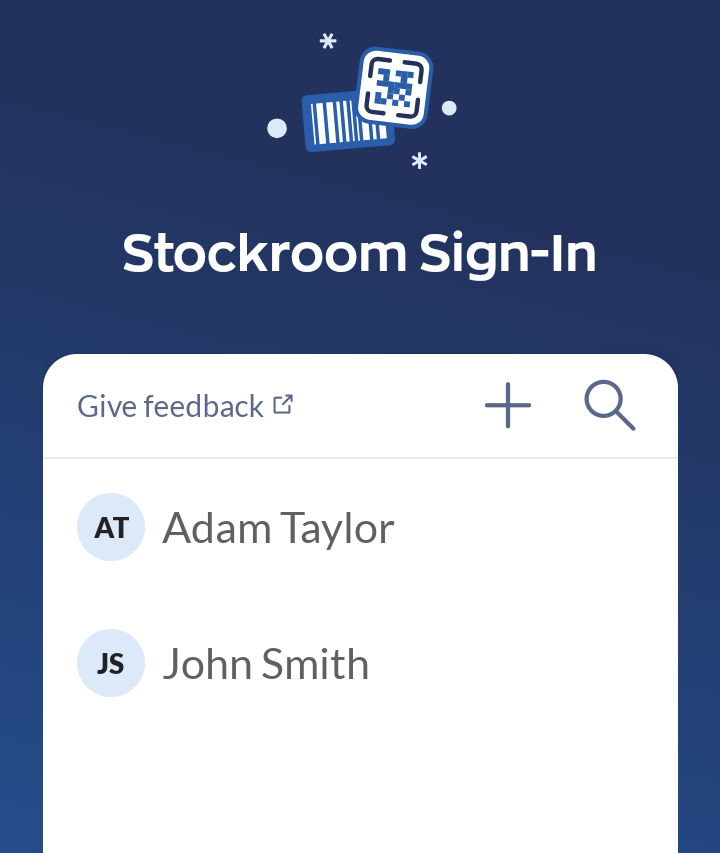
Adding Stockroom users
- Go to the Stockroom settings and click on the Stockroom users tile.
- Select Add Stockroom user, then enter the user’s name.
- Repeat for everyone else who will be scanning.
- Click Save when done.
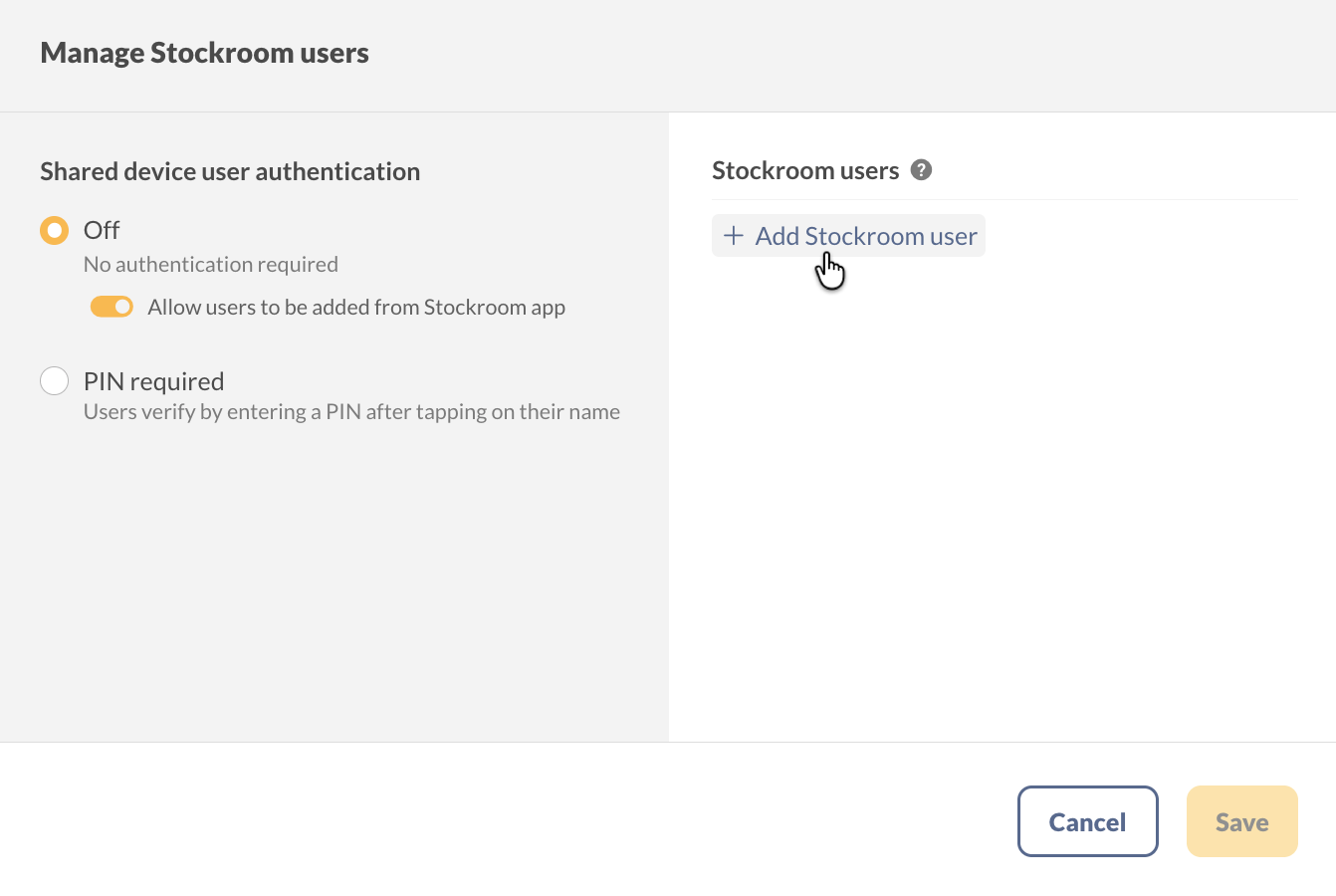
How users can add themselves to the Stockroom app
Your team can also add themselves the first time they pick up a device. This only works when Shared device user authentication is set to Off and Allow users to be added from Stockroom app is turned on. Selecting PIN required takes the option away, because a brand-new user would have no PIN to verify with.
- Open the Stockroom app and tap Add user.
- Enter the name, then tap Done.
The Add user button becomes a plus icon once there are users in the list. To keep the list under admin control, turn Allow users to be added from Stockroom app off.
Removing Stockroom users
Hover over a user in inFlow for Web, then click the X next to their name. Only inFlow administrators can edit the list, and users can’t be removed from the Stockroom app.
Removing a user who is assigned to an individual device also removes that device. You’ll need to add the device again and log back in on it.
PIN sign-in for shared devices
If several people share one device, you can require a PIN so every scan is tied to the right person.
- Go to the Stockroom settings and click on the Stockroom users tile.
- Under Shared device user authentication, select PIN required.
- Select the pencil beside a user’s name to Set PIN. inFlow can autogenerate one for you, and you can copy it to share with the user.
- Click Save when done.
Only users with a PIN set appear on the Stockroom app. Anyone who still needs one is grouped under No PIN, and they can’t be picked on a shared device until you set it.
From then on, the app asks for the PIN after the user taps their name on the Who is scanning screen. To change a PIN someone already has, use Reset PIN next to the user.
Setting up Stockroom devices
Every phone or scanner running the Stockroom app is added as its own device. You’ll need an administrator account and the device in hand.
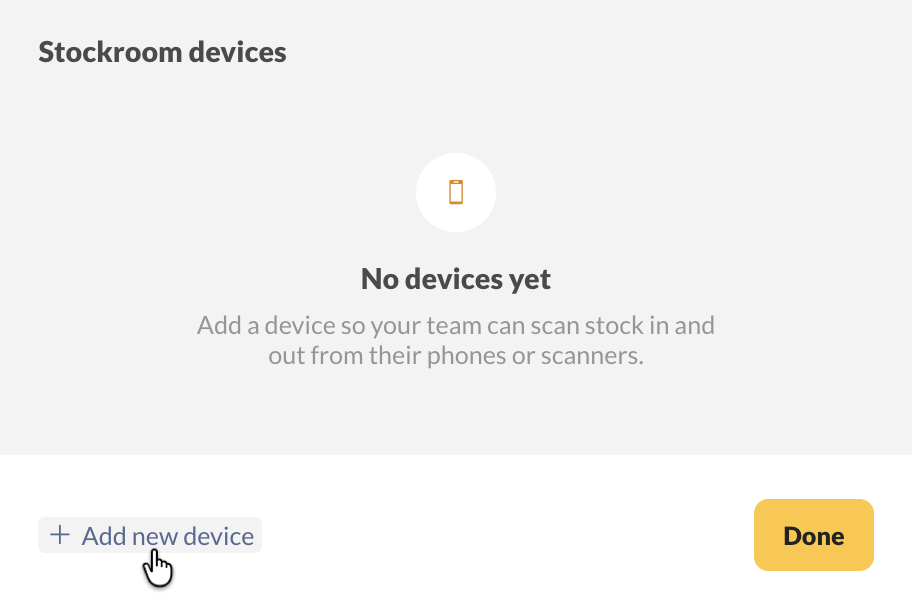
- Go to the Stockroom settings and click Add new device.
- Enter a Device name. Each name has to be unique, so “Receiving iPad” works better than “iPad”.
- Choose how the device is used and which location it scans into — both are covered below.
- Click Save. inFlow shows a QR code.
- Open the Stockroom app on the device, tap Scan to log in, then scan the QR code.
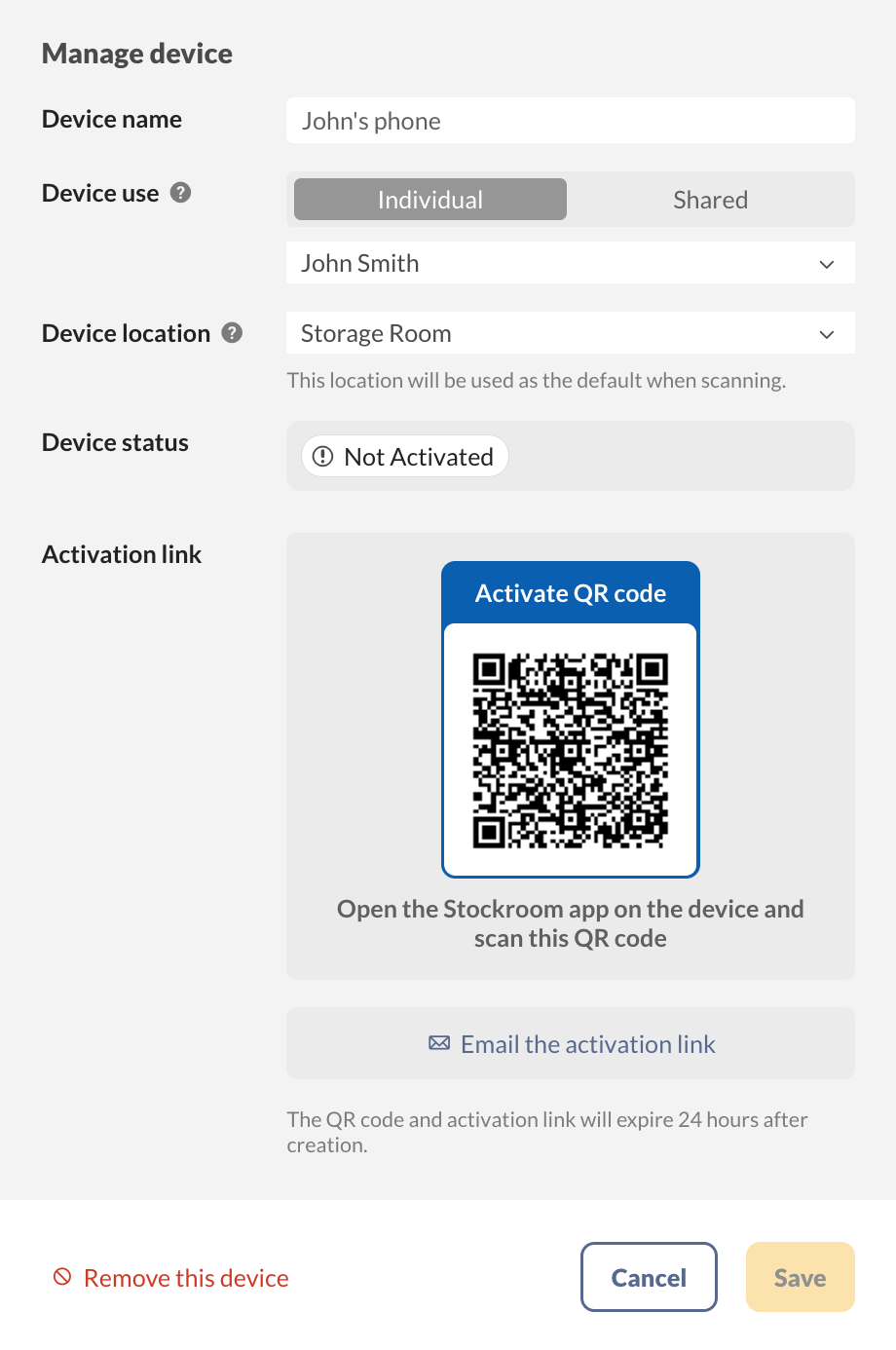
The QR code and activation link expire 24 hours after they’re created. Setting up a device in another warehouse or time zone? Select Email the activation link so whoever has the device can activate it when it suits them.
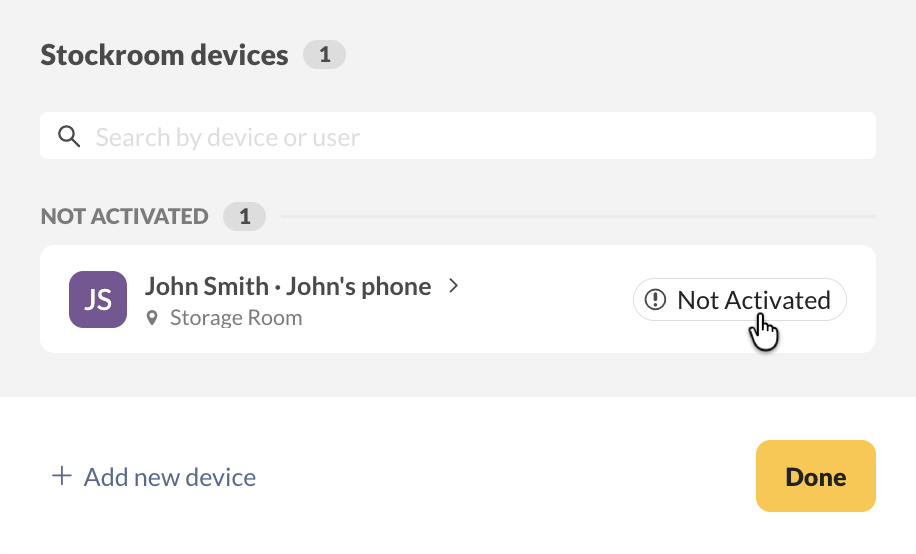
Until someone scans the code, the device sits under Not Activated in your Stockroom devices list. It moves out of that group once the app connects.
Choosing how the device is used
Device use determines whether the Stockroom device is used by multiple users or is assigned to a single user.
- Shared: anyone on your Stockroom users list picks their name on the Who is scanning screen. This suits a device that lives on a shelf or a bench.
- Individual: choose the person from the drop-down that appears below, and the app skips the sign-in screen entirely. Good for a device someone carries all day. Save stays greyed out until you pick a user.
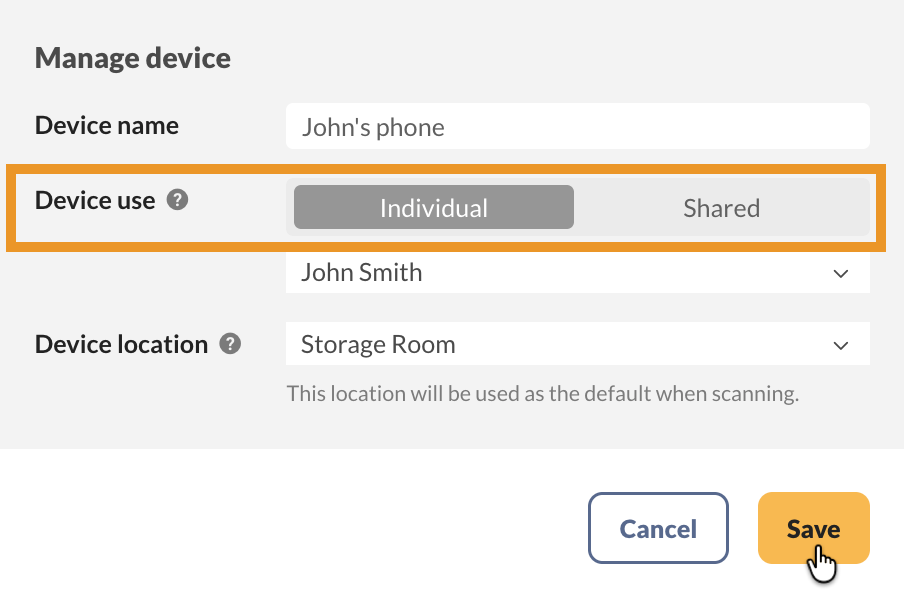
Add your Stockroom users before you set up a shared device. A shared device asks whoever picks it up to choose their name, so an empty user list leaves them with nothing to select. If you also turn on PIN sign-in, each person needs a PIN before they’ll show up in that list.
Setting the device location
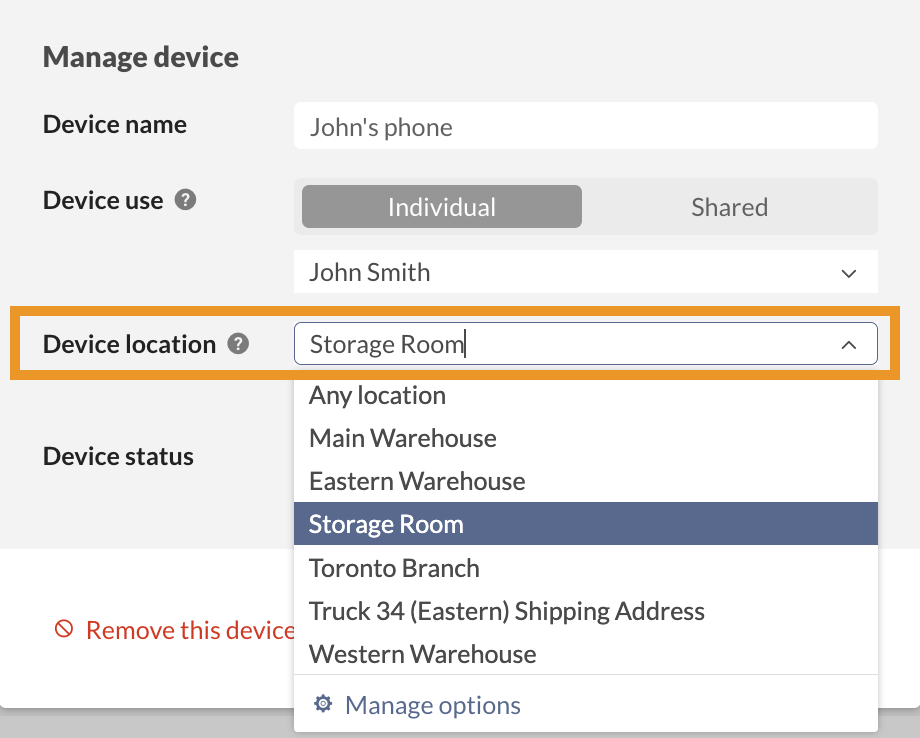
When adding or editing a Stockroom device, select the location for stock adjustments or transfers.
- Any location: the Stockroom user has access to every location and selects one when they start scanning — handy when a single device covers multiple locations. A workflow that already sets a location takes priority.
- A specific location, such as Storage Room: inFlow uses that location as the default when scanning. Editing the location saves right away and shows up in the app immediately.
Need a location that isn’t on the list? Select Manage options at the bottom of the drop-down.
Removing devices
- From the Stockroom settings, click on the device you want to remove.
- Select Remove this device at the bottom of the Manage device modal.
Setting up Stockroom workflows
A workflow controls what happens when your team scans products. Each workflow saves four things:
- The workflow type — whether the scan creates a stock adjustment or a stock transfer.
- The name and short description your team sees in the app.
- The location(s) affected by the stock adjustment or stock transfer being created, and whether your team can select them.
- The extra fields your team fills in after scanning, and which ones are required.
Workflows are set at the company level, so every Stockroom device sees the same list.
Which workflow should I choose?
The workflow type decides what inFlow creates when your team taps Done.
Stock adjustment workflows. Use this one when your team takes stock out of a location or puts it back. Stock adjustment workflows have a Scan mode setting:
- Pick the mode the workflow opens in — Scan out or Scan in.
- Enable the “Also allow scan in/out” option to let your team control whether they can switch between scanning in and out during a scan. Leave it off if the workflow should only ever go one direction.
Stock transfer workflows. Use this one when your team moves inventory between two locations, such as from the warehouse to a technician’s truck. This process is more effective than merely adjusting quantities using the Stockroom app. Before you start, ensure you have more than one location set up — see the section on managing Stockroom locations for guidance.
Stock transfers in the Stockroom app complete in one step, skipping the In transit stage seen in transfers created in inFlow for Web.
How to create a Stockroom workflow
Selecting a workflow type
- Go to the Stockroom settings in inFlow for Web.
- Find the Stockroom workflows tile, then click Add new workflow.
- Choose a Workflow type — Stock adjustment or Stock transfer.
- Enter a name for the workflow your team will recognize, and add a Short description if it helps.
- Set the Basic fields and Configurable fields for the workflow (see below).
- Click Save when you’re done.
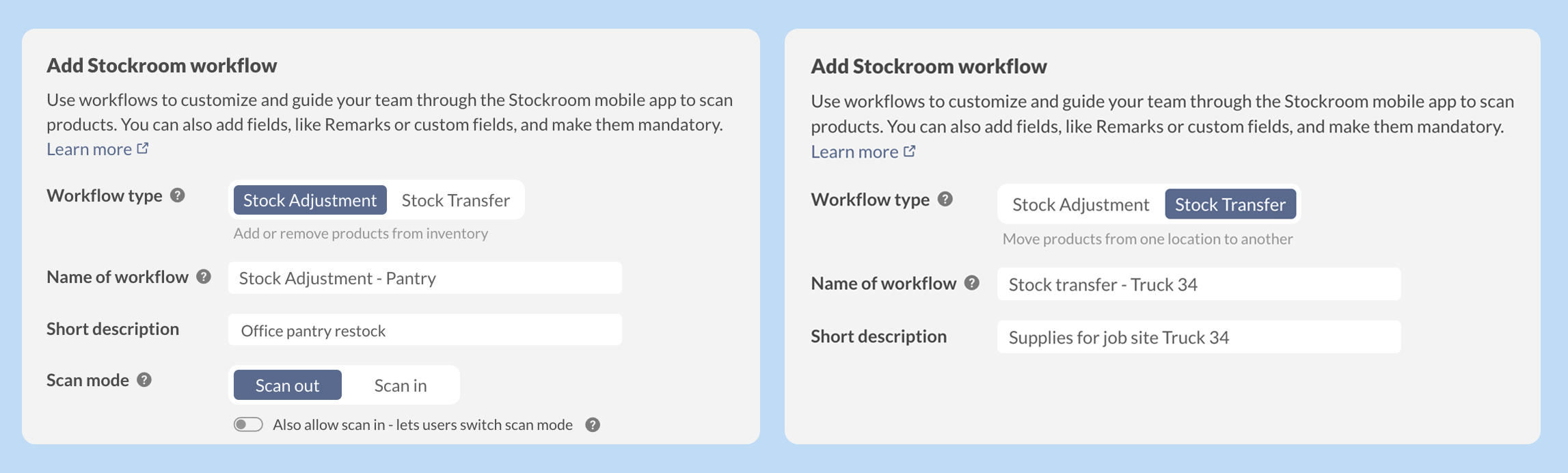
Give each workflow a name that matches the job, not the inFlow term. A stock transfer workflow named Load the service truck is much easier for a new team member to pick than “Stock transfer 2.”
How to set basic fields for locations in the Stockroom app.
Basic fields are the location fields a workflow needs to save. A stock adjustment workflow has one location; a stock transfer workflow has a From and a To location. For each one you can:
- Use the device location settings to set the scan’s location. If the device is set to a specific location, the user cannot change it. If the device allows user choice, the user must pick a location from a drop-down list.
- Keep it at one location for consistency. This is helpful when the From location should always be your main warehouse or storage area.
- Allow your team to choose from a list of locations each time they start the workflow.
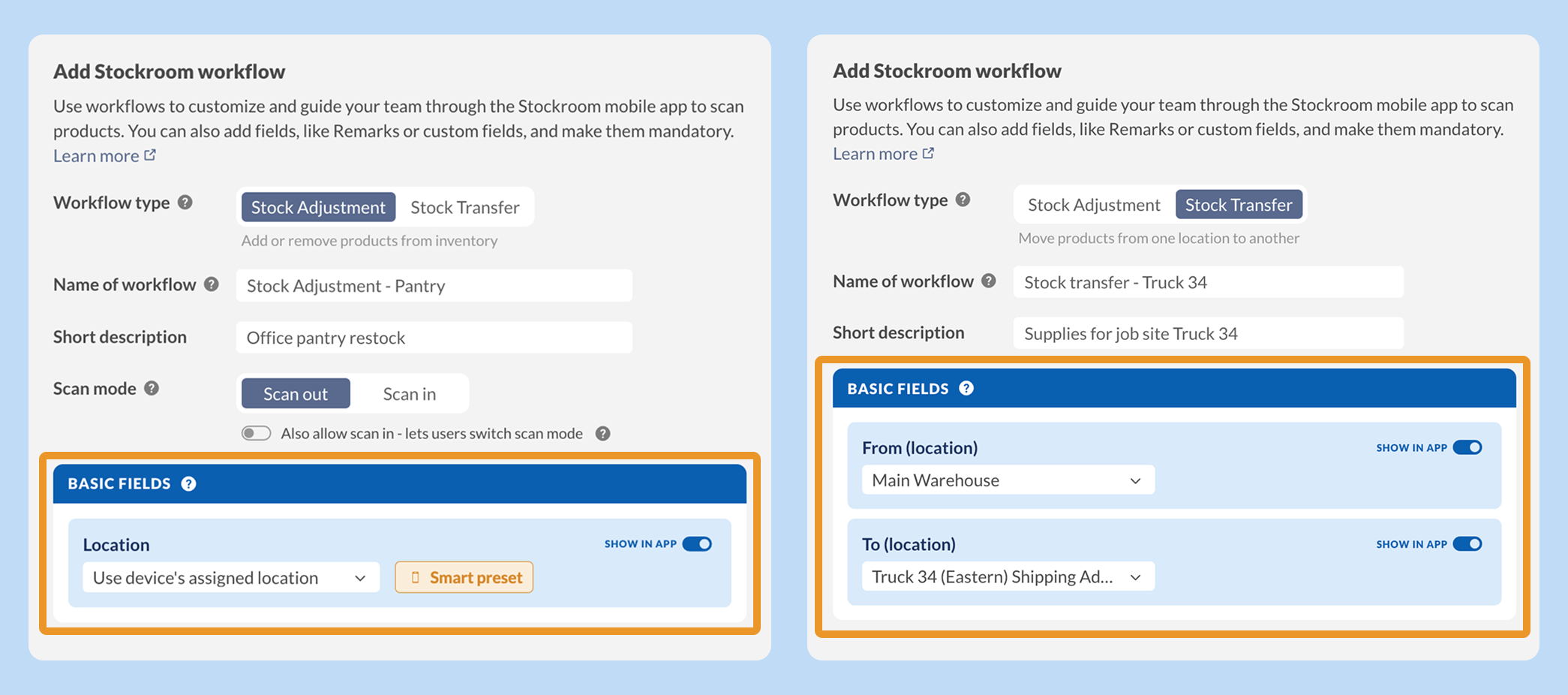
A location field must be shown in the app if you leave it empty or set it to use the device location — otherwise, your team would have no way to fill it in.
How to add configurable fields
Configurable fields are the extra details your team fills in after they finish scanning. These include Remarks, Adjustment reason on stock adjustment workflows, and any custom fields you’ve already created for stock adjustments or stock transfers in your inFlow settings.
- Find the field you want in the Configurable fields section.
- Turn on Show in app, so your team sees it.
- Add a default value if most scans use the same answer.
- Turn on This field is required if your team must fill it in before they complete the workflow. A field can’t be required unless it’s also shown in the app.
Custom fields are a tidier way to capture things your team used to type into Remarks — job numbers, departments, or the site the stock is headed to. You can then filter and report on them later.
To add a brand-new choice to the Adjustment reason list, click Manage options in that field’s drop-down menu.
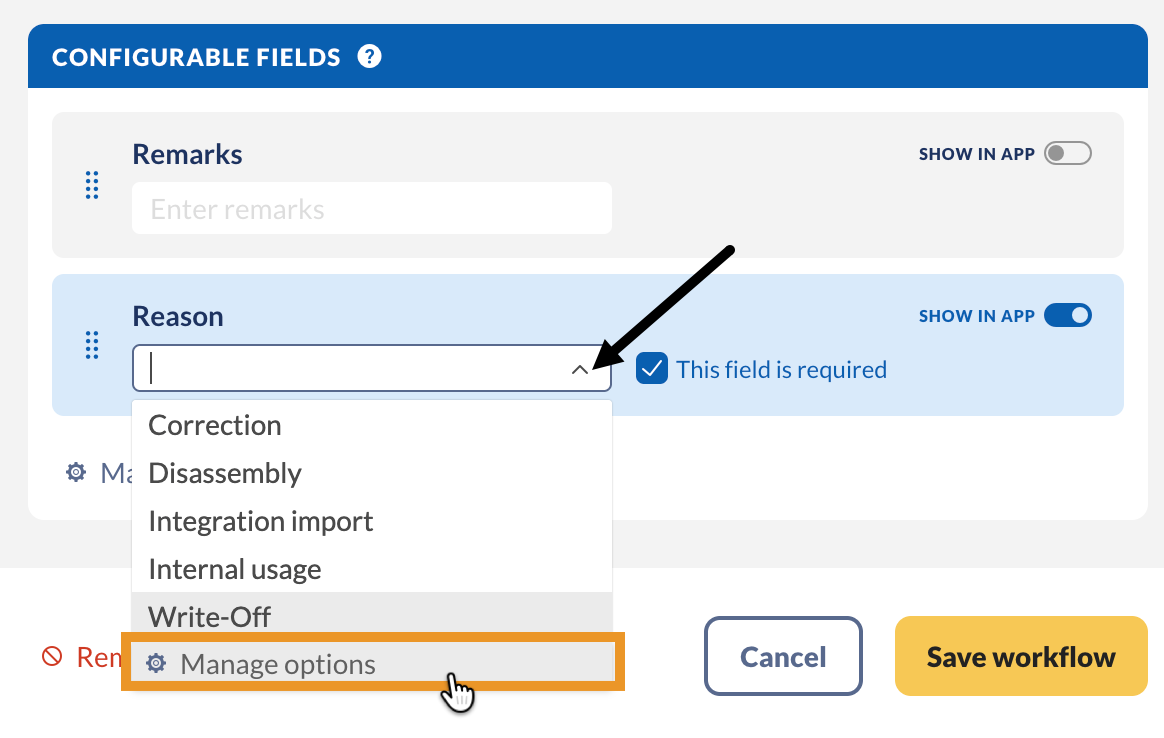
How to reorder, rename, or remove workflows
Your team sees workflows in the app in the same order you list them here, so put the one they use most at the top.
- Go to the Stockroom settings and find the Stockroom workflows tile.
- Hover over a workflow row to bring up its drag handle, then drag it up or down. inFlow saves the new order and your devices pick it up right away.
- Click a workflow to rename it, change its fields, or click Remove this workflow to take it out of the list.
Scanning products in and out (stock adjustments)
Now that your users, devices, and workflows are set up, your team can start scanning.
- Open the Stockroom app on the shared or personal device.
- Tap your name from the Who is scanning screen. If your admin turned on PIN sign-in, enter your PIN.
- Pick a workflow. If your team only has one workflow, the app skips this step and goes straight to scanning.
- Scan the product’s barcode or QR code, then tap Scan out/Scan in. Tap the quantity to adjust the number manually.
- Fill in any fields the workflow asks for, such as Remarks or Reason. Your admin decides which fields show and which are required.
- Tap Done when you’ve finished scanning, then tap Finish to apply the changes. You’ll see Adjustment completed to confirm, with Keep scanning if you want to start another run.
Accounts that had Stockroom before workflows get a default Adjust stock workflow automatically. It works exactly like Stockroom always has — scan out by default, with the option to switch to scan in.
How to transfer stock in the Stockroom app
A stock transfer workflow moves products from one location to another. Your admin decides which locations the workflow uses and whether your team can pick them.
- Open the Stockroom app and tap your name on the Who is scanning screen. If your admin turned on PIN sign-in, enter your PIN.
- On the What would you like to do? screen, tap the transfer workflow. It shows the name and short description your admin gave it.
- Check the FROM and TO locations on the sheet that opens. If the workflow lets your team choose, search for a location or pick one from the list, then tap Next.
Scanning serialized and lot-tracked products with the Stockroom app
Products that track serial numbers or lot numbers are scanned from a GS1 Digital Link QR code. That QR code carries the tracking details along with the product, so the app already knows which lot or serial you’re holding.
Please note: serial- and lot-tracked products are available in higher-tier inFlow Inventory or inFlow Manufacturing add-ons.
A plain product barcode won’t work for these products — the app tells you that serialized and lot-numbered products are only supported through GS1 barcodes.
A GS1 Digital Link QR code can carry:
- Lot number — required for a lot-tracked product.
- Serial number — required for a serial-tracked product.
- Expiry date — optional. Without one, inFlow works the expiry out from the product’s shelf life.
- Manufacture date and sublocation — optional, and recorded on the line when they’re there.
- Unit of measure — so a case label adds a case rather than a single unit.
Scan one of these products and the product card fills in what the code carried:
- Lot-tracked products: scanning the same lot again adds to the line you already have. A different lot starts its own line.
- Lots with expiry dates: the card shows the expiry date, and an expired date is flagged with an alert so you don’t ship expired stock. The alert doesn’t stop you.
- Serialized products: scan serials one at a time. Each one counts as a single unit, and you can review the serial list on the card and remove one before you finish.
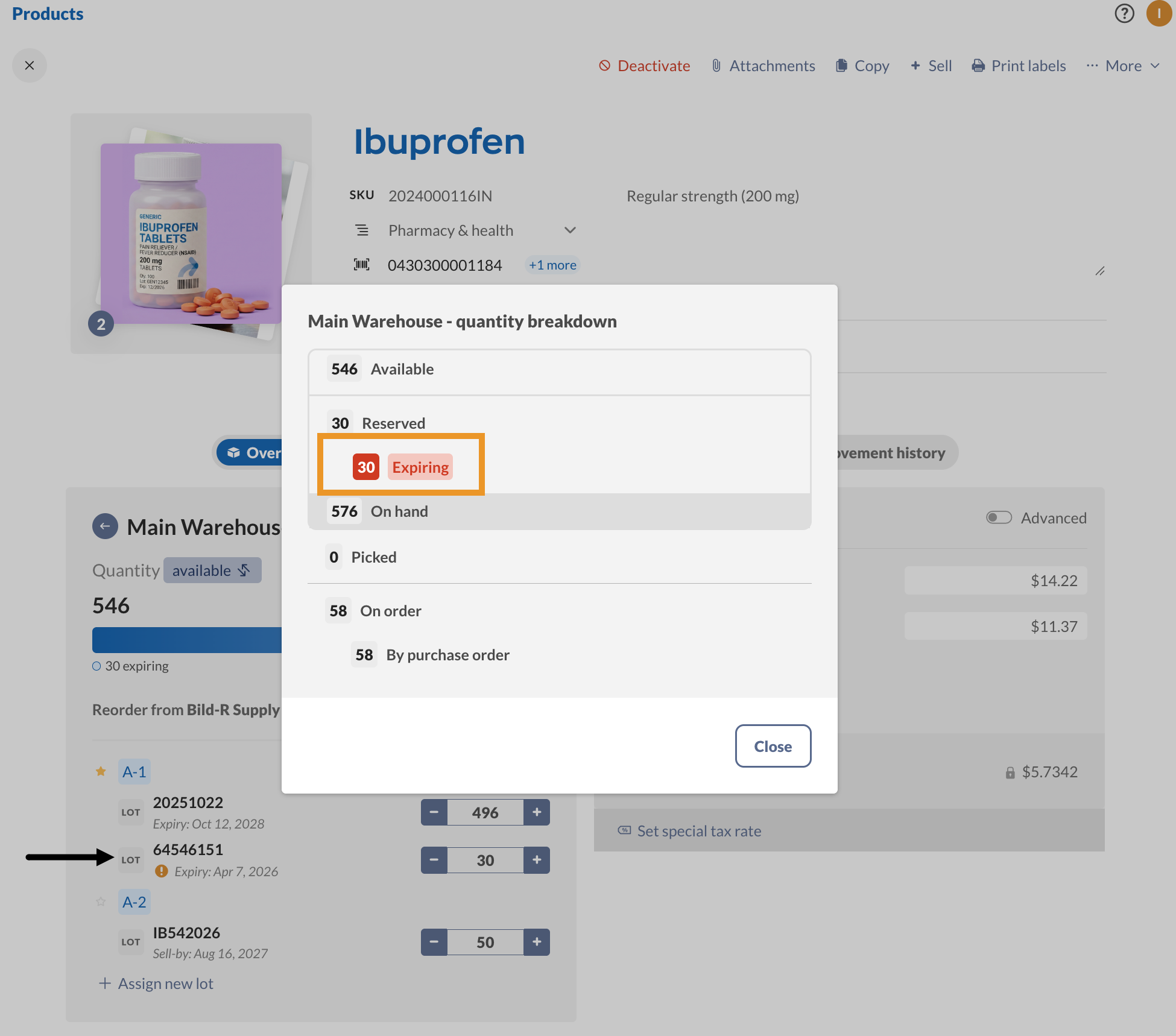
Helpful Stockroom user guide
To help your team remember the Stockroom workflow, download and print the PDF below, then display the poster in your Stockroom.
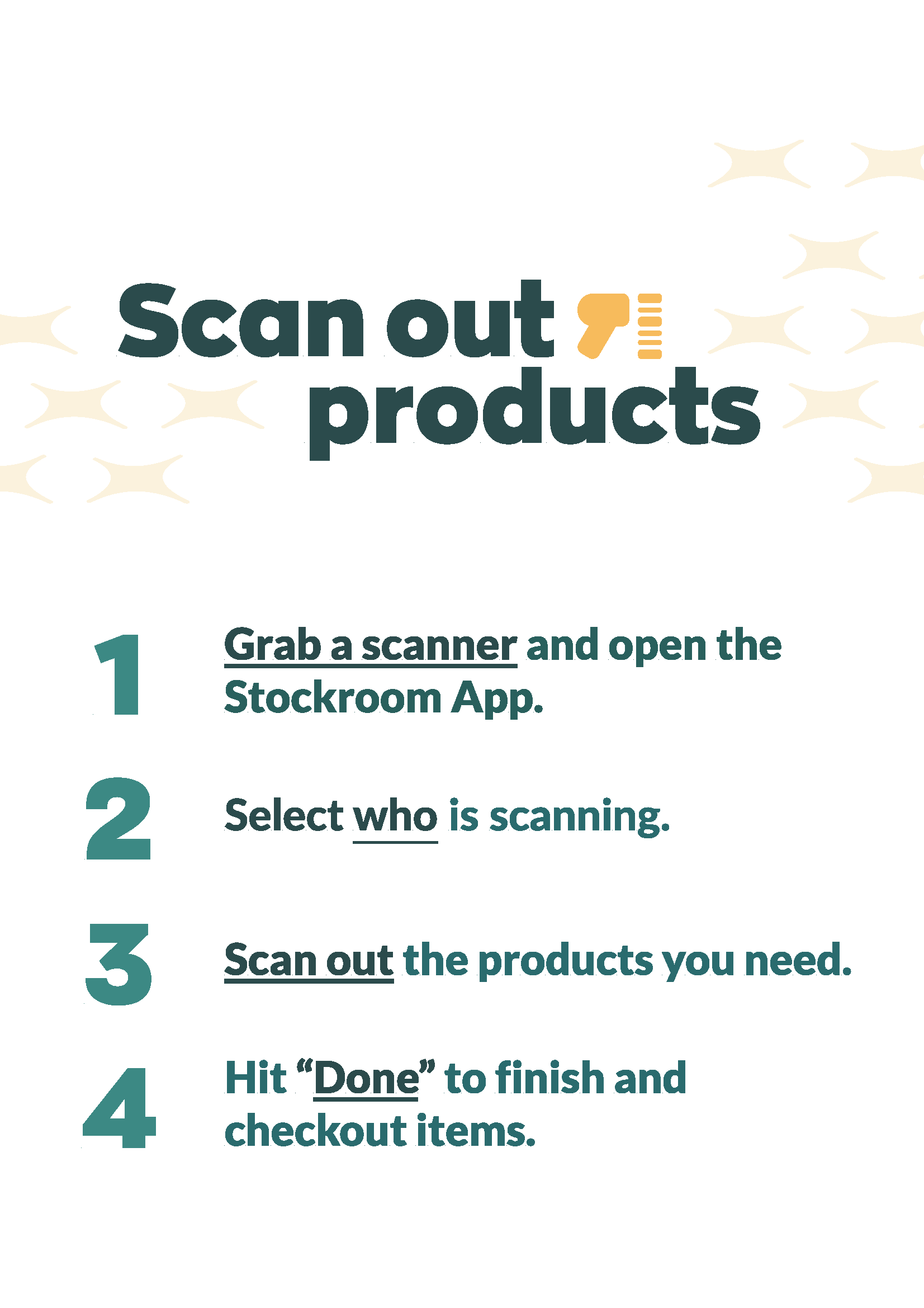
Can I create new products from the Stockroom app?
Currently, Stockroom users cannot create new products from the app.
If you scan a new barcode or QR code, the Stockroom app will tell you the product isn’t currently available in inFlow.
We’d encourage Stockroom users to contact the inFlow Administrator to add the new products to inFlow for Web, Mobile, or Windows.
How Stockroom saves your scans
When someone completes a scan in the Stockroom app, inFlow saves it as a stock adjustment — the same record inFlow uses for every other change to your stock levels. Scans made with a transfer workflow are saved as stock transfers.
Before September 15, 2026, this activity was recorded as Stockroom scans. Stockroom now adjusts stock in and out of your inventory, and transfers stock between locations. Records created before that date keep their SR numbers, like SR-000123, so older references still work.
Where to find your Stockroom records
- The stock adjustments and stock transfers lists. Open a record to see the Stockroom user, the location, the lines that were scanned, and any remarks.
- The product’s movement history. Each scan sits alongside every other change to that product’s stock.
- Your reports. Stockroom activity is included in your stock adjustment and stock transfer reports.
Stock adjustments cover stocked products, so non-stocked products aren’t included.
Reporting
Open the Stock adjustment report or the Stock transfer report and add the Stockroom User and Stockroom Device columns to see who scanned which item and on which device.
If you use the inFlow API or Zapier
inFlow API. Use the stock-adjustments endpoints to read and write Stockroom activity. The stockroom-scans endpoints still respond on API version 2026-08-13 and earlier, reading and writing stock adjustments behind the scenes with the same IDs, numbers, and webhook subscriptions. On API version 2026-09-01 and later, they return a 404 pointing you to stock-adjustments, and the API reference marks every stockroom-scans operation deprecated.
Zapier. Build your Zaps with the Stock Adjustment trigger and action. The latest version of the inFlow Zapier app doesn’t include a Stockroom Scan trigger, search, create, or update. Zaps built on an earlier app version keep running, and you’ll see an upgrade notice in the Zap editor.
If your integration calls the
stockroom-scansendpoints, plan the move tostock-adjustmentsbefore you move to API version2026-09-01. Contact the inFlow Team if you’d like a hand.
Stockroom app minimum requirements
Android OS
- Android 9.0 or later is supported.
iOS
- iOS 15.1 or later is supported.
At the moment, the Stockroom app isn’t optimized for tablets.
 Yes, thanks!
  Not really


0 Comments