


 Home


How to run inventory reports with the AI Report Assistant in inFlow
The AI Report Assistant lets you ask questions about your inFlow data in natural language. You get a short written answer plus a report you can download as a CSV or PDF file. See below for full details.
What the AI Report Assistant can do
Instead of picking a report and setting up filters, you can just type a question like “top sellers, last 90 days” and inFlow will pull the data for you. You can also ask it how to do things in inFlow.
Here’s what you should know before you start:
- It’s read-only, so it can never create, edit, or delete your data.
- It only looks at your own company’s data.
- Amounts are displayed in your home currency unless you request the original currency from the order.
- Your questions are collected and used to help improve the feature.
The AI Report Assistant is still learning, so its answers may occasionally be incorrect. Check the results against your records.
Who can use the AI Report Assistant?
The AI Report Assistant is available in inFlow for Web to every company. An admin has to opt your company in before anyone can use it.
- Admins have the AI Report Assistant turned on by default. An admin doesn’t need View only or Full access to each area for it to work.
- Team members need at least View only access to every area of inFlow.
The AI Report Assistant can’t tell you who has admin status or what access rights inFlow team members have. Admins can check the Team settings for this information.
How to give a team member access to the AI Report Assistant
- With an Administrator account, open inFlow’s Team settings (from the Main Menu, hover over the Settings icon
 , then select Team).
- Click Edit access rights next to the team member’s name.
- Under AI Tools, turn on AI Report Assistant.
- Click Save.
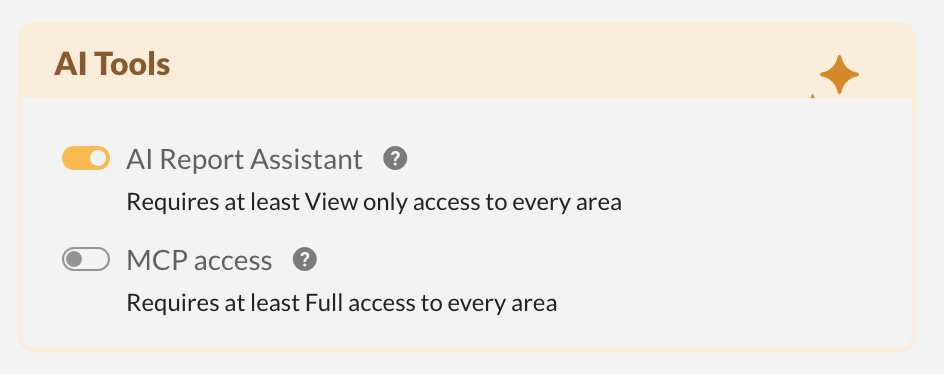
The AI Report Assistant needs at least View only access to every other area of inFlow your company has. An area your company isn’t on, such as Manufacturing, doesn’t count. If a team member is missing View only access somewhere, the toggle stays switched off until you add it. And if you remove access to an area while the toggle is on, inFlow warns you that this also turns off the AI Tools that depend on it.
The same applies to restrictions. Restricting a team member to a location, or to the records of their own sales rep, switches off both AI Report Assistant and MCP access and greys out the toggles. inFlow shows a banner naming the rights it has switched off, and the reason stays on screen underneath. Lifting the restriction makes the toggles available again but leaves them off, so access is never handed back without someone choosing it.
For more on access levels, see how to set/restrict team member access rights in inFlow.
You’ll also see MCP access in the same AI Tools section. That’s a separate feature for connecting inFlow to your own AI tools. It needs Full access to every area, and it comes with the inFlow API & MCP add-on.
How to turn on the AI Report Assistant
Because this feature uses AI, an admin has to opt in for the whole company the first time.
- From the Main Menu, hover over Reports, then select AI Report Assistant. You can also click Try it free on the New: AI Report Assistant banner on your home page or Reports page.
- Read through the Things to know about AI Report Assistant list in the Try the AI Report Assistant window.
- Click Opt in.
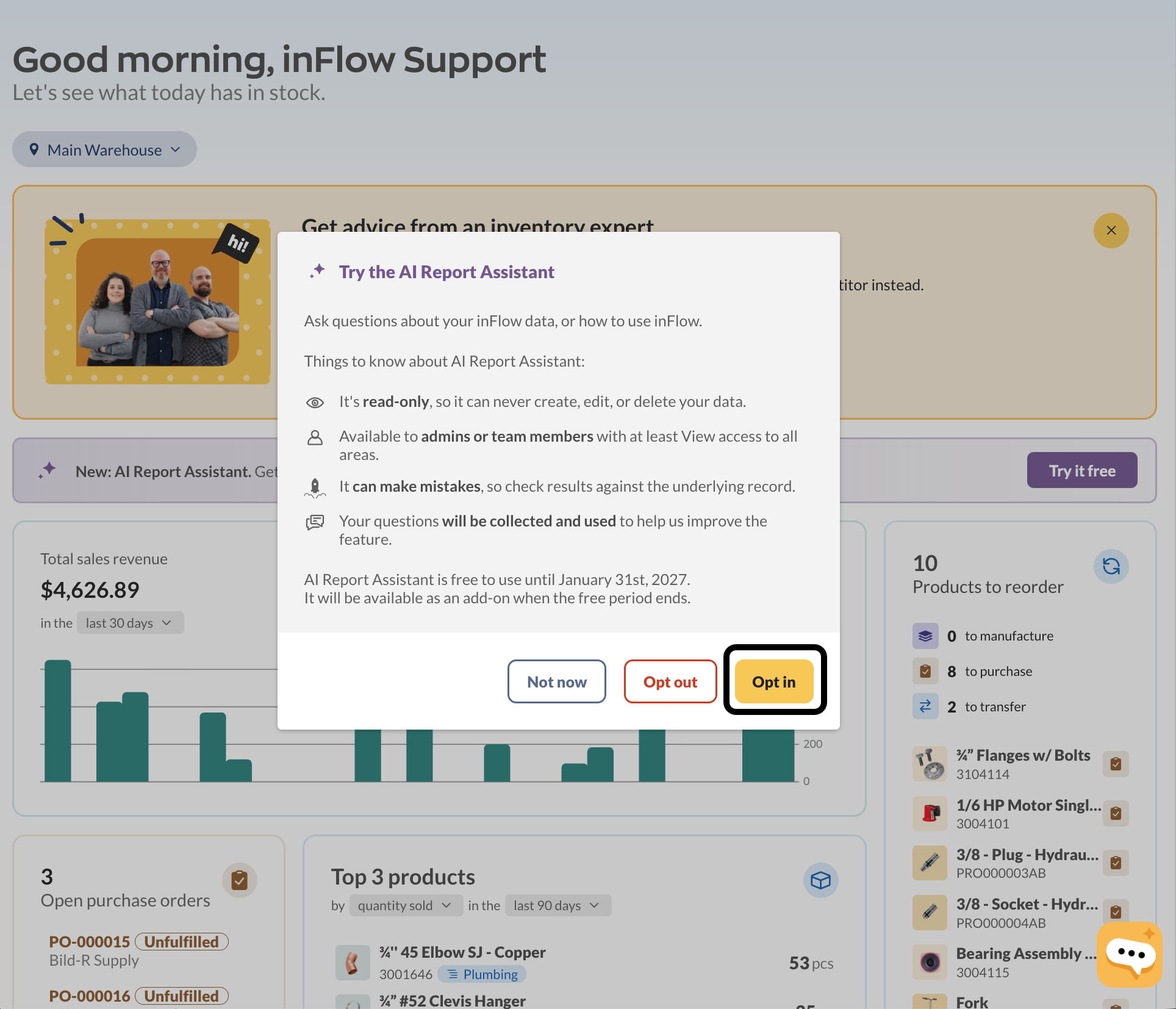
Not ready yet? Click Not now, and inFlow will ask you again next time. Choosing Opt out turns the feature off for everyone at your company.
Opting in and opting out both apply to your entire company, not just your own user account.
How to ask a question about your data
- From the Main Menu, hover over Reports, then select AI Report Assistant.
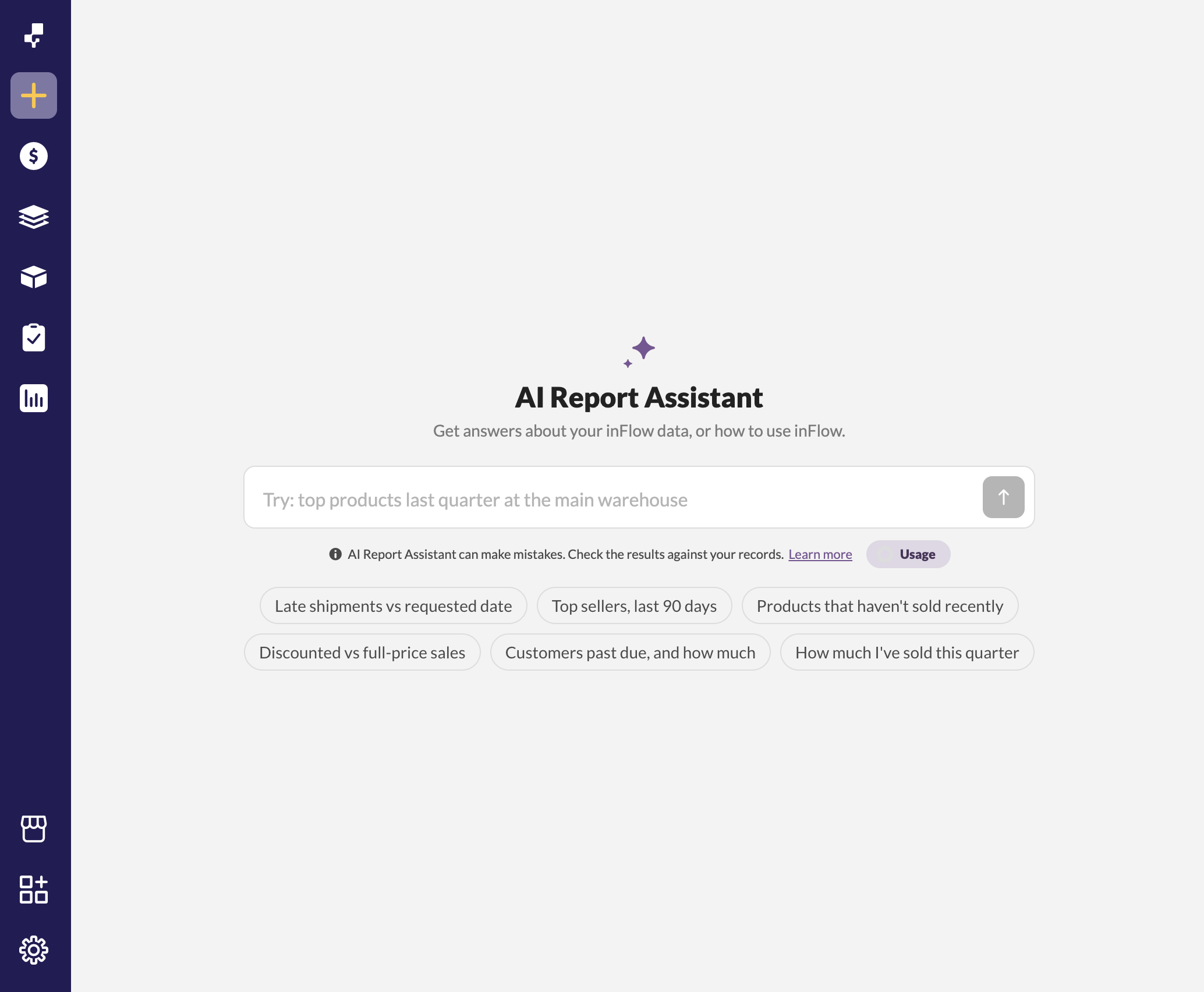
- Type your question in the box, or click one of the example questions below it (like Top sellers, last 90 days).
- Press Enter on your keyboard, or click the arrow button.
- While the AI Report Assistant works, you’ll see it move through the different steps in the process.
- Results will appear on the right side of the screen once completed. The panel opens with a short summary above the report.
Ask about one or more things at a time and include a time frame or location if you have one in mind (“late shipments last month at the main warehouse”). Narrow questions get faster, clearer answers.
If your question involves a lot of data, inFlow may take longer to respond. You’ll get a message if the wait is expected. If it takes too long, inFlow will stop and notify you. To speed up the process, narrow your question by using a shorter date range or specifying a product, location, or customer.
Changed your mind mid-answer? Click the stop button. It stops your current request and lets you send a new message.
English is the only language we officially support right now. Other languages may still work.
How to ask follow-up questions
You don’t have to start over each time. The AI Report Assistant remembers the rest of the conversation, so you can build on your last question.
- Type your follow-up in the box at the bottom of the conversation.
- Press Enter on your keyboard, or click the arrow button.
For example, you could ask “top sellers in the last 365 days,” then follow up with “which of those are low on stock?” inFlow will understand what “those” refers to.
Can I ask the AI Report Assistant for inFlow help?
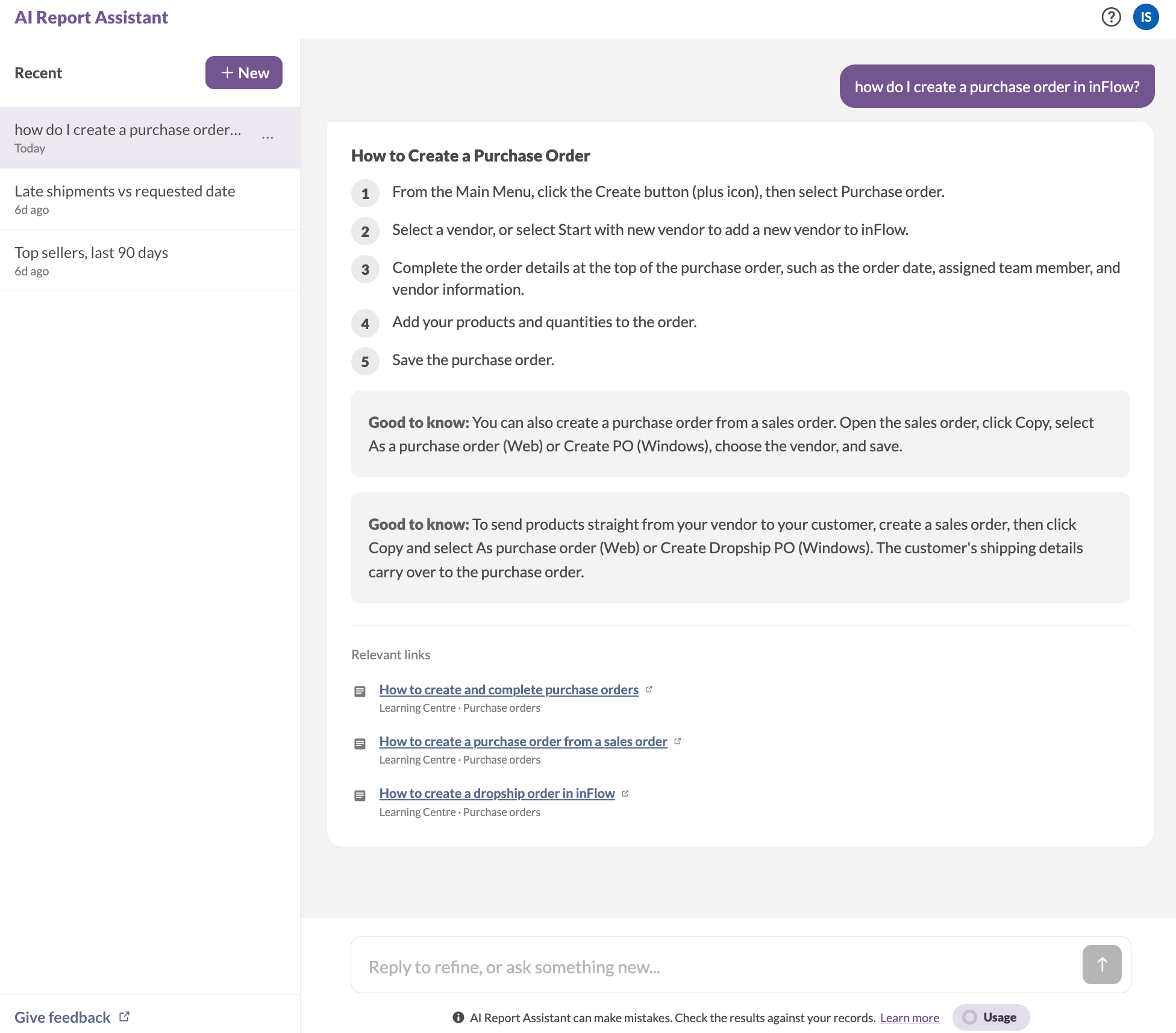
The AI Report Assistant also answers questions about using inFlow, so you don’t have to leave the conversation to look something up. Ask in the same chat, and you’ll get the steps plus a link to the full article.
It handles three kinds of how-to questions:
- Using inFlow (for example, “how do I create a purchase order?”)
- Using the inFlow API (for example, “how do I update a product’s price using the API?”)
- General questions about inFlow (for example, which plans and add-ons are available).
How to download your results
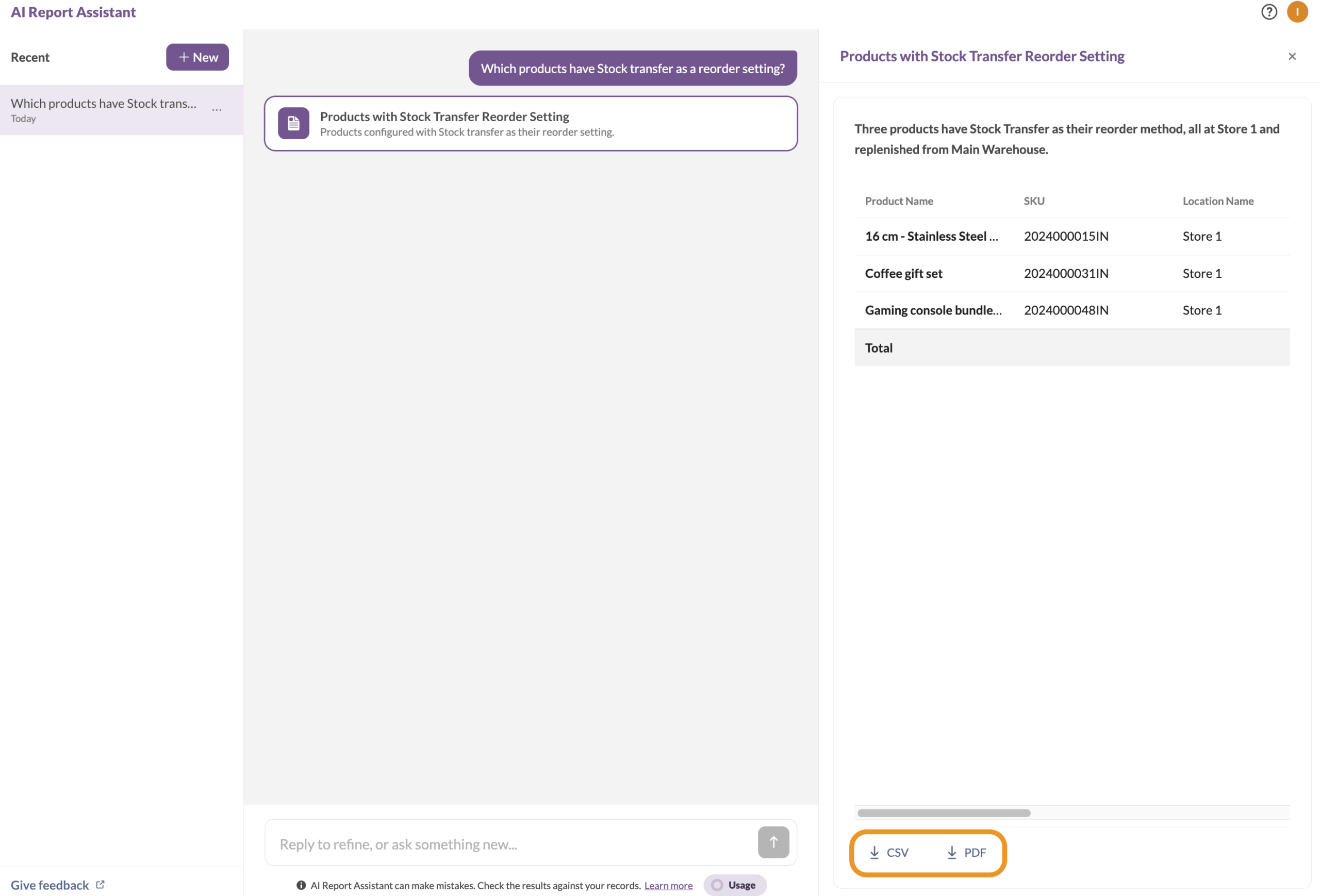
You can download any report as a CSV file or a PDF file. The results panel opens on the right once inFlow has your answer.
- Go to the bottom of the results panel.
- Click CSV or PDF.
The file downloads with the same name as the results title, so it’s easy to find later. If you’d rather work with a standard inFlow report, see how to export data or reports from inFlow.
How to manage your conversations
Your past conversations are saved in the Recent list on the left, so you can pick up where you left off.
- To start fresh, click New at the top of the list.
- To reopen a conversation, click it in the list.
- To rename or delete a conversation, click the three dots beside it, then choose Rename or Delete.
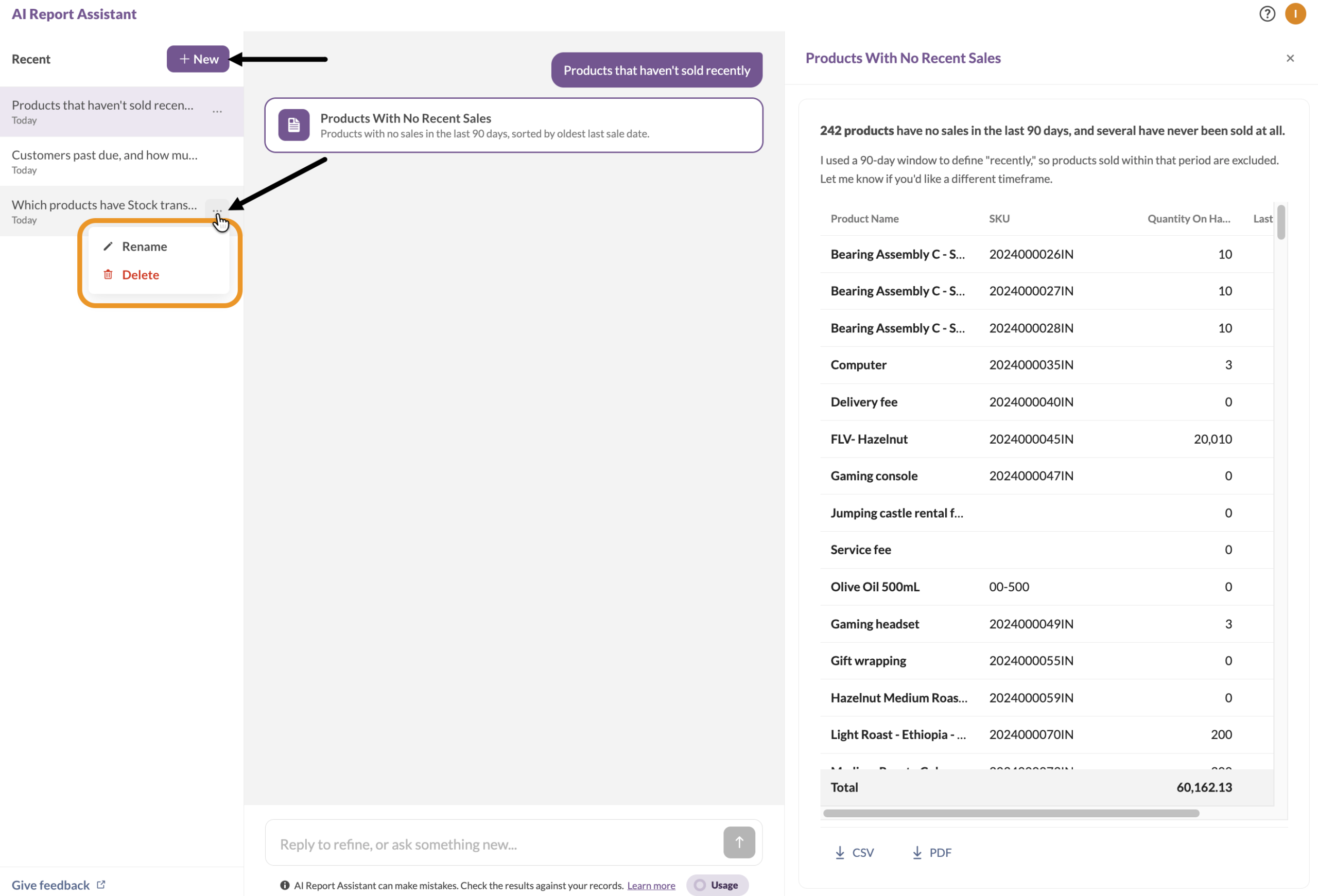
Deleting a conversation permanently removes it and all its messages. You can’t get them back.
How to opt out of the AI Report Assistant
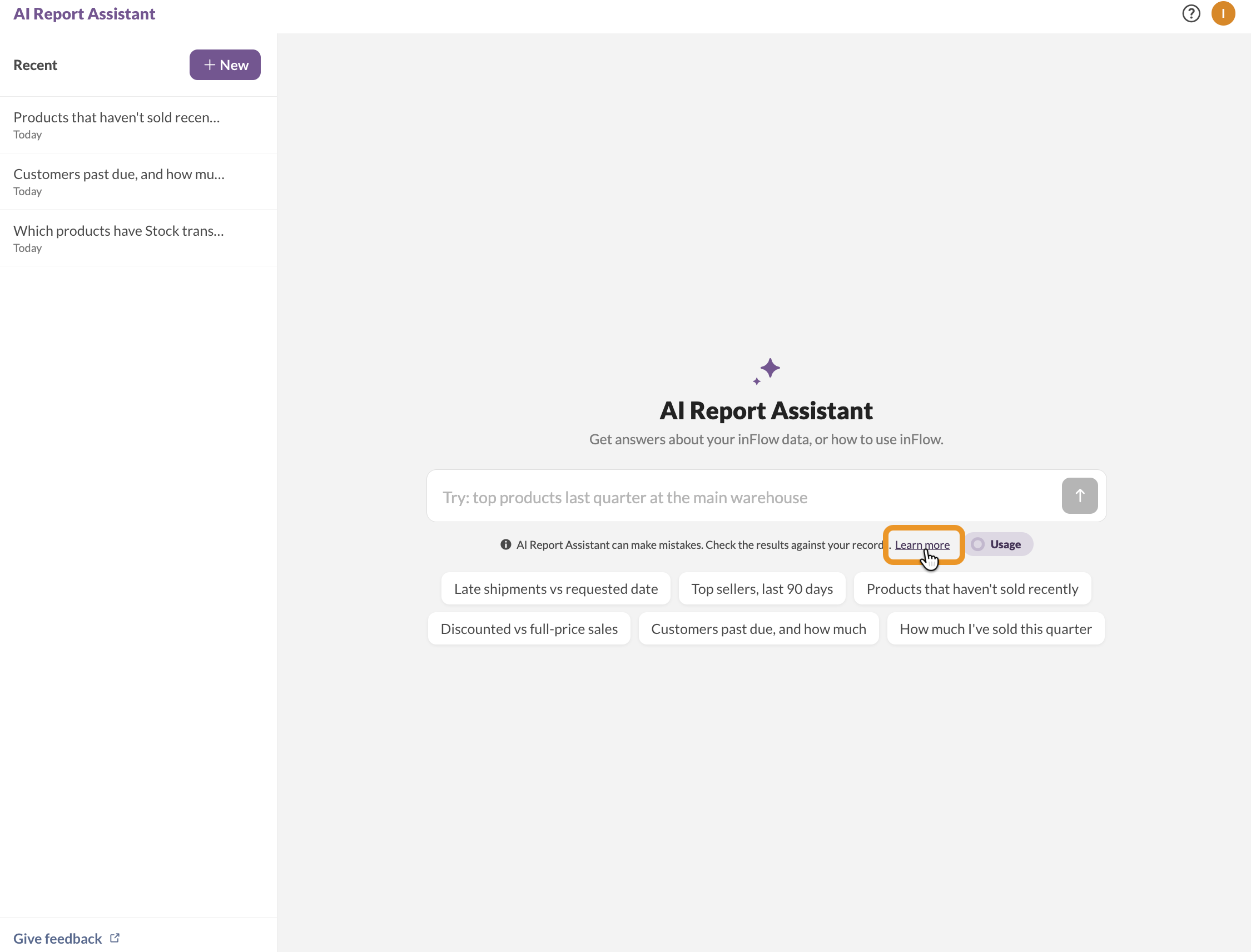
Opting out turns the feature off for everyone at your company.
- From the AI Report Assistant page, click Learn more under the question box.
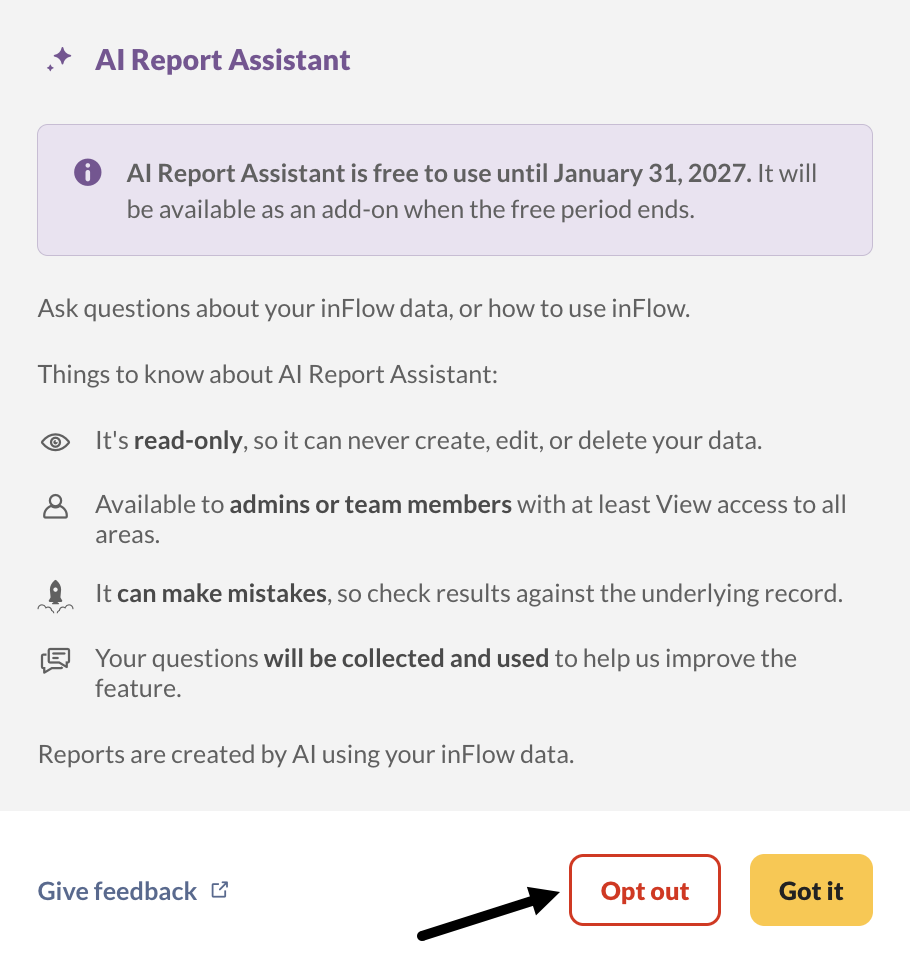
- Click Opt out.
- Optionally, check the reasons why. This helps the inFlow team improve the feature.
- Click Opt out to confirm.
To turn it back on later, contact inFlow support.
Frequently asked questions
Which parts of my inFlow data can it answer questions about?
Sales, inventory, customers, purchasing, your team, and how to use inFlow.
Can I ask the AI Report Assistant to help me learn inFlow features?
Yes. As well as answering questions about your data, it answers questions about using inFlow: how to do something, how to use the inFlow API, and general questions about the product. Ask in the same chat, and you’ll get the steps, plus a link to the full article. See Can I ask the AI Report Assistant for inFlow help? above for what it covers.
Can other people at my company see my conversations?
No. Your conversations are saved to your own account, so they only show up in your own Recent list. To share an answer with someone, download the results as a CSV or PDF file and send them the file.
How current is the data in an answer?
The AI Report Assistant reads your live inFlow data each time you ask, so the answer reflects what’s in inFlow at that moment. Ask the same question an hour later, and the numbers can be different, because your data has moved on.
Why did I get a different answer to the same question?
Usually, because your data changed between the two questions. However, the numbers provided in the report are what to go by.
Can I see the report or the query behind an answer?
You get the report, which is the data your answer is based on. The AI Report Assistant doesn’t show you the query it ran, and it won’t describe how your data is stored behind the scenes. If you need the numbers in another form, download the report as a CSV or PDF file.
Sharing your feedback
Your feedback makes a real difference to how the AI Report Assistant develops. Click Give feedback at the bottom of the Recent list, or in the AI Report Assistant info window.
 Yes, thanks!
 Not really


0 Comments