 Fellow Canadians: All inFlow plans are available in Canadian dollars




 Home
Home


Can inFlow notify me when products are low in stock?
Yes, inFlow can notify you when you’re low on stock! Low stock is determined by your reorder point versus your current anticipated quantity which is quantity on hand + quantity on order – quantity reserved.
Current anticipated quantity = quantity on hand + quantity on order – quantity reserved.
As long as you have access to reorder stock in inFlow, you can customize email notifications for any day you want. You can find this setting in inFlow Inventory for Web.
Notification settings in inFlow
- Go to inFlow’s Personal settings.
- Click on Notification settings and toggle on Low stock.
- From here, you can select the days and times when you want a low-stock notification to be emailed to you.
- Click Save when done.
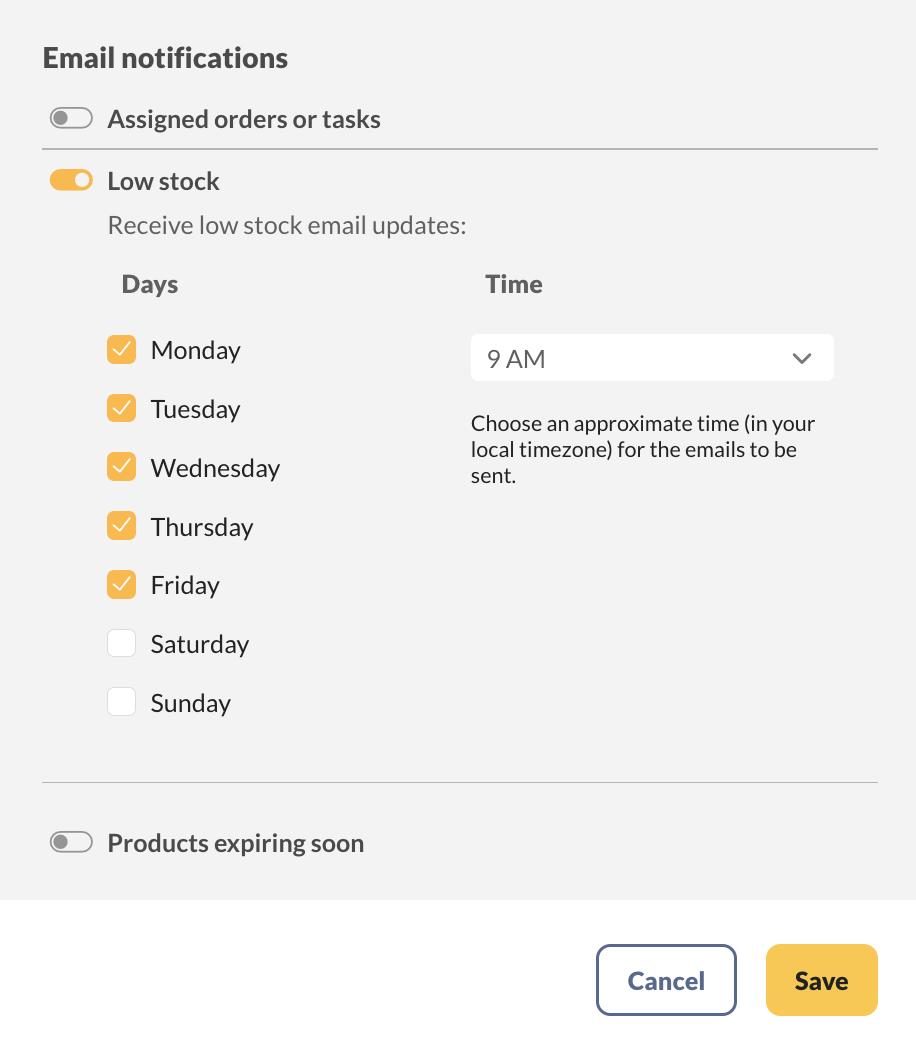
Note: If you travel, you’ll notice the setting will have changed to reflect the time in your original location. For example, if your original setting was 9am EST and you travel west to PST, your email will still arrive at 9am EST (6am PST).
If you don’t want to receive these emails, simply uncheck the boxes so that none of the days are selected.
What’s in the low stock email?
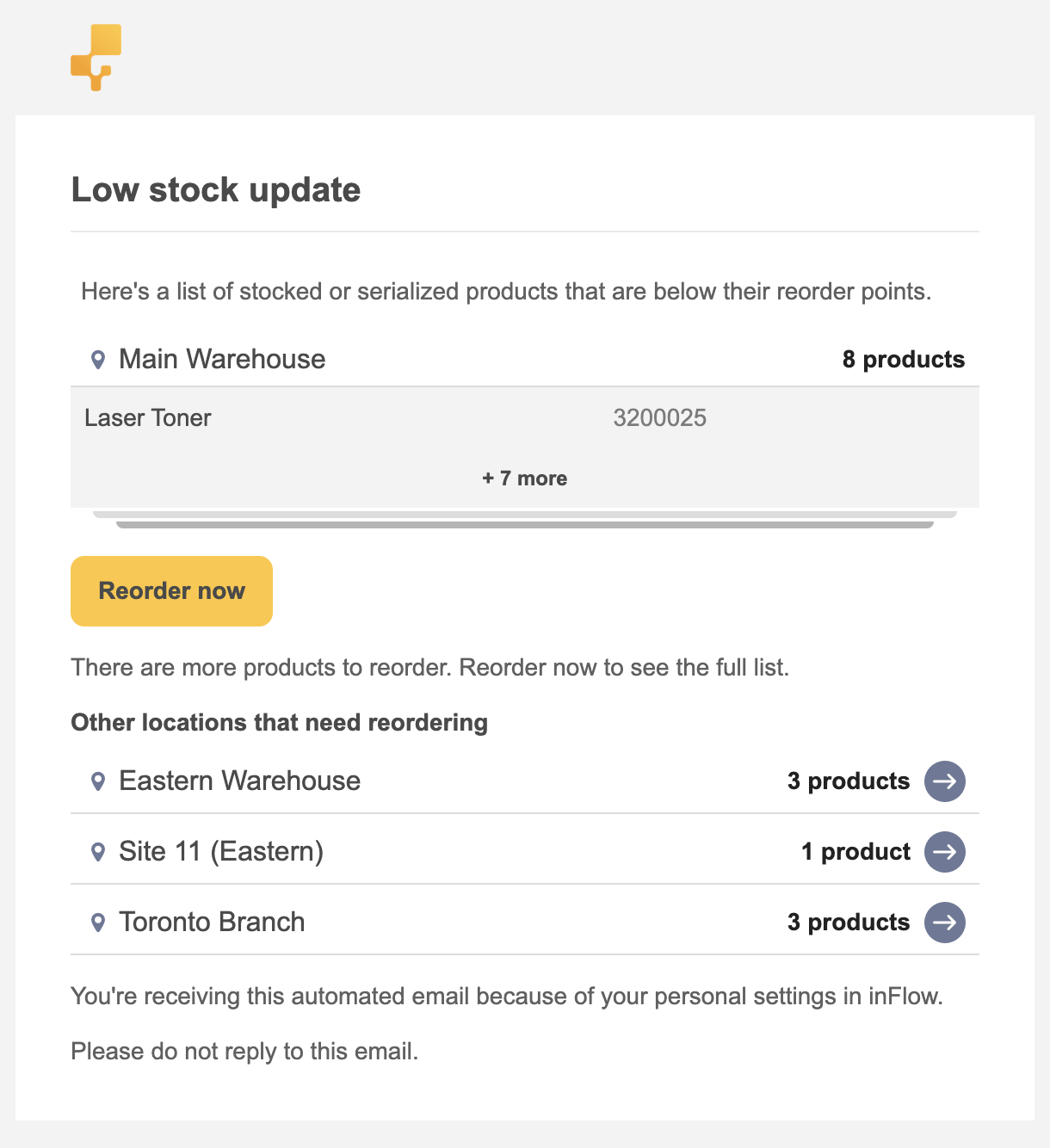
To keep things simple and easy to read, the email will contain a list of the first 25 products in your personal default locationthat are low on stock (including descriptions if you have that setting enabled).
If you have more than 25 products that need to be reordered, the email will include that information, as well as a prompt to view the full list in the inFlow Inventory.
The products listed in the email are below their reorder point at the time that inFlow sends you this email.
Select the Reorder now button to log in to inFlow and create new orders to replenish the stock.
Negative stock and multiple locations
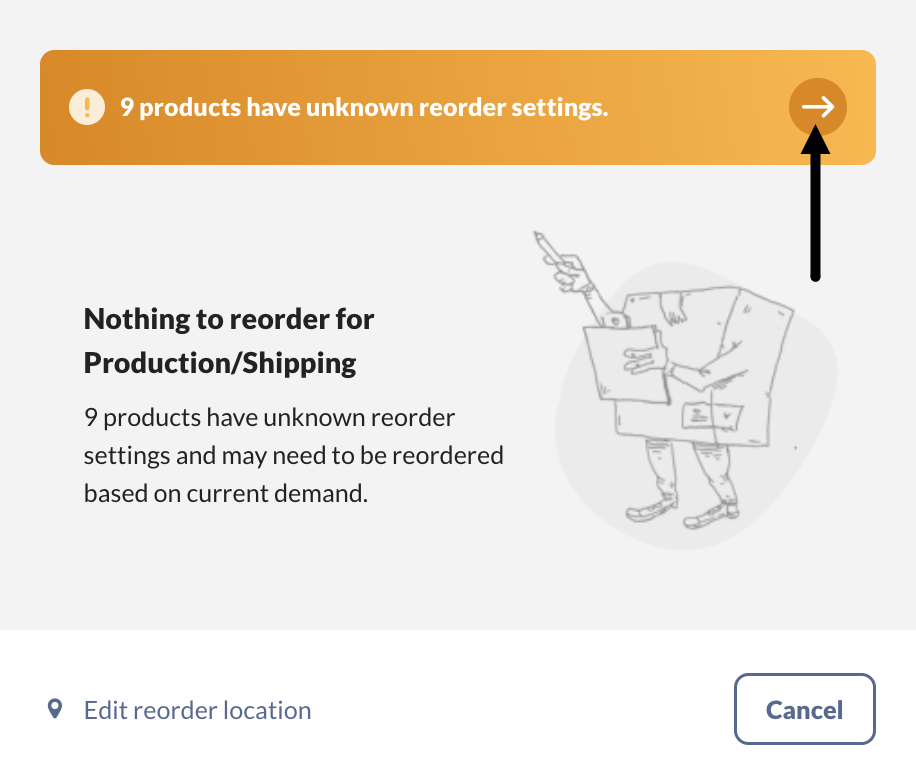
If a product shows negative stock because you’ve reserved quantities for orders or transactions (like stock transfers), inFlow adds that product to your low stock email—even if you haven’t set a reorder point for it. This way, you’ll know about the negative stock right away.
In the reorder window, these products appear under an orange banner. The banner shows up whenever you have products with unknown reorder settings, and it reads N products have unknown reorder settings (where N is the number of products).
Select the arrow next to the orange banner to review the products with unknown reorder settings.
When more than one location needs reordering, the email lists product names under the first location only. For every other location, the email shows the location name and how many products need reordering—but not the individual product names.
To see the full product list for those other locations, select Reorder now to open inFlow
 Yes, thanks!
  Not really


0 Comments