 Fellow Canadians: All inFlow plans are available in Canadian dollars




 Home
Home


Stockroom users & devices: PIN sign-in and locations
Stockroom runs on two things: the people who scan and the devices they use to scan. Read the guide below on how to set all of that up and keep every scan tied to the right person.
How Stockroom manages users and devices
As an inFlow Stockroom administrator, you set up users and devices in Stockroom settings, then add each phone as a device. You can also set the location a device scans into, or leave it open so the person scanning picks one.
You can add as many as you need without adding team members to your inFlow plan, so everyone on the floor gets their own name on the Who is scanning screen.
Add your Stockroom users first, then your devices. That way you can assign a device to a person while you’re setting it up, and anyone sharing a device can pick their name straight away.
How to add Stockroom users
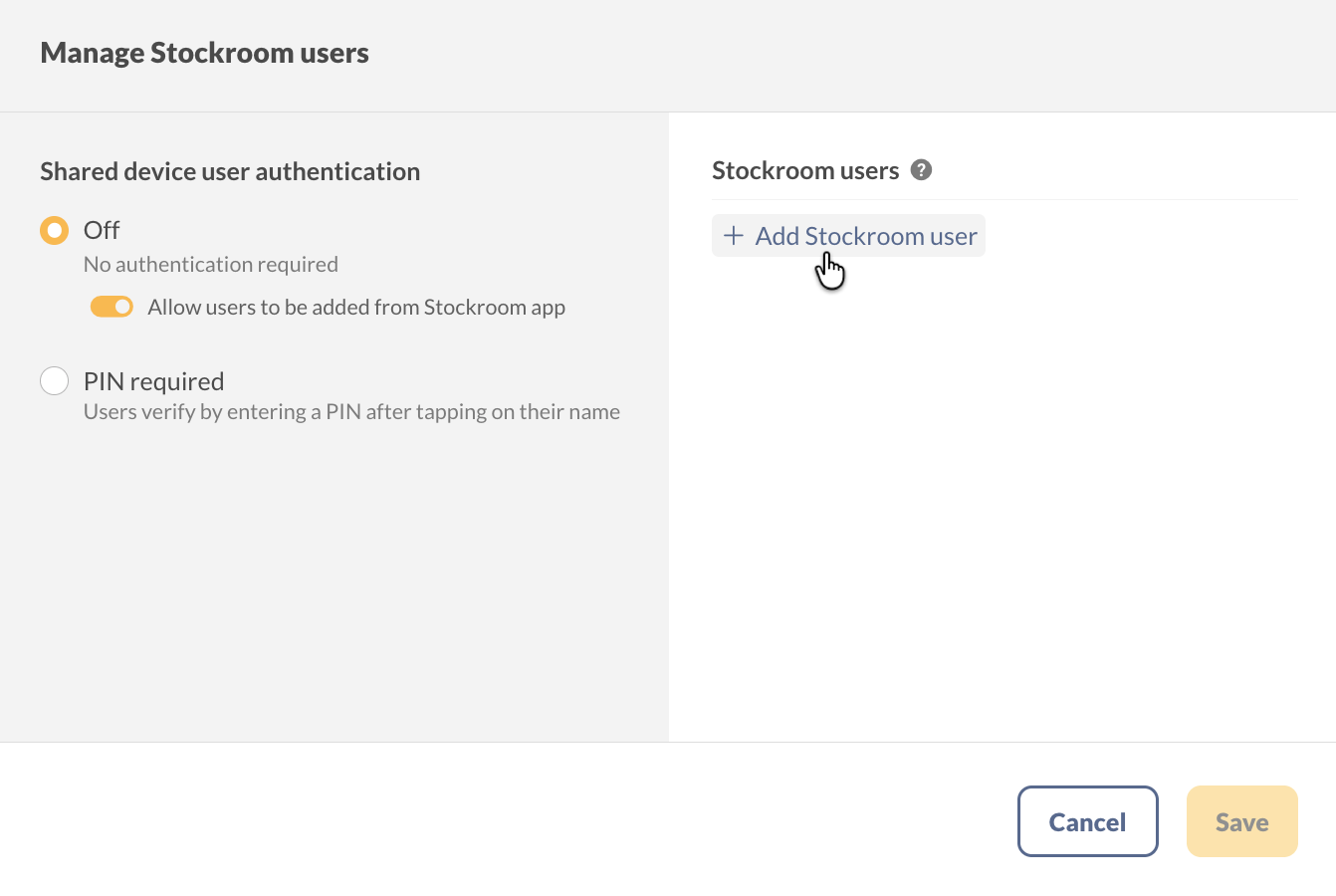
- Go to the Stockroom settings and click on the Stockroom users tile.
- Select Add Stockroom user, then enter the user’s name.
- Repeat for everyone else who will be scanning.
- Click Save when done.
How users can add themselves to the Stockroom app
Your team can add themselves when they first open the Stockroom app. This feature is available only when the Shared Device User Authentication is set to Off, and the option to Allow Users to be Added from the Stockroom App is turned on. If you select the PIN Required option, new users won’t be able to verify themselves since they won’t have a PIN.
- Open the Stockroom app and tap Add user.
- Enter the name, then tap Done.
Note: The Add user button transforms into a plus icon after users have been added to the list. To ensure that the list remains under admin control, disable the option to Allow users to be added from the Stockroom app.
Removing Stockroom users
To remove a user in inFlow for Web, hover over their name and click the X next to it. Only inFlow administrators have the ability to edit this list, and users cannot be removed from the Stockroom app.
Removing a user who is assigned to an individual device also removes that device. You’ll need to add the device again and log back in on it.
How to add Stockroom devices
Each phone running the Stockroom app is added as its own device. You’ll need an administrator account and the device in hand.
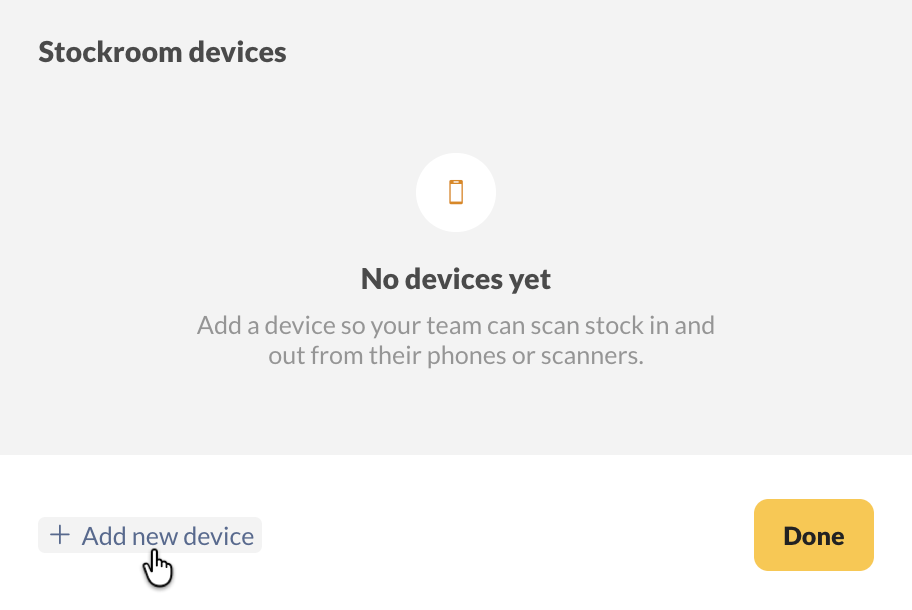
- Go to the Stockroom settings and click Add new device.
- Enter a Device name. Each name has to be unique, so “Receiving iPad” works better than “iPad”.
- Choose how the device is used and which location it scans into — both are covered below.
- Click Save. inFlow shows a QR code.
- Open the Stockroom app on the device, tap Scan to log in, then scan the QR code.
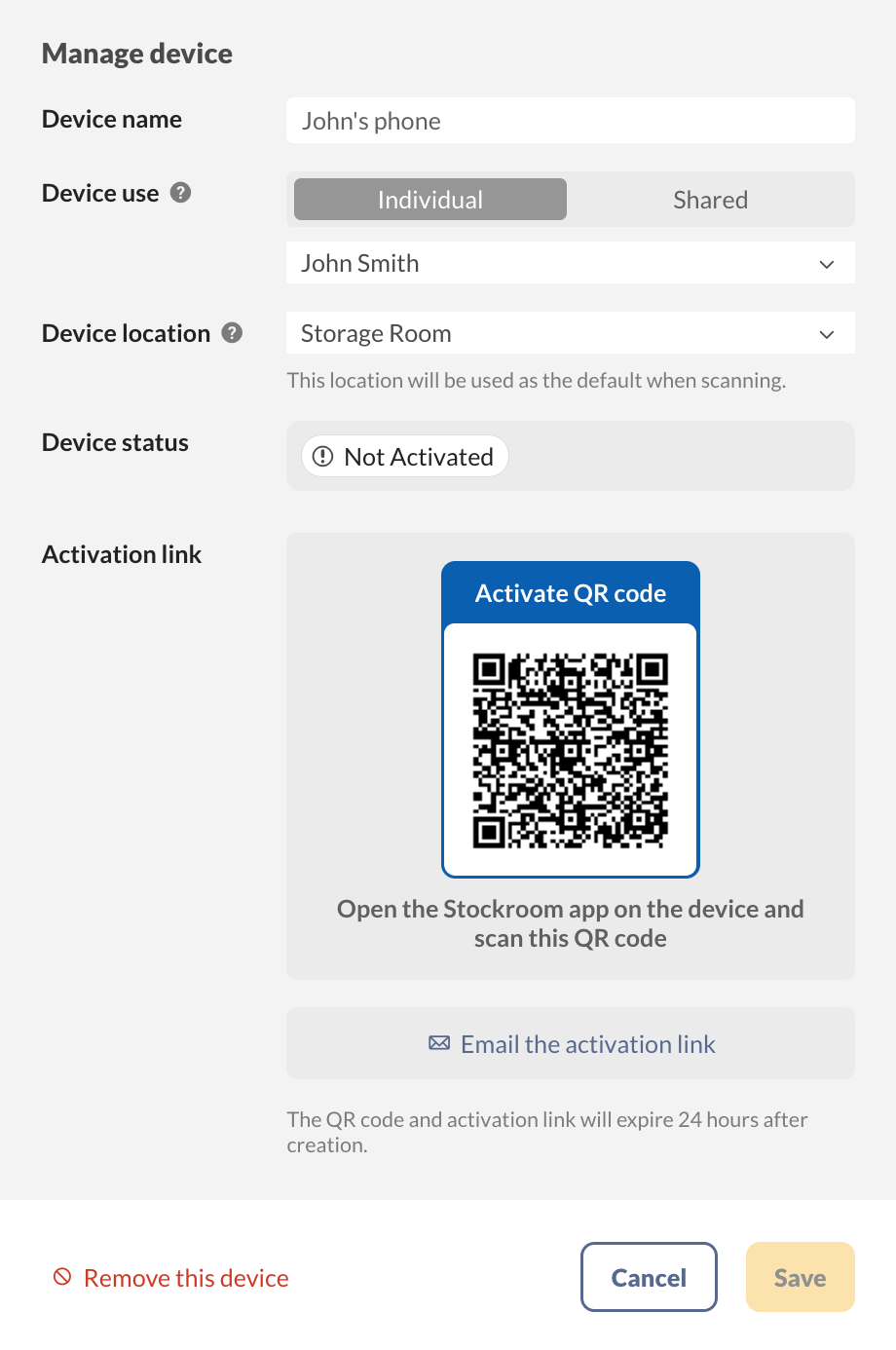
The QR code and activation link expire 24 hours after they’re created. Setting up a device in another warehouse or time zone? Select Email the activation link so whoever has the device can activate it when it suits them.
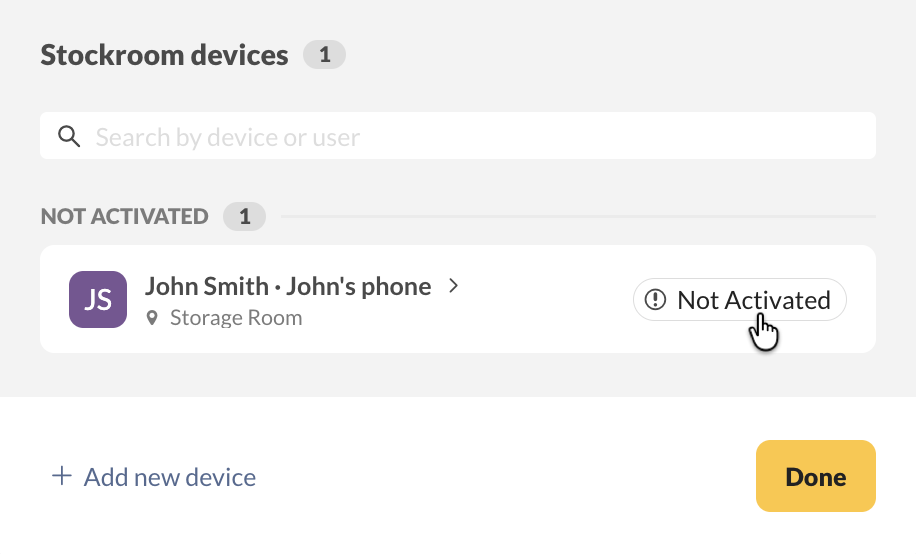
Until someone scans the code, the device sits under Not Activated in your Stockroom devices list. It moves out of that group once the app connects.
Choosing how the device is used
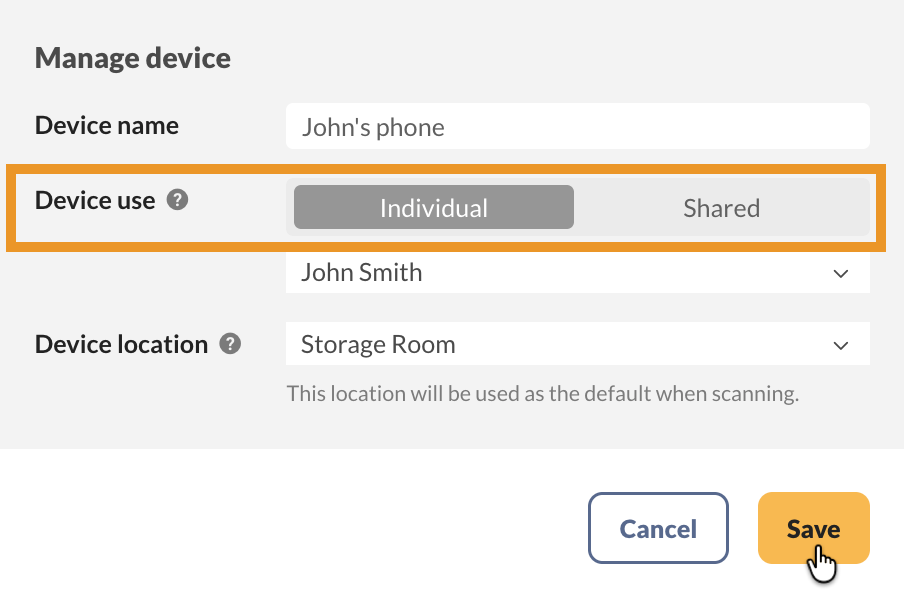
Device use determines whether the Stockroom device is used by multiple users or is assigned to a single user.
- Shared: anyone on your Stockroom users list picks their name on the Who is scanning screen. This suits a device that lives on a shelf or a bench.
- Individual: choose the person from the dropdown that appears below, and the app skips the sign-in screen entirely. Good for a device someone carries all day. Save stays greyed out until you pick a user.
Add your Stockroom users before you set up a shared device. A shared device asks whoever picks it up to choose their name, so an empty user list leaves them with nothing to select. If you also turn on PIN sign-in, each person needs a PIN before they’ll show up in that list.
Setting the device location
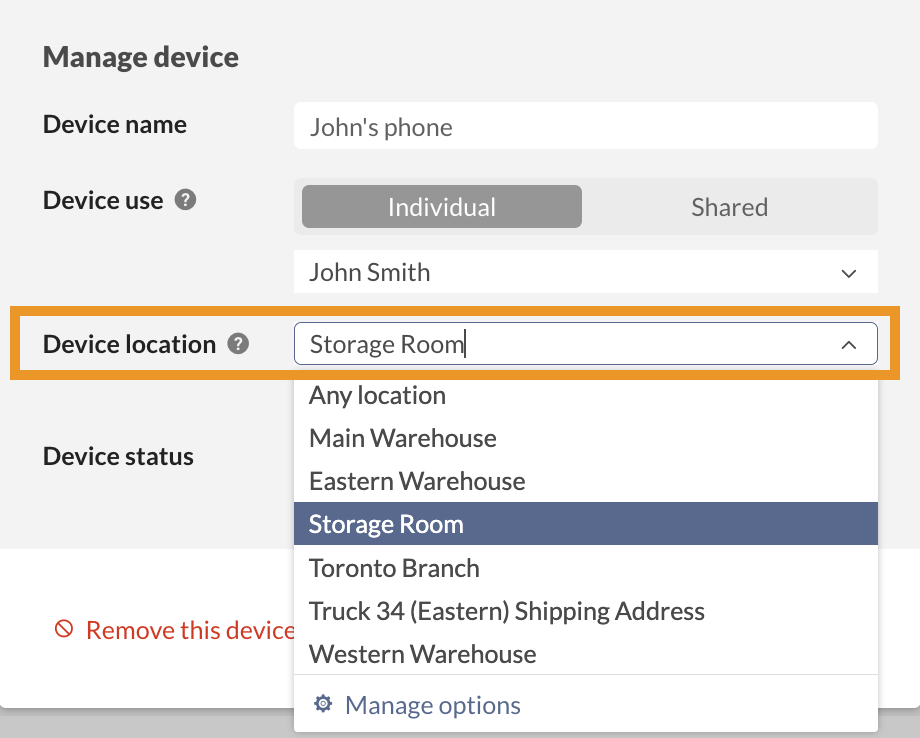
When adding or editing a Stockroom device, select the location for stock adjustments or transfers.
- Any location: the Stockroom user has access to every location and selects one when they start scanning — handy when a single device covers multiple locations. A workflow that already sets a location takes priority.
- A specific location, such as Storage Room: inFlow uses that location as the default when scanning. Editing the location saves right away and shows up in the app immediately.
Need a location that isn’t on the list? Select Manage options at the bottom of the drop-down.
Removing devices
- From the Stockroom settings, click on the device you want to remove.
- Select Remove this device at the bottom of the Manage device modal.
PIN sign-in for shared devices
If several people share one device, you can now require a PIN so every scan is tied to the right person.
- Go to the Stockroom settings and click on the Stockroom users tile.
- Under Shared device user authentication, select PIN required.
- Select the pencil beside a user’s name to Set PIN. inFlow can autogenerate one for you, and you can copy it to share with the user.
- Click Save when done.
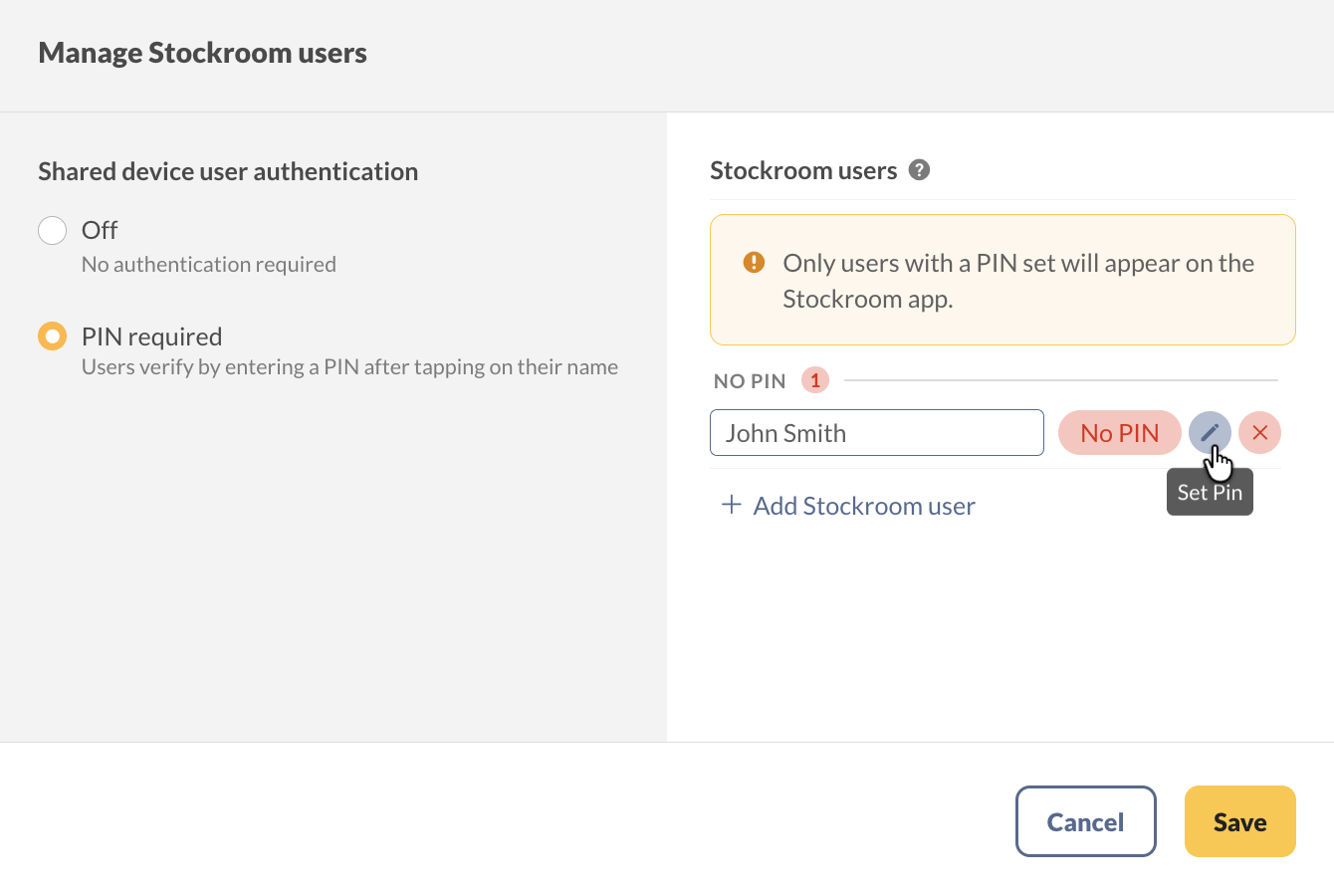
Only users with a PIN set appear on the Stockroom app. Anyone who still needs one is grouped under No PIN, and they can’t be picked on a shared device until you set it.
From then on, the app asks for the PIN after the user taps their name on the Who is scanning screen. To change a PIN someone already has, use Reset PIN next to the user.
You can also turn off Allow users to be added from Stockroom app from the same screen if you’d like admins to control the user list.
 Yes, thanks!
  Not really

0 Comments