 Fellow Canadians: All inFlow plans are available in Canadian dollars




 Home
Home


How to add attachments (products, customers, vendors, orders)
With inFlow, adding attachments to orders and records is easy. You can easily attach warranties to orders and certificates to customer records and organize all your important files within the system.
Web

Adding attachments to records/orders
- Open the record you want to add an attachment to.
- Click Attachments in the Action bar.
- You can drag and drop the file or click to select a file. Repeat this step to add additional attachments.
- Click Done to close the attachment window.
- Save the product record when done.
When you copy a product or order, any attachments added to the original record will not be copied to the new record.
How to view or download attachments
- Navigate to the product, order, or record you wish to address.
- Click Attachments in the toolbar.
- Click on the attachment filename to open it in a new tab, or hover over the file and click the download icon.
- The attachment will open in a new browser tab where you can print or download the file.
- Close the new browser tab when done, and click Done on the product record to close the attachments window.
How to remove attachments
- Open a record and click Attachments.
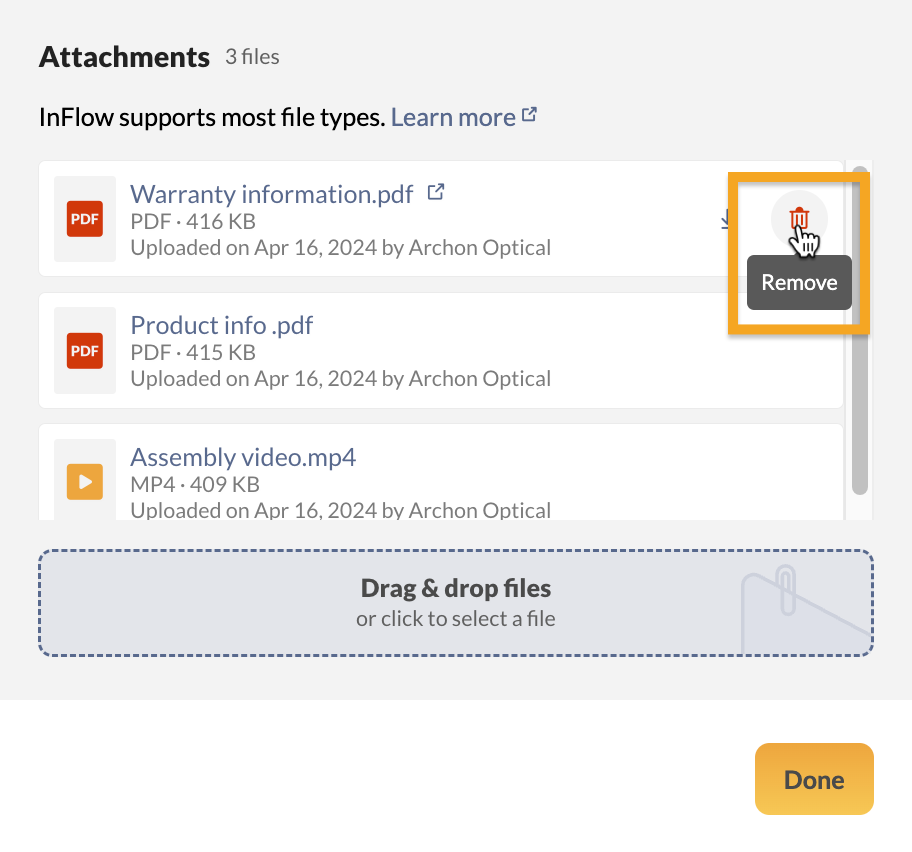
- Hover over the attachment and select the trash can icon to remove it.
- Click Done.
- Save the product record/order.
User access rights restrictions
User access rights determine the access options for attachments. See below for details.
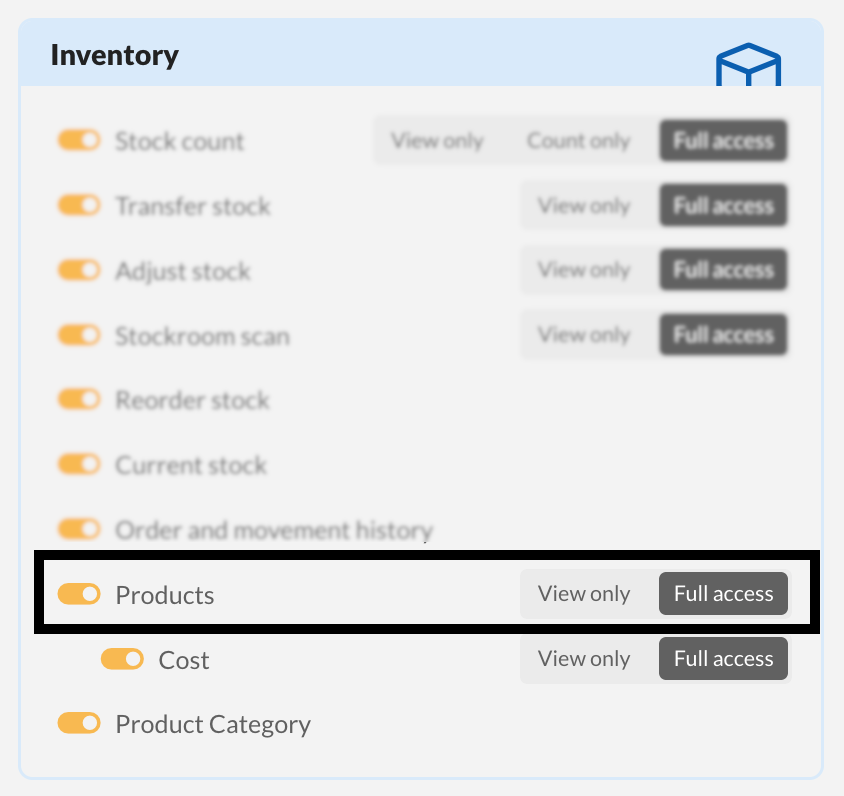
| Product access rights | Explanation |
|---|---|
| Full access | Unrestricted access to add, download, and remove attachments. |
| View only | Team members will only be able to view attachments. |
| No access | Select the toggle next to Products to prevent a team member from viewing product records and attachments. |
Canceled records only have view-only and download access to attachments.
You can learn more about inFlow’s Team member access rights from this guide.
Windows
In inFlow, you can attach files to records and orders. For example, you can attach a warranty to an order or certificates and tax breaks to a customer record.
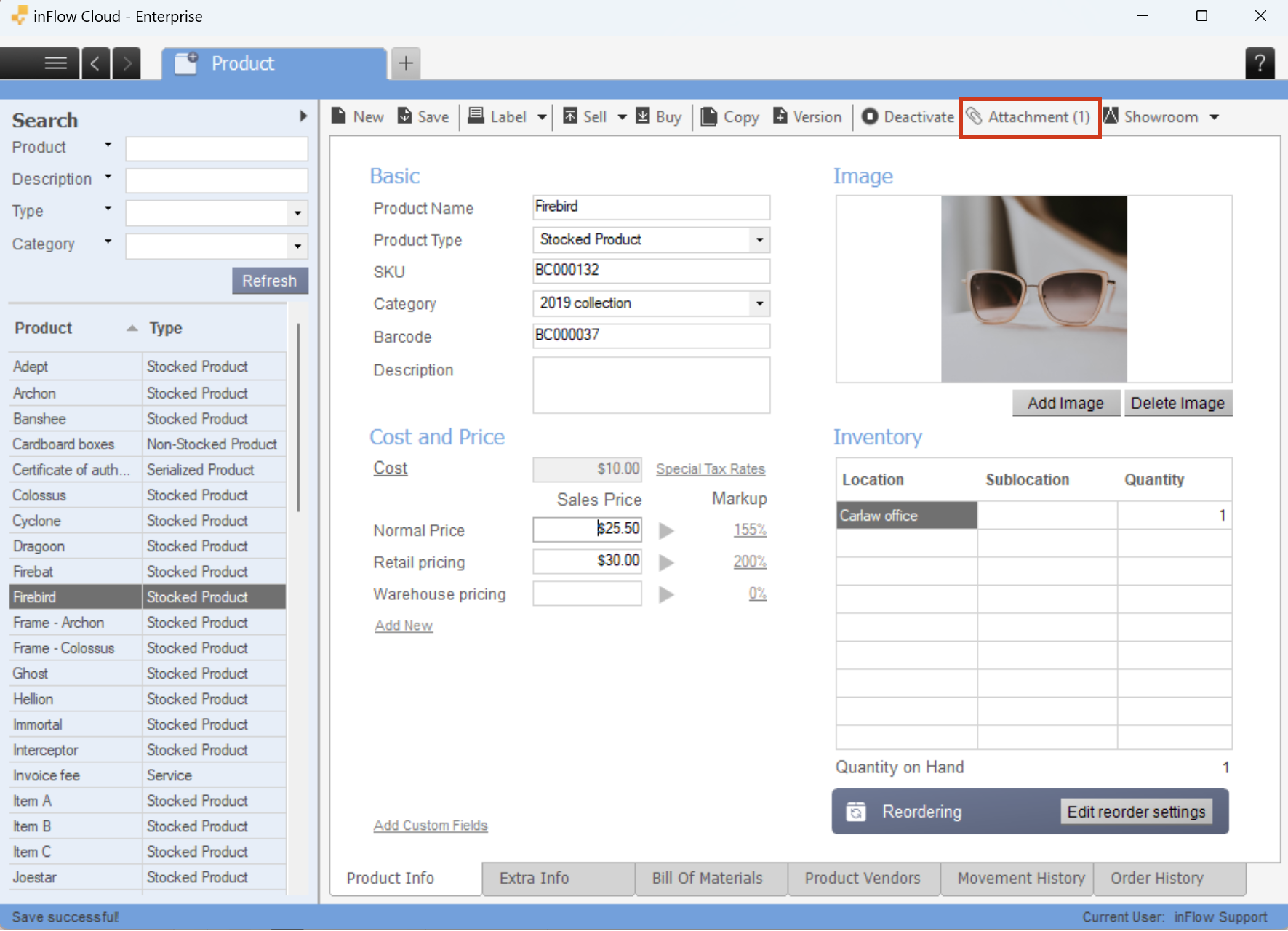
Adding attachments to a record
- Open the record you want to add an attachment to.
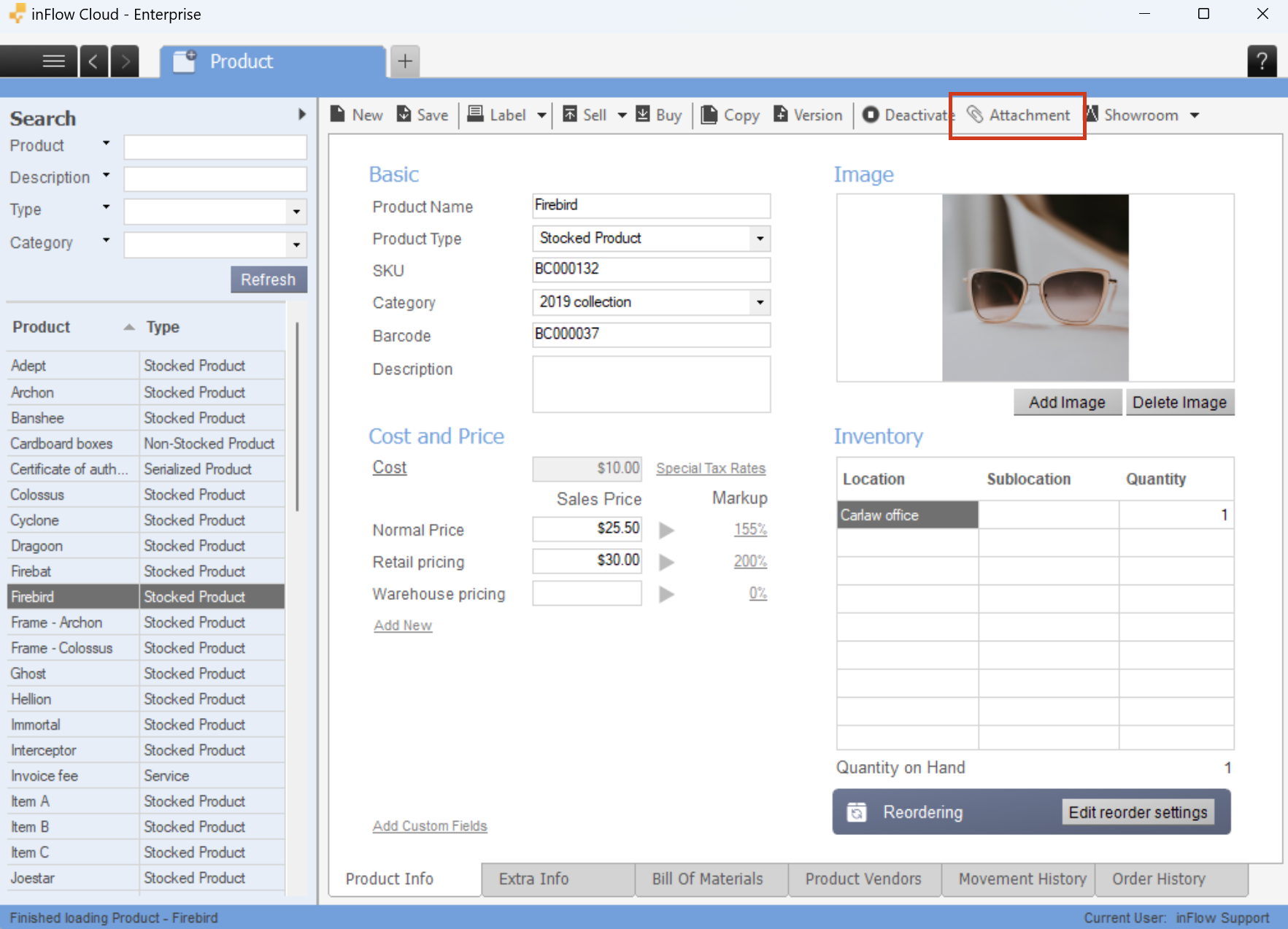
- Click Attachment in the top toolbar.
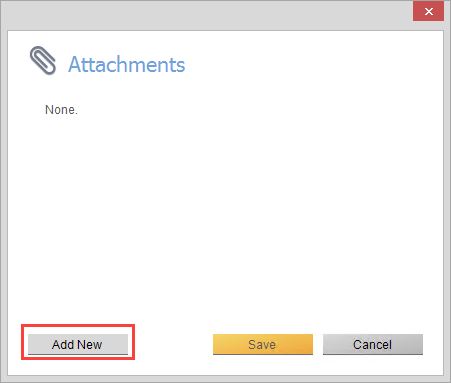
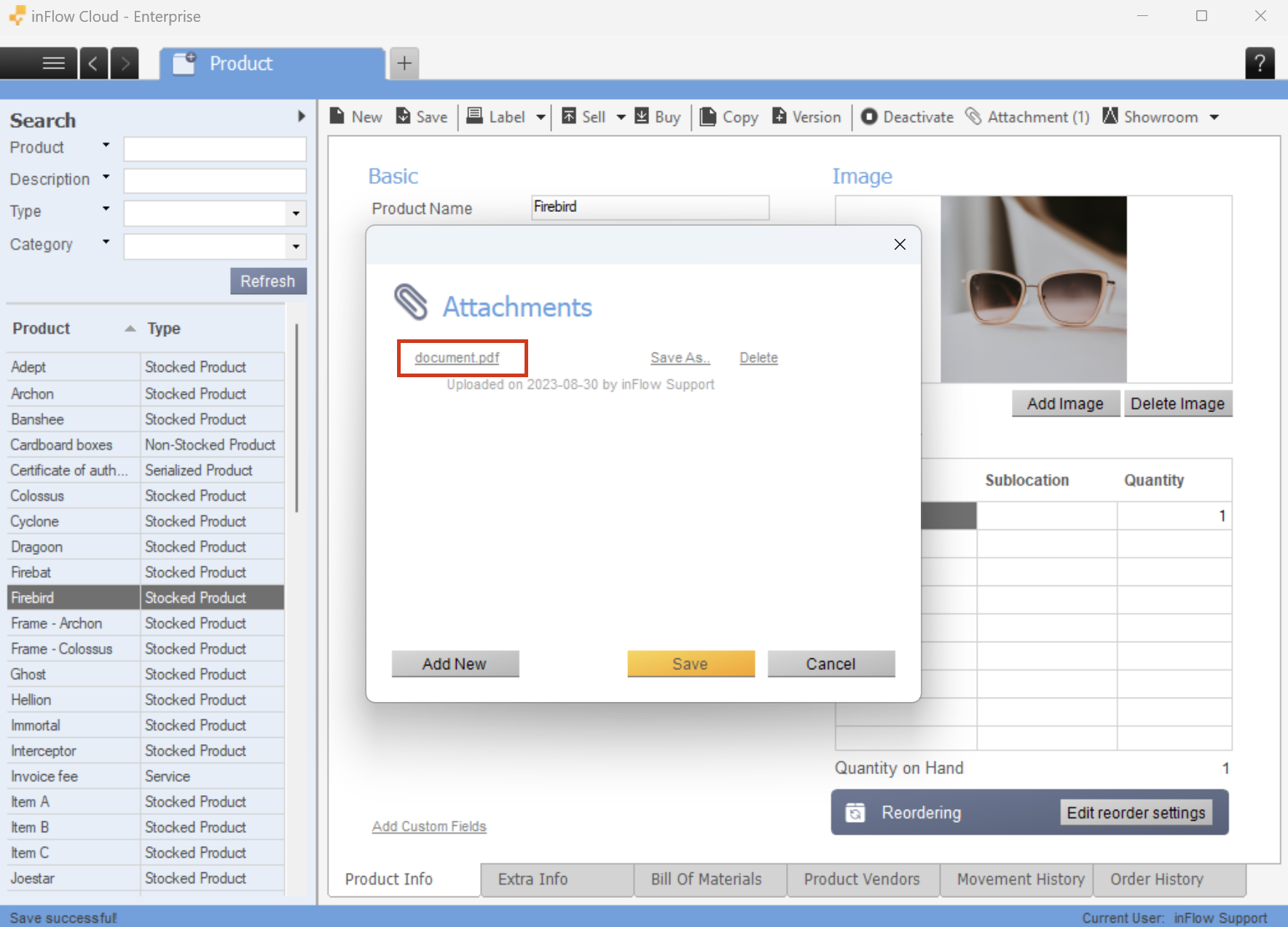
- Click Add New in the resulting window.
- Choose the file you want to attach and then click Open.
- Click Save in the attachment window and again in the top toolbar.
To re-open the attachment
- Navigate to the order, product, or record that you wish to address.
- Click Attachment in the top toolbar.
- Click the name of the file you wish to open.
File type restrictions
Maximum file size
The maximum file size that can be attached to a record is 30 MB for inFlow Inventory for Web and 20 MB for inFlow Inventory for Windows.
Restricted file types
To ensure security, inFlow software does not permit the attachment of certain file types.
.ade, .adp, .apk, .app, .application, .appref-ms, .appx, .appxbundle, .asp, .aspx, .asx, .bas, .bat, .bgi, .cab, .cer, .chm, .cmd, .cnt, .com, .cpl, .crt, .csh, .der, .diagcab, .diagcfg, .diagpack, .dll, .dmg, .ex, .ex_, .exe, .fxp, .gadget, .grp, .hlp, .hpj, .hta, .htc, .img, .inf, .ins, .iso, .isp, .its, .jar, .jnlp, .js, .jse, .ksh, .lib, .lnk, .mad, .maf, .mag, .mam, .maq, .mar, .mas, .mat, .mau, .mav, .maw, .mcf, .mda, .mdb, .mde, .mdt, .mdw, .mdz, .mjs, .msc, .msh, .msh1, .msh1xml, .msh2, .msh2xml, .mshxml, .msi, .msix, .msixbundle, .msp, .mst, .msu, .nsh, .ops, .osd, .pcd, .pif, .pl, .plg, .prf, .prg, .printerexport, .ps1, .ps1xml, .ps2, .ps2xml, .psc1, .psc2, .psd1, .psdm1, .pst, .py, .pyc, .pyo, .pyw, .pyz, .pyzw, .reg, .scf, .scr, .sct, .shb, .shs, .sys, .theme, .tmp, .url, .vb, .vbe, .vbp, .vbs, .vhd, .vhdx, .vsmacros, .vsw, .vxd, .webpnp, .website, .ws, .wsc, .wsf, .wsh, .xbap, .xll, .xnk Yes, thanks!
  Not really

I know how to do an attachment, the software isn’t accepting it. just sits there saying “uploading” forever
need to know how to print the list under vender products?
Using the Storeroom how can our customers see the attachments of the products.
i want to attach the Vendor tax invoice to the PO and then email my accountant