 Fellow Canadians: All inFlow plans are available in Canadian dollars



 Home
Home


How picking allocations work for inFlow’s sales orders
When you start picking a sales order, inFlow will allocate specific products for that order, including sublocations, lots, and serial numbers. Unlike reserved products, which hold a general quantity, allocation tells you exactly what you need!

Why is allocation important?
- Allocating stock helps prevent multiple warehouse workers from picking the same units, which can cause errors or delays in the picking process.
- It resolves challenges with changes during picking.
How picking allocations works
When you begin picking a sales order, inFlow assigns specific stock to that order — locking in the exact sublocation, lot, or serial number to pick.
This ensures that two team members picking different orders with the same products at the same time won’t be directed to grab the exact same product.
inFlow automatically creates allocations, so you don’t need to take any extra steps.
How does picking allocation affect quantities?
Allocated products still count toward your on-hand inventory, meaning they remain visible and affect your available stock.
It’s like putting a friendly tag on certain products to ensure they’re ready for their unique order.
When does picking start?
A picking session (and its allocations) starts when you:
- Open the Pick tab on a sales order in inFlow for Web. (Start picking in the inFlow for Mobile).
- Print or bulk print a pick list (individual order or from the order list).
Printing a pick list for a canceled or unconfirmed sales order does not start a picking session or create allocations.
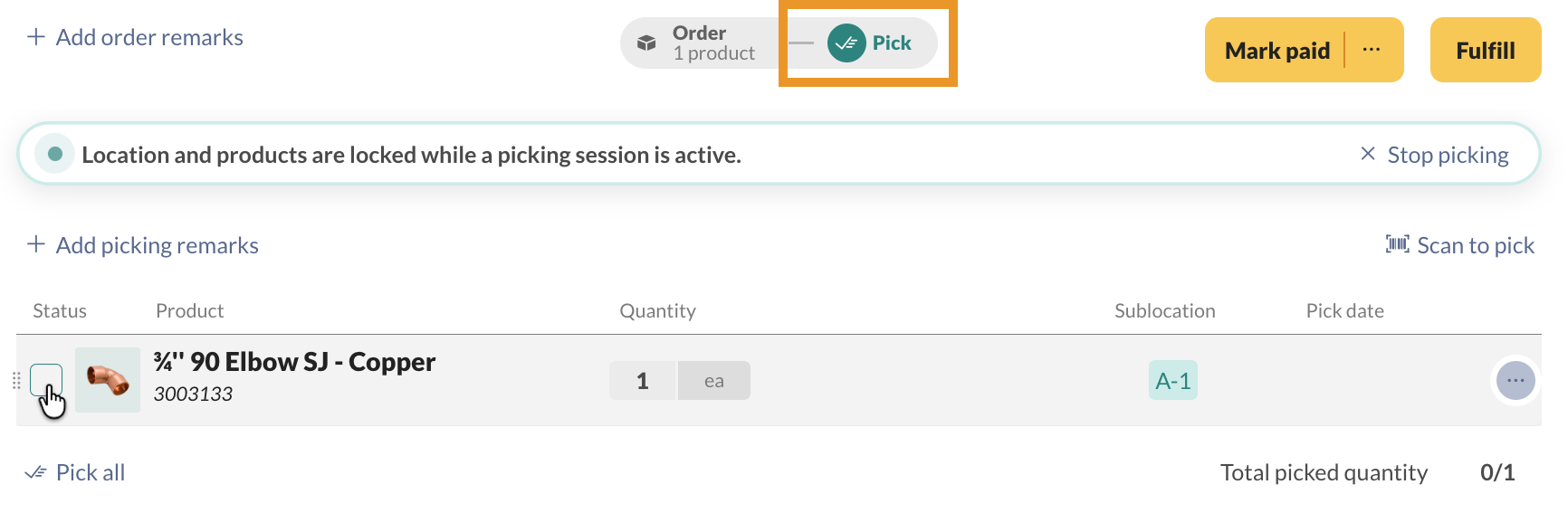
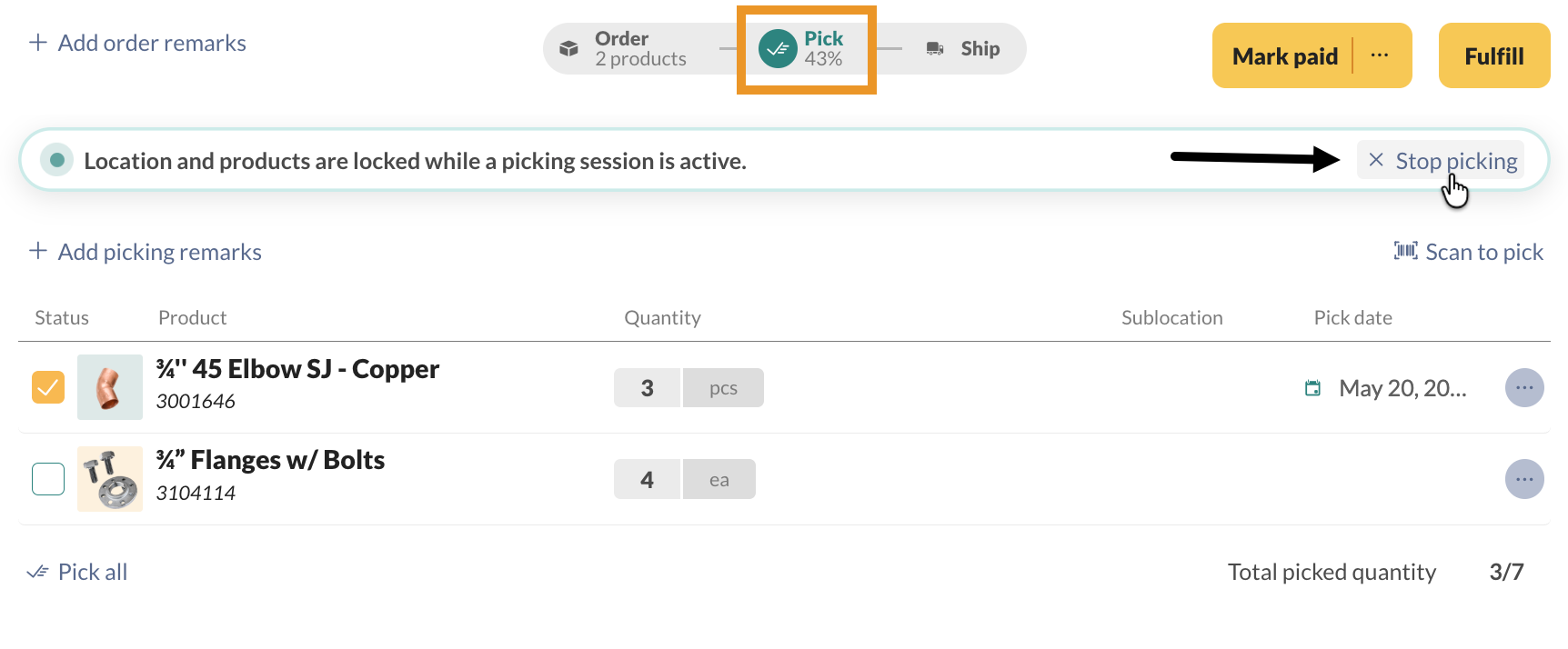
Stop picking
Stopping a picking session releases all allocations, making stock available for other orders.
- inFlow for Web: Select Stop picking in the Pick tab.
- inFlow for Mobile: Press x to exit the pick list — picking stops automatically.
Picking also stops and allocations release when you:
- Cancel a sales order (from the order, or through bulk cancel).
- Convert a sales order to a sales quote.
- Unconfirm a sales order.
Where can I use picking allocations in inFlow?
Picking allocations are available for inFlow for Web and Mobile sales orders. Manufacture orders won’t create allocations but will respect existing sales order allocations.
Pick list sorting order
By default, inFlow sorts pick lists to follow an efficient path through the warehouse’s sublocations. You can also rearrange the picking order in inFlow’s settings.
Out-of-stock lines appear at the start of each location group.
When products can’t be allocated (out of stock)
If a product runs out of stock, inFlow cannot allocate it. These allocation failures appear as out-of-stock pick lines in the Pick tab on both inFlow for Web and inFlow for Mobile. They do not print on pick list documents.
If stock that has an allocation to a sales order later gets removed from inventory (e.g., via a stock adjustment).
Serial numbers and lots
Allocated serials show as suggested picks, but you can pick a different serial if it’s more convenient.
For lots, you can select a different lot than the one suggested during picking without errors.
 Yes, thanks!
  Not really


0 Comments