 Fellow Canadians: All inFlow plans are available in Canadian dollars




 Home
Home


Connecting inFlow to Square
inFlow’s integration with Square lets you seamlessly process in-person payments while using inFlow for all your inventory and order management needs. Take a look below to learn more!

How the integration works
With this integration, inFlow will handle your inventory management, and you can process in-person payments with your Square Terminal, giving your team confidence in a smooth setup.
You can create orders in inFlow and pay the orders with your Square Terminal, or you can process all your orders in Square, and inFlow will pull the completed orders to adjust your inventory and sales profit.
Take a look at the charts below for a visualization of how inFlow and Square are connected.
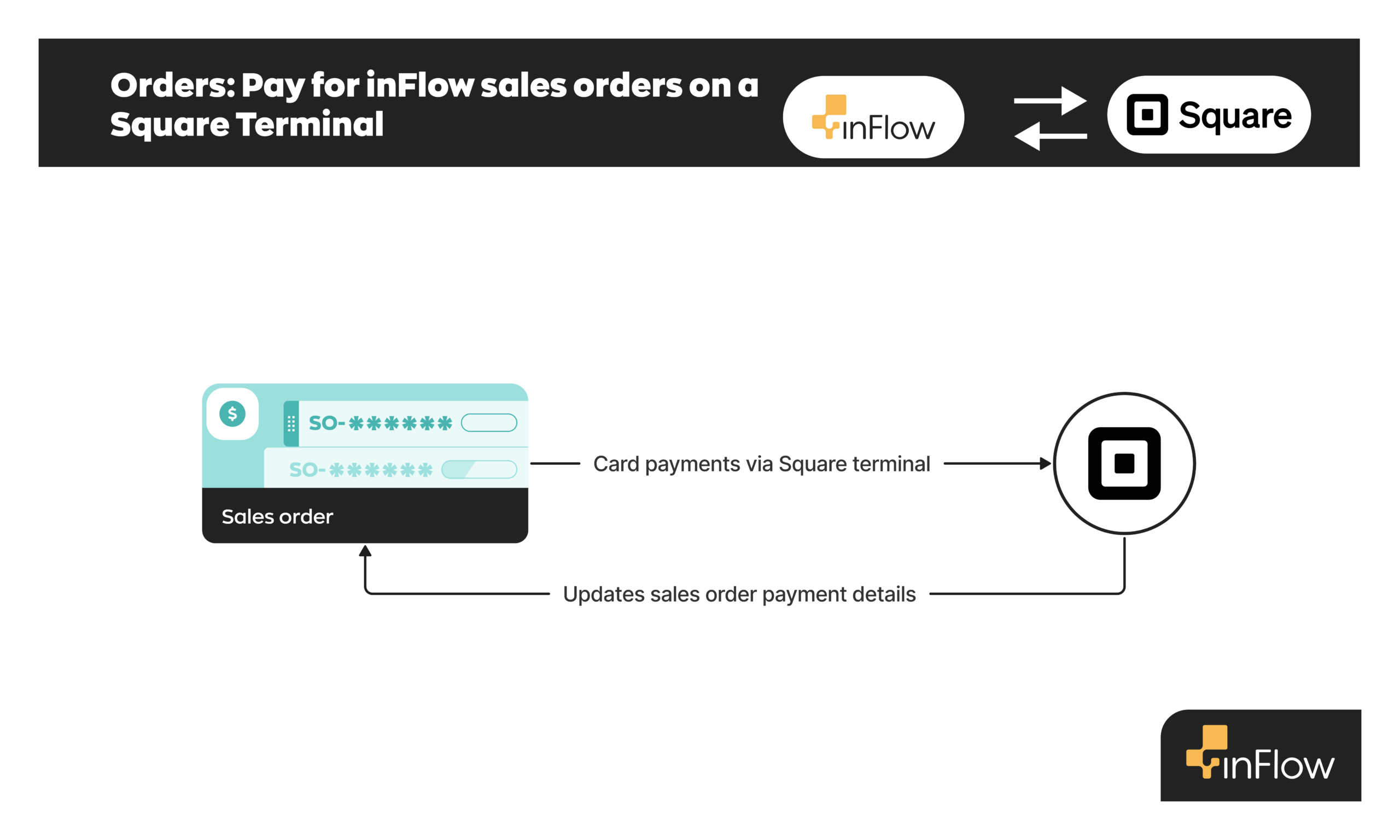
Pay inFlow sales orders on a Square Terminal
In this option, sales orders are created in inFlow. Payments made with debit and credit cards are processed via the Square Terminal, which updates the sales order’s payment history.
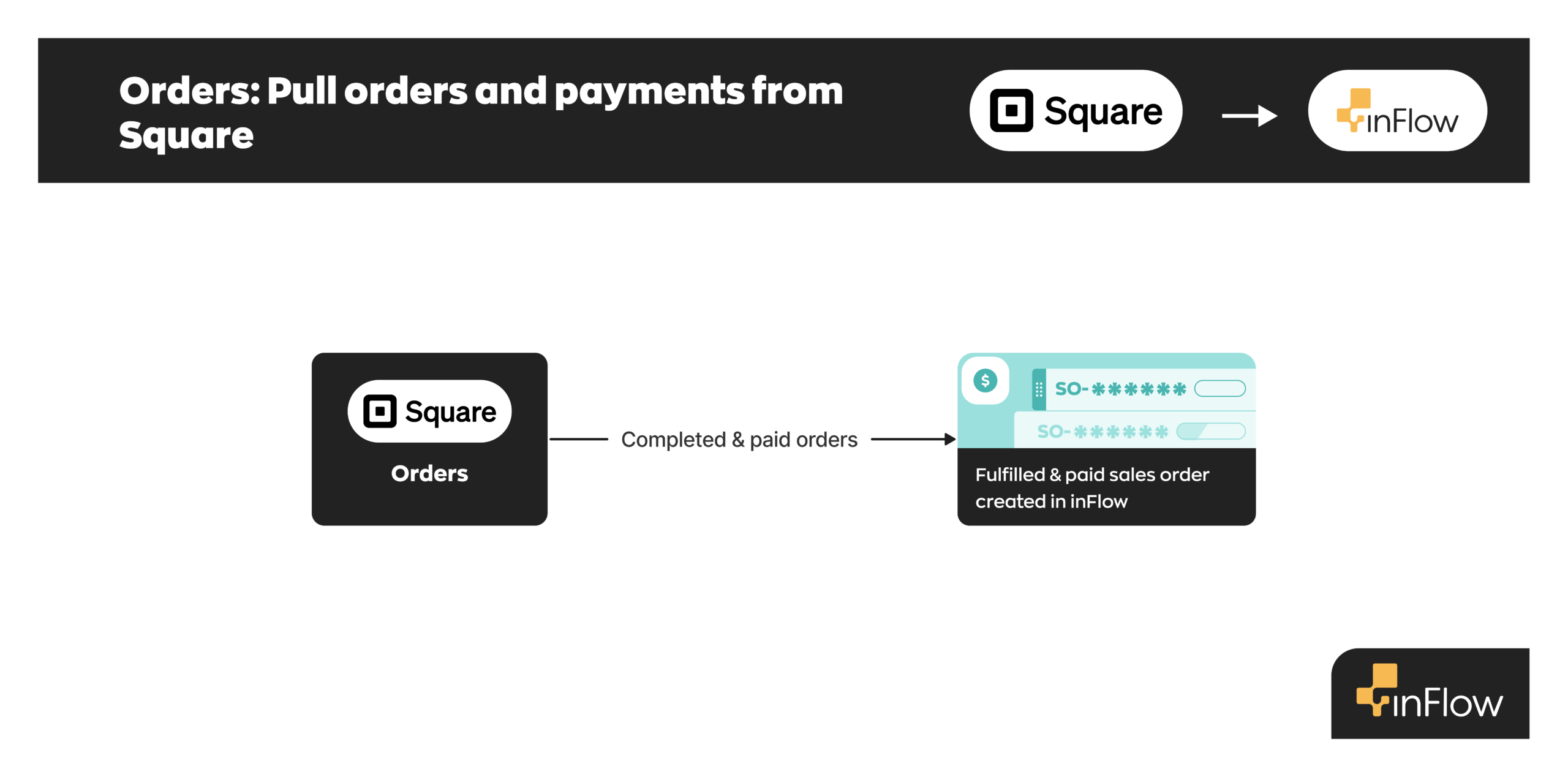
Pull orders and payments from Square
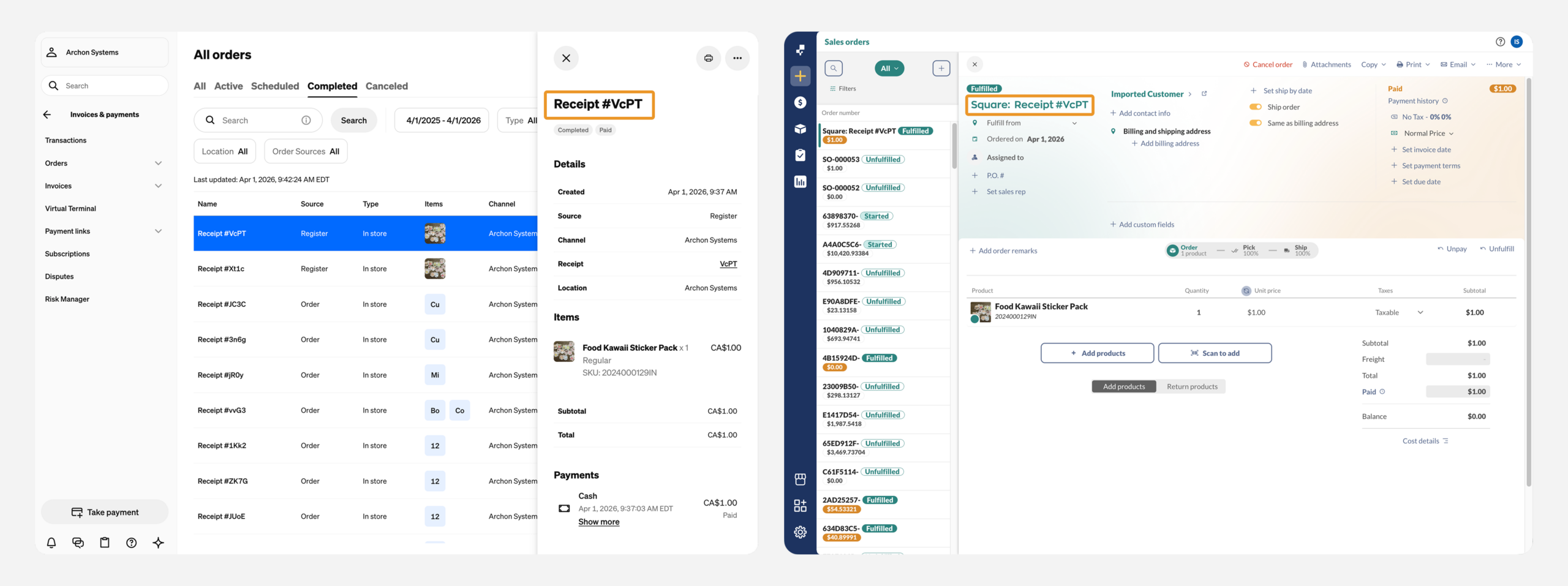
With this option, all orders are processed and paid from Square, and inFlow pulls in the completed/paid orders to adjust inventory levels, etc.
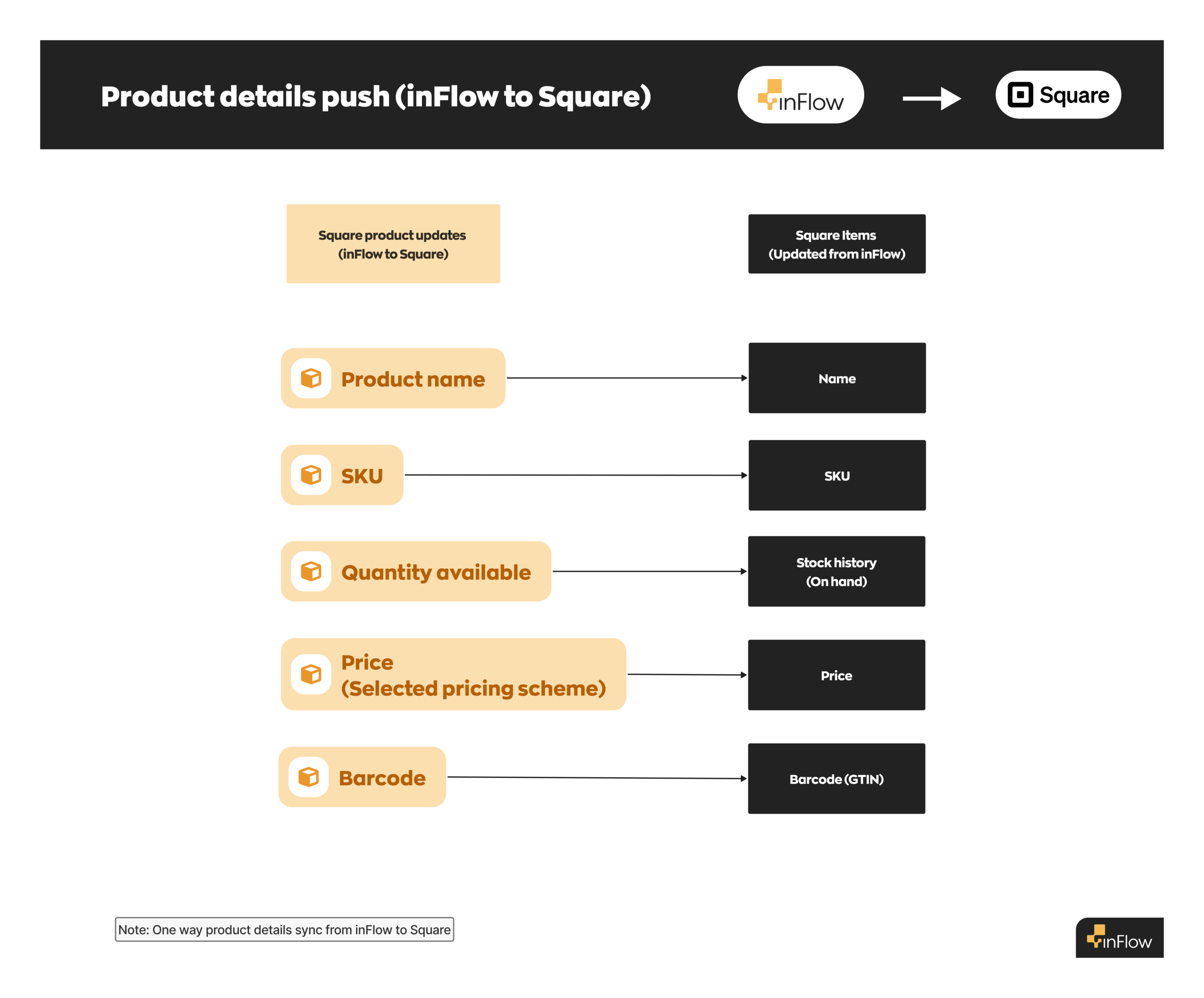
Product details push (from inFlow to Square)
When inFlow is connected to Square, inFlow can push selected product details to update your products in Square, using the matching product name and SKU.
Before connecting to Square
Product matching
Make sure the product names and SKUs in inFlow match exactly those in Square. The system will match by SKU first, then by product name, which helps keep your product information synced correctly.
Having SKUs on your products is optional for this integration. However, inFlow can push SKU details to Square, and we recommend them for accuracy.
Note: Ensure that any items added to the order in Square belong to the Square catalog. Orders containing non-catalog items cannot be pulled into inFlow and will need to be recreated manually.
Connecting Square to inFlow (Setup)
- Go to inFlow’s Integration settings (from the Main menu, click the Integrations icon)
- Select the Square tile.
- Click on Connect to Square.
- You’ll be directed to your Square account to log in. Next, there will be a list of features inFlow needs to access from your Square account to connect. Click Allow.
After allowing the connection, you’ll be redirected to inFlow to continue the integration setup.
Orders setup settings
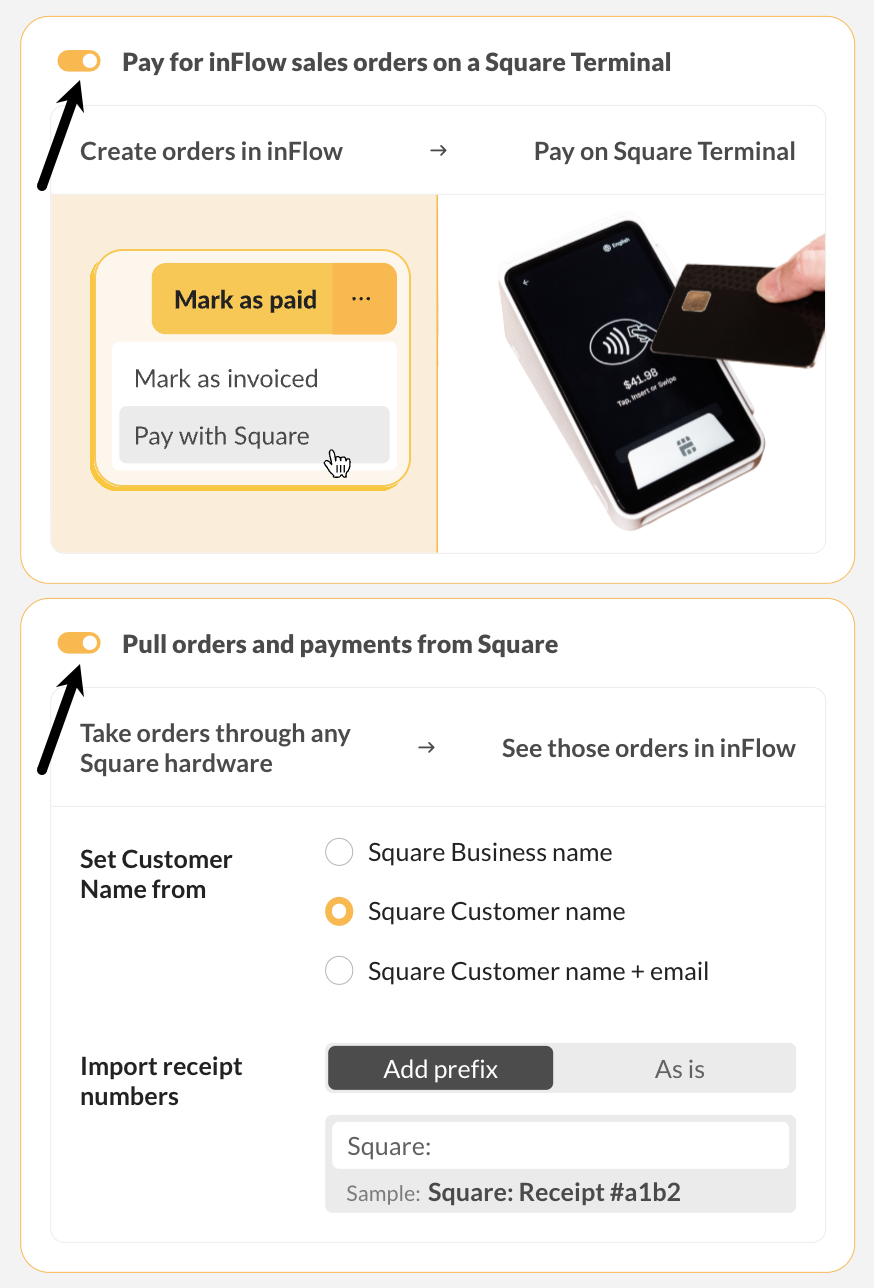
On the Orders tab, select how you’d like to take payments with Square and inFlow. You can select one or both Square payment options.
Depending on how you’d like to take payments for your orders, you may need to set up the Square Terminal for Terminal Checkout.
| Connection options | Explanation | Square Terminal settings |
|---|---|---|
| Pay for inFlow sales orders on a Square Terminal | Orders are created in inFlow, and credit card payments can be processed using a Square Terminal. | Square Terminal Checkout settings |
| Pull orders and payments from Square | Orders and payments are created in your Square account, and completed orders are pulled into inFlow as fulfilled to update sales and inventory levels. This option lets you use other Square devices to take payments and ensures that your completed orders sync with inFlow. | Point of sale (default) |
Pull orders and payments from Square settings
| Order pull settings | Explanation |
|---|---|
| Set Customer Name from | Select how the customer information should be pulled into inFlow from your Square orders. |
| Import receipt numbers | This setting determines how you’d like Square orders numbered in inFlow. The default is set to Add prefix, which distinguishes orders made directly in inFlow from orders pulled from Square. You can customize the prefix in the field below. Select As is to import Square order numbers as they are to inFlow. |
Order conflicts setup settings
Conflicts may occur between inFlow and Square due to their differing systems and calculations.
Use the options on this tab to determine how inFlow will manage these conflicts, keeping your team prepared and in control.
Note: If you only selected “Pay for inFlow sales orders on a Square Terminal”, this tab will not appear in your setup settings, and you can proceed to the Product push.
Tax conflicts – Can’t find a matching taxing scheme
| Conflict options | What inFlow will do |
|---|---|
| Create the taxing scheme | This will create a new taxing scheme in your inFlow settings called “Imported taxing scheme” in inFlow. This will be added to that sales order so that the subtotal, tax, and total funds amount match the Square order. |
| Add an adjustment line to the order | With this option, inFlow won’t create the taxes from the Square order. Instead, it will add a line item for the tax amount, ensuring the totals for both orders match, even if the tax calculations are different. |
| Stop importing the order and give an error | With this option, the Square order won’t be pulled into inFlow, and instead, an error will appear on inFlow’s integration settings. This option is best if you want to add the missing tax information to inFlow and have inFlow try to pull the order again. When taxes have been added in inFlow, inFlow will try to pull the Square order again to capture the taxes in inFlow correctly. |
Pricing scheme conflicts – Can’t find a matching pricing scheme
| Conflict options | What inFlow will do |
|---|---|
| Create the pricing scheme | With this option, inFlow will create a pricing scheme that matches the currency of the Square order. It will be called an “Imported pricing scheme”. |
| Stop importing the order and give an error | With this option, the Square order won’t be pulled into inFlow, and instead, an error will appear in inFlow’s integration settings. This option is best if you want to add a matching pricing scheme to inFlow and have inFlow try to pull the order again. When the order is pulled into inFlow correctly, then inFlow will use the new matching pricing scheme on the order. |
Customer conflicts – Can’t find a matching customer
When inFlow pulls orders from Square, inFlow checks the customer name on the Square order to find a matching customer record in inFlow. If there isn’t a matching customer record, you can choose how inFlow should handle this conflict.
| Conflict options | What inFlow will do |
|---|---|
| Create the customer | With this option, inFlow will create a customer record that matches the customer from the Square order. |
| Stop importing the order and give an error | With this option, the Square order won’t be pulled into inFlow, and instead, an error will appear in inFlow’s integration settings. This is where you can manually add the customer directly into inFlow and attempt to retrieve the order. When the order is pulled into inFlow correctly, then inFlow will use the new matching customer record on the order. |
inFlow and Square calculation conflicts
| Conflict options | What inFlow will do |
|---|---|
| Add an adjustment line to the order | With this option, inFlow will add a line item to the sales order to cover the difference between the total order amount calculated by Square and that calculated by inFlow. This will ensure that the order totals for the Square order and the inFlow sales order match. |
| Stop importing the order and give an error | With this option, the Square order won’t be pulled into inFlow; instead, an error will appear in inFlow’s integration settings. This option is best if you prefer to review the conflict first. You can add the order to inFlow manually to bypass the calculation error. |
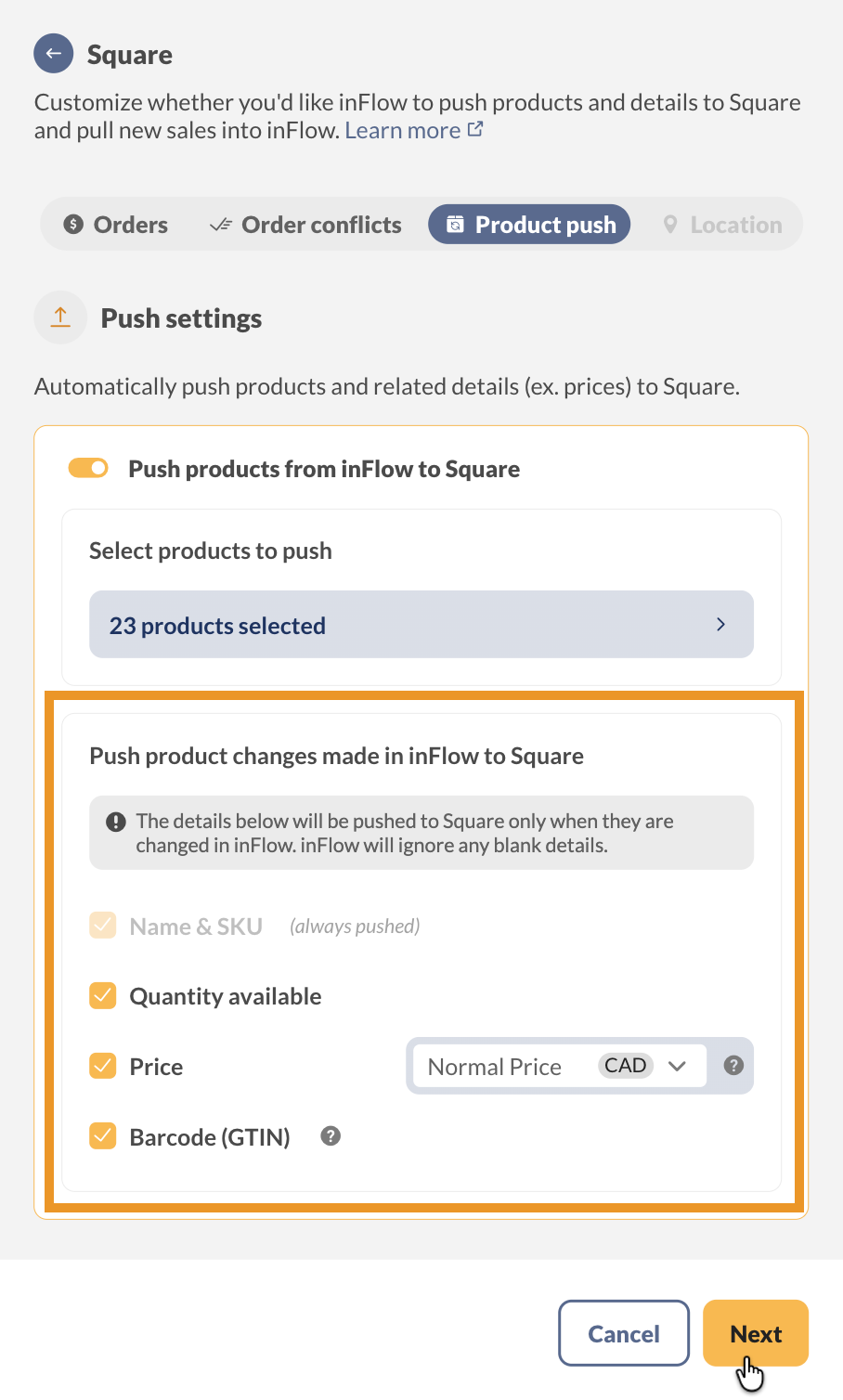
Product push setup settings
inFlow provides a one-way sync with Square that can create new products in the specified product category within the integration settings and push product details from inFlow to update matching products in Square.
- To enable this setting, toggle Push products from inFlow to Square on.
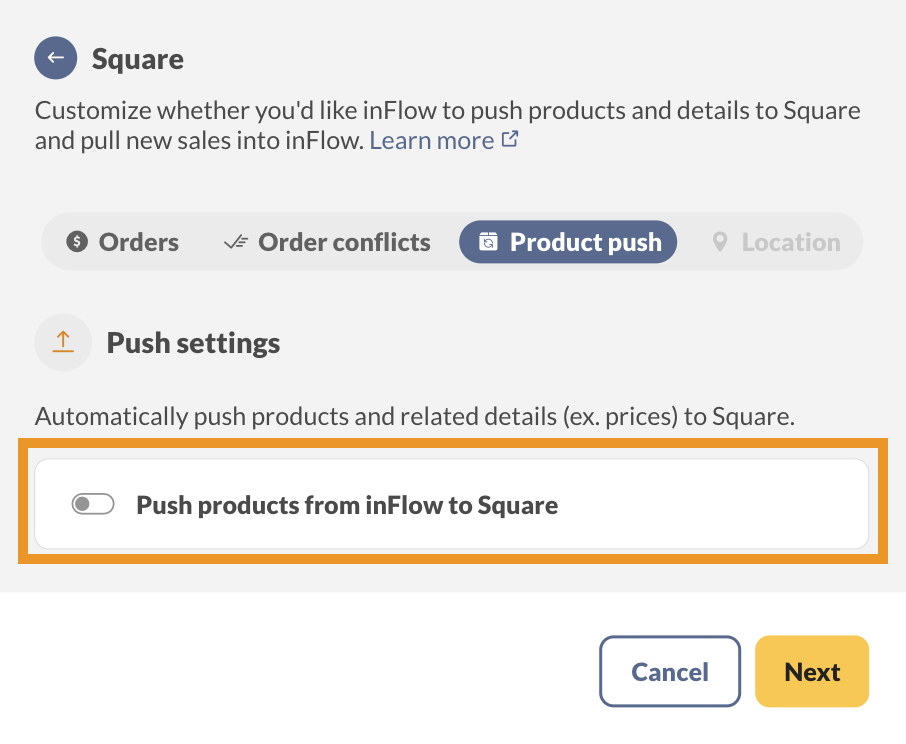
- By default, all products are selected to connect to Square. To select specific products, click All products selected to open the product categories.
- To select individual products within a category, click the blue arrow next to the category name, then select the products you want.
- Click the blue arrow at the top-left to return to the Product push settings.
- Below, click on the product details that you’d like inFlow to push to Square.
- Click Next when done.
Location setup settings
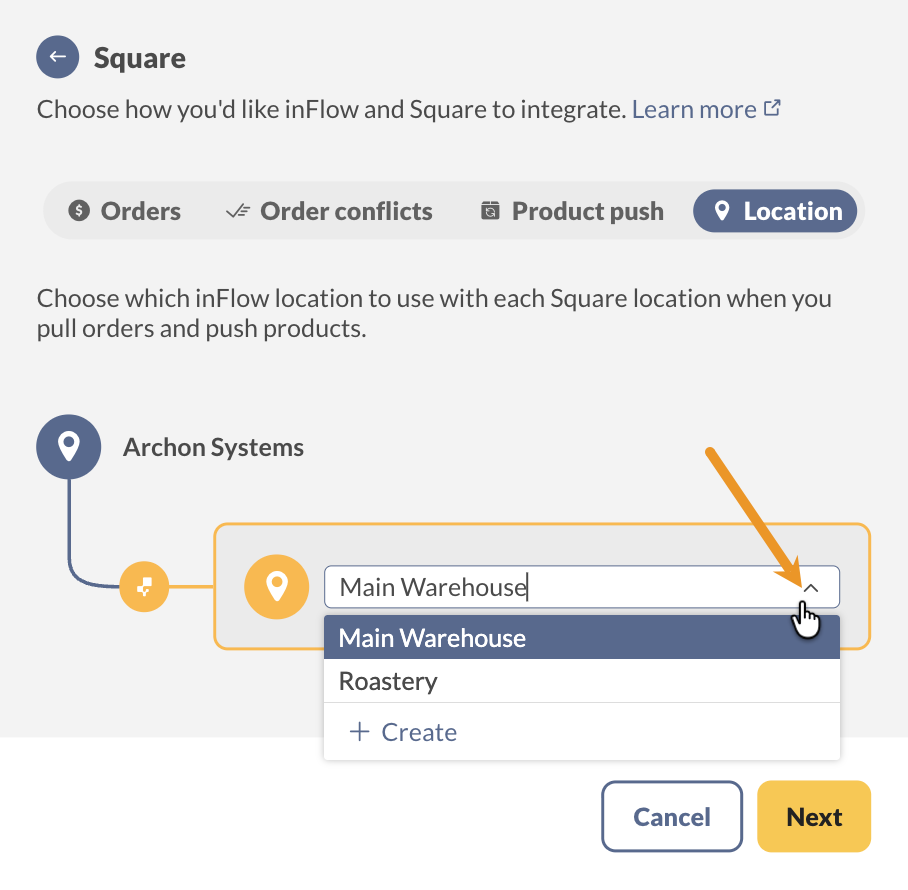
On this tab, connect the Square account location to an inFlow location.
- Select the inFlow location from the drop-down menu.
- Then click Next.
Finalizing the integration setup
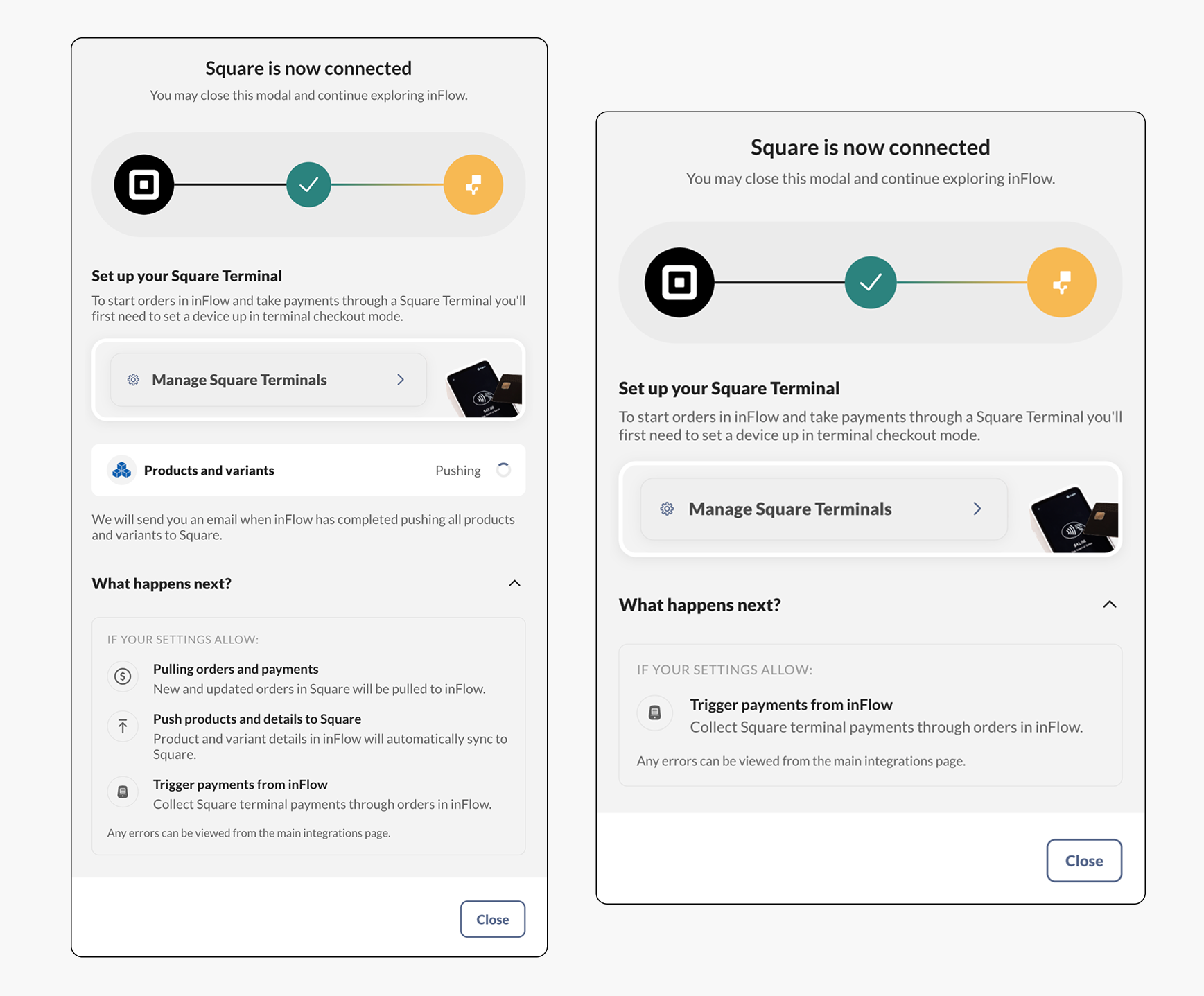
If you choose to have inFlow update your products in your Square Store, select Push now.
inFlow will transfer all selected products to Square. Items in Square with a matching product name or SKU will be updated instead of duplicated.
When done, inFlow will be connected to Square.
If you’re using the Pay inFlow sales orders on a Square Terminal option, click Manage Square Terminals, then see the Square Terminal settings for inFlow section below for instructions to set up your Square Terminal to work with inFlow.
Square Terminal settings for inFlow
Depending on how you plan to use your Square Terminal with inFlow, you may need to adjust the settings on your device. Take a look below to learn more.
If you’re new to using a Square Terminal, review steps 1 to 3 in the Set Up Square Terminal guide to connect your terminal to the internet and update it, then return to this guide to continue.
Pay inFlow orders with Square: setting up Terminal Checkout
To use your Square Terminal to pay for orders in inFlow, you will need to create a Square Device Code in inFlow to log into the Square Terminal instead of logging in with your Square username and password.
If your device is currently logged into a Square account, please log out to continue.
Create a device code in inFlow
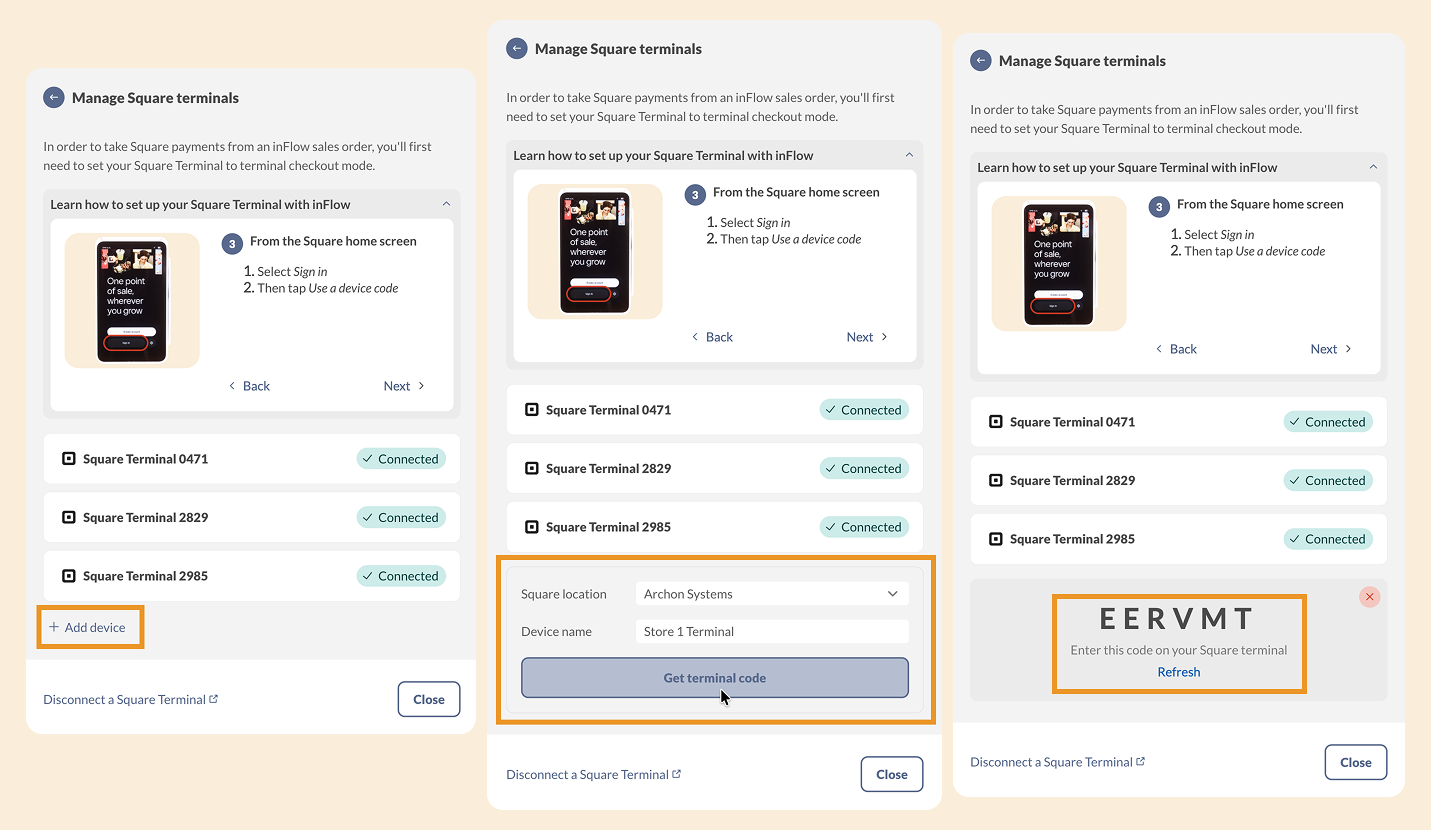
- Select Manage Square Terminals in the Square integration settings. (Go to the inFlow Integration settings > Select Square > Manage Square Terminals.)
- Click Add device.
- Select the Square location from the drop-down menu to connect to inFlow, and fill out the Device name field.
- Click Get terminal code, and keep this window open to enter the code on your Square Terminal.
If you have other Square Terminals connected to your Square account, you will see them on the Manage terminals list. Only Terminals set up with the inFlow Device codes can process credit card payments for inFlow sales orders.
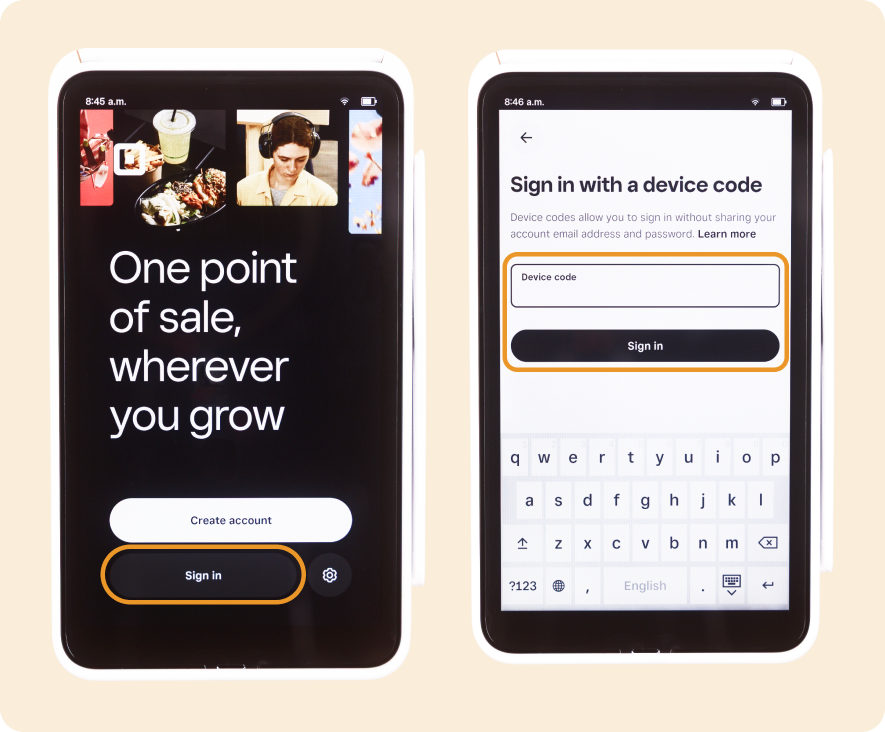
Enter the device code into the Square Terminal
- On the Square Terminal, tap Sign in.
- Tap Use a device code, enter the code created in inFlow, then tap Sign in.
- When done, the Terminal will display a black screen with the text “Powered by Square.“
- Return to inFlow.
Complete device steps
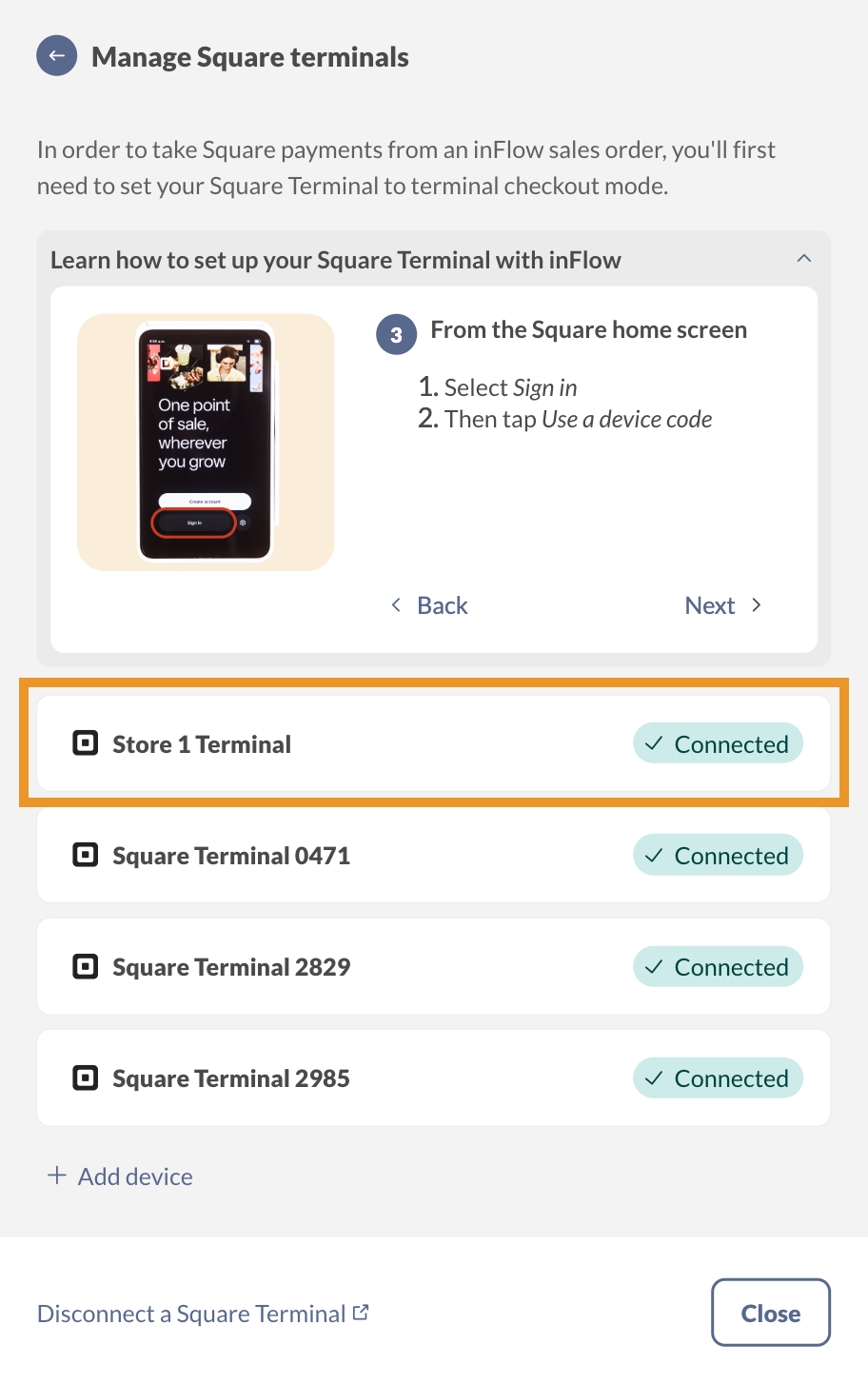
- In inFlow, you’ll see the Connected status next to the Terminal name.
- Click the Close button.
Pull orders and payments from Square (Terminal settings)
If all orders are processed in Square and pulled into inFlow, then you don’t need to make any changes to your Square Terminal.
This option is ideal if your team uses additional Square hardware alongside the Square Terminal.
What if I only have one Square Terminal?
If you have both “Pay inFlow sales orders with Square Terminal” and “Pull orders and payments from Square” turned on in your Square settings, and you only have one Terminal, it’s a good idea to set up a device code for that Terminal to handle payments in inFlow. Then, use another device to take Square payments.
When the Square Terminal is connected to an inFlow device code, it means the Terminal will only process payments for inFlow sales orders.
For orders and payments completed in Square, inFlow will automatically pull those orders as completed and paid sales orders. We recommend using a separate device, such as a phone or iPad, that is logged into your Square account to process payments.
Disconnecting a Square Terminal from inFlow
For Square Terminals set up with Pay inFlow orders in Square, Terminals can only be removed from the Square account.
To remove a Square Terminal device from your account, follow these steps:
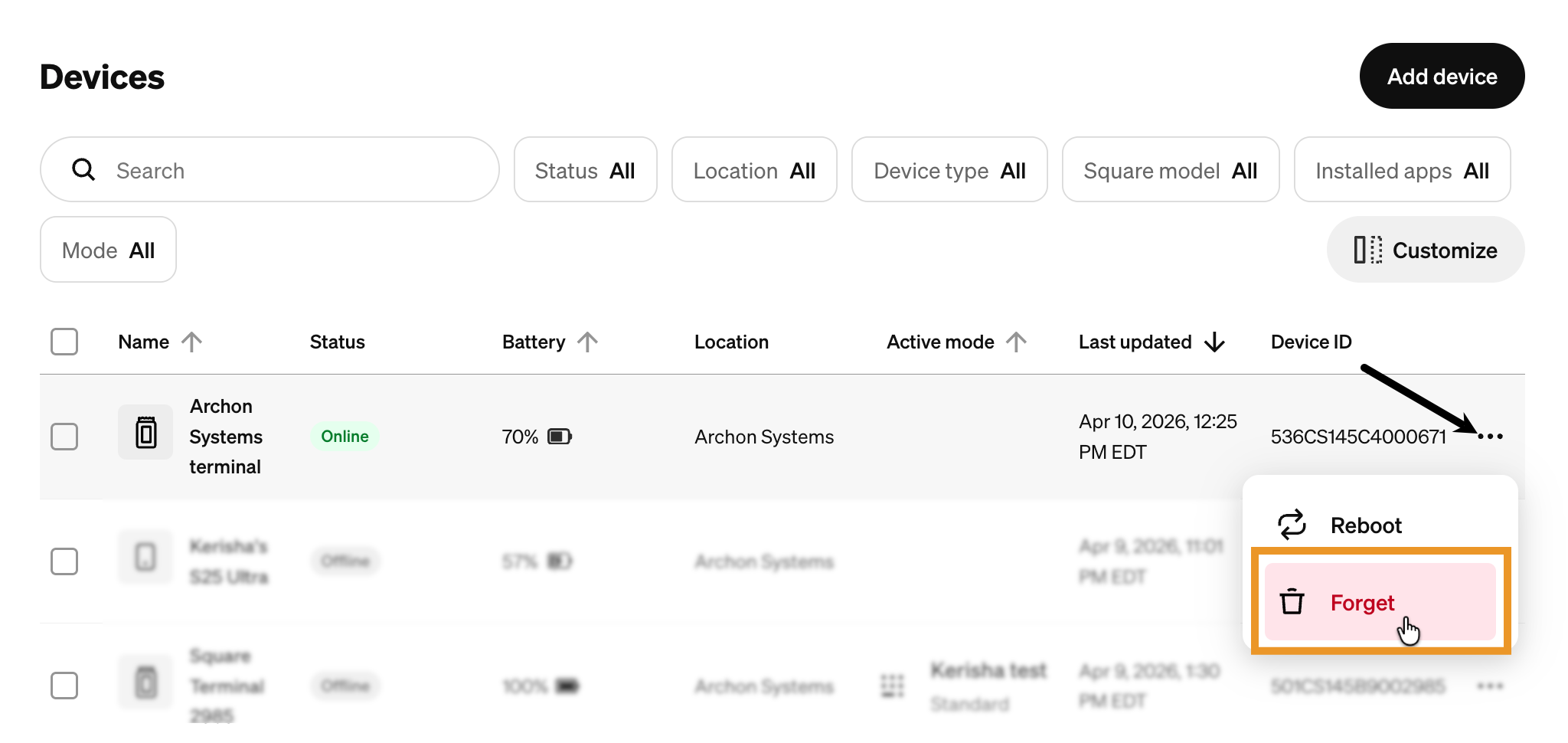
- Sign in to the Square Dashboard, then go to Settings > Device management > Devices.
- Click the three dots (•••) next to the device or select the device and click Actions.
- Click Forget to remove the device and any connected peripherals from your account.
- Click Forget device to confirm you want to remove the device.
For up-to-date instructions, see the Remove devices section of this Square guide.
Disconnecting the Square integration from inFlow
- Go to inFlow’s Integration settings (Main menu > select the Integration button.)
- Select the Square tile.
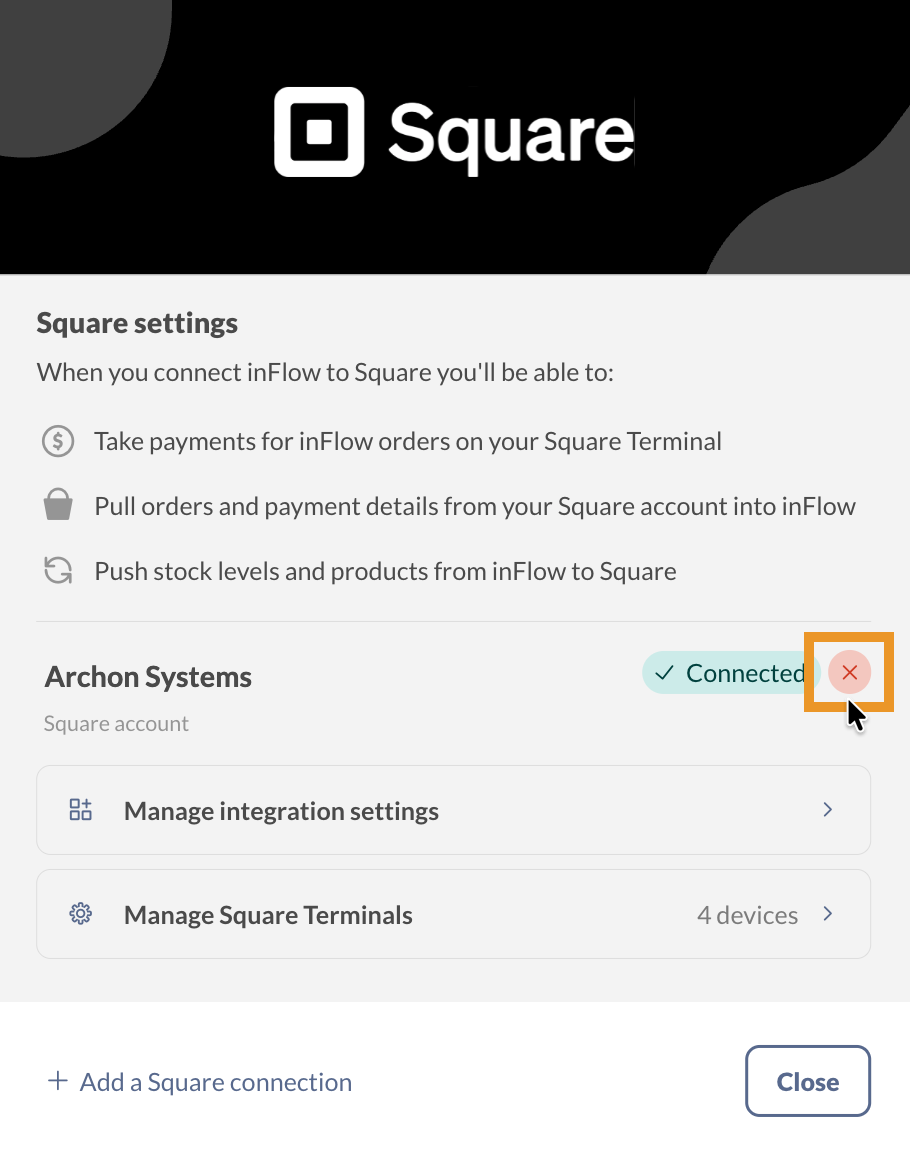
- Hover over Connected, select the X, then Disconnect account.
- Click Confirm to proceed.
Paying sales orders on a Square Terminal
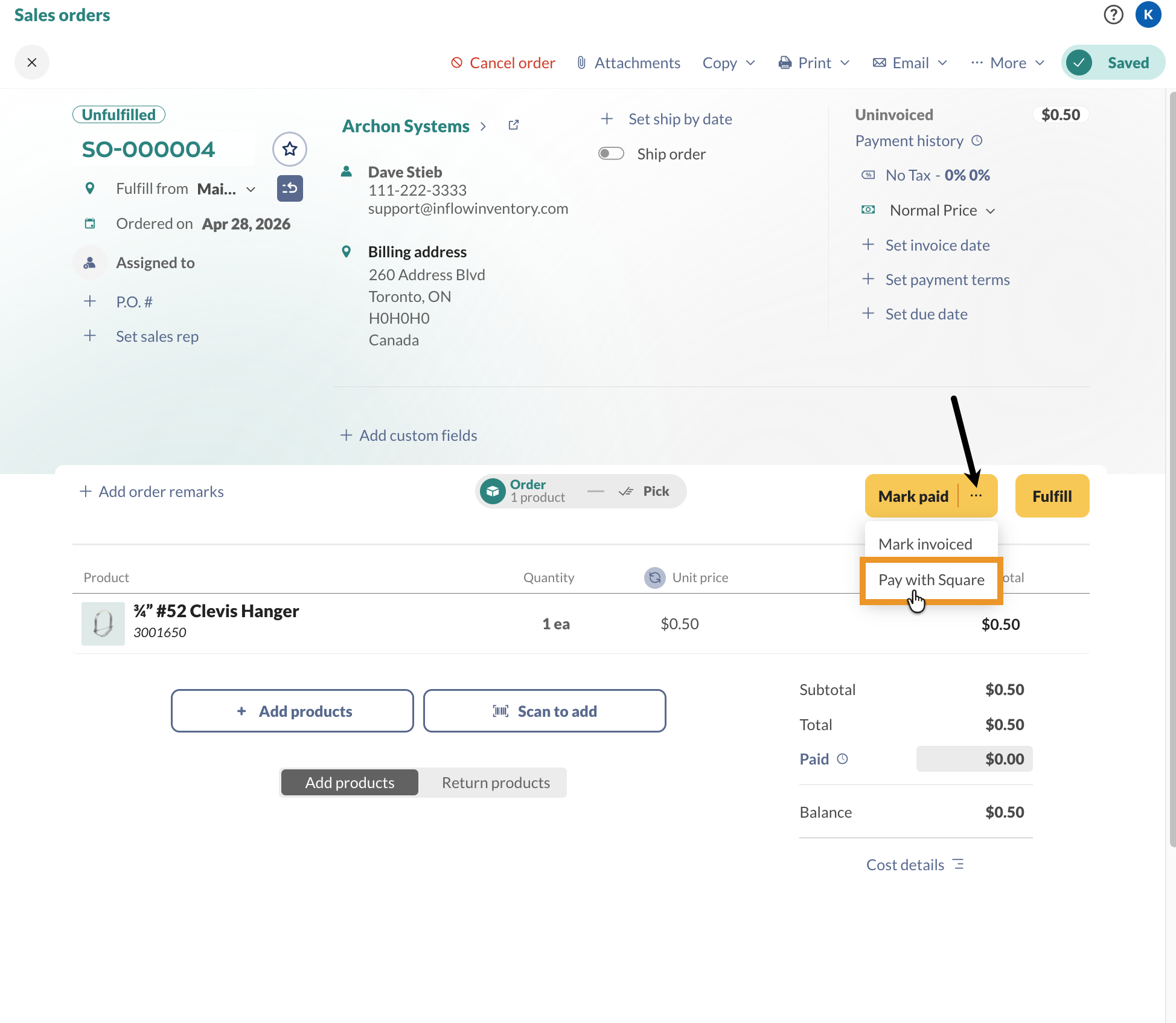
When using this option, create and fulfill sales orders as normal, and you can also process credit card payments with a Square Terminal.
- On a sales order, click on the ellipsis next to Mark paid, then select Pay with Square.
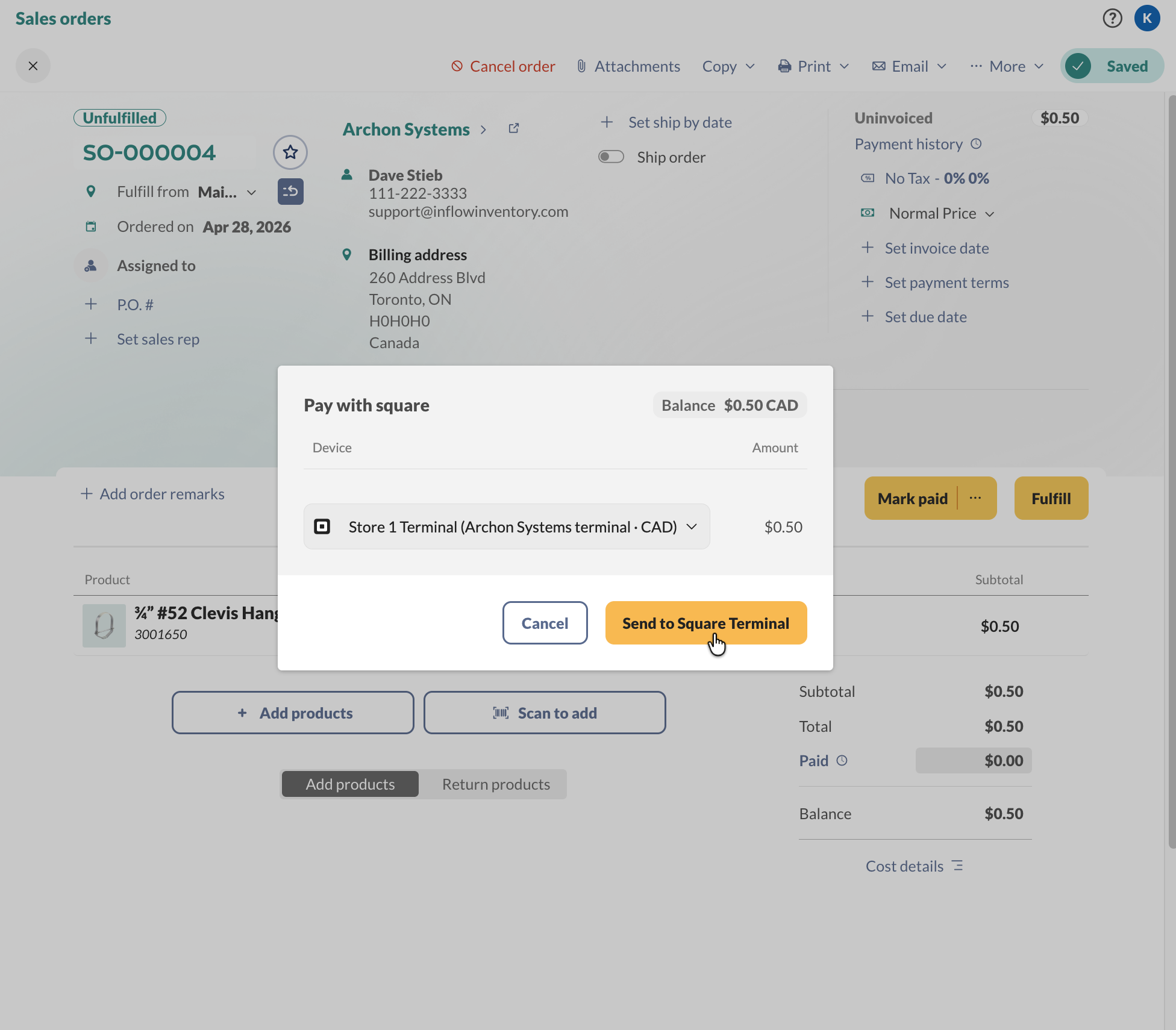
- Process the payment on the Square Terminal.
- When done, the sales order will be updated with the payment information.
Pull orders and payments from Square
Completed orders are pulled into inFlow as fulfilled and paid sales orders.
Processing refunds with Square
Pay inFlow sales orders on a Square Terminal
When paying inFlow orders with a Square Terminal, credit/debit card refunds can be processed only for sales orders originally paid with a Square Terminal.
The refund instructions are slightly different from a standard inFlow refund. See the steps below.
- Open a sales order and click on Payment history or Paid.
- Hover over the Square payment and select Refund.

- If needed, enter the Refund amount, then select Send refund request.
The refund request will be sent, and your customer can expect a refund in 5 to 10 business days.
Refunds can also be processed directly in your Square Dashboard. These transactions won’t sync with inFlow, so you’ll need to manually update the related sales order.
Pull orders and payments from Square
When a refund is initiated on the Square Terminal using the Pull orders and payments from Square option, inFlow will create a new open sales order. The order is open due to the time needed to process the refund and the uncertainty of the fulfillment status.
New orders for transactions, returns, refunds, and exchanges will each create a separate order in inflow to maintain distinct tracking, mirroring Square’s approach for simplicity.
Linking refunds and returns
Each refund processed in Square generates a new return order in inFlow, linked to the original order by the receipt number for traceability. Exchange orders, however, create a new receipt number in Square.
Refund-only transactions
When a refund is issued without a product return (e.g., a discount), a service product called “Square refund” is created in inFlow to account for the refund amount. This is the only instance where Square generates a product in inFlow, and it is not sent back to Square.
Push inFlow product details to Square
When changes are saved to products connected to the Square integration, inFlow can update the following product details in Square.
- Product name
- SKU
- Quantity on hand
- Price (selected pricing schemes)
- Barcode.
inFlow won’t push serial numbers, as Square doesn’t support them.
Product types between Square and inFlow
Products that inFlow pushes to Square will be the “Physical goods” item type in Square.
Updating product names/SKUs (inFlow to Square)
inFlow updates product names and SKUs in Square whenever a matching product is changed in inFlow.
Inactive products in inFlow
When you deactivate a product in inFlow, the system archives the connected product in Square. When you reactivate a product in inFlow, the system will unarchive the matching product in Square.
When won’t product details push to Square?
inFlow will not push blank values to the barcode and price fields. This means that if you clear these fields on an inFlow product, the corresponding product fields in Square will not be updated to blank values.
 Yes, thanks!
  Not really

0 Comments