Common searched topics: Manufacturing, Label printing, Sales order
Browse features guide
Managing products
Imports, exports & integrations
Sales
Stock level reports
Troubleshooting
Purchasing
inFlow settings
Troubleshooting
inFlow settings
  • Global settings
Plugins

Plugins: add new features to inFlow (beta)

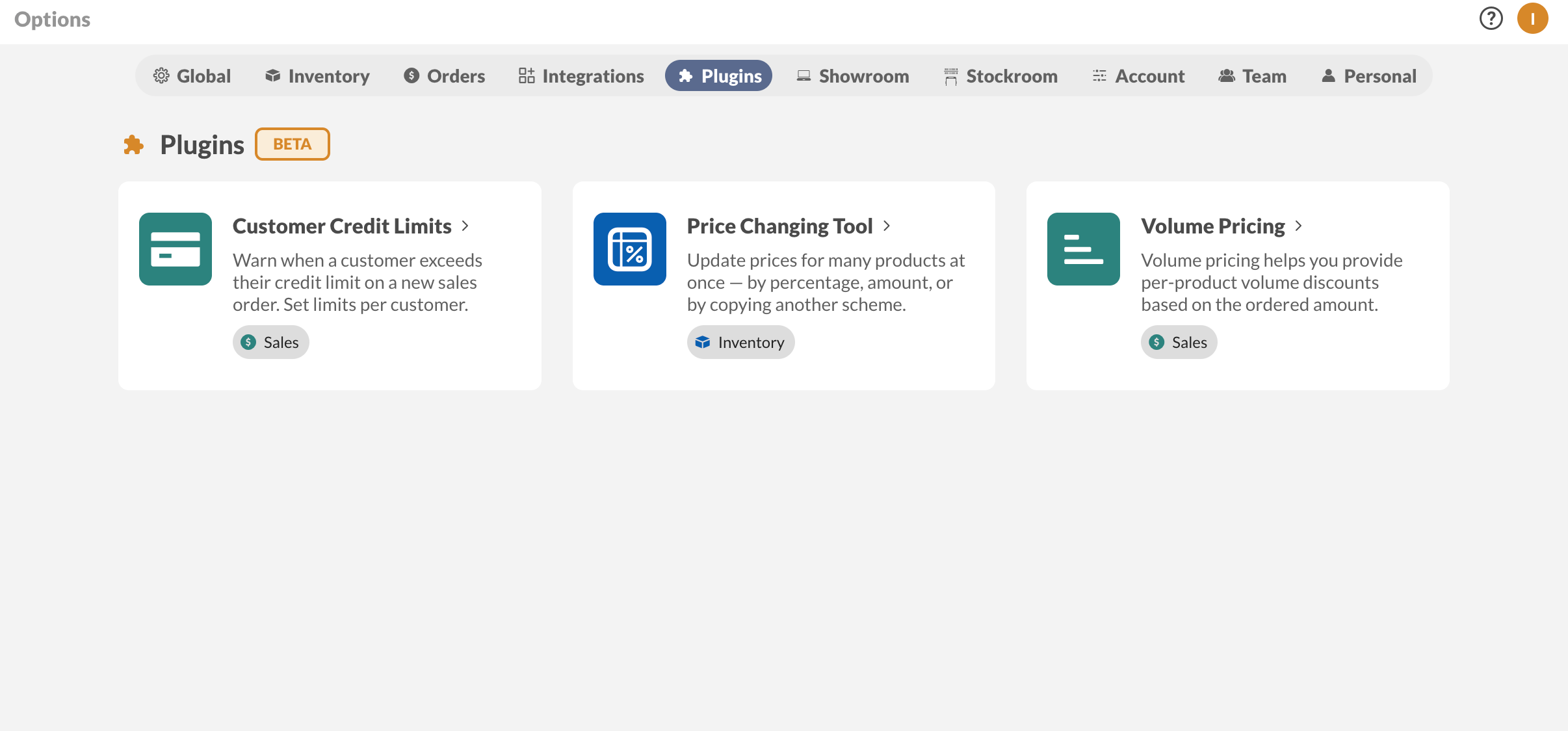
Plugins are optional add-ons that you can enable in inFlow to access additional features. Each plugin is developed by inFlow, and you have the flexibility to choose which ones your company will use. This article explains what plugins are, how to install them, and provides details on the functionality of the first three plugins.

Please note: plugins are in beta and are being released gradually, so you may not see the Plugins page yet. Plugins are free during beta. If you’d like early access, get in touch with the inFlow team.

What plugins are and who they’re for

A plugin adds a small, focused feature to inFlow — a new card on a page, a new option in a menu, or a new rule that runs when you save an order. Nothing changes until you install a plugin, and everything the plugin added disappears when you uninstall it.

Plugins are a good fit if you need something specific that most inFlow companies don’t:

  • Special per-quantity pricing for wholesale customers.
  • A credit limit that holds a customer’s order until someone approves it.
  • A faster way to reprice a batch of products.

Plugins are available in inFlow for Web. They don’t appear in the inFlow Windows app or the mobile app.

Note: Plugins are different from integrations. Integrations connect inFlow to another service like Shopify or QuickBooks Online. Plugins add features inside inFlow itself.

How to install a plugin

Only administrators can install or uninstall plugins. If you’re not an admin, you won’t see the Plugins page at all — ask an admin on your team to turn a plugin on for you.

  1. Click on the Settings icon Hover over the Settings icon in the bottom-left corner of the Main Menu to access the inFlow settings. > Plugins.
  2. Look through the plugin cards. Each card shows a short description and the category the plugin belongs to.
  3. Select a plugin card to open its details, where you’ll find a short video and a description of what it does.
  4. Select Install Plugin, then confirm by selecting Install plugin. The plugin moves up to the Installed plugins section at the top of the page, with a checkmark on its card.
  5. Refresh or move to another screen so the plugin’s new buttons and cards appear.
The Volume Pricing plugin page in inFlow, showing how volume discounts work — select Install Plugin to turn it on.

Each plugin’s detail view also shows a Pricing tag (currently Free during Beta), a Category, its version and when it was last updated, and — once you’ve installed it — a Status tag.

How to uninstall a plugin

Click on the Settings icon Hover over the Settings icon in the bottom-left corner of the Main Menu to access the inFlow settings. > Plugins, select the plugin’s card under Installed plugins, then select Uninstall. The plugin’s buttons, cards, and rules stop appearing, and any settings you saved are kept in case you install it again later.

Note: Uninstalling the Volume Pricing plugin doesn’t change prices on orders you’ve already saved. It only stops new volume prices from being applied.

Volume Pricing: charge less when customers order more

The Volume Pricing plugin lets you set a cheaper price per unit once a customer orders a certain quantity. When someone adds that product to a sales order, inFlow applies the right price automatically as the quantity changes.

Volume pricing works per product and per pricing scheme, so you can give your wholesale customers volume breaks while your retail scheme stays as is.

How to set volume prices for a product

  1. Open the product and go to its pricing.
  2. Find the pricing scheme you want to set volume prices for, then select the volume pricing icon beside its name (hover to see the Set volume pricing tooltip).
  3. In the modal, enter a Min qty and the Volume price (per unit) that applies at that quantity and above.
  4. Add as many rows as you need, then select Save.

The modal shows the scheme’s regular Base price at the top, so you can see at a glance whether your volume price is actually a discount.

How volume pricing is applied to orders

  • inFlow uses the highest minimum quantity your order line reaches, and applies that one price to the whole line — not a separate price for each block of units.
  • A volume price only applies if it’s cheaper than the product’s regular price for that scheme.
  • The order’s pricing scheme has to match the scheme you set the volume prices on.
  • Prices are set per selling unit. If you change the unit of measure on an order line, inFlow converts the quantity back to the selling unit and recalculates. See using units of measure in inFlow for more on units.
  • Volume prices recalculate in both directions, so lowering a quantity below a break puts the price back up.
  • Return lines (negative quantities) keep the price you entered, so a refund matches what the customer originally paid.
  • Volume pricing only works with fixed-price schemes. Schemes set to a fixed markup don’t offer the volume pricing icon.

If you create a sales order through the inFlow API, a CSV import, or an integration and you include a unit price, inFlow keeps the price you sent instead of applying a volume price.

Customer Credit Limits: hold orders that go over a customer’s limit

The Customer Credit Limits plugin lets you set a maximum outstanding balance for each customer. When a new order would push them past it, inFlow saves the order as Unconfirmed and shows a warning, so no one picks or ships it until someone approves it.

How to set a customer’s credit limit

  1. Open the customer’s record. See how to create customers in inFlow if you’re setting one up for the first time.
  2. Find the Credit Limit card and enter an amount in the Limit field.
  3. Save the customer.

The card shows three things:

  • Total Customer Balance — what the customer currently owes you.
  • Limit — the maximum you’re willing to let them owe.
  • Remaining — how much credit they have left, plus a Within limit or Over limit tag.

Amounts on this card use the customer’s own currency (the currency of their default pricing scheme), so a customer you bill in euros sees a euro limit. Balances from orders in other currencies are converted at your current exchange rates. See how to charge a customer in a different currency for how currencies work in inFlow.

Enter 0 or a positive amount. Leave the Limit field blank to give a customer no limit at all — inFlow will never flag them.

What counts toward the balance

The balance is what’s outstanding on unpaid and partly paid sales orders. It leaves out quotes, orders that are still unconfirmed, and cancelled orders, so nothing gets counted twice. Fully paid orders don’t count either.

What happens when an order goes over the limit

When you save a sales order that would put the customer over their limit, inFlow:

  1. Sets the order to Unconfirmed.
  2. Shows a warning banner that names the amount they’d go over by. The banner can’t be dismissed, and it updates live as you change the order.

The order can’t be picked, shipped, or invoiced until someone confirms it.

Sales quotes get their own version of the banner, letting you know the quote would go over the limit if you convert it to an order.

Only a team member with the Confirm orders access right can confirm the order and release the hold. That right sits under Sales orders in your team member access rights, and it’s turned on by default for anyone who can already edit sales orders — so if you want credit approvals limited to a few people, turn it off for everyone else. See how to set team member access rights for steps, and how to mark a sales order as unconfirmed for more on unconfirmed orders.

Tip: The credit hold also applies to orders that arrive from the inFlow API, a CSV import, or a connected store, so an over-limit order from your webstore lands as unconfirmed too.

Credit limits are about how much a customer is allowed to owe you. If you’re looking to apply a store credit as payment on an order instead, see how to issue and apply customer credit as a payment method.

Price Changing Tool: reprice many products at once

The Price Changing Tool lets you update the prices of a batch of products from one screen, instead of opening each product one at a time.

How to change prices in bulk

  1. Go to the Inventory menu and select Price Changing Tool.
  2. Choose the pricing scheme you want to update.
  3. Choose what to base the new price on: Exactly (type a price yourself), Current (the scheme’s existing price), Cost, or another pricing scheme.
  4. Add or subtract a flat amount or a percentage.
  5. Select Add products and pick the products you want to reprice, by search or by category.
  6. Review the Old price and New price columns, and type over any New price you want to set by hand.
  7. Select Update.

Once you select Update, inFlow saves the new prices and the table locks so you can see exactly what changed. Select Done to close it.

There’s no undo for a price change, so review the New price column before you select Update.

A few things to know:

  • Products priced by fixed markup in the scheme you’re updating are skipped, since their price is calculated from cost rather than set directly. See how to enter your product’s cost, price, and markup.
  • If your base scheme uses a different currency than the scheme you’re updating, inFlow shows the conversion rate it’s using and converts the new prices for you.
  • Prices you type by hand win over the calculation, and the row marks itself as edited so you can tell which ones you overrode.
  • For other kinds of batch changes, see how to make bulk actions in inFlow.

Good to know while Plugins are in beta

  • Plugins are free during beta. Which plugins are available may change over time, and some may need a paid subscription later on.
  • Select the BETA tag on the Plugins page to see what beta means for plugins, including a link to the beta product terms.
  • Volume prices and credit limits are set one product or one customer at a time right now. There’s no import or bulk editor for them yet.
  • Plugin features show up in inFlow for Web only.

We’d love to hear which plugins you’d like to see next — just let your Customer Success Manager or inFlow Support team know.

Was this guide helpful?
Yes, thanks!
Not really
Thank you for your input, your feedback is important to us!

0 Comments

Submit a Comment

Your email address will not be published. Required fields are marked *

In this tab
  • What plugins are and who they're for
  • How to install a plugin
  • Volume Pricing: charge less when customers order more
  • Customer Credit Limits: hold orders that go over a customer's limit
  • Price Changing Tool: reprice many products at once
  • Good to know while Plugins are in beta
Similar articles

A complete guide on how to set up inFlow.

Get advice and answers from the inFlow Support team
Browse features guide