 Fellow Canadians: All inFlow plans are available in Canadian dollars




 Home
Home


How to apply discounts to orders
If you’re applying a one-time discount in inFlow, you can add it directly to the Sales order or Purchase orders.
One-time discounts
Web
One-time discounts
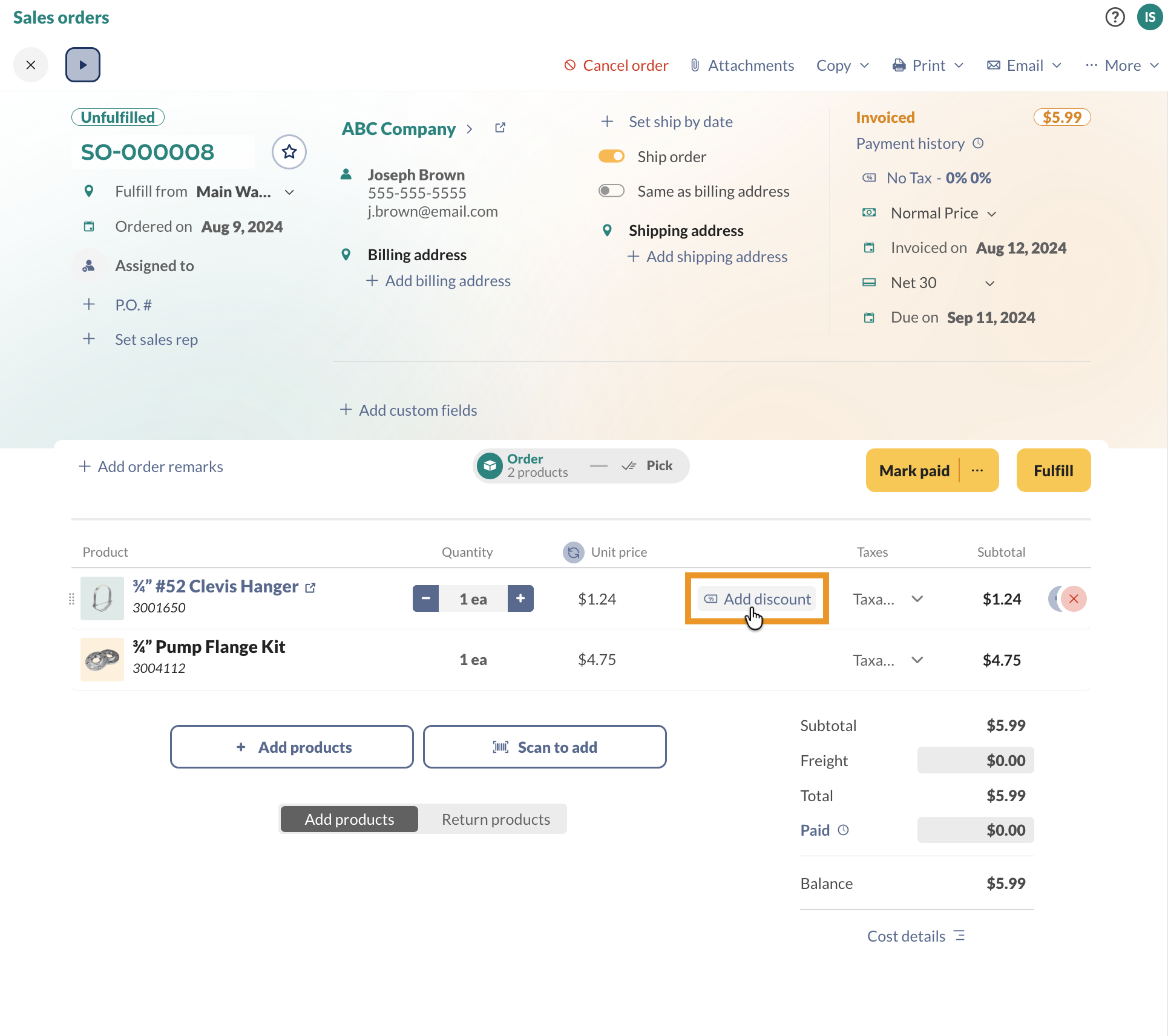
- Open a sales or purchase order, and add products to the product table.
- Hover over the product, then select Add discount.
- Select either the percentage or the dollar and enter the amount in the field to the right.
- Repeat the above steps for all products where needed.
- Save the order when done.
Recurring discounts
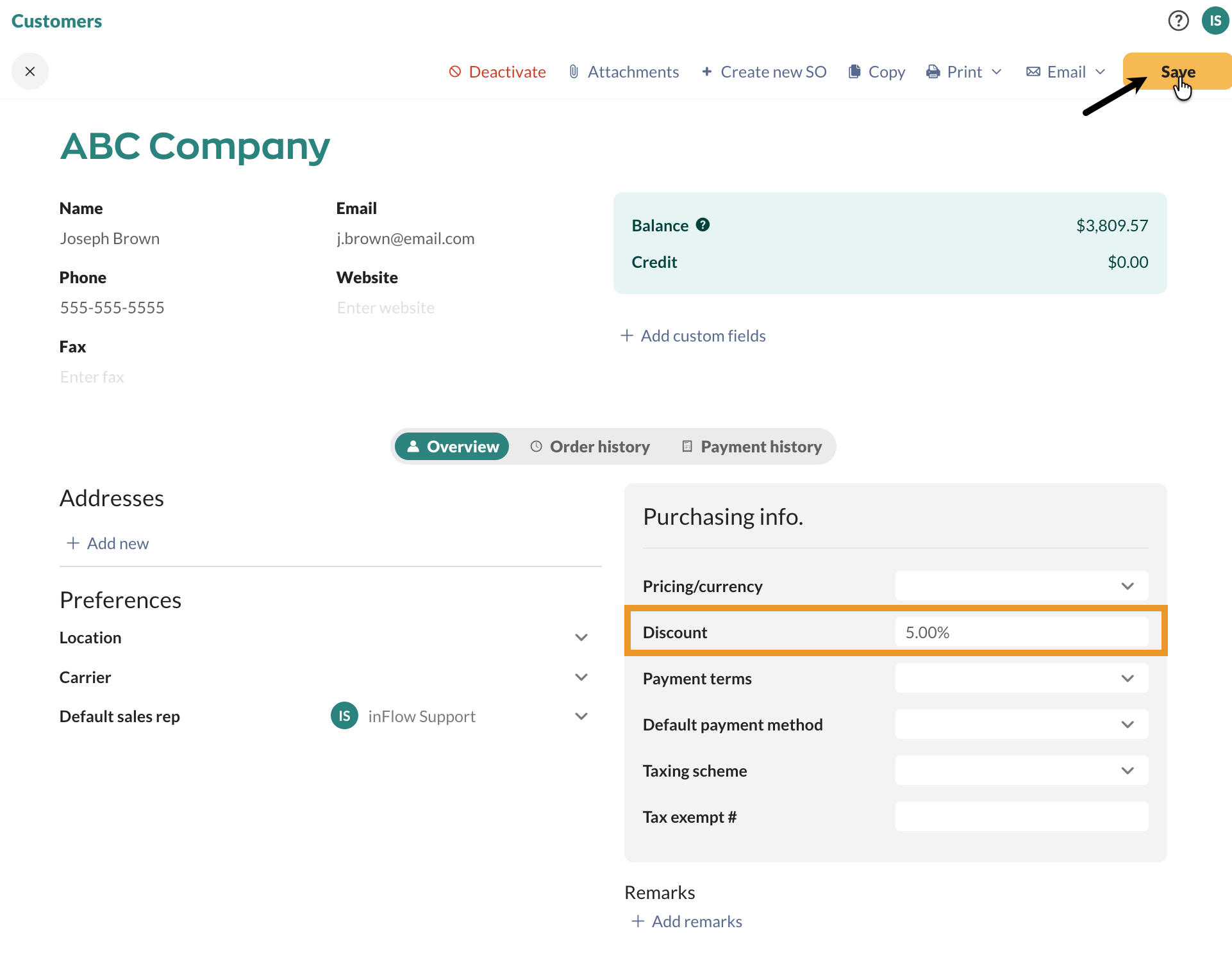
If you have an agreement with a customer or vendor to always provide or receive a set discount, you can add that discount percentage to their customer or vendor record. This way, every time you create an order, inFlow will automatically apply the discount.
- Open a customer or vendor record.
- To the right, enter the percentage amount in the Discount field.
- Save the record when done.
Applying an order-level discount to the total
Unfortunately, inFlow doesn’t have the option to apply a single discount to the whole order. If you want a single overall discount instead of per line, here’s a workaround you can try.
- Create a service-type product called Order Discount.
- Add that product as the last line on your order.
- Make the unit price for the Order Discount item negative.
For example, if you wanted to give a $20 discount, you’d list the Order Discount price as -$20.
Windows
One-time discounts
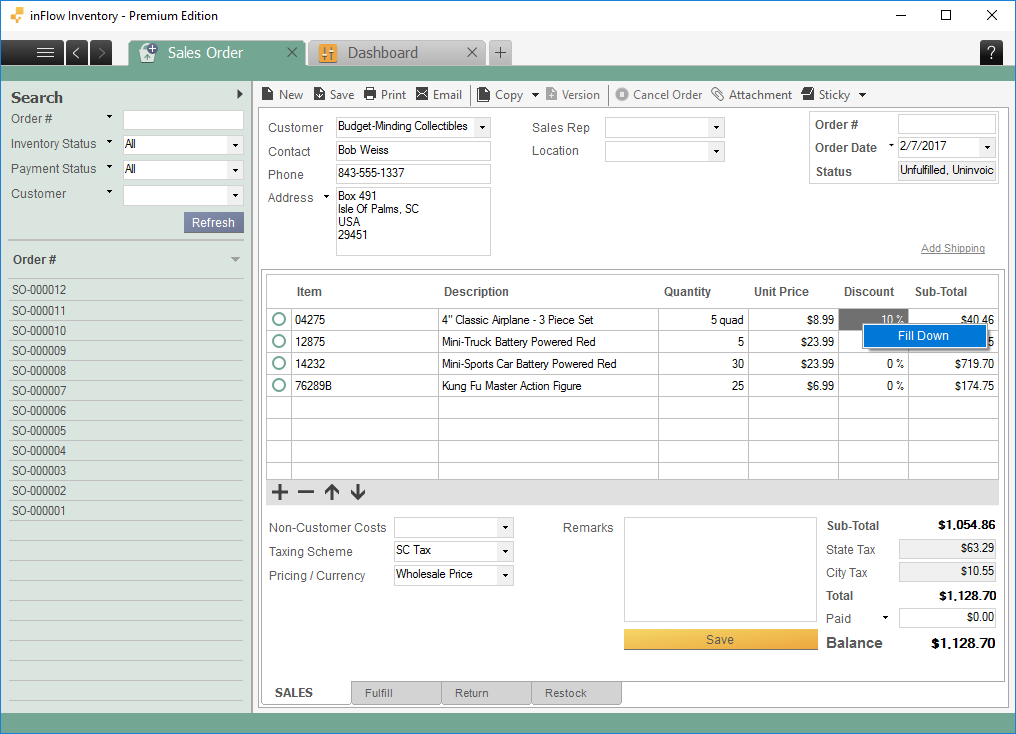
In the Discount column, enter a percentage or amount to subtract from an individual line item. inFlow will reflect the discount in the Sub-Total column.
If you’d like to apply that discount to the entire order, right-click on the first discount you entered and choose Fill Down. This will copy the discount to the rest of the lines on your order.
Recurring discounts
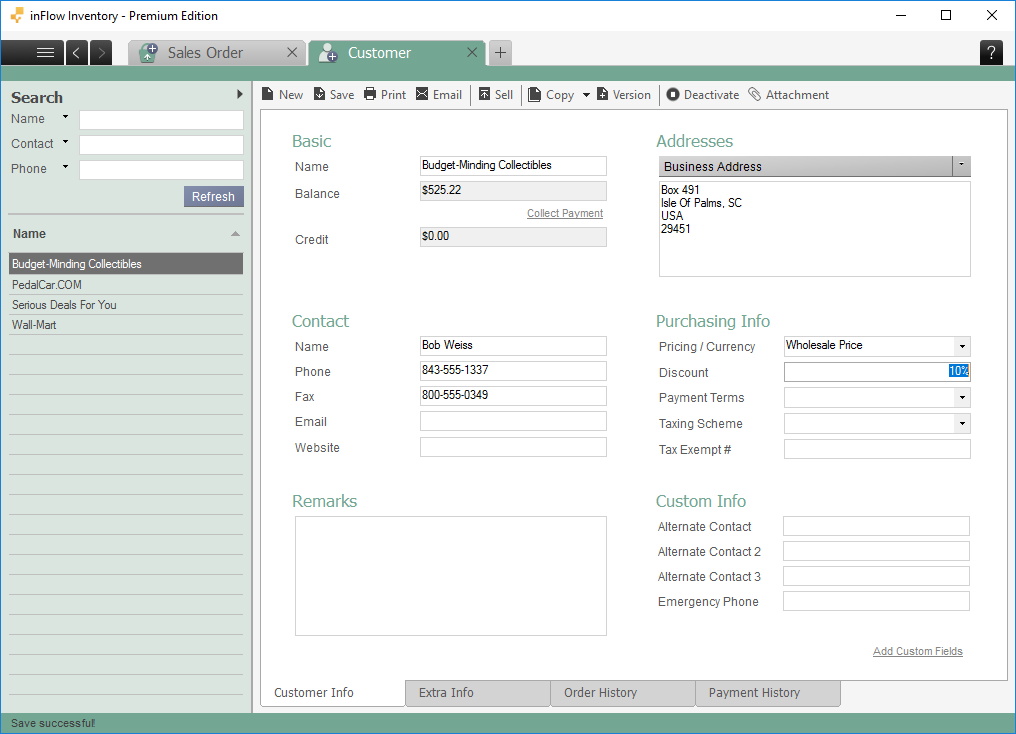
If you have an arrangement with a customer to always give them a set discount, you can add that discount percentage to their customer record. This way, every time you create an order for that customer, inFlow will automatically apply the discount.
The same is true if you have a vendor that provides you with a discount; you can add that to their vendor record.
On the customer record, under Purchasing Info fill in their discount and save. That discount will be applied to all future orders for that customer.
Applying an order level discount to the total
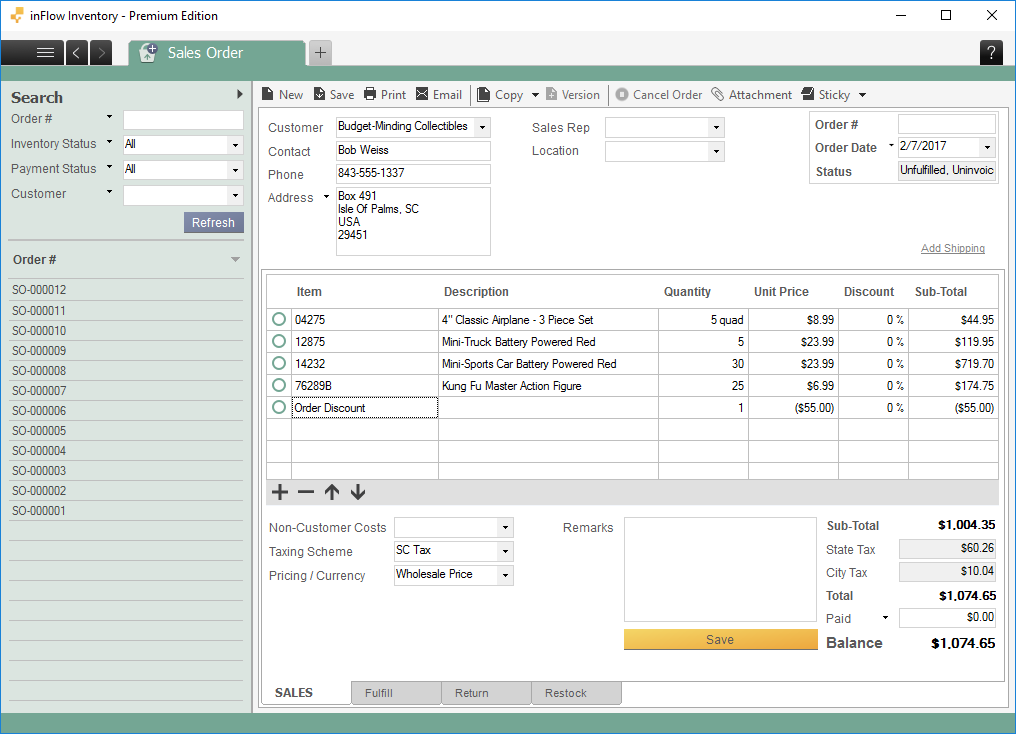
Unfortunately, inFlow doesn’t have a field to apply a single discount value to the bottom of the order. If you’d prefer to apply one discount, rather than line by line you may try this workaround:
- Create a service-type product called Order Discount.
- Add that product as the last line on your order.
- Make the unit price for the Order Discount item negative.
For example, if you wanted to give a $55 discount, you’d list the Order Discount price as -$55.
 Yes, thanks!
  Not really

I’m looking for info on a fast pay sales discount and how to enter it.