 Fellow Canadians: All inFlow plans are available in Canadian dollars




 Home
Home


How to create sales reps and set access rights
Boost your business performance with inFlow! Effortlessly track orders by individual sales representatives and say goodbye to the hassle of calculating commissions.
Web
Setting up team members as sales reps
You’ll need to set up your team members as sales reps before they’re available to add them to a sales order or customer record.
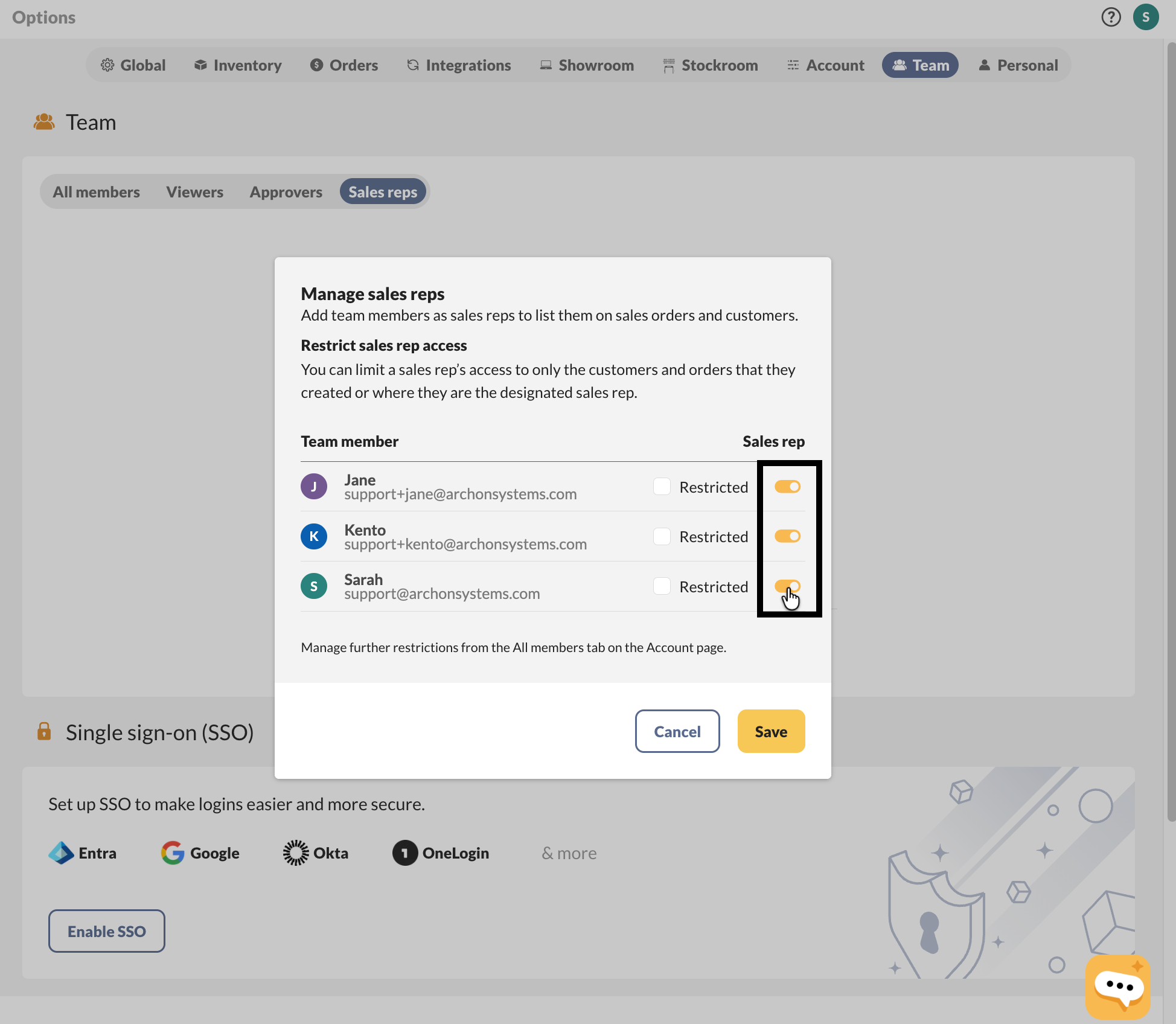
- Go to inFlow’s Team settings (Main Menu> Settings> Team)
- Select the Sales reps tab, then select the toggle next to the team member’s name.
- Click Save when done.
Only team members with sales order access through user access rights can be made sales reps.
Sales rep restricted access rights
inFlow’s higher-tier option allows companies to restrict team member access by location. Additionally, for greater data security, sales representatives can be limited to viewing only their own customers and sales orders.
What will a restricted sales rep not be able to do in inFlow?
- See orders and customers where they are not the sales rep
- Access the Dashboard (Windows app)
- View a product’s cost history
- View a product’s movement history
- Edit the sales rep field on orders and customers
This two-minute video shows you what sales rep restrictions look like in inFlow:
Restricting sales rep access
After creating team members as sales reps, you can limit their access so they can see only their own sales orders and customers.
- Go to inFlow’s Team settings (Main Menu> Settings> Team)
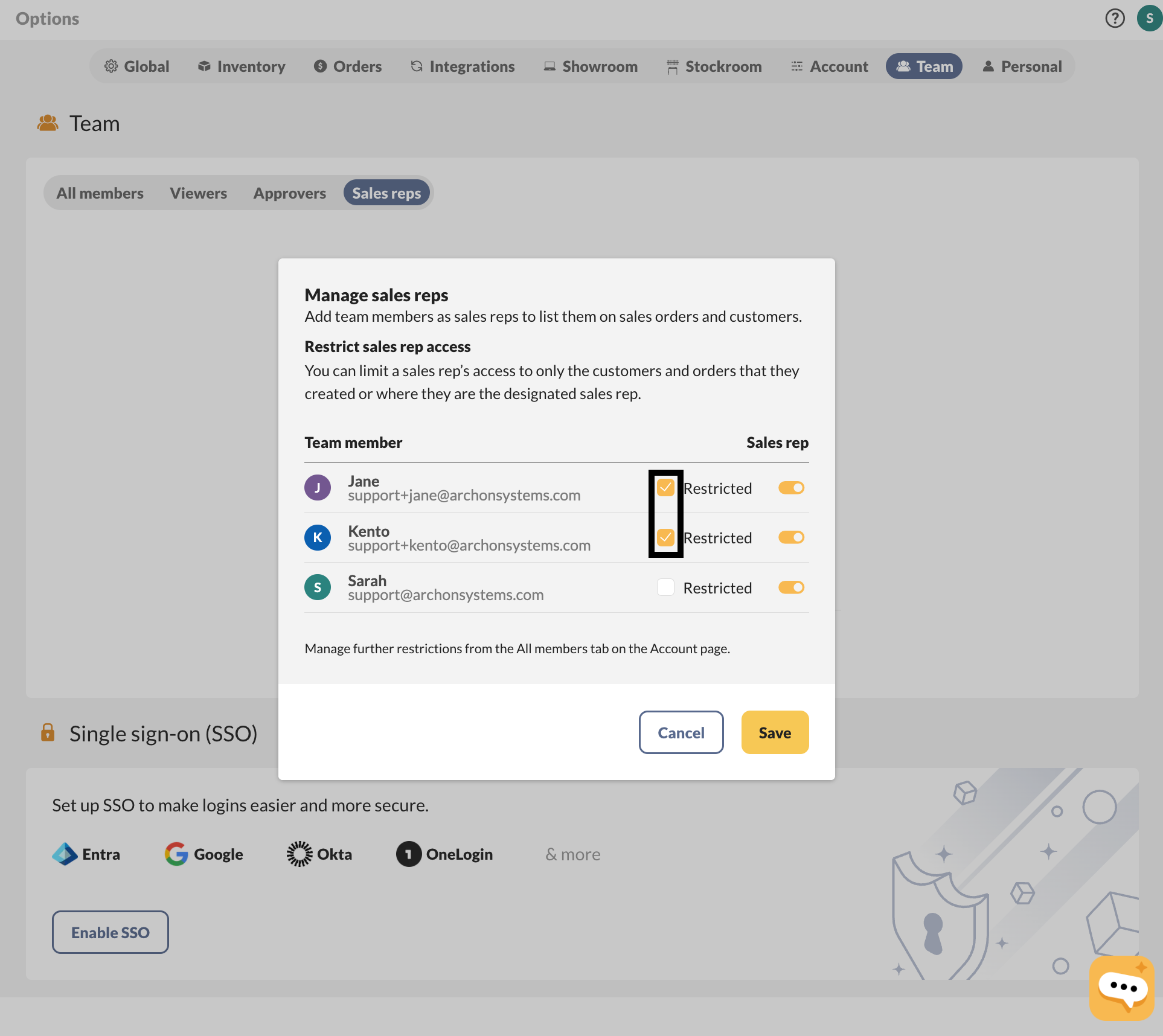
- Under Team members, select the Sales reps tab, then Manage sales reps.
- Select the Restricted box next to any sales rep to restrict them to customers and sales orders where they’re the sales rep.
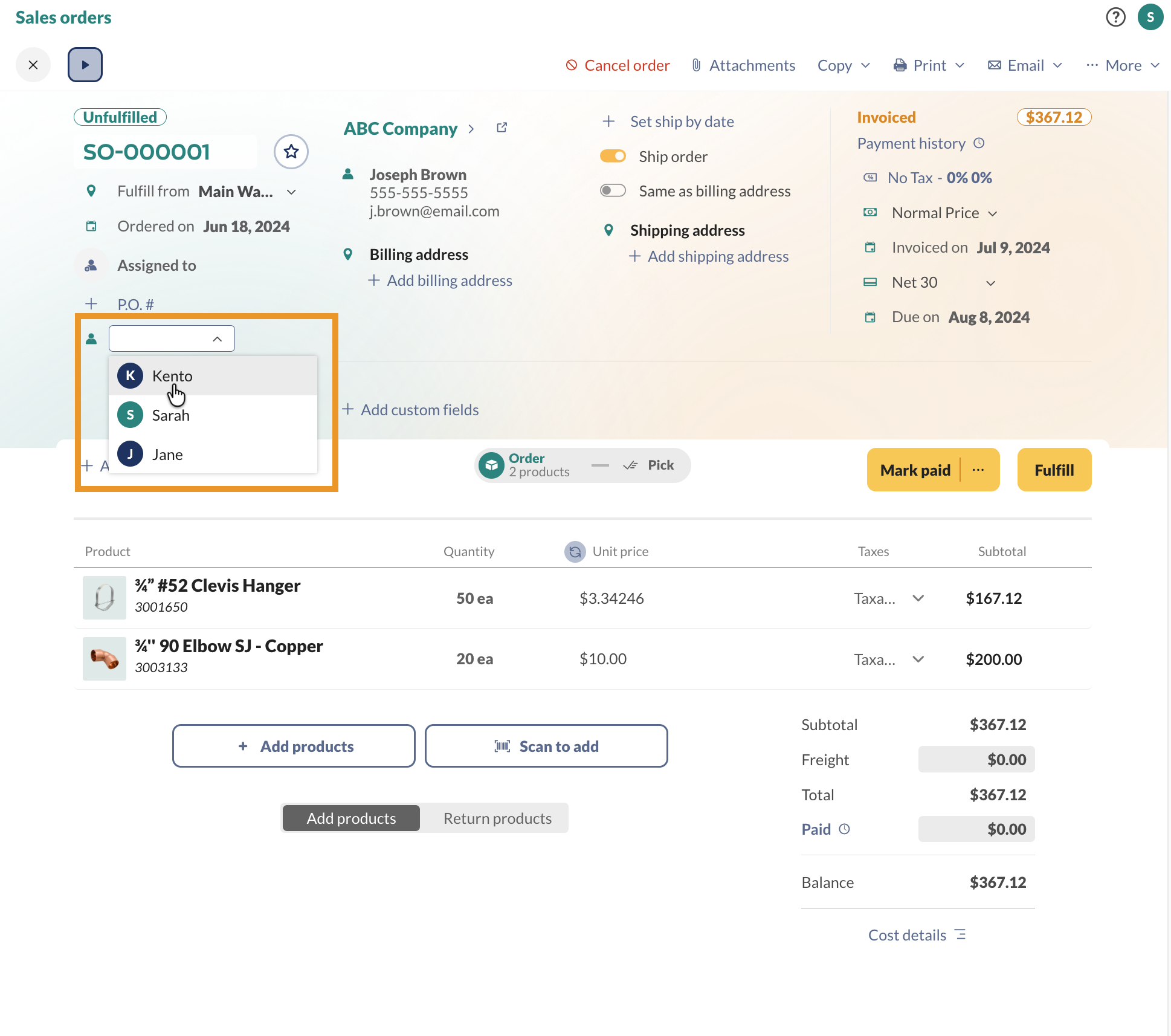
Adding sales reps to sales orders
When a sales rep creates a new customer or order, they are automatically assigned as the sales rep for that order.
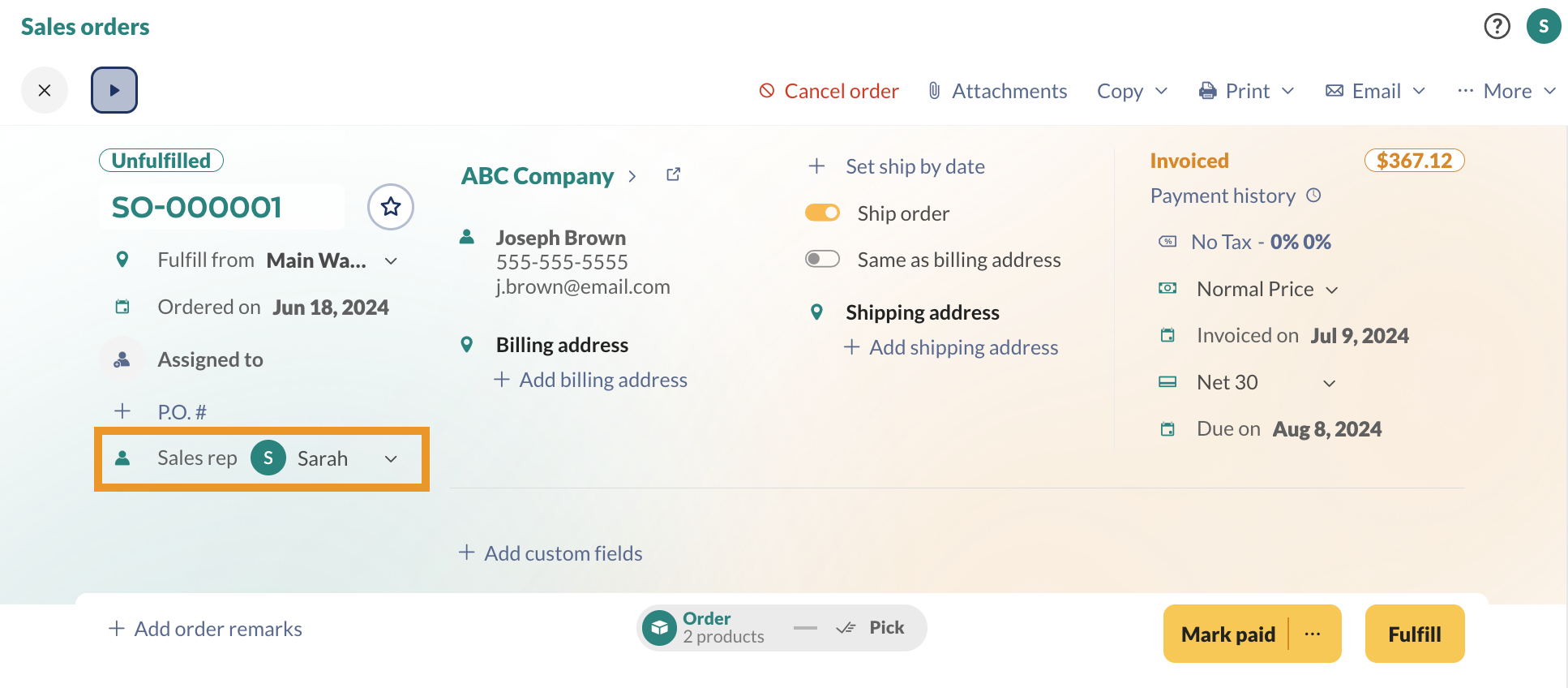
Otherwise, the sales rep can be selected from the sales rep drop-down menu.
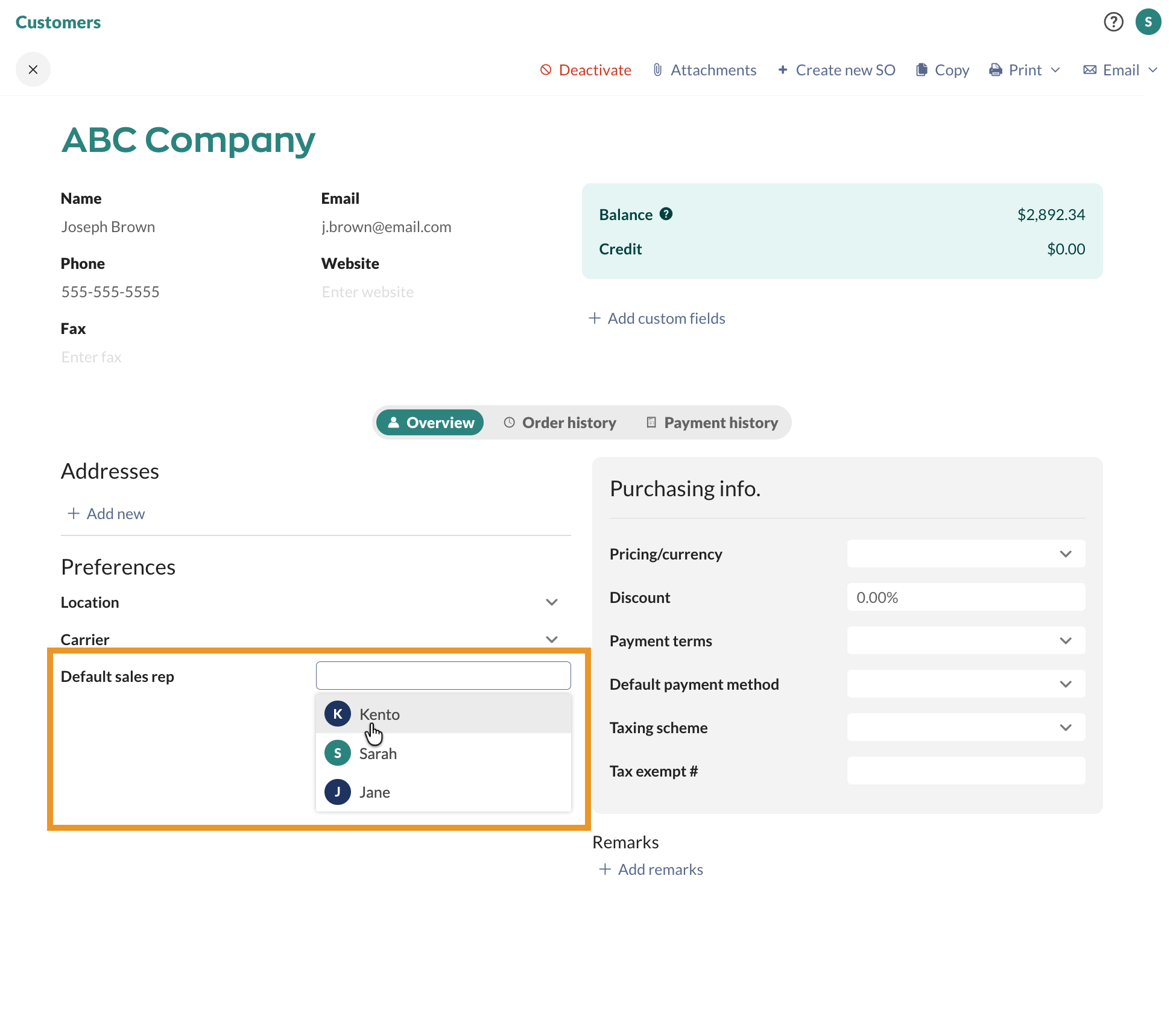
Adding sales reps to customer records
If sales reps are generally assigned to specific customers, you can also manually set the sales rep in the Default sales rep field of the customer record.
Windows
Legacy sales rep settings
Before the Restrict by Sales Rep feature, you could not set team members as sales reps. Instead, you could type your team member’s name or any value into the Sales Rep field. If you have added sales reps in this way before, you may continue using the Sales Rep field as a free-form value.
To set your team members as sales reps instead, see the “Setting up” tab above for steps.
To add a sales rep to a sales order
- Click the Main Menu > Options > Settings.
- Choose References from the tabs on the left.
- Click the Sales Reps button. In this window, you can add or remove Sales Reps if you want to.
- When you’re satisfied, click Save & Close.
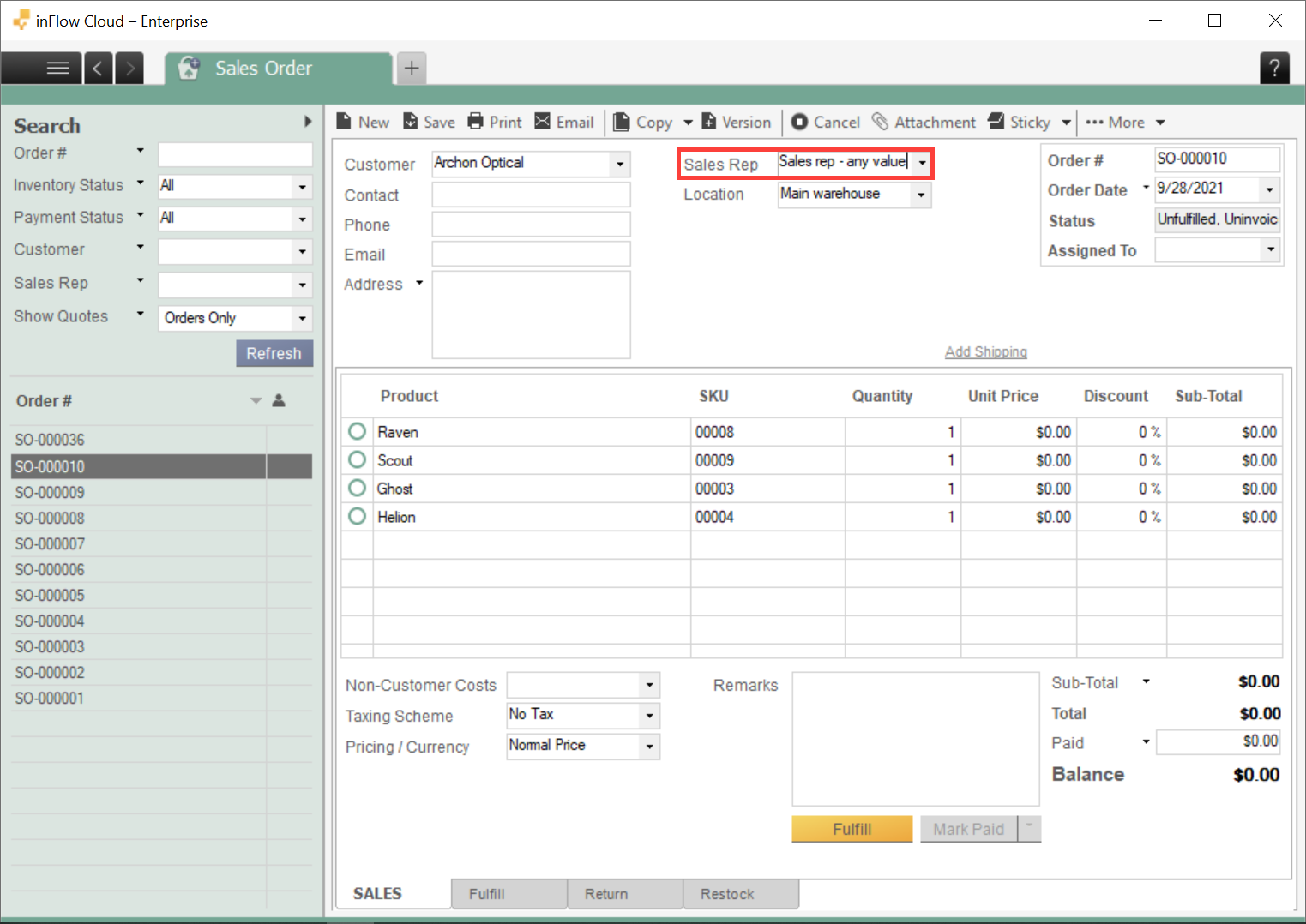
In the sales order, choose your rep from the Sales Rep drop-down or add a new rep by typing into that field.
inFlow will save the new representative name and make it available when selecting a representative on your next order. You can also click the save icon next to it to set this sales rep as the default for this customer.
To edit/ delete Sales Reps already in the system
- From the inFlow Windows app, Click the Main Menu > Options > Settings.
- Choose References from the tabs on the left.
- Click the Sales Reps button. In this window you can add or remove Sales Reps if you want to.
- When you’re satisfied, click Save & Close.
 Yes, thanks!
  Not really

0 Comments