 Fellow Canadians: All inFlow plans are available in Canadian dollars




 Home
Home


How do I backdate or change dates on my orders?
Easily backdate or adjust order dates in inFlow with just a few clicks! It’s a simple process that lets you manage your orders from any date in the past.
Web
inFlow automatically uses today’s date when you fulfill and pay for an order. Before you begin, create and complete your sales or purchase order. Then, you’ll need to update the date fields shown below.
Order date on sales & purchase orders
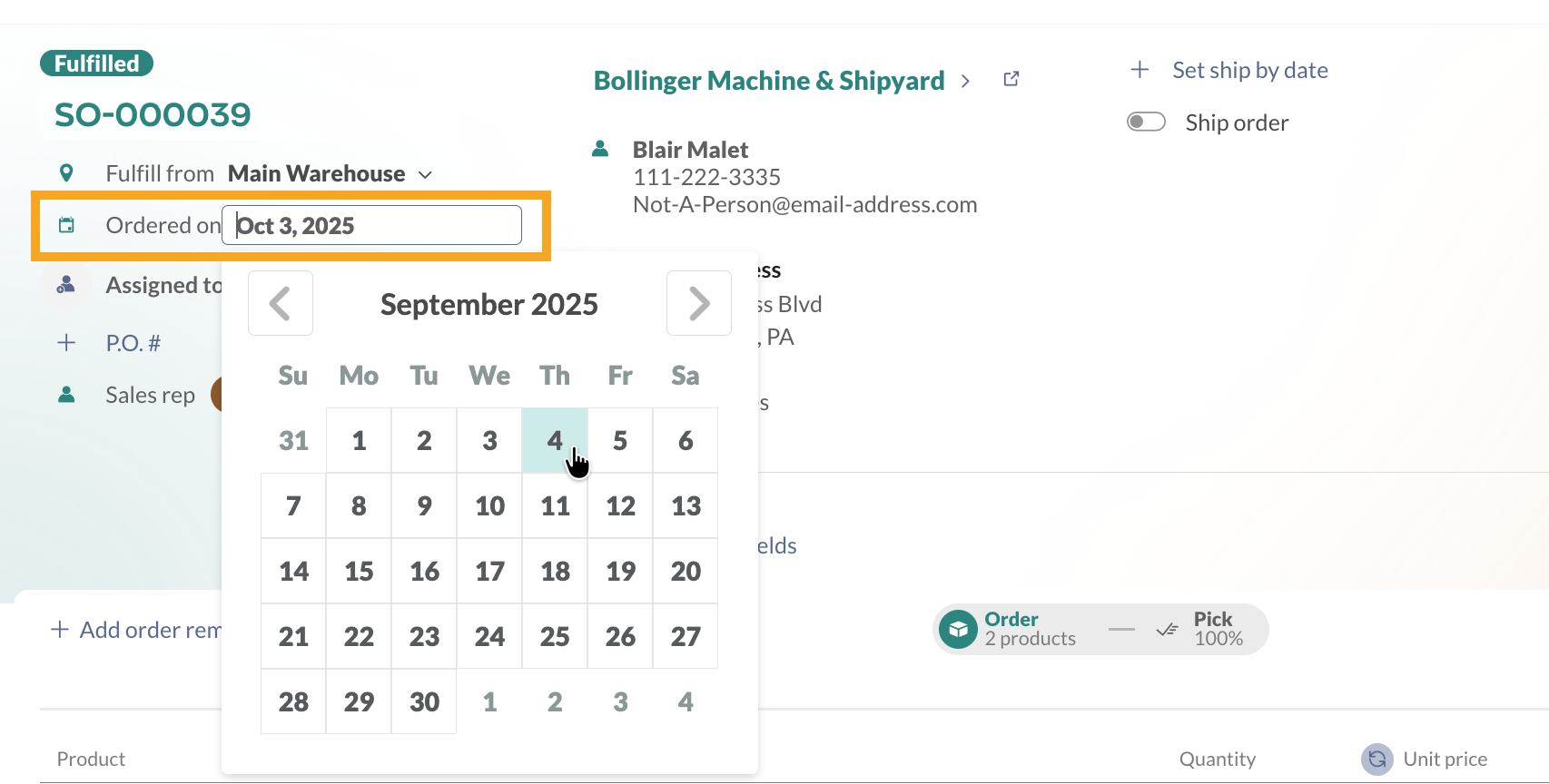
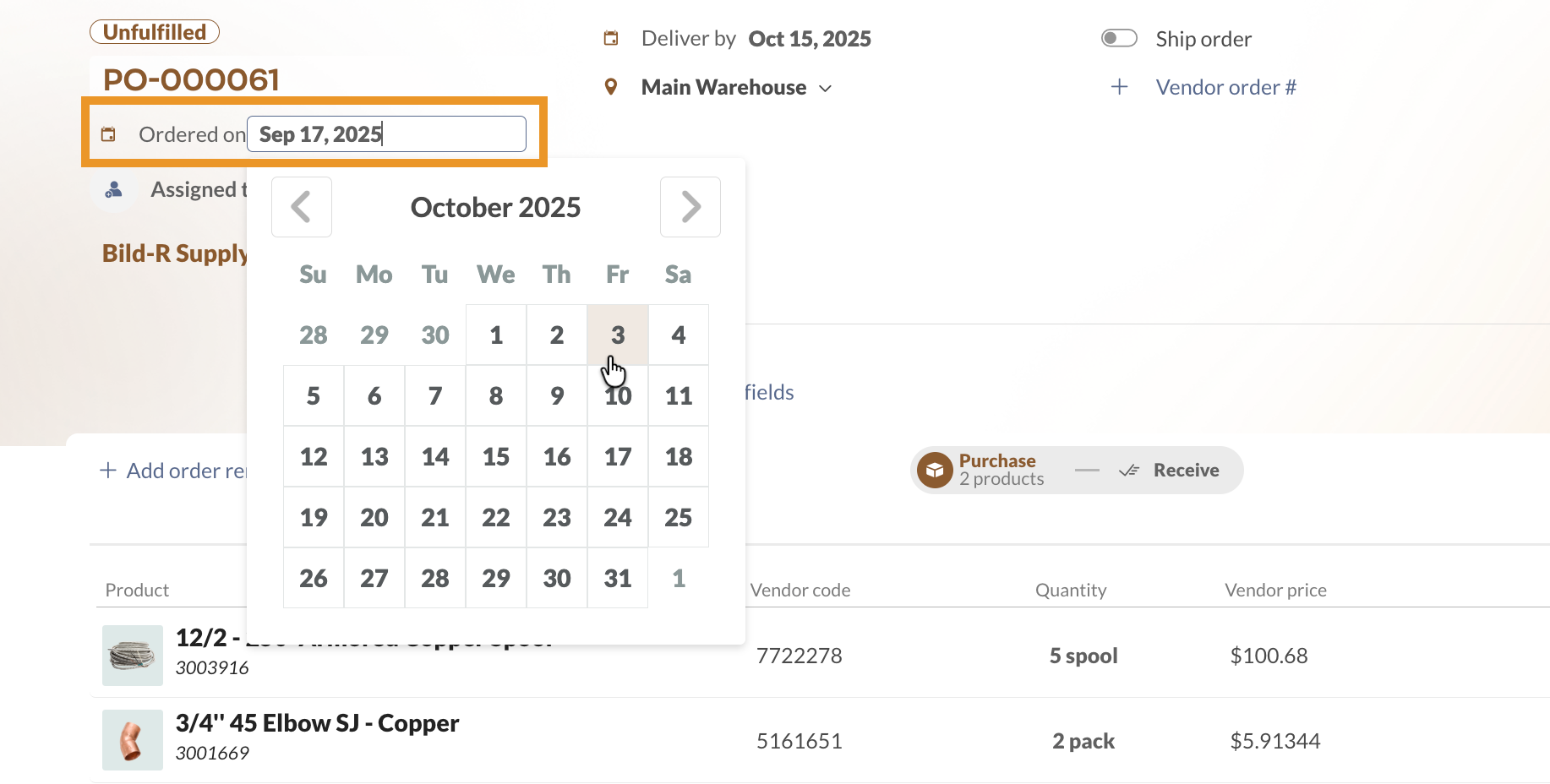
On sales and purchase orders, you can find the order date at the top-left-hand corner of the screen.
- Click on the bolded date next to Ordered on.
- Use the arrows next to the month to change it, then select the desired date.
- Save the order.
Invoiced date on sales orders
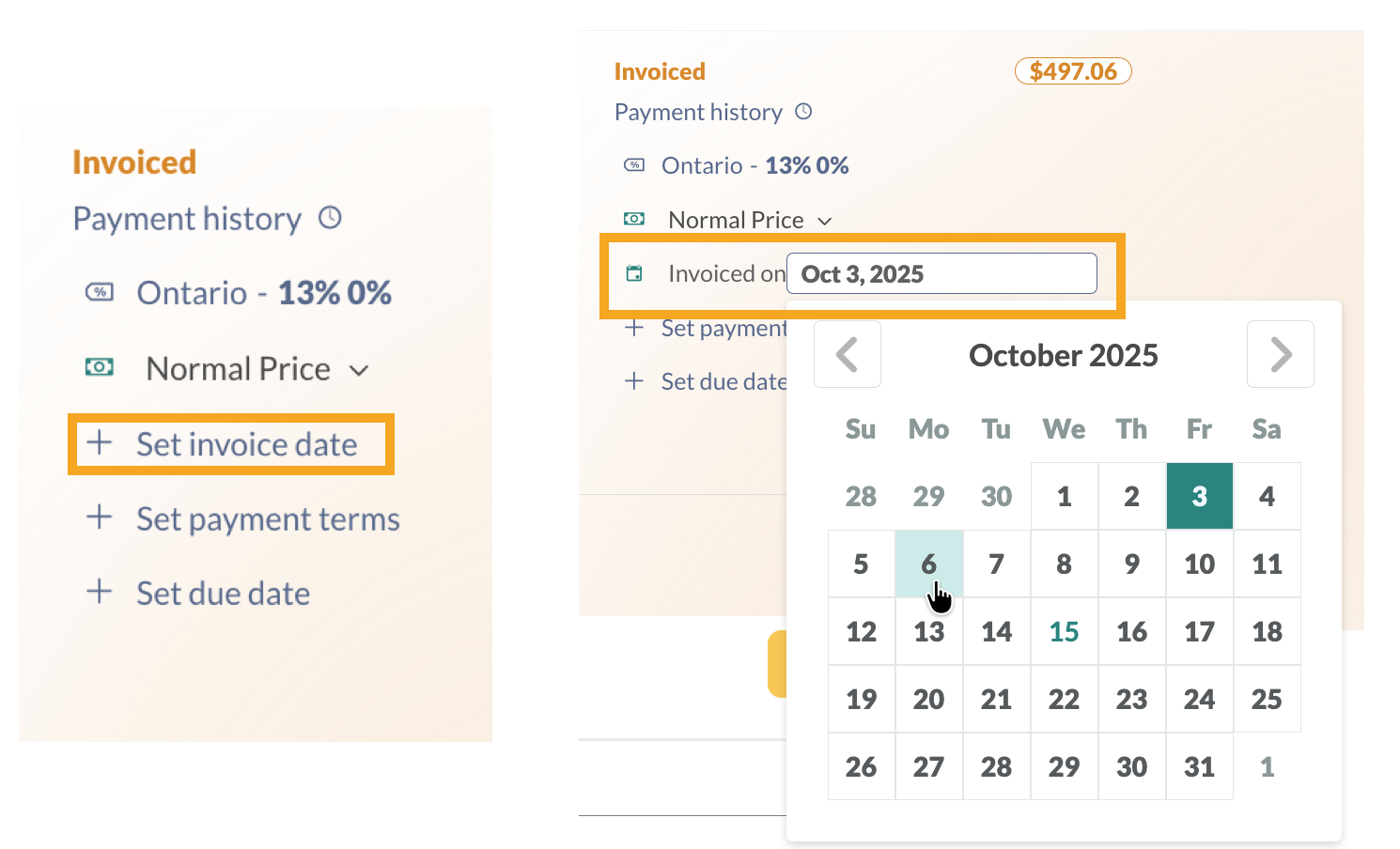
Invoice dates are set when the sales order invoice is printed or emailed to your customer. You can also select the Mark invoiced (the ellipsis next to Mark paid) button to change the payment status to Invoiced.
If inFlow is connected to QuickBooks Online or Xero, the sales order is pushed only when it is marked as Invoiced.
- On the right side of the sales order screen, all the payment information for the order is located. Select the date from the calendar drop-down menu.
- You can change the month by clicking the arrows next to it. When finished, click outside of the calendar
- Save the order.
Picked date on sales orders
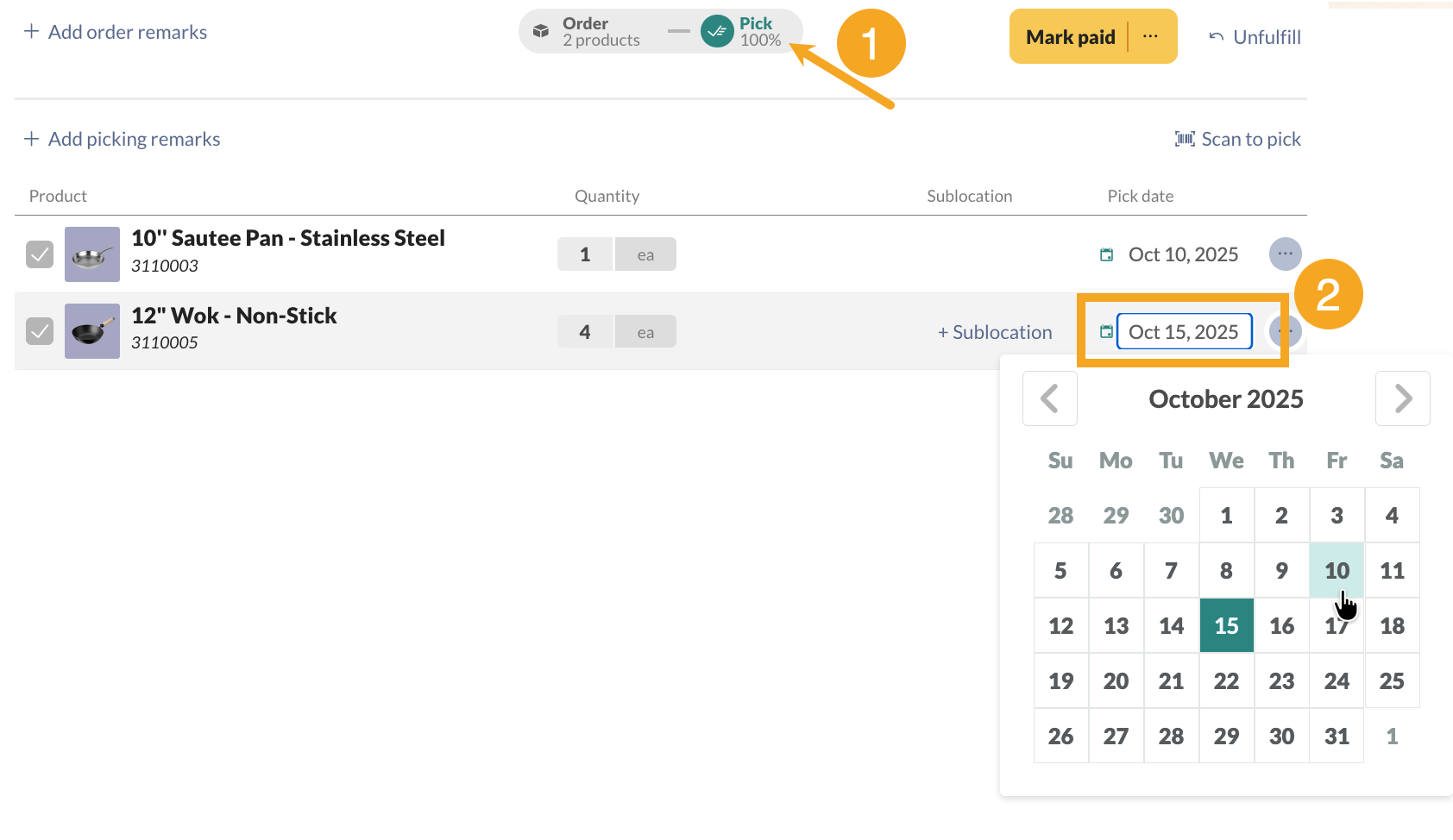
By default, inFlow uses the current date when picking products. You can change the Pick date if you need to backorder when products were picked.
- Select the Pick tab from the sales order.
- In the product table, select the date under the Pick date column.
- Change the month by clicking the arrows next to it. When finished, click outside of the calendar
- Save the order.
Shipped date on sales orders
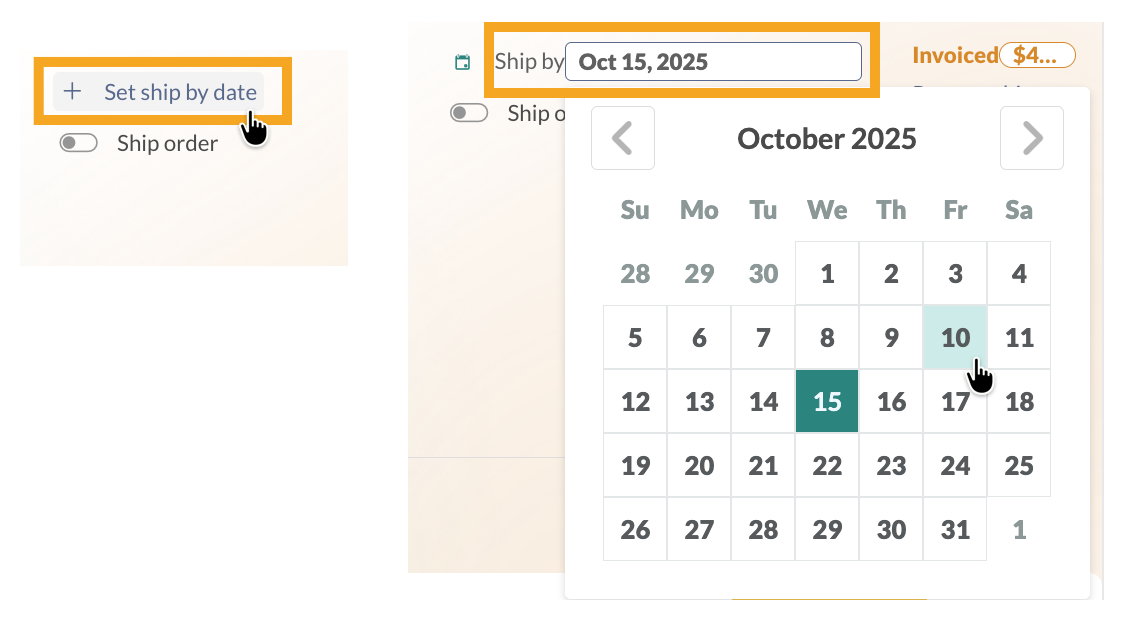
At the top of the sales order, you’ll see the Set ship by date. This field is ideal for specifying the date by which the order must be shipped. Alternatively, if the order won’t be shipped, this field can be used to note when a customer will pick up their order.
- Near the top center of the sales order, select Set ship by date.
- You can change the month by clicking the arrows next to it. When finished, click outside of the calendar
- Save the order when done.
Paid date & payment history on sales & purchase orders
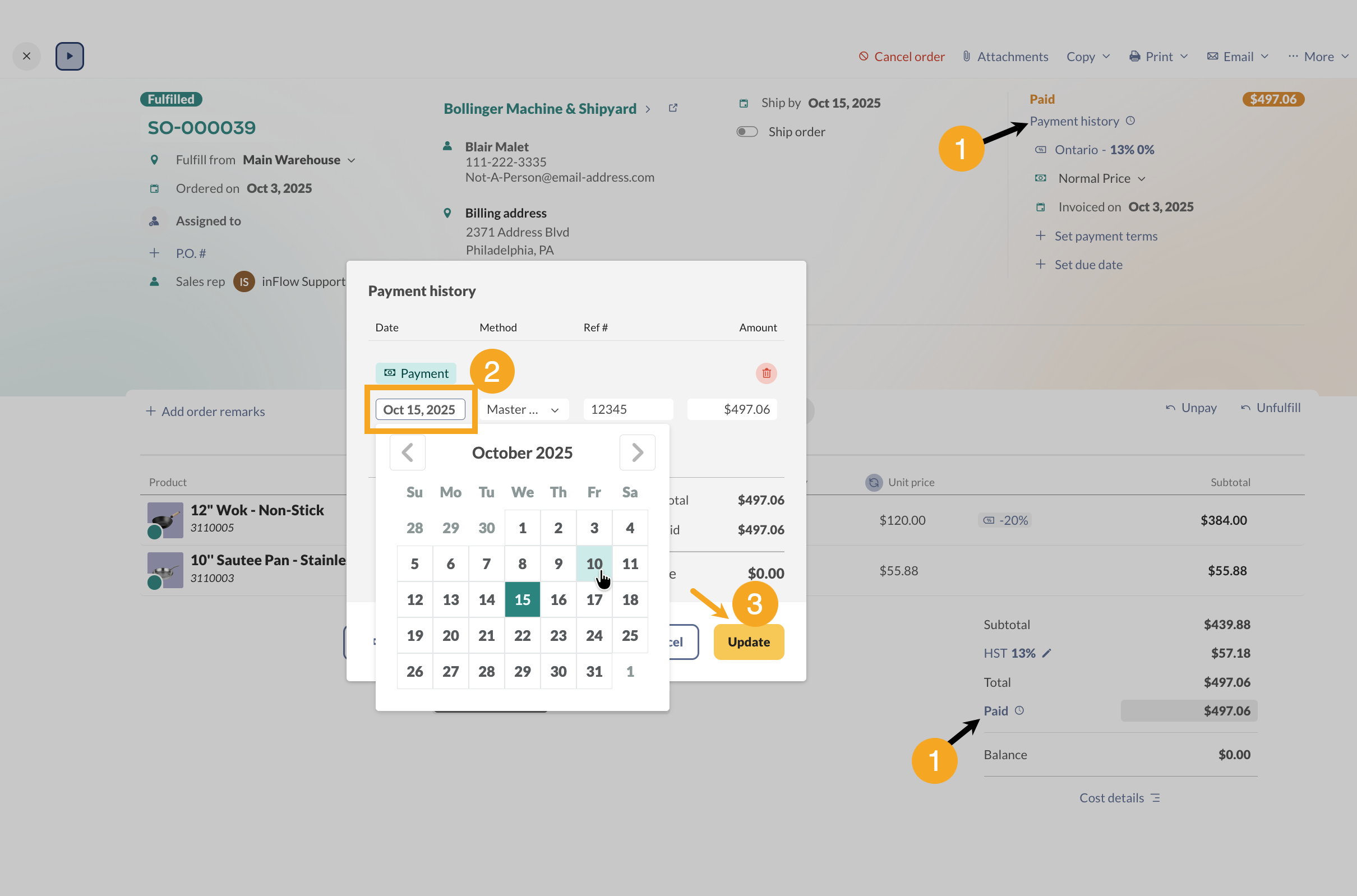
You can edit the payment details with the Payment history settings for the order.
Both options will open the Payment history screen, where you can edit the payment date.
- Open the Payment history by selecting Payment history at the top-right of the order, or by selecting Paid below the product table.
- Click on the payment date to change it.
- Click Update when done.
- Save the order.
Set delivery date on purchase orders
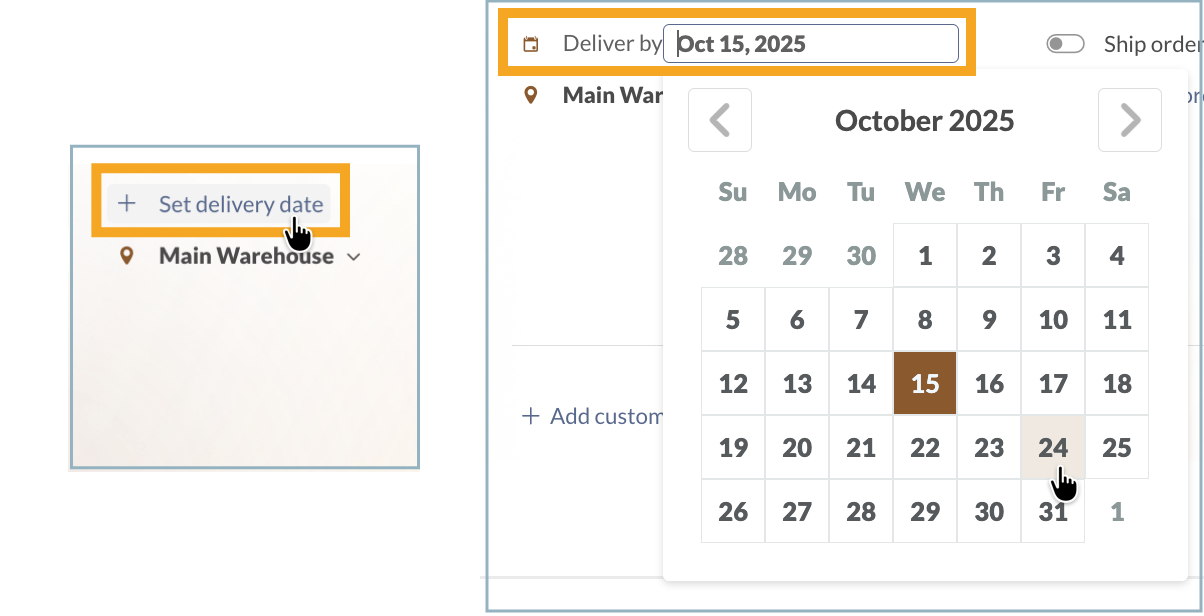
At the top of the purchase order, you’ll see the Set delivery date/Delivery by field. This field is ideal for specifying the date you expect your products to arrive at the receiving location on the purchase order.
- Near the top center of the purchase order, select Set delivery date.
- You can change the month by clicking the arrows next to it. When finished, click outside of the calendar
- Save the order when done.
Received date on purchase orders
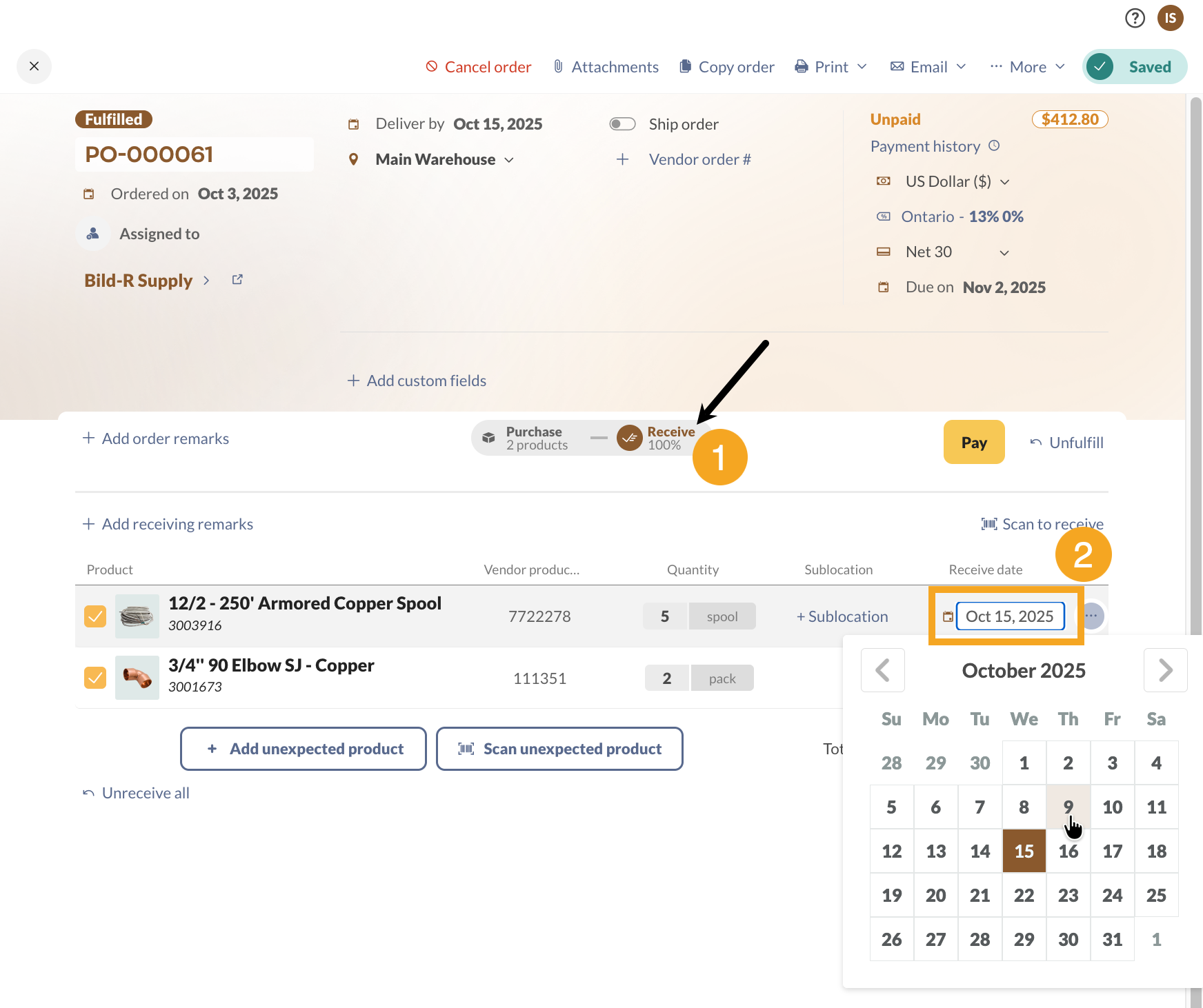
If you need to change the date that products were added to your inventory, you can do that from the Receive tab on a purchase order.
- Open a purchase order and select the Receive tab.
- In the product table, select the date under the Receive date column.
- Change the month by clicking the arrows next to it. When finished, click outside of the calendar
- Save the order.
Windows
inFlow automatically uses today’s date when you fulfill and pay for an order. Before you begin, create and complete your sales or purchase order. Then, you’ll need to update the date fields shown below.
Order date & invoiced date
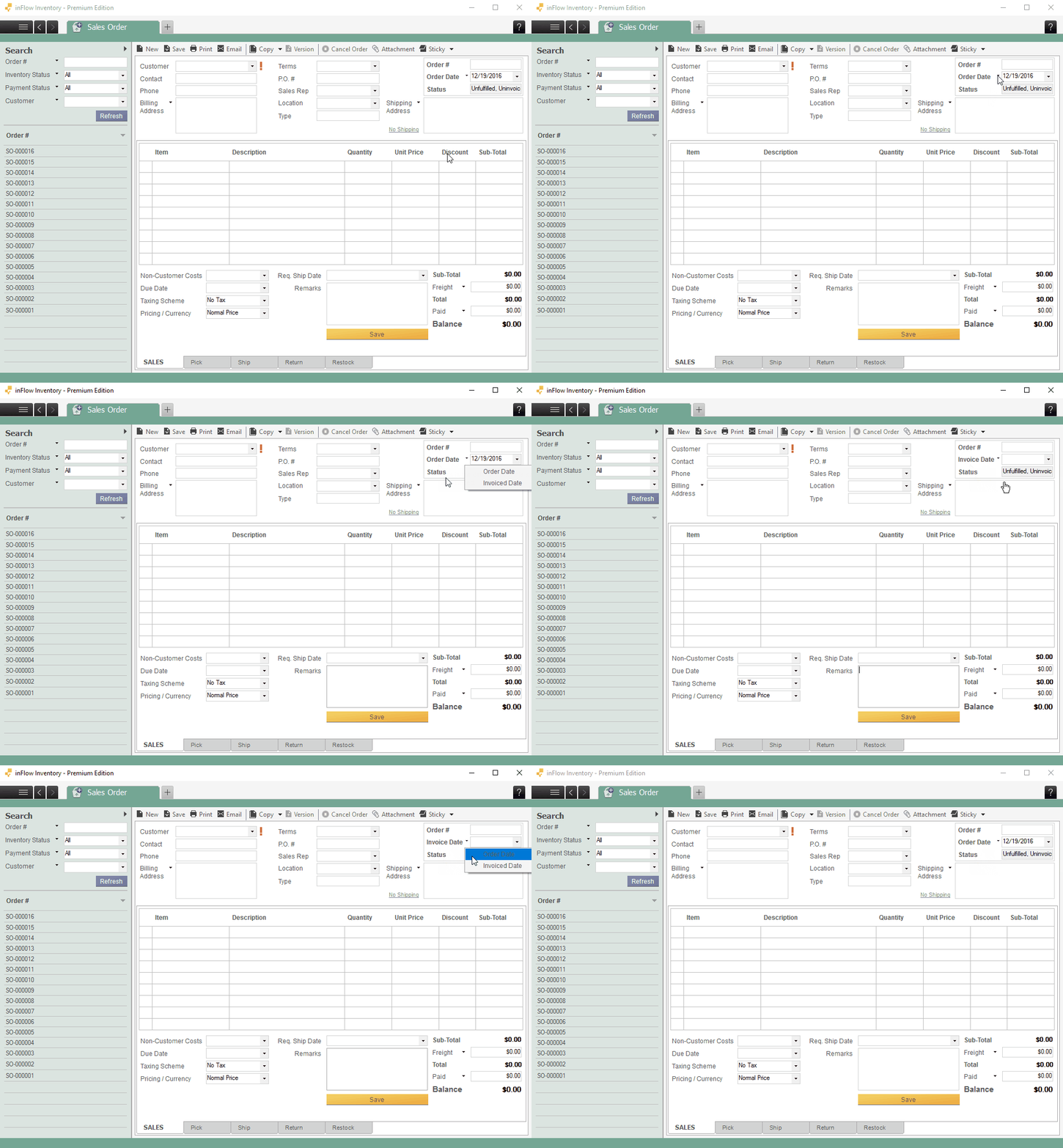
Both the Order Date and Invoiced Date are located at the top right of your sales or purchase order.
Please note that, without shipping turned on, inFlow’s order date and inventory movement date are the same, so you should set this date to when the items were deducted from your inventory.
To set the order/invoiced date
- If it doesn’t already show the date you want to change, click the arrow next to Order Date or Invoiced Date, then select the one you want.
- Enter the date here or use the dropdown calendar to select a date.
Shipped Date
This applies only to sales orders if you have shipping enabled. This should be set to the date when the items were shipped out (removed from inventory).
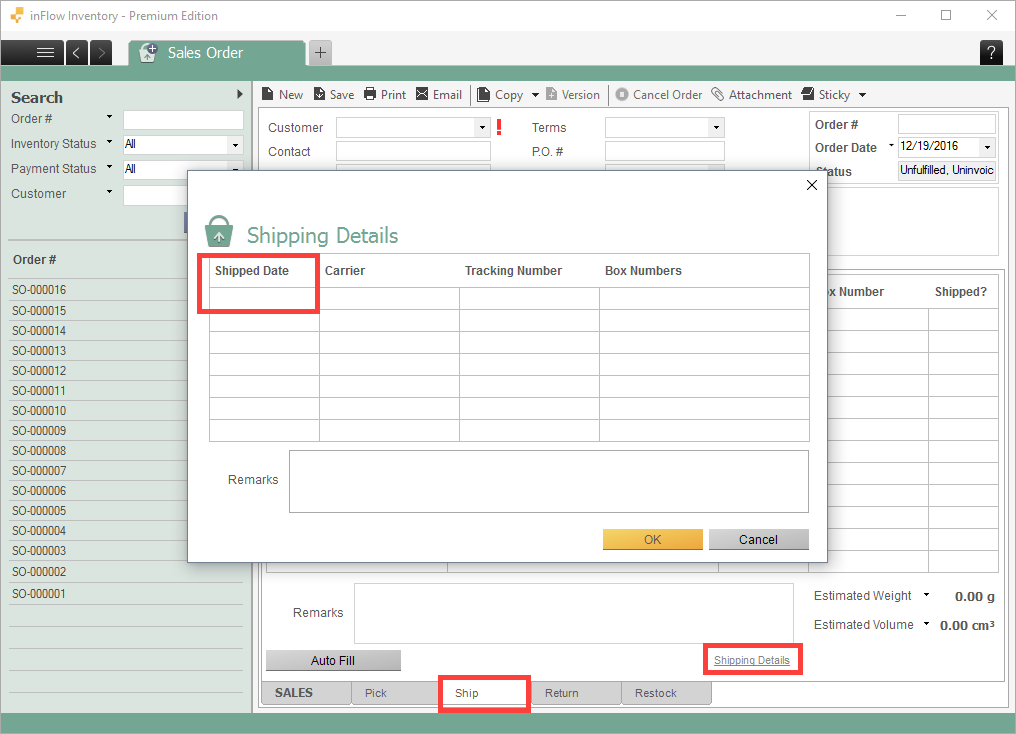
To set the shipped date
- Go to the Ship tab on your sales order.
- Click Shipping Details at the bottom.
- Enter in the shipped date (and other information such as carrier/tracking number if you wish).
Received Date
This date needs to be set on purchase orders only. This is the date the inventory was received into your stock.
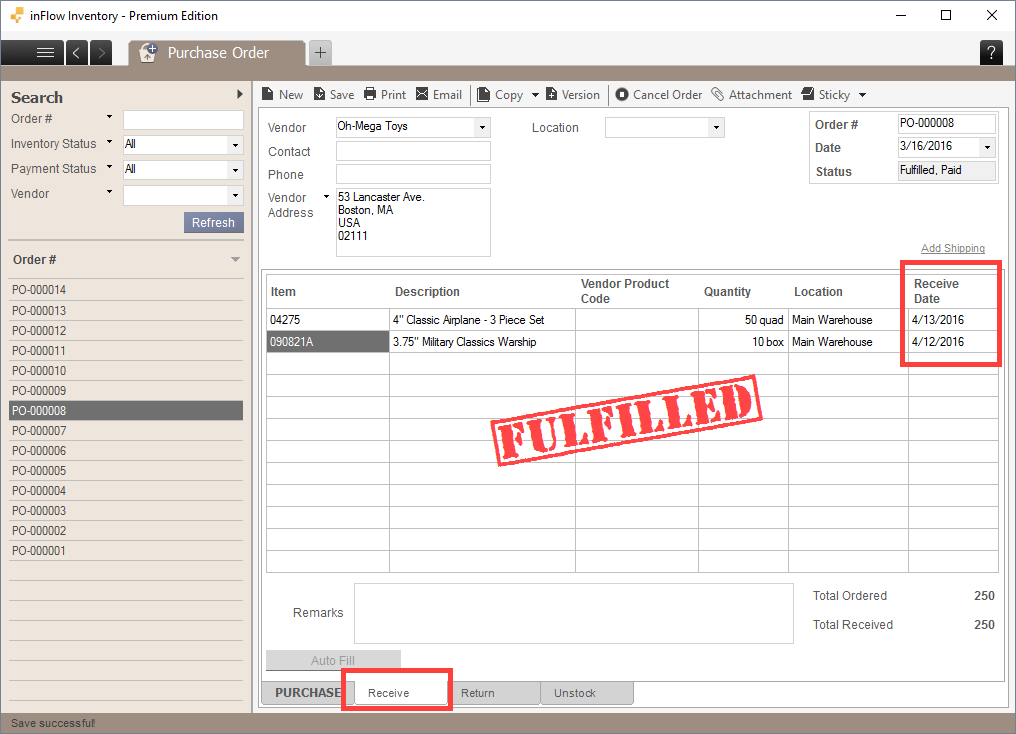
To set the received date
- Click on the Receive tab on your purchase order.
- Set the Receive Date for each item.
If the receive date is the same for all the items, enter in the date on the first row, then right-click and select Fill Down to fill the same date down the column.
Date Paid
This applies both to purchase orders and sales orders. It marks the date you received payment / paid your vendor.
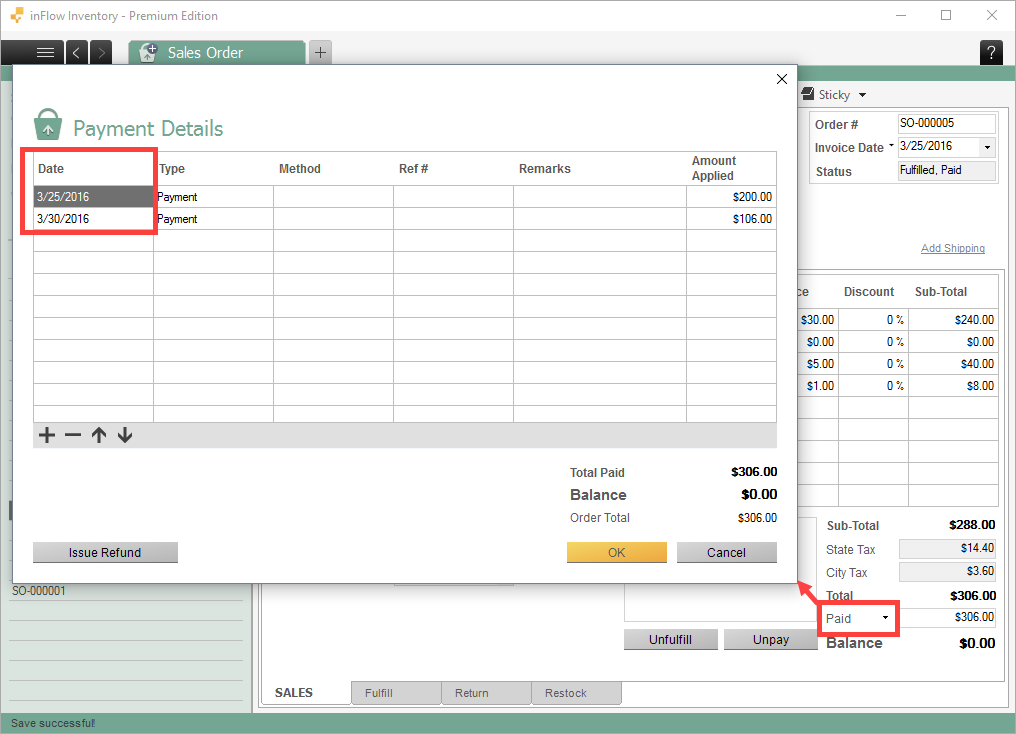
To set the Date Paid
- Click on the Paid button on the main SALES/PURCHASE tab.
- The Payment Details window will open up. Set the date of payment (or separate payments) in this window.
 Yes, thanks!
  Not really


The examples do not look anything like what I see when I look at records.