


 Home
Home


How can I quickly change the markup type (fixed markup/fixed price) for multiple products?
If you want to change your product pricing to fixed markup or fixed price for many products at the same time, use a Product Details import.
If you have more than one pricing scheme, you’ll need to repeat these steps for each scheme.
Changing the default pricing scheme
If you have more than one pricing scheme, choose the pricing scheme you would like to update as the default pricing scheme in your settings:
- Go to the Main Menu > Options > Settings.
- In this window, scroll down to Pricing and Costing > Manage customer pricing schemes.
- Select the star next to the pricing scheme you want to update.
- Click Save and Close.
Export the product details
- Go to Main Menu > General > Export Data.
- Select Product Details as the data type and then click Export.
Open the resulting Product Details export file and change the value in the “IsFixedMarkup” column to
- “TRUE” for all products you’d like to have a fixed markup.
- “FALSE” for all products you’d like to have a fixed price.
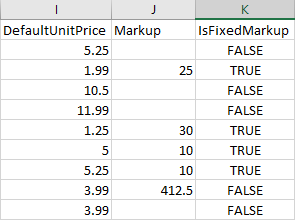
Click Save As > select file type “CSV – Comma Delimited” at the bottom of the window.
Import your adjusted Product Details file into inFlow
- Main Menu > General > Import Data.
- Select file type “Product Details” and click Next.
- On the following screen, make sure “Default Unit Price” is mapped to the correct pricing scheme (the one you chose in step 2 above).
If you have more than one pricing scheme, repeat the above steps for each of your pricing schemes to update them one by one.
 Yes, thanks!
  Not really

0 Comments