




Key takeaways
- inFlow has created a free Code 39 barcode font that businesses can download and use indefinitely.
- The font package includes both human-readable and machine-readable fonts. The human-readable version includes text below the barcode, whereas the machine-readable version does not.
- Also known as Code 3 of 9, this barcode symbology supports uppercase letters (A-Z), numbers (0-9), and specific characters (asterisk, dash, and period).
- Code 39 barcodes are widely used for internal inventory tracking due to their simplicity and compatibility with most barcode scanners.
- Utilizing barcodes can streamline inventory management, improve accuracy, and scale with business growth.
- If you use a Code 39 barcode font, you can get started using barcodes at little to no startup costs.
A free code 39 font without restrictions can be hard to come by. Which is why we decided we would make one ourselves! This inFlow Code 39 barcode font is completely free to download and use forever. No strings attached. We’ve also included a Code 39 font without the text in case you need something that is machine-readable only.
You can download both code 39 fonts here:
If you’re interested in an in-depth look at how to start barcoding your small business, check out our Ultimate Barcoding Guide. It covers barcode fonts and everything else related to barcodes.
Otherwise, read on if you’d like to know how a free barcode font can help your business!
Understanding Code 39 barcode fonts
A barcode is a visual representation of data that a computer can read quickly. Think of it like a nickname that a scanner reads and translates into text on the screen. Barcode fonts allow you to create barcodes by typing them out in a program using a TrueType font. Code 39 is one of the most popular types of barcodes you can create with a barcode font.
What is a code 39 (3 of 9) barcode?
A Code 39 barcode is a standard symbology (format) that most barcode scanners can easily read. It was named Code 3 of 9 because, initially, you could only use 39 characters. While it’s a basic font, it should work for 99% of small businesses looking to implement any sort of internal barcode system. The font supports:
- Letters A-Z (in caps)
- Numbers 0-9
- Characters (asterisk, dash, and a period)
Human-readable vs. machine-readable barcode fonts
A machine-readable barcode font does not include the characters below the barcode itself. Your scanner will be able to scan the barcodes fine, but a person looking at the barcode won’t be able to gain any information at a glance.
Many businesses that use the code 3 of 9 barcode font build a naming system or hierarchy into their barcodes. This allows workers to verify the products they scan or identify products when a scanner isn’t handy. For example, if you sold phone cases, you could use M2BLIP14PR to identify a Model 2 case for a black iPhone Pro 14.
Benefits of Code 39 barcodes
Code 39 barcodes are the simplest and easiest to use when creating an internal barcoding system at your small business. Barcodes also scale well as your business grows. In fact, the automotive industry and the U.S. Department of Defense use Code 39 barcodes heavily, highlighting some of the key benefits of Code 39 barcodes for large-scale operations.
If you’d like an idea of how to get started with barcoding, check out our podcast Secret Life of Inventory. We did an entire episode on barcodes and how to set up a barcode system.
There are many ways to create barcodes; however, using a free barcode font is probably one of the easiest ways to start. Once you can create barcodes, you’re on your way to creating an efficient system for tracking and managing your inventory. And with barcodes, you can do a whole lot more than just track your inventory. You can use them to barcode your shelves and assets or even documents!
Still not convinced? Here are some reasons why a free Code 39 barcode font would be helpful:
- Cost-effective: A barcode font is a cost-effective solution to creating barcodes; the one provided in this post is entirely free to download and use. You can’t get much more cost-effective than that!
- Customizability: When creating barcodes with a Code 39 font, you can craft your barcode however you want. For example, you can easily build a product hierarchy into the human-readable element of the barcode.
- Scalability: One of the best parts about using a Code 39 barcode font is that it allows you to scale quickly. If you start carrying a new product, you can quickly create a new barcode and set it up in your barcoding system.
- Offline Usage: A barcode generator is another tool many small businesses use instead of a barcode font. You can find a number of these online to use free of charge. However, you’ll require access to the internet to utilize these tools. With a barcode font, you can create all the barcodes you need without an internet connection.
You should keep in mind that the Code 39 font is best used for internal inventory management. If you plan on creating barcodes for retail use, you must purchase Universal Product Codes (UPCs). More on this below.
Download and install the free Code 39 barcode font
It’s really straightforward to install a barcode font on any computer. If you’ve ever installed any other font, the process is the same. All you really need to create a barcode using a barcode font is a Windows or Mac program that supports True Type fonts. Some examples include Microsoft Word, Microsoft Access, Microsoft Excel, and QuickBooks. You can install the font below and with just a few clicks, and you’re good to go!
Download the inFlow Code 39 Font
Below you’ll find the link to download our free Code 39 barcode font. We’ve included both machine-readable and human-readable versions of the font, so you can choose whichever one works best for your use case.
Install on Windows
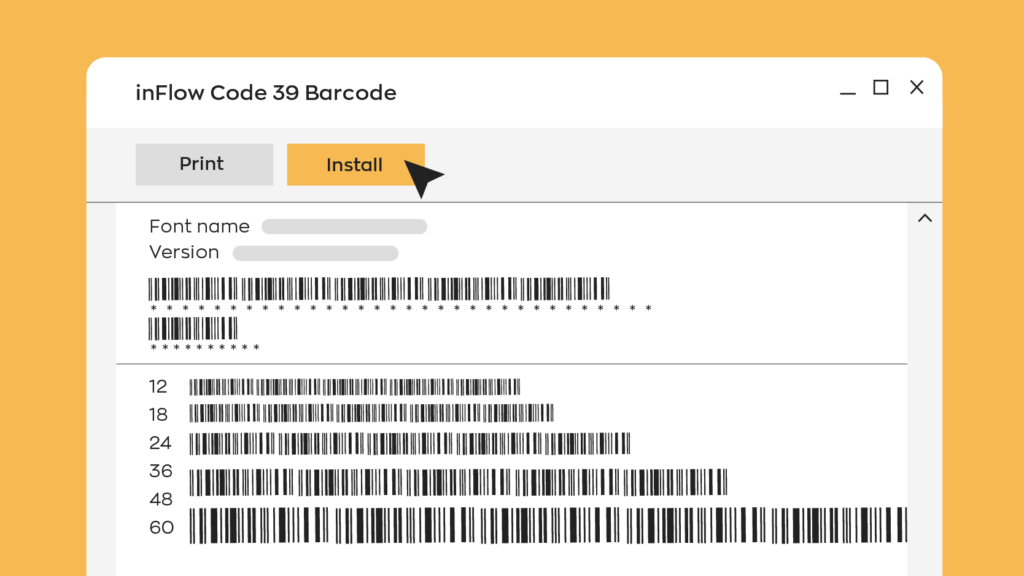
To install the Code 39 barcode font on Windows, first download the free Code 39 font, and double-click the file and click “Install” in the pop-up window after downloading it. You can also try to right-click the “inFlow Code 39 Barcode.ttf” font file and select the install option from the menu that appears. Finally, there is a third option for installing the font. You can place the “inFlow Code 39 Barcode.ttf” file in your fonts folder. This is usually under C:WindowsFonts or C:WINNTFonts (can be reached as well by the Start Menu > Control Panel > Appearance and Themes > Fonts).
Install on macOS
For macOS, first download the Code 39 font, and double-click the font file and click the “install font” button at the bottom of the preview.
Just like Windows, you can also place the Font file in your fonts directory. For macOS, you can place the font file under /Library/Fonts (for all users), or into /Users/Your_username/Library/Fonts (for you only).
Once installed on your computer, the font will be ready to use in any program that supports true type fonts, including Word and Excel. All you have to do to change your data into a barcode is select “inFlow Code 39 Barcode” from the font menu. Or, if you’d like the machine-readable only option, you would choose “Code 39 Machine Readable.” It’s like turning your writing software into a barcode generator!
Using the Code 39 font to create barcodes
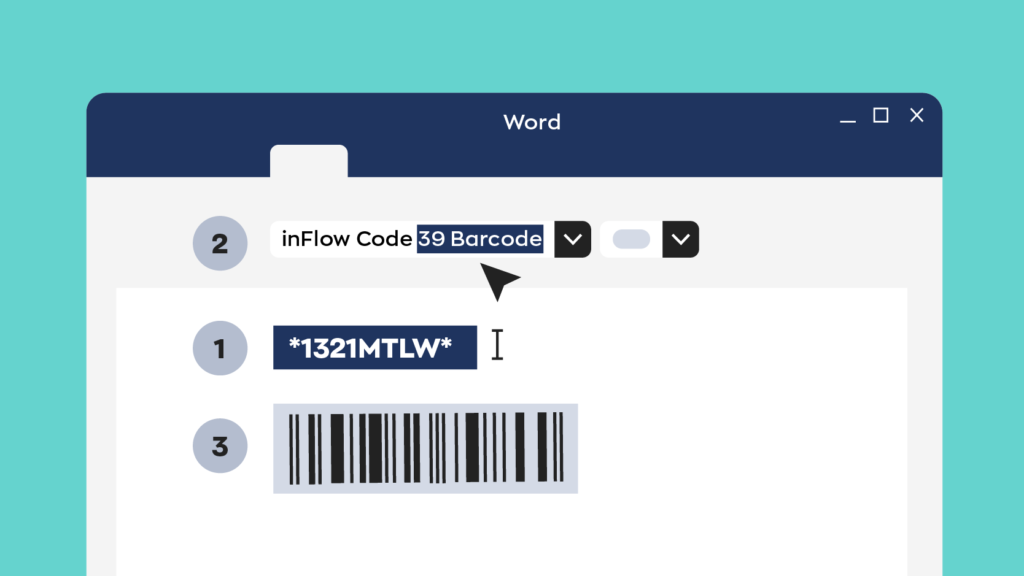
If you wanted to create a Code 39 barcode in Word (or Excel), write “1321MTLW” with a regular font, highlight it, and then change the font to “inFlow Code 39 Barcode”. You can see an example of what that looks like below.
Adding start/stop asterisks & formatting
It’s also important to note that you must add an asterisk (*) to the beginning and end of your data. This is because scanners look for this character to determine where to start and stop reading the barcode.
So, for example, to create a barcode of “1321MTLW,” you would enter “*1321MTLW*” in your word processor.
It’s also important to note that the asterisk characters won’t appear when the barcode is scanned. So, for example, scanning “*1321MTLW*” as a barcode will simply return “1321MTLW.” And remember that adding spaces creates two separate barcodes, so use a hyphen or dash instead.
Note: We stress-tested the font with the inFlow Smart Scanner and found it could be reliably read at size 24 when printed with a basic inkjet printer. However, we did have some success with a font size as small as 16.
Printing barcode labels for your inventory
Once you’ve used the Code 39 barcode font to create your barcodes, it’s time to label your items. This will more than likely be the most time-consuming step of the process.
There are tons of options for barcode printers. We’ve found the Avery label series is affordable and easy to set up. They have many options for both laser and inkjet printers.
If you’re looking for something more robust than desktop printers with Avery stickers to print Code 39 barcode labels, the inFlow Portable Printer is a compact, wireless option built specifically for inventory environments. It works seamlessly with inFlow’s software, and prints high-quality barcode labels on demand—no ink required. It’s a great fit for mobile teams or warehouse setups where flexibility and speed matter most.
Integrating barcodes into your inventory system
Using a free barcode font is just one step in a series to start tracking and managing your inventory more efficiently. Below are all the steps you need to get an inventory tracking system started:
- Assign your items a product code.
- Turn product codes into barcodes by using the Code 39 barcode font.
- Print those barcodes using labels or a special barcode printer.
- Secure a scanner to use with your barcode system.
- Use inventory software so your computer can use barcodes to manage your inventory.
Retail barcodes (UPCs) vs Code 39
You should keep in mind that the Code 39 font is best used for internal inventory management. If you plan on selling your products on Amazon, Walmart, or any big retailer, you must get UPCs. You can now buy UPCs directly from our officially licensed GTIN Barcode Shop for $30 with no renewal fee. However, if you need more than 10 barcodes, we recommend purchasing a company prefix directly from GS1. We wrote an article all about GS1 registered barcodes so be sure to check it out if you want to learn more.
Barcode software & resources
To get the most out of your barcodes you’ll need both something to scan them and software that will tie everything together. While barcoding software isn’t completely necessary, you’ll be limited in what you can use your barcodes for without it. Proper barcoding software will also elimiate the need for a barcode font all together.
Inventory software & scanners
If you’re looking to eliminate the hassle of typing out unique barcodes for your products, inFlow can help. Our inventory software can automatically generate barcodes for just the products you want, and we also offer a full-fledged label designer built into our web app. So, you can generate your own unique, professional labels in just a few minutes and print them to basically any printer.
You can use USB scanner, or smart scanners with inFlow or turn your smartphone into a barcode scanner!
Free barcode e-book & glossary
If you’re looking for more detailed information on how to get a complete barcoding system working for your business, you should download our free PDF book “Barcode Your Small Business.” This eBook won’t bog you down with technical jargon. It teaches you all about barcoding quickly and efficiently, walking you through all the above steps. A short read that’s straight to the point. What’s not to love?
Download the free barcoding e-book
Or, if you’d like a handy reference guide for some of the most widely used acronyms in the world of barcoding, you can read our barcode glossary.
FAQ
What is a Code 39 barcode font and how does it work?
A Code 39 barcode font is a TrueType font that converts typed text into scannable barcodes. When you type characters in this font in programs like Word or Excel, they display as a barcode instead of regular text. Scanners can read these printed barcodes and translate them back into the original text or numbers.
How can I create my own barcodes for products?
You can create barcodes by downloading a free Code 39 font, typing your product codes in Word or Excel, and changing the font to Code 39. Add asterisks before and after your text, for example *PRODUCT123*, then print the labels. For retail sales, you’ll need official GS1 barcodes, but Code 39 works perfectly for internal inventory tracking.
What are the main features of Code 39 barcodes?
Code 39 barcodes support uppercase letters (A-Z), numbers (0-9), and three special characters (asterisk, dash, period). They’re self-checking, meaning scanning errors are automatically detected. Code 39 is widely compatible with most barcode scanners and doesn’t require a check digit, making it simple for small businesses to implement.
How does Code 39 compare to other barcode types like Code 128?
Code 39 is simpler but less dense than Code 128. While Code 39 only supports uppercase letters and numbers, Code 128 handles all ASCII characters and creates smaller barcodes. Code 39 is better for basic inventory tracking, while Code 128 is better for encoding more complex data in a limited space.
Can barcode fonts be used for printing labels and product packaging?
Yes, barcode fonts work perfectly for printing labels using standard inkjet or laser printers with label sheets like Avery products. For internal inventory, Code 39 fonts are perfect. However, for retail product packaging sold through major retailers, you must use official GS1 barcodes instead of font-generated ones.
How can I choose the best barcode font for my Excel project?
For Excel projects, Code 39 is ideal because it’s simple, widely supported, and works with basic characters. Choose the human-readable version if you want text below the barcode, or machine-readable if you only need the barcode itself. Ensure your font size is at least 24 for reliable scanning when printed.
Why do I need asterisks (*) at the beginning and end of my barcode?
The asterisk characters serve as start and stop markers that tell barcode scanners where to begin and end reading the code. For example, *1234* will scan as just “1234” in your system.
i am trying to use the free3of9x font in excel and then word to print labels–but the number/letter combos of each code are not showing up below the barcode lines. i need to be able to see both. what should be done? thanks
please note i am using a macbook with 2011 office
Hi Eve
It’s an extra step, but you can write the text out again under the barcode and change the font to something readable. So your labels would have two lines, the first using the 3 of 9 font and the second using something like Arial.
Let me know if that helps!
-Matt
I am trying to make unique barcodes for different forms fro excel, but the barcode is not scanned with a scanner. Please suggest, how to do?
Are you including the * characters before and after you make the code? Those work as start/stop characters. What scanner are you using? Have you tried enlarging the font?
Using Code 39, I have created a Excel file and entered the 4-digit number of our members. I placed * at the start and end of the value. I highlighted the row and changed the font to Free 3 of 9. A blocky-looking code is produced, but Member 1001 looks exactly the same as 1002, 1003, etc.
Hi Michael
Sorry to hear you’re having some trouble. I’ll get in touch via email to troubleshoot. I was able to successfully create the code in excel myself.
Cheers,
-Matt
I was also able to confirm that although the actual blocks look very similar, they do scan correctly. For example, *1001* comes up as 1001 and *1002* comes up as 1002 as they should (even though visually they look really close!)
I don’t know why but while using small letters first like “*c9366*” it gives me back ” c9366″ How to overcome this?
If anyone can help me or has any suggestions please reply…
I have retail racks in stores that hold 450 6 x 12 inch boards that hold Mosaic samples. Each board has a number example B1098. There’s not a lot of room on the preferred top right corner. I would need a barcode that would be small enough say 1/2 inch by 1/2 inch or even smaller. is that possible?
Hi John! Sorry, for the late reply to this. We haven’t tested our barcode font at sizes that small, as these were meant more for small/medium-sized items that have boxes.
But the good news is that it’s pretty easy and cheap to try, and you can even do it with a Letter-sized piece of paper.
I’d suggest using our font and print out a few different sizes, and see how small a barcode size your scanner is able to distinguish.
– Thomas
This article was great for helping move in the right direction for asset inventory control.
I have a small brewery in my garage and i have been open for 5 years now. I need to move out of garage into a retail place and i plan on keg distribution. I am in need of making a tracking database not only so i know what i have on hand but to also know where my kegs are if not here. i have downloaded the pdf. and i hope this will walk me through the process. I am a little intimidated by computers but i do know beer. Wish me lulck
Hi Team,
I’ve downloaded free3of9.ttf & free3of9x.ttf fonts for reports. On executing the report, distorted barcode image is displayed, some extra text is displayed on the image. I’m able to scan the barcode properly. Also, this issue occurs randomly on the records.
Do I need to go for license product to resolve this issue? Any help will be appreciated
Hi Anurag,
Sorry I wish I could give you a clearer answer to this, but it would be highly dependent on which app you’re using and how much space is in each column of the report.
I don’t think you necessarily need a licensed barcode font. It sounds like there may just not be enough space for the code39 font in that report, or you might have to try a smaller font size for it to display properly.
Regards,
Thomas
Hi,
I have followed all the directions to make a bar coded label with my Microsoft Word program. I am having great difficulty with getting my scanner to read the bar codes I create with Word using the bar code font you recommend above. I’ve made a test page with various font sizes, with preceding and following *’s and without. I am using the extended version so I an use upper and lower case letters and numbers and some special characters. Please advise as to what I am doing incorrectly, because I know it should work! 🙂 Thanks,
Hi Kelly,
One quick question: were you printing that test page out?
Not all barcode scanners can easily read computer screens, so I’d suggest printing the barcodes out if you haven’t done so already (and definitely use the asterisks at the beginning and end).
I’d also suggest trying our other barcode, which has readable text below each entry: https://www.inflowinventory.com/blog/code-39-font-archon-free-barcode/
– Thomas
i am using data example *MGS01234* LAST FIVE DIGIT FOR MY PRODUCT CODE USING FONT BARCODE 39 AND FONT SIZE 14 WHEN I PRINT THE BARCODE LABEL SOME LABEL NOT SCAN PROPERLY
Hi Vinod,
Hrmm, in that case I might try increasing the font size to something like 16 or 18, and trying again. Depending on the length of the barcode, you may have to play with the distance of the scanner too. Try holding the scanner closer or farther from the code until you hear the beep.
Great. Your article was very useful. Thanks for your sharing.
Hi
May i ask more detail of 2 fonts, is it free for commercial use ?
FRE3OF9X.TTF
FREE3OF9.TTF
Hi Aun, the font we provide is free for use without restrictions. However, it’s probably best used for internal use and not for selling at other retailers. If you want to sell your products with barcodes at another store, you’ll likely need registered barcodes from GS1 (and you need to pay to license those).
Can I change the size of 3of9 barcode? i.e. from 8 to 12 to look bigger ans scan correctly. If yes, How?
Hi Amrish! Yes, you can change the font size of our 3of9 font. You’d just use the font adjustment in Word or whichever program you’re using to write. When you increase the font size, the actual barcode will get larger too.
Are there any barcode fonts don’t display human-readable barcode? I don’t want my number displaying under the barcode. Thank you.
Hi Helen, this is the right page for that. The second link on this page has our first barcode font, which is displays no human-readable characters.
How can a solid bar code be made using two words with a space in between them? Example: the word (bar code) will turn into two bar codes instead of one.Thank you,
Hi Todd, as far as I know the spaces will break up a barcode, so you would end up with two instead of one.
However, you should be able to use a hyphen or dash to break up the text. I just tried it with our free Archon CODE39 font and that worked.
Just found your barcode font and successfully integrated into an Access 2010 Report. Thanks for making it clear in the info that you need to add * at the beginning and end of the data string in order to be able to scan it. Very nice. Thank you!
I Like It
Is it possible to use a tab character (ASCII character 8)
You can enter tabs with our Archon Code 39 font, but it will break up the current barcode and put you in position to start a new one. Basically it’s a large horizontal space — it won’t be something you can scan.
Thank you for the guidance..
tankyou from guatemala city
Do you have a code 3 of 9 version that prints the human readable portion above the Barcode ? My tape library seems to require it.
Great font, Thanks!
Sorry Philip, the only one we offer has the characters below the barcode.
thanks
Tengo un pc mac pero el codigo de barras parece que instala solo microsoft.
I have a pc mac and the source not install only works in microsoft?
Hi Juan Carlos, the font works in other apps too, not just Microsoft apps.
need to barcode font
My barcode password must contain both upper and lowercase letters or it will say password incorrect/invalid. How do I setup the following barcode?
4hje3vq%4veq
How much does it cost to subscribe?
Hi,
Why does the font not support the hashtag # ? Need it to configure my barcode reader.
Sorry Andreas, our CODE39 font just doesn’t support the hash symbol. We might consider it for a future CODE-128 font though!
thanks U
Why 3 of 9 barcode true type font is not showing up on a AIX server
Hey Singaram,
You would have to download the font directly onto the AIX server. You can get a complete list of supported OS specs at the font download page here:
https://download.cnet.com/Free-Archon-Code-39-Barcode-Font-for-Business/3000-2190_4-75994173.html
The process will vary slightly depending on the OS but you can learn how to download it for both Windows and Mac in this blog:
https://www.inflowinventory.com/blog/code-39-font-archon-free-barcode/
Hope this helps!
Im not being sent the email with the font even though i have subscribed
Hi avery,
Sorry to hear you haven’t received the email with the code 39 font pack. It sometimes takes a minute to come through. Have you checked your spam folder? If you still haven’t received the font pack please feel free to email me at jared@inflowinventory.com and I can send it to you directly.
Cheers,
Jared
This is a great free barcode font download!
Hi savetube,
Thanks for reading and we’re glad you like it!
Cheers,
Jared
Thank you for the instructions of putting an asterisk before and after the number. I was going crazy trying to figure out why my device couldn’t read the barcode.
Hey Angelo,
Thanks for reading and we’re glad we could help. The asterisks is the most common problem we find people run into when they first start using the font, so you’re not alone!
Cheers,
Jared
This article provides helpful instructions on how to use the free Code 39 barcode font. The introduction of this font and how to install it are described in an easy-to-understand manner. It provides the benefits of setting up a barcode system and emphasizes the variety and flexibility of Code 39 barcodes. I was impressed with the provision of detailed and easy-to-follow instructions. This article will be useful for businesses interested in optimizing their inventory tracking and management processes.
Hey Fontesdeletras,
Thanks for reading, and providing us with such detailed feedback. We’re glad we can make it as easy as possible for everyone to download and use the font. Happy barcode scanning!
Cheers,
Jared
Great, thank you for sharing this free Code 39 barcode font download! I’m always looking for reliable and free resources like this to use in my project. Can’t wait to try it out!
Hey lost life,
Thanks for reading, and we’re glad we could help! Enjoy the font 🙂
Cheers,
Jared
Thanks for sharing this! I’ve been looking for a free barcode font for my project, and Code 39 seems perfect. Can’t wait to give it a try!
Hey tubidy,
We’re glad we could help 🙂 Enjoy the font!
Cheers,
Jared
This is a fantastic resource! I love how easy it is to download and use the Free Code 39 barcode font. It’s perfect for my project, and I appreciate that there’s no hassle with restrictions. Thanks for sharing!
This is fantastic! I’ve been looking for a free barcode font, and the Code 39 option seems perfect for my project. Thanks for sharing such a useful resource! Can’t wait to give it a try.
Hey Java burn,
Glad you enjoy the font! Happy barcoding 🙂
Cheers,
Jared
This free Code 39 barcode font is really helpful for small businesses looking to streamline their inventory tracking.
Hey adnanplayz,
Our goal is to help SMBs however we can. Glad you like the font.
Cheers,
Jared