 Fellow Canadians: All inFlow plans are available in Canadian dollars




Key takeaways
- Xero tracking categories let you segment financial data by department, location, project, sales channel, or region without bloating your chart of accounts.
- You can only have two active tracking categories at a time, but each can include multiple options.
- Tracking categories significantly improves reporting by enabling departmental comparisons, location-based profitability analysis, and more accurate project job costing.
- Tracking categories do not affect VAT; tax codes do. However, they allow UK businesses to segment VAT-bearing transactions by region, channel, or cost code for better internal analysis and audit trails.
- In construction, tracking categories can mirror cost codes to support CIS and reverse charge VAT reporting, but do not replace statutory VAT records.
- When integrating with inFlow sales invoices and related transactions can sync with the correct tracking categories, ensuring your financial reports in Xero reflect the same segmentation.
When you run a successful business, you’ll inevitably face a mountain of both revenue and expense statements piling up in front of you. Whether you’re a construction business with three active job sites or an ecommerce operation selling through Amazon and a handful of retail partners, you need clarity.
Which site is actually profitable? Which sales channel is eating into your margins? Without proper segmentation, you’re flying blind. That’s where Xero tracking categories come in.
Tracking categories let you neatly organize your financial data without cluttering up your chart of accounts. Think of them as smart labels that follow your transactions through your accounting system. They provide the clarity you need to make informed decisions. For UK businesses, especially, they can help align cost codes, manage VAT complexity, and create audit trails that keep HMRC happy.

This guide will walk you through everything you need to know about Xero tracking categories, with real-world operational scenarios. We’ll also explore how modern inventory systems can integrate with your accounting software to create seamless financial visibility.
What are Xero tracking categories?
Let’s start with the basics. Xero tracking categories are labels you apply to transactions to track financials across your business. Instead of creating dozens of separate accounts, you use tracking categories to segment data by:
- Department—Sales, Marketing, Operations
- Location—Office, Warehouse, Job Site
- Project—Site A, Site B, Client #1, Client #2
- Sales Channel—Amazon, Shopify, Retail Partner
- Cost Centre—Administration, Production, Distribution
- Region—UK Domestic, EU Exports, International
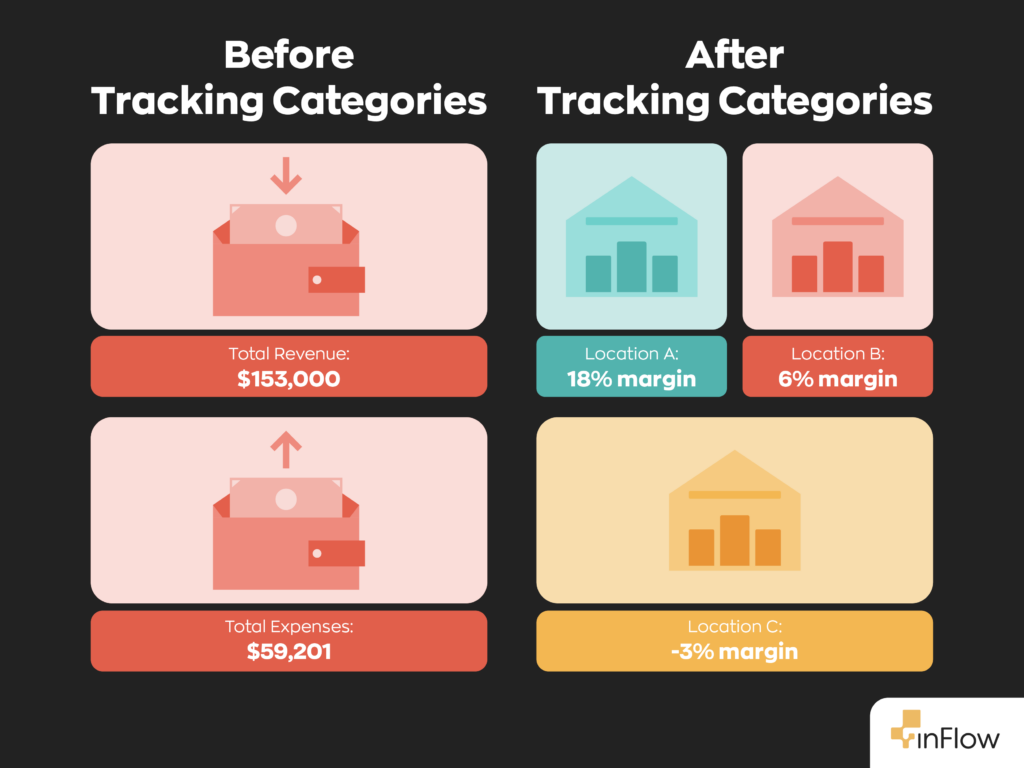
Here’s how the system works: Xero allows up to 2 tracking categories to be active at a time (you can change/retire categories over time, but only 2 can be active simultaneously), and each category can contain multiple options.
These categories then appear on invoices, bills, bank transactions, and manual journals, allowing you to tag every transaction with more context. Tracking is generally applied at the line level, so if a single invoice/bill relates to multiple projects or sites, you usually split it into multiple lines to tag each part accurately.
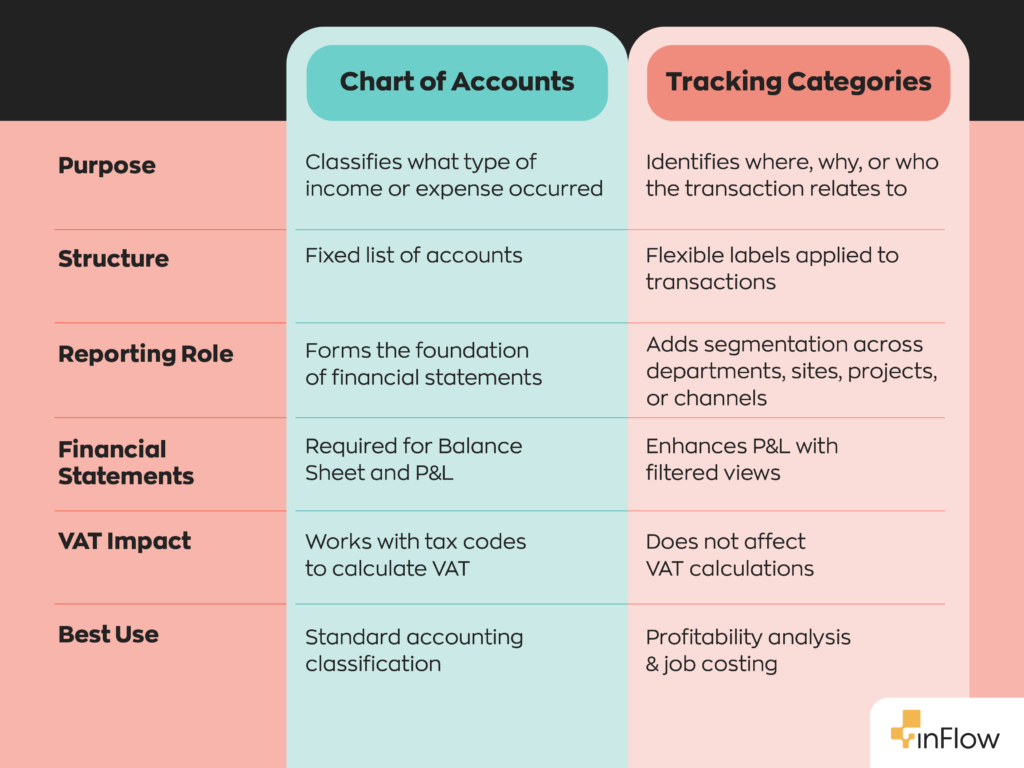
The key difference between your chart of accounts and tracking categories is that your chart of accounts tells you what type of expense or revenue you’re dealing with, while tracking categories tell you where or why that transaction occurred.
For example, you might have a “Repairs & Maintenance” account (the what) tagged with “Manchester Site” as a tracking option (the where). This clearly defines both the expense classification and the operational context.
How tracking categories improve financial analysis
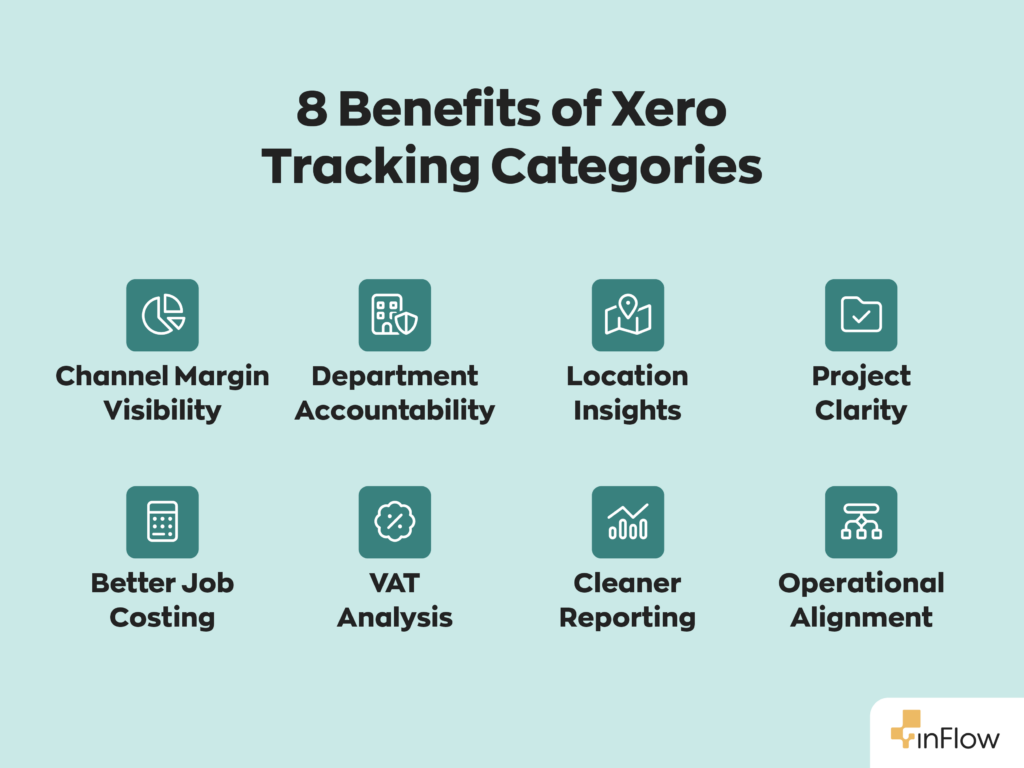
Good tracking categories transform your financial reporting from basic bookkeeping into strategic business intelligence. Here’s how:
Departmental performance monitoring
Instead of guessing which areas of your business operations are cutting into your margins, you can compare performance across departments. For example, a manufacturing business might track “Production” and “Warehouse” to understand which area needs improvement.
Location-based profitability analysis
With Xero’s tracking categories, multi-location businesses get immediate visibility into which sites are performing well and which need attention. This is particularly valuable for construction companies managing multiple job sites, retail chains with several stores, or service businesses operating across different regions.
Informed project job costing
For businesses working in construction and field services, tracking categories provide the foundation for accurate job costing. You can see exactly how much each project is costing in real-time, not just when you run year-end reports.
Operational accountability
When managers can see the financial performance of the department or location they’re responsible for, accountability naturally improves. The warehouse manager owns the “Warehousing” tracking category, the sales manager owns “Sales,” and everyone has skin in the game.
Xero tracking categories and value-added tax (VAT)
The tracking categories feature in Xero is especially useful for businesses operating in VAT-compliant regions. Understanding how tracking categories interact with VAT can give you significant advantages in compliance and cash flow management.
How Xero tracking categories work with VAT
First, let’s be clear: VAT rates are determined by tax codes in Xero, not tracking categories. Your tracking categories won’t change whether something is standard-rated, zero-rated, or exempt. But they do allow you to segment your VAT activity in powerful ways.
Consider this scenario: You’re running an ecommerce business with both domestic UK sales (standard-rated VAT) and EU/international exports (often zero-rated when conditions are met). Tracking categories don’t affect VAT, and your VAT Return is still filed as a single set of totals. However, you can use tracking-aware reports (for example, transaction-level reporting/export) to analyze all purchases and sales with VAT by region/channel for internal management.
This becomes even more valuable when you’re dealing with:
- Standard-rated sales
- Zero-rated exports
- Reverse charge VAT
Cost codes and VAT in UK construction
Construction businesses face particular complexity with the Construction Industry Scheme (CIS) and reverse charge VAT rules. For this reason, many SMBs operating in the UK and EU use tracking categories to mirror their construction cost codes, creating clear audit trails that HMRC appreciates.
For example, you could set up tracking categories for “Labour,” “Materials,” and “Subcontractors.” When reverse charge VAT applies to subcontractor services, you can easily segment these transactions for reporting purposes. This level of detail not only helps with compliance but also gives you better visibility into your ongoing project costs.
We should mention that while tracking categories can improve internal traceability and give context to your finance team, they don’t replace VAT evidence, correct VAT rates, or statutory record‑keeping.
Common mistakes when using Xero tracking categories
Even with the best intentions, businesses often stumble when implementing tracking categories. Here are the pitfalls to avoid:
- Using tracking categories as a replacement for a proper chart of accounts. Tracking categories supplement your chart of accounts; they don’t replace them. You still need proper expense and revenue accounts.
- Creating too many tracking options. It might be tempting to create granular categories for everything, but this kind of bloat will only lead to inconsistent tagging and complex reporting. Keep it simple.
- Inconsistent tagging across the team. If some people use tracking categories religiously while others ignore them, your reports become unreliable. Standardizing the process through training and regular audits is essential.
- Forgetting to apply them to inventory-related purchases. This is a big one for product-based businesses. If you’re not tagging inventory purchases with the right tracking categories, you lose visibility into the cost of goods sold by segment.
- Not aligning them with operational workflows. The biggest mistake is treating tracking categories as purely an accounting exercise. They need to reflect how your business actually operates.
Best practices for setting up Xero tracking categories
Getting started with tracking categories requires a thoughtful approach:
- Start with your reporting goal. Before you create a single tracking category, be clear about what questions you want your financial reports to answer. Do you need departmental performance? Project-level costing? Location profitability analysis?
- Choose only two dimensions that matter most. Remember, Xero limits you to two active tracking categories. Pick the two that will give you the most valuable data and insights.
- Standardize naming conventions. Use consistent, clear names that everyone on your team will understand. “Manchester Construction Project” offers way more context than “Site A.”
- Train your entire team. It’s not enough for everyone on your team to consistently use tracking categories; they also need to understand why they matter.
- Audit monthly for uncategorized transactions. Set up a monthly review process to catch transactions that you haven’t tagged properly. Xero’s reporting makes it easy to identify these gaps.
How tracking categories work with inventory systems
A big problem many businesses face once they’ve set up tracking categories in Xero is losing that segmentation when their data syncs with outside software.
For instance, let’s say a construction business creates a purchase order for materials specifically for “Site A” in their inventory software. The inventory is received and allocated correctly in their system. But when the supplier bill syncs with Xero, it shows up as a generic “Materials” expense with no connection to the specific location. This discrepancy undermines the very purpose of tracking categories.
The key is choosing software that maintains tracking category information throughout the entire workflow. Modern inventory management systems, like inFlow, now support Xero tracking categories, meaning sales invoices can push tracking categories to Xero.
This software integration is crucial for businesses that need both inventory visibility and accurate financial reporting.
Make tracking categories work for your business
Xero tracking categories aren’t just another feature; they’re a strategic organizational tool that can transform how you understand your business performance. The key is remembering that tracking categories work best when they align with how your business actually operates.
FAQ
What are Xero tracking categories used for?
Tracking categories segment financial data by department, location, project, or cost centre. They provide reporting dimensions that help you understand business performance beyond basic income and expense categories. They are not a replacement for your chart of accounts.
How many tracking categories can you create in Xero?
You can have two active tracking categories at any time, but each category can contain up to 100 individual options. However, the 100 limit is actually a “soft cap” that’s designed to ensure reports and system performance remain efficient. So, while you can exceed the 100 limit, it’s not recommended.
Can tracking categories help with job costing?
Absolutely. Tracking categories are essential for accurate job costing, especially when aligned with cost codes and integrated with inventory management systems. They provide the segmentation needed for project-level profitability analysis.
Do tracking categories affect VAT calculations?
No, VAT rates are controlled by tax codes in Xero, not tracking categories. However, tracking categories allow you to report and analyze VAT by different business segments, which is valuable for compliance and cash flow management.
Should I use tracking categories for VAT reporting in the UK?
While tracking categories don’t change VAT calculations, they’re extremely useful for segmenting VAT activity. This is particularly valuable for businesses with mixed VAT rates, reverse charge obligations, or international sales.
0 Comments