 Fellow Canadians: All inFlow plans are available in Canadian dollars





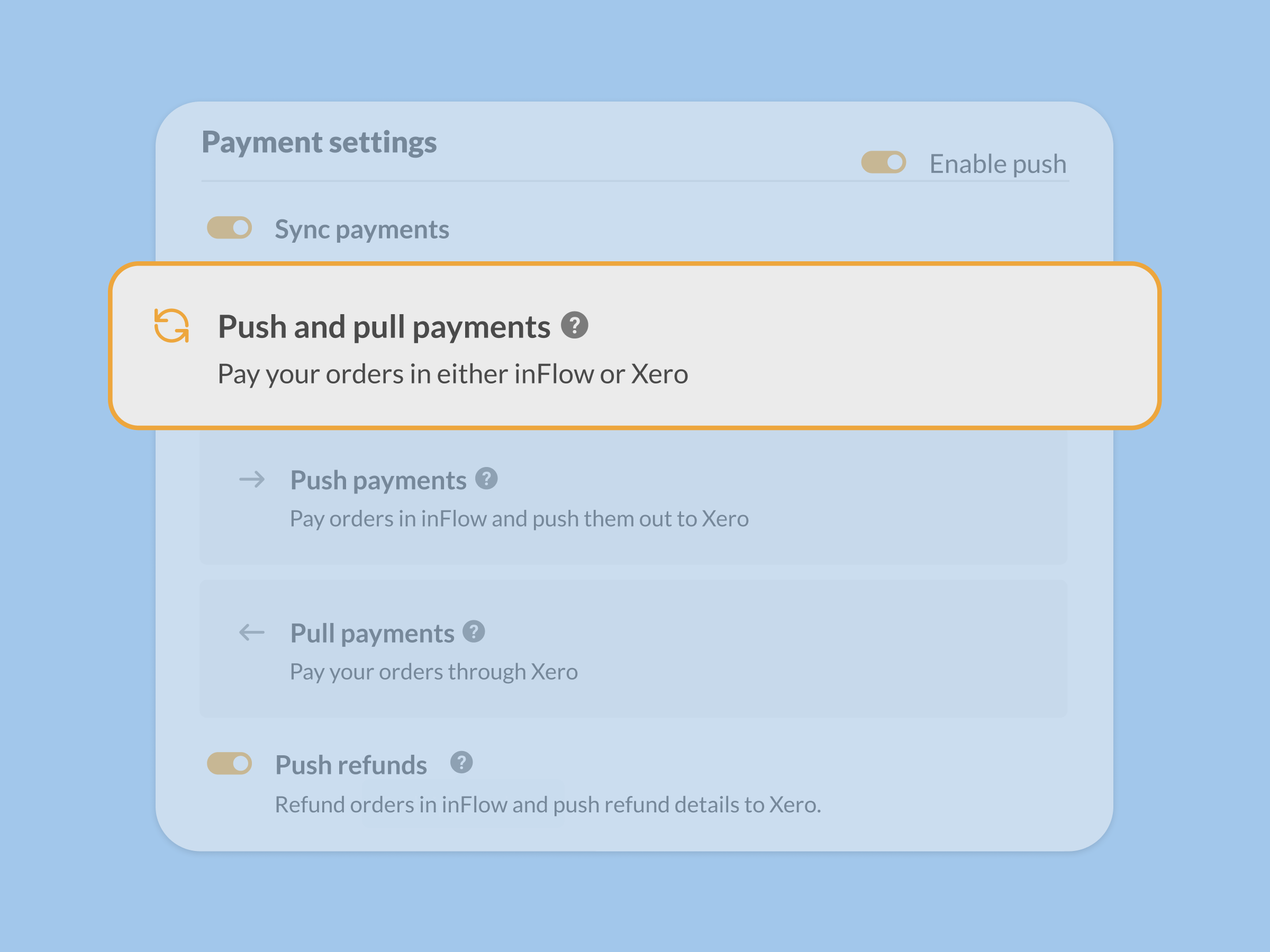
We’ve just shipped some big improvements to inFlow’s Xero integration. Here’s what’s new:
- Two-way payment sync
- Map multiple payment methods to a payment account in Xero
- Support for Xero tracking categories
Two-way payment sync
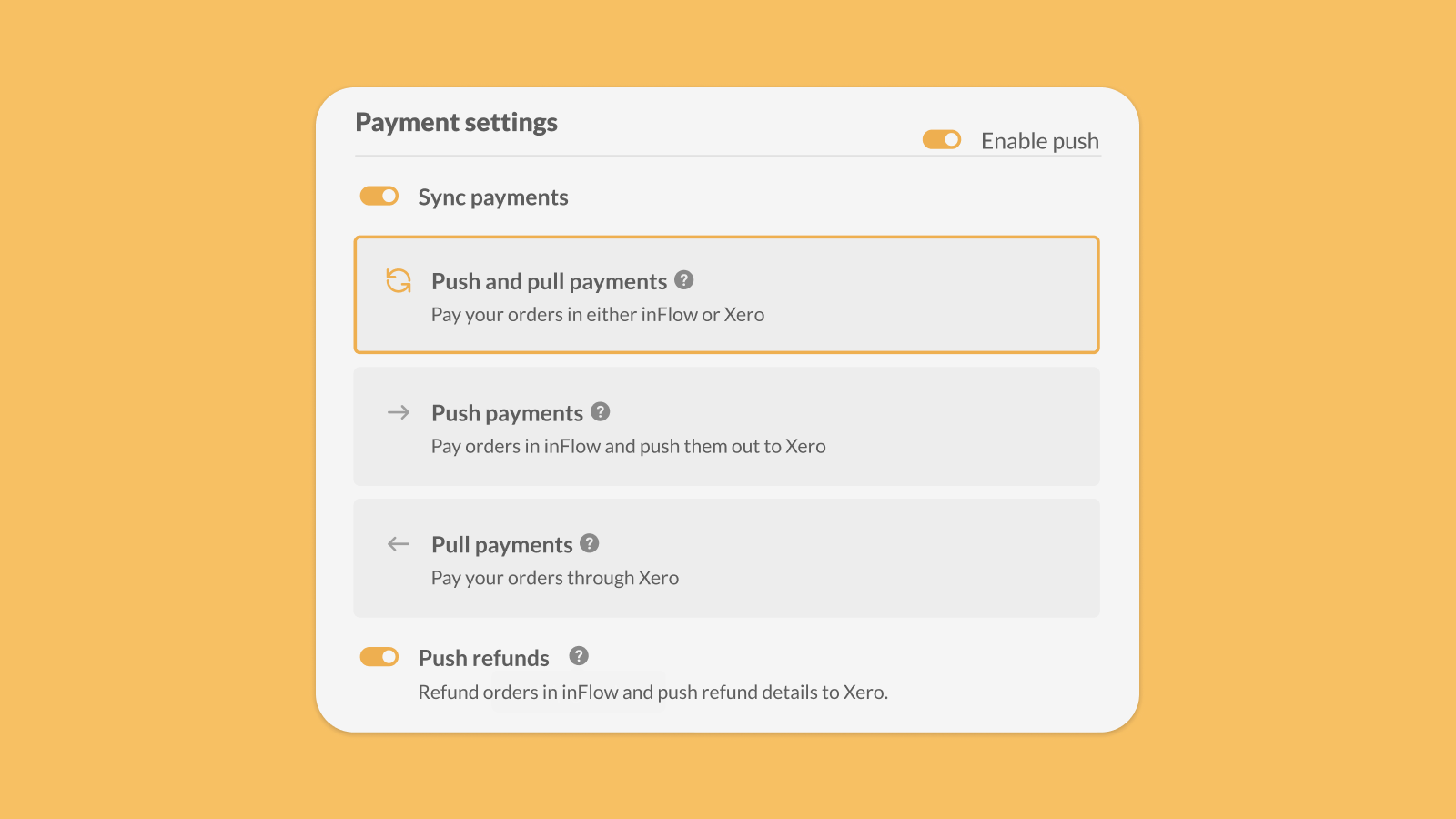
Until now, inFlow’s Xero integration pushed payments in one direction: from inFlow to Xero. That left a gap for teams who record payments on the Xero side, since those payments didn’t flow back to inFlow — which meant reconciling things manually, or risking paying the same order twice.
Now you can pay an order from either inFlow or Xero, and the payments will sync both ways. Your accountants can keep payments matched across both systems and avoid discrepancies like duplicate payments.
How to set this up: head to your Xero integration settings in inFlow. In the payment settings for purchase orders or sales orders, choose the option labeled Push and pull payments.
A few details worth knowing:
- Your existing payment and refund settings have been preserved
- Refunds are still a one-way push from inFlow to Xero
- inFlow can only pull payment details from Xero for orders that were first pushed from inFlow
Map payment methods to Xero accounts
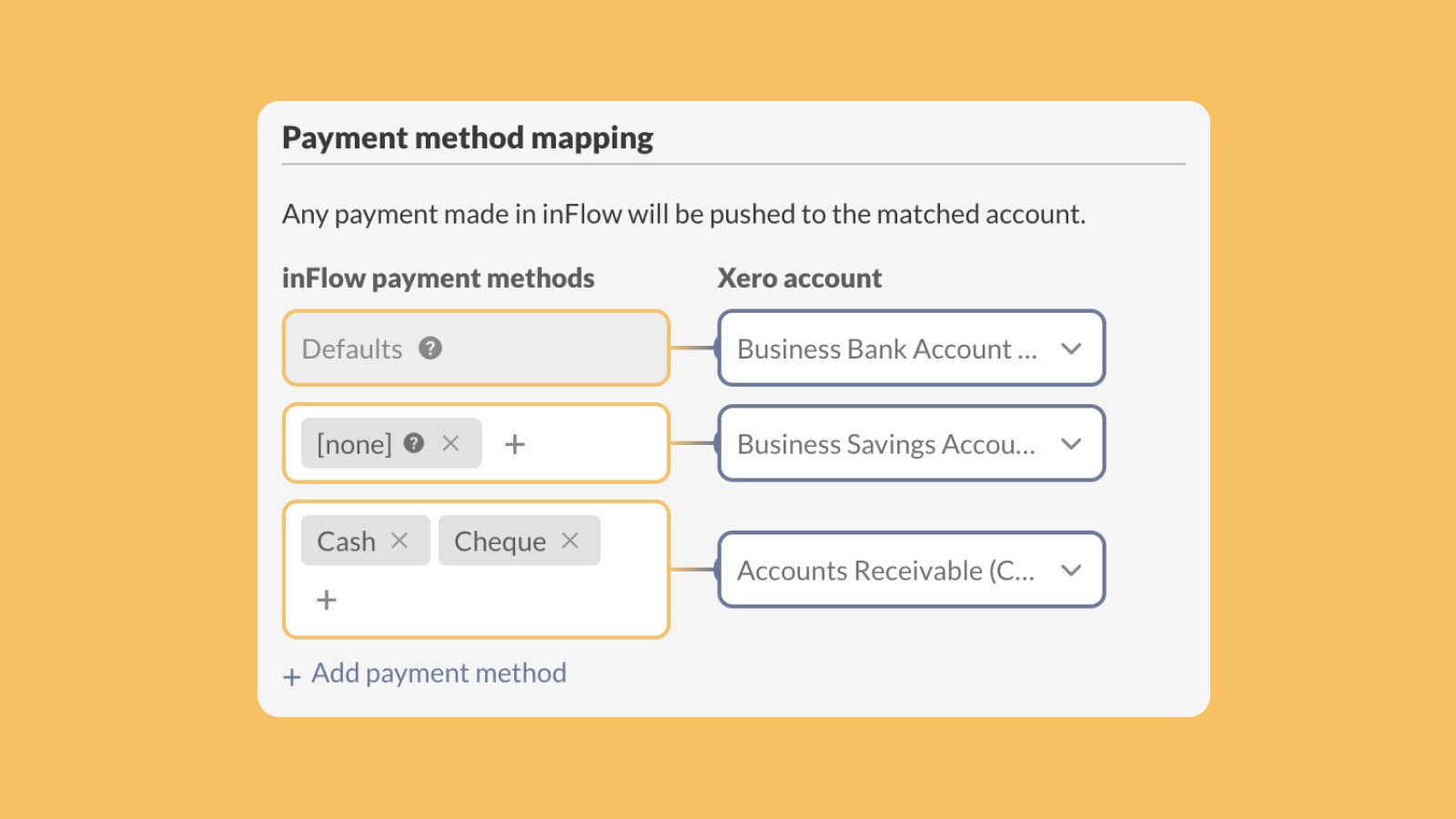
When all payments land in just one Xero account, someone always has to sort things out later.
Now you can map each inFlow payment method (or multiple ones) to a Xero account. So a credit card, bank transfer, or cash payment each lands in the right account automatically. keeping your books clean with no extra manual work.
How to set this up: go to your Xero integration settings in inFlow and find the Payment methods section under your sales order and purchase order settings. From there, map each payment method to its corresponding Xero account.
Tracking categories
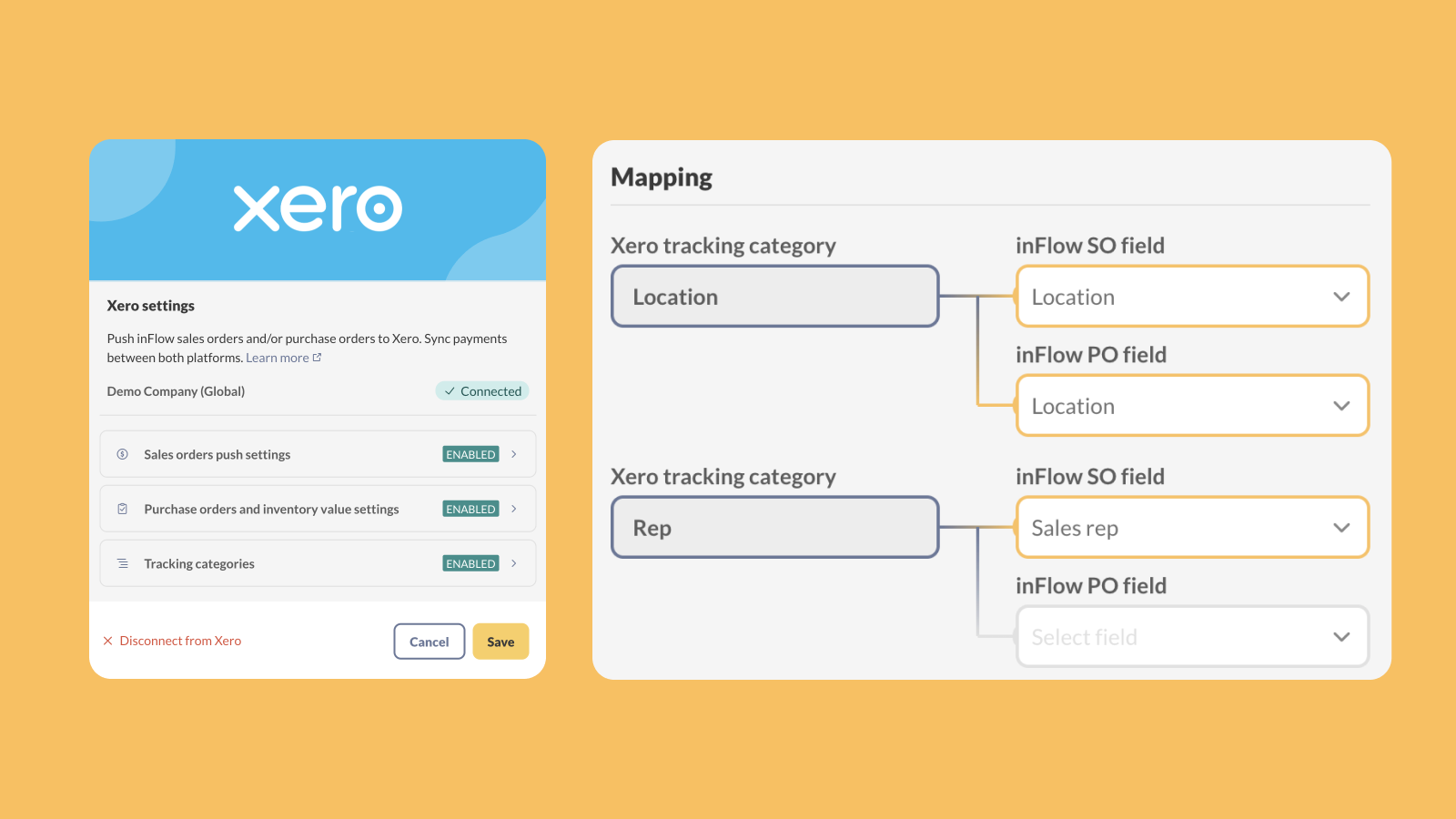
If you used Xero tracking categories to report across departments, locations, or cost centers, you’ve had to add that detail by hand.
Now you can map Xero tracking categories to your inFlow product and order information, like GL codes, sales regions, and more, and inFlow will pass that information through automatically.
How to set it up: just head to your Xero integration settings and find the Tracking categories section. From there, you can map up to two Xero tracking categories to the relevant fields in inFlow.
We hope these improvements save you time and make accounting that much easier.
If you’re already using inFlow, head to your Xero integration settings in the web app to turn these new features onon.
And if you’re a Xero user who’s running out of stock or having trouble keeping up with new orders, you can start a free 14-day trial below:
0 Comments